Getting started with Kaseya MDR as a RocketCyber user
This article helps existing RocketCyber users get started with Kaseya MDR after access is established. It focuses on access readiness and validation, not day‑to‑day investigation or advanced configuration.
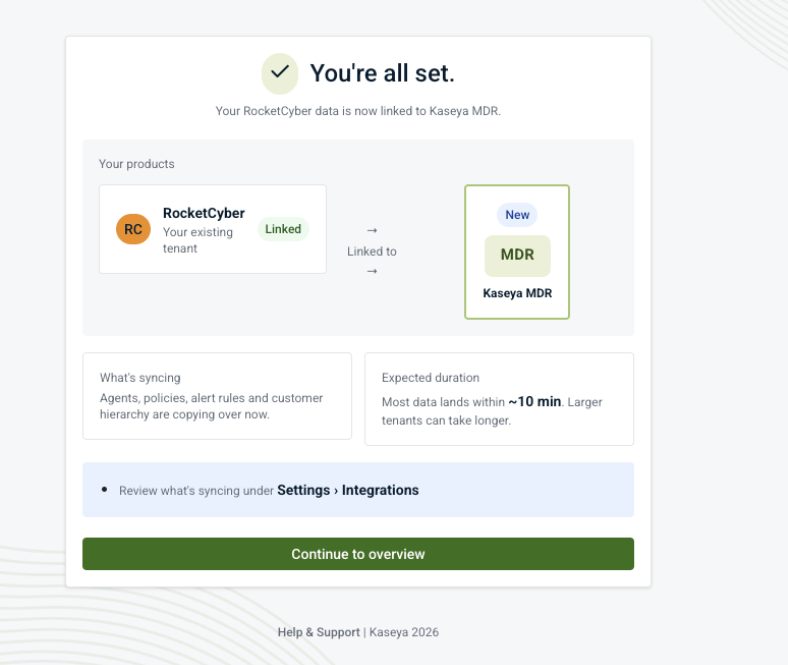
Kaseya MDR runs alongside RocketCyber during the synchronization period. Organizations, users, and agents are synchronized so you can confirm access and begin using the new experience without rebuilding your environment or disrupting existing security operations.
Accessing Kaseya MDR from RocketCyber is optional; RocketCyber continues to operate independently during the synchronization period.
Before you begin
This article is intended for existing RocketCyber users who are enabling or evaluating access to Kaseya MDR through RocketCyber.
It covers:
-
How access is established from RocketCyber
-
What occurs during the synchronization process
-
What administrators should verify after access is enabled
If you access Kaseya MDR as a standalone user or through Kaseya 365, see Getting started with Kaseya MDR as a standalone user or Kaseya 365 Endpoint Pro: Getting started with Kaseya MDR, respectively.
Establishing access from RocketCyber
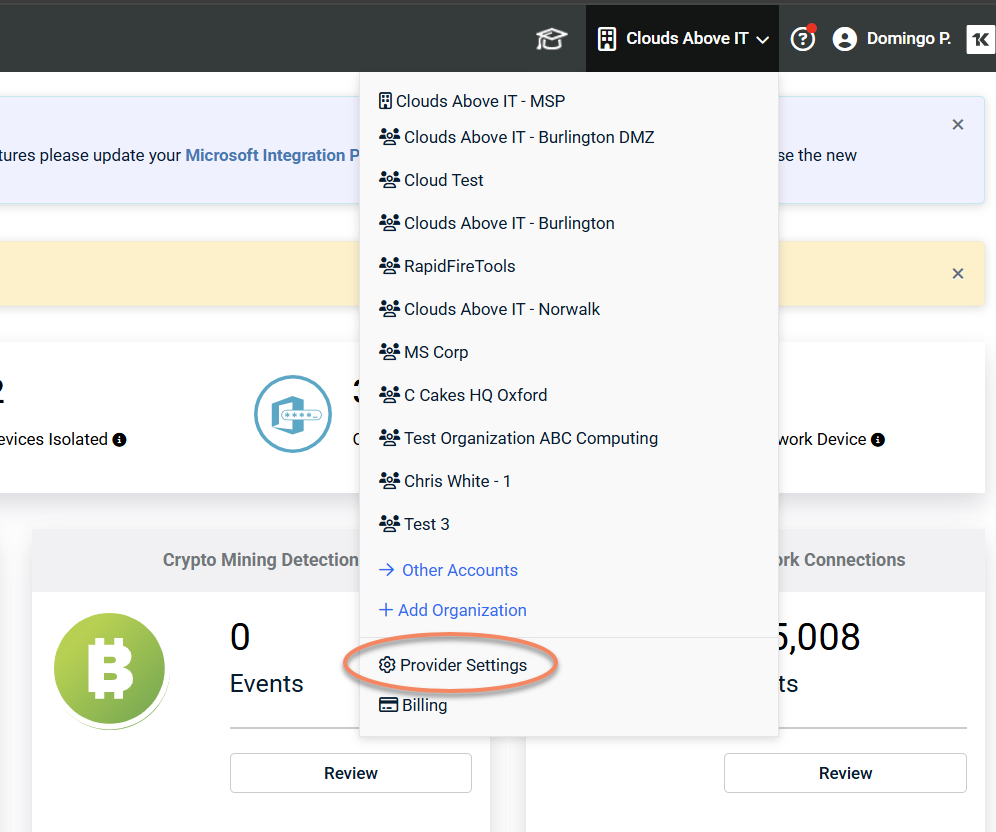
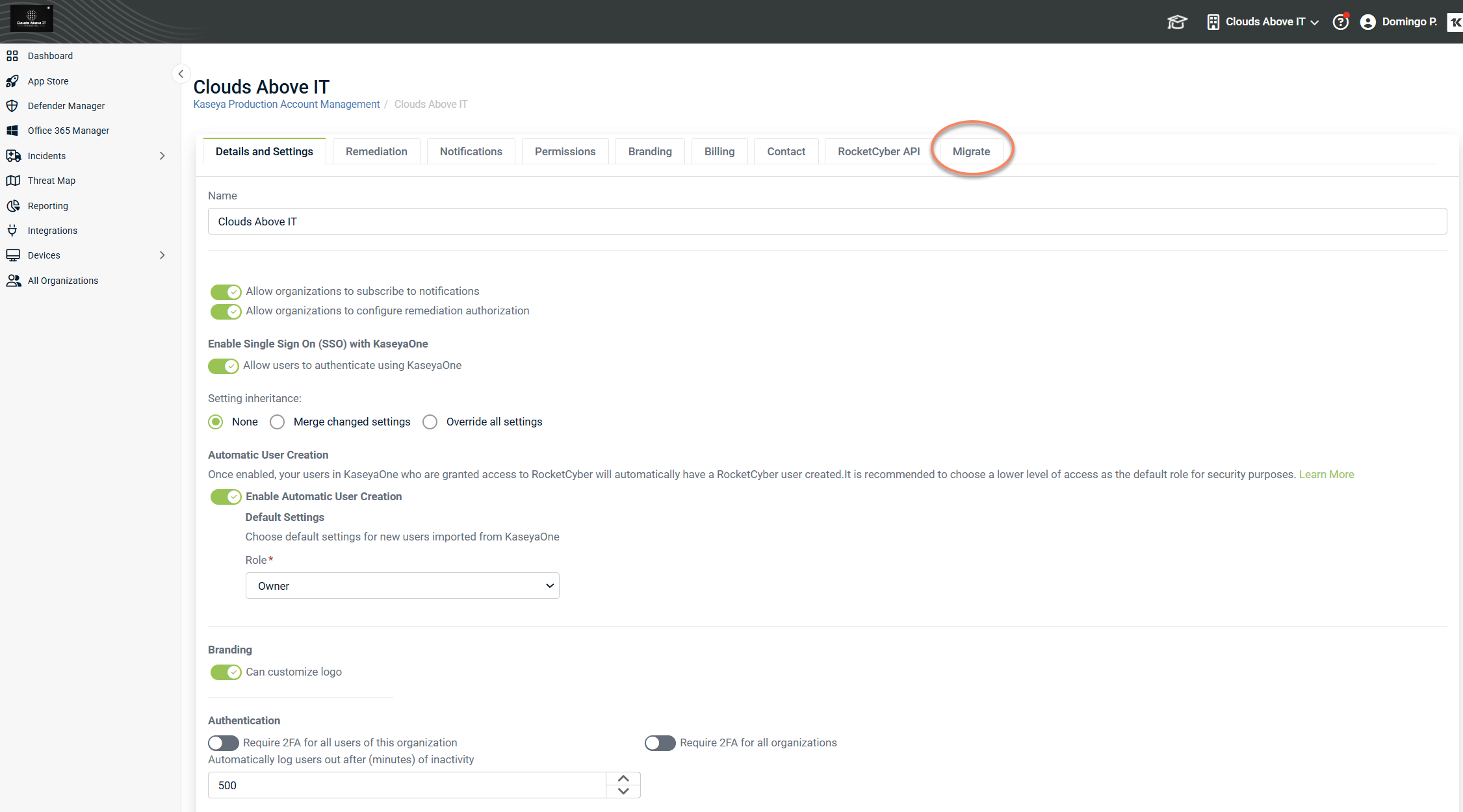
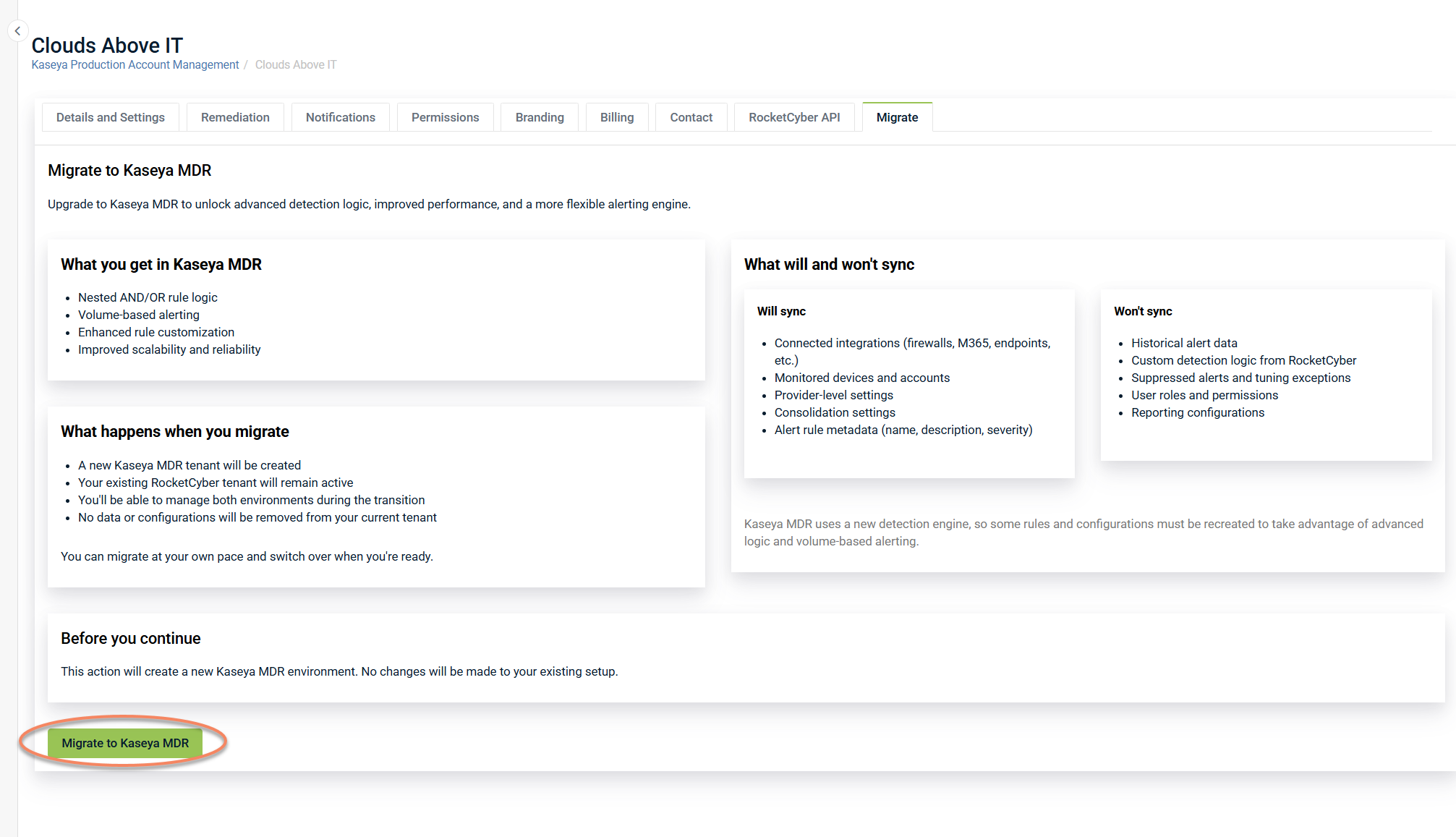
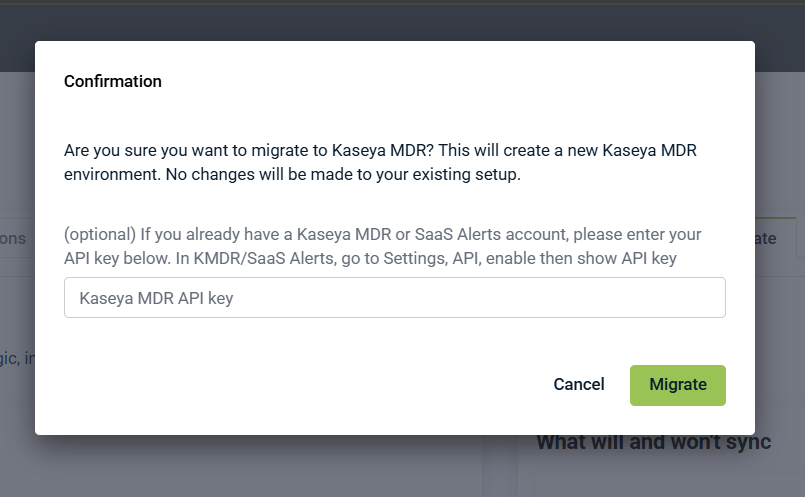
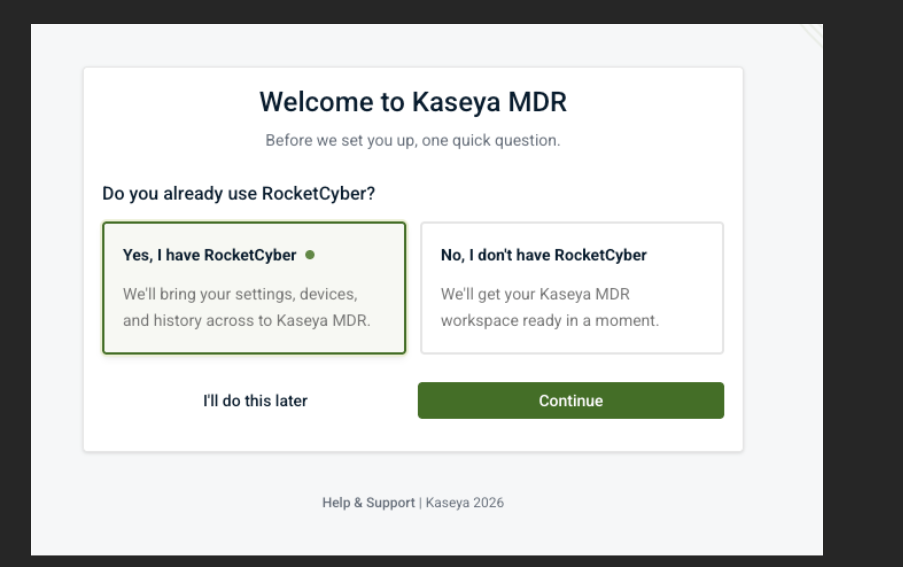
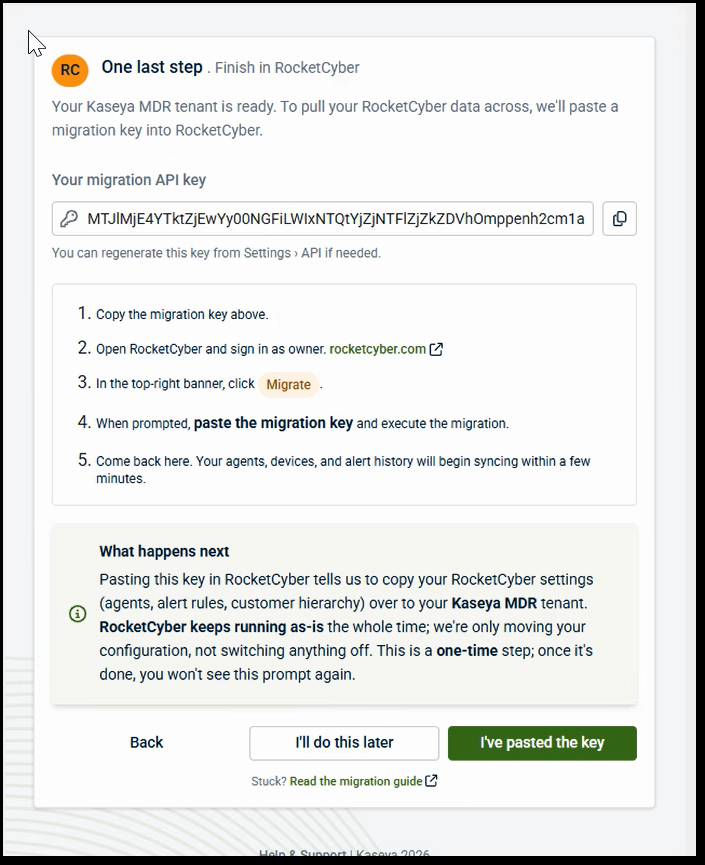
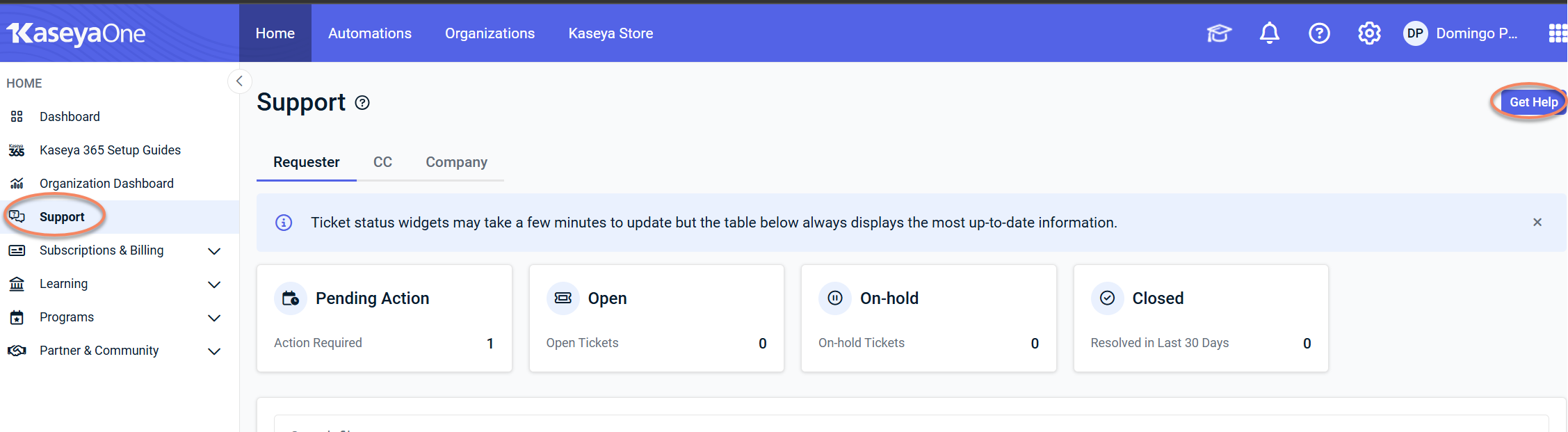
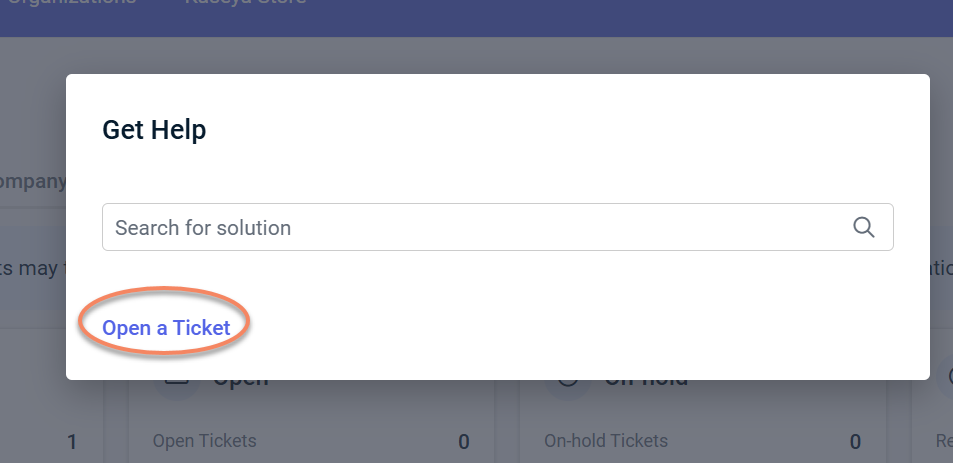
RocketCyber users initiate access to Kaseya MDR from RocketCyber by selecting the synchronization option in Provider Settings. This action establishes the Kaseya MDR environment and begins the synchronization process using the existing RocketCyber identity.
After access is initiated, the system evaluates the user’s identity and organization to determine how access should be established.
Safety and identity validation
To prevent unintended cross‑tenant access, Kaseya MDR does not assume which RocketCyber or SaaS Alerts account should be linked.
Identity and organization association are intentionally validated to ensure accounts are connected correctly and customer data is not exposed to the wrong organization. In some cases, additional confirmation may be required before access is finalized.
What happens during access establishment
-
The sync process matches the user account initiating the action to any existing SaaS Alerts tenant and links to that tenant to avoid creating a duplicate tenant.
-
If no matching tenant exists, the platform establishes the required tenant and user association needed to enable access.
-
If the user’s email address is not associated with an existing organization in SaaS Alerts, a new organization and user account are created.
This process establishes identity and organizational association only. It does not imply that data ingestion, integrations, or monitoring configurations are automatically complete.
In most cases, existing RocketCyber configuration, users, agents, and integrations are synchronized automatically; however, some integrations—most commonly Microsoft—must be reconnected manually due to updated permissions and a new enterprise application.
IMPORTANT Reconnecting Microsoft is recommended to take advantage of updated permissions and expanded telemetry available.
Agents do not need to be reinstalled as part of the synchronization.
After access is established, RocketCyber and Kaseya MDR are accessed independently using separate URLs and sign‑in sessions.
Email notification and first login
After access is initiated, you receive an email notification with next steps.
Depending on your existing account status, the email will either:
-
Confirm that the Kaseya MDR account has been activated and is ready to use, directing you to sign in with your existing SaaS Alerts credentials
-
Prompt you to activate a new account and set a password if no prior account exists
For users with an existing tenant association, some organization‑level configurations (for example, ticketing/PSA settings) may already exist and should be reviewed during validation.
In some cases, first‑time access may require explicit confirmation to ensure the correct account or tenant is used. This validation step exists to reduce risk and ensure correct ownership before access proceeds.
Identity, authentication, and security behavior
Kaseya MDR uses the same underlying user identity as RocketCyber and related systems used to establish access.
-
Any existing two‑factor authentication (2FA) registration is retained.
-
Sign‑in sessions are not shared between RocketCyber and Kaseya MDR. You authenticate separately when accessing each platform.
Some advanced and automated response capabilities require two‑factor authentication (2FA). If 2FA is not enabled, some response functionality may be unavailable until authentication requirements are met.
Accessing RocketCyber and Kaseya MDR during the synchronization
During the transition period:
-
RocketCyber remains available at its existing URL.
-
Kaseya MDR is accessed separately through https://manage.kaseyamdr.com.
-
Each platform has its own sign‑in experience and session.
There is no in‑product navigation that automatically switches between RocketCyber and Kaseya MDR. Each platform is accessed independently.
Enabling access to Kaseya MDR does not remove data, users, or configurations from RocketCyber.
Getting oriented after first access
Availability of data, events, and alerts depends on existing integrations and ingestion state and may not be immediate after first access.
Once you have access to Kaseya MDR:
-
Verify that data is being ingested and displayed
-
Review events and alerts
-
Begin investigations using alerts and the Analysis workplace
To understand where familiar RocketCyber features live in the new interface, see How RocketCyber features map to Kaseya MDR.
Post-access onboarding: verify what carried over, configure what is new
After access to Kaseya MDR is established, administrators should take two types of actions:
-
Verify inherited state that carried over from RocketCyber (such as organizations and agents).
-
Review and configure new control surfaces introduced in Kaseya MDR (such as alert delivery, noise reduction, and SOC settings).
The steps below intentionally balance verification and first‑time configuration.
Some items already existed in RocketCyber and simply need to be confirmed. Others are new in Kaseya MDR and require an initial review so you can make intentional decisions about how the platform behaves.
Kaseya MDR does not assume correctness across organizations, roles, or integrations without administrator review.
This guide does not walk through every option. Detailed configuration is covered in the linked articles.
Why this matters
RocketCyber and Kaseya MDR are accessed independently. This confirms your user identity is correctly associated with the MDR environment.
-
Access Kaseya MDR directly using its URL (https://manage.kaseyamdr.com)
-
Sign in with your credentials
Verify you can authenticate successfully and that your access persists independently of RocketCyber sessions.
See Unified login with Kaseya MDR and Securing your account with two‑factor authentication (2FA).
Why this matters
Synchronization links existing organizations to Kaseya MDR. Duplicate or mis‑scoped organizations typically indicate an association issue, not a configuration gap.
Navigate to Organizations and verify that expected organizations are present and no unexpected duplicate organizations appear. Also, check that organization context matches what you see in RocketCyber.
For most RocketCyber users, organizations and many integrations already exist. The goal here is confirmation and selective reconnection, not recreation.
For detailed information, see Managing organizations.
Connected tools and integrations
Go to Organizations > Edit Organization > Applications tab and review which applications and MSP tools are already connected.
Reconnect tools only when prompted for updated permissions or expanded telemetry. Microsoft commonly falls into this category, but it is not the only possible integration that may require review.
If a tool is already connected, no action is required. If the platform indicates reconnection is needed, complete it.
This step ensures data sources are correctly associated after scope has been confirmed, not before. For more information, refer to Connecting data sources and integrations.
Why this matters
Kaseya MDR introduces a more explicit role‑ and group‑based access model.
Even when users already exist, administrators must review who can access which organizations and which features.
This step ensures permission alignment, not user re-creation.
User roles
Roles define what actions a user can perform across the platform.
In Settings > Users:
-
Confirm which users have the MSP Admin role.
-
Confirm which users are MSP Users and therefore restricted by role permissions.
Advanced user privileges
These controls determine which users can manage specific feature sets.
In Settings > User Privileges, review whether MSP Users are allowed to manage Respond connections and Unify features.
Group access (RBAC)
Group Access controls which organizations users can see or work with.
In Settings > User Privileges > Group Access, review:
-
Whether Group Access is enabled
-
Which organizations are assigned to each group
-
Which users belong to each group
Group Access is strongly recommended when managing multiple organizations to maintain least‑privilege access. For detailed information, see User roles and permission boundaries.
Why this matters
Kaseya MDR uses the same RocketCyber agent. If expected endpoints are missing, this typically indicates a visibility or authorization issue, not a deployment problem.
Go to Devices > Agents to confirm that agents are present, online, and checking in.
IMPORTANT No uninstall and no redeployment are required.
IMPORTANT Whether configuration and response actions are performed in Kaseya MDR or in another product experience depends on licensing and enabled products (such as Kaseya SIEM).
For additional context on agent reuse and coexistence across platforms, see Synchronization and parallel operation FAQ and Deploying agents.
Additionally, Kaseya MDR introduces additional agent behavior settings (such as resource limits and verbosity) with safe defaults. To learn more, see Advanced agent settings and organization overrides.
Why this matters
SOC settings are new in Kaseya MDR and did not exist in RocketCyber. Administrators must review these settings at least once to understand how SOC monitoring and alert handling are expected to operate in the Kaseya MDR experience.
-
Go to Settings > SOC Settings
-
Review the available SOC settings and defaults, confirm how monitoring, escalation, and SOC interaction are intended to work, and decide whether defaults align with your operational expectations.
This step is a required first‑time review. It is not a deep configuration or tuning exercise unless you explicitly choose to change behavior.
For details, refer to Configuring SOC Settings.
These settings shape the day‑one experience by controlling alert severity, suppression (Quiet Mode), and delivery before investigations begin. All of the items below are new surfaces for RocketCyber customers.
Alert delivery (PSA & Email)
Why this matters
Defines how alerts are communicated externally and prevents duplicate notifications or ticket noise.
In Settings > PSA & Email:
-
Review PSA and email delivery configuration
-
Designate a primary delivery channel where appropriate
For details, see Notifications, PSA, and external communications.
Alert severity behavior (Quiet Mode)
Why this matters
Controls how repeated or low‑value alerts are suppressed over time to reduce noise.
Where
In Settings > Customize Alert Severity:
-
Review default severity behavior.
-
Decide whether to enable Quiet Mode based on alert volume expectations.
See Managing alert severity and detection tuning and Quiet mode overview.
Power Filters
Why this matters
Power Filters allow you to exclude known, expected activity (such as trusted IP ranges or ASNs) from surfacing as alerts. This capability did not exist in RocketCyber.
Power Filters affect visibility, not telemetry collection or SOC‑managed detection logic.
In Settings > Power Filters:
-
Review how Power Filters work at global, organization, and account scope
-
Decide whether to define filters for trusted activity
For detailed information, see Power Filters and allowlisting logic.
Why this matters
Analysis is the primary workspace for reviewing alerts, exploring historical data, and understanding activity patterns across your environment.
After access is established and integrations are connected, it may take some time for data to appear. A lack of immediate alerts does not necessarily indicate a problem.
Reviewing Analysis helps you:
-
Confirm that telemetry and activity are flowing,
-
Understand what alerts and events look like in your environment,
-
Distinguish expected behavior from noise,
-
Decide whether any tuning (such as alert severity, Power Filters, IOC rules, or Respond rules) is needed later.
-
Open Analysis and review the available filters.
-
Scope results by time range, organization, and event type.
-
Verify that activity begins appearing as data ingestion stabilizes.
-
Explore a small sample of events or alerts to build familiarity.
No configuration changes are required as part of this step.
Refer to Investigating alerts using the Analysis page for details.
Why this matters
Kaseya MDR uses partner‑level integrations to connect MSP tools (such as RMM, PSA, and other platforms) once and make them available across organizations.
This model is more explicit than RocketCyber. Administrators should review which partner integrations are available and connect any required tools that are not yet present.
In Settings > Integrations, review which partner integrations are already connected.
Once a partner integration is connected, it can be associated with one or more organizations as needed. For more information, see Connecting data sources and integrations.
Why this matters
Unify is a capability in Kaseya MDR that correlates activity from connected tools (such as RMMs) with known devices and accounts. This provides device‑level context that can enrich investigations across the platform.
RocketCyber did not include this capability. Kaseya MDR works without Unify, but Unify can significantly improve investigation clarity when enabled.
When to review Unify
-
If you have an RMM or other supported tool connected and want automatic device/account correlation.
-
If you want MDR investigations to include richer device‑level context.
If no supported data source is connected, Unify configuration will prompt you to connect one first.
From the side navigation menu, click Unify. In this module, you can:
-
Review whether you want automatic device and account mapping enabled
-
Review default confidence thresholds and mapping behavior
-
Adjust settings only if they align with your environment and tolerance for automation
For detailed information, see Unify configuration and context association.
Why this matters
Respond is a capability in Kaseya MDR that allows you to define how correlated activity is escalated into alerts, approvals, or automated response actions. RocketCyber did not include this capability.
During onboarding, you should use Respond to validate detection patterns, not to automate actions yet.
Create a Respond rule in Alert Only mode.
This allows you to:
-
Understand how Respond evaluates activity
-
See when rules trigger
-
Validate patterns before enabling automation
Automated response actions can be added later, after investigation confirms high‑confidence behavior.
In Respond > Rules (side navigation menu):
-
Create a new Respond rule.
-
Configure it to generate alerts only (no automated actions).
-
Review results during investigations to understand how Respond behaves in your environment.
Do not enable automated response actions until you have reviewed alerts, validated triggering patterns in Analysis, and confirmed SOC and organizational boundaries.
For detailed information, see Using the Respond Module and Respond actions.
Why this matters
Kaseya MDR supports custom Indicators of Compromise (IOC) rules that allow you to define specific conditions for flagging suspicious activity across supported applications. This capability provides flexibility beyond default SOC‑managed detections.
While RocketCyber included IOC concepts, Kaseya MDR centralizes and expands how IOC rules are defined, scoped, and reviewed.
IOC rules are intended for situations where you want to detect very specific patterns that are unique to your environment.
In Indicators of Compromise > Rules and Indicators of Compromise > Community Templates:
-
Become aware of where IOC rules are created and managed.
-
Review Community Templates to see common IOC patterns provided as starting points.
-
Create custom IOC rules later, after you are familiar with alerts and investigation workflows.
For detailed information, see Indicators of compromise.
Why this matters
Kaseya MDR distinguishes between total users and billable users within each organization. Understanding how accounts are classified helps you validate subscription totals and identify discrepancies early.
Reviewing this does not change monitoring behavior or alerting—it simply helps you understand how billing is calculated.
In Organizations > Account Management:
-
Review the Total users and Billable users counts for your organizations
-
Understand which account types are considered billable
-
Identify guest, shared, or stale accounts that may not require billing
For details, see How billing and monitoring apply to accounts.
Why this matters
Kaseya MDR provides reporting options that summarize alerts, activity, and configuration for operational review, executive reporting, or audit purposes. Reports complement Analysis by allowing you to review trends over time or share information outside the investigation workflow.
Reviewing available reports helps you understand what insights are available, even if you do not need reports immediately.
-
From the side navigation menu, open the Reports area to review available report types.
-
Understand the difference between exploratory analysis and summarized reporting.
-
Decide whether reports are something you may want to use later for review or sharing.
No report creation or scheduling is required as part of onboarding.
For details, refer to Using the Reports module.
Why this matters
During the parallel operation period, PSA integrations may be active in both RocketCyber and Kaseya MDR. If both platforms are configured to create tickets for the same alerts, duplicate tickets can occur.
This is a transition‑time decision, not a required configuration change.
In Settings > PSA & Email, consider:
-
Which platform should be responsible for PSA ticket creation during the transition period
-
Whether PSA routing in one platform should be adjusted or temporarily disabled to prevent duplication
If your current PSA routing already behaves as expected, no changes are required.
For more information, see Synchronization and parallel operation FAQ.
After you have confirmed access, reviewed alert behavior and scope, verified data visibility, and addressed any transition‑specific considerations (such as PSA routing), you can begin using Kaseya MDR directly for investigations and response.
At this point:
-
Use Kaseya MDR as the primary interface for alerts and investigations.
-
RocketCyber can remain available and operational during the transition period.
See Introducing Kaseya MDR and How RocketCyber features map to Kaseya MDR.
Related articles
-
Synchronization and parallel operation FAQ: Explains how Kaseya MDR runs alongside RocketCyber, what carries over, and what does not change during the transition
-
Introducing Kaseya MDR: Provides orientation on what Kaseya MDR is, how it relates to RocketCyber, and how it fits within the broader security platform
-
How RocketCyber features map to Kaseya MDR: Helps you locate familiar RocketCyber capabilities in the Kaseya MDR interface and understand what moved or changed.
-
Managing organizations: Explains how organizations are represented, scoped, and managed once access is confirmed
-
Getting started with Kaseya MDR: Describes how this article fits within the overall Getting started structure and where to go next based on your access path