Managing organizations
In Kaseya MDR, an organization represents a single monitored environment. Organizations define the administrative boundary for alerts and investigations, devices and telemetry, configuration and overrides, user access, and Security Operations Center (SOC) activity.
Understanding how organizations work is essential before managing users, permissions, configuration, or data lifecycle. Organizations provide the context within which monitoring, investigation, and noise‑reduction decisions are made, and most administrative configuration and SOC activity is scoped at this level.
This article explains what an organization represents, what is scoped to it, and how organizations are created, managed, and removed in Kaseya MDR.
What organizations control
In Kaseya MDR, an organization is the primary unit for managing environments, monitoring scope, access boundaries, and configuration context.
An organization defines the boundary for:
-
Alerts and investigations: Alerts and correlated activity are always evaluated in the context of a specific organization.
-
Security telemetry and operational context: Ingested telemetry, associated activity, and SOC analysis are grouped and evaluated based on the organization they belong to.
-
Configuration and overrides: Many administrative settings can be inherited from global defaults or overridden at the organization level.
-
User access and visibility: User access is scoped by organization based on assigned roles, privileges, and visibility controls.
These boundaries ensure configuration and access changes apply only where intended and do not unintentionally affect other organizations.
Organizations do not control individual alert logic, detection rules, or SOC investigation workflows directly; those operate within the organization’s defined scope and configuration context.
Organizations originating from RocketCyber
Some organizations in Kaseya MDR originate from an existing RocketCyber environment. In these cases, Kaseya MDR provides the next‑generation experience that can run in parallel with RocketCyber and be enabled when desired.
When a RocketCyber environment is synchronized to Kaseya MDR, organizations are created or linked in Kaseya MDR to represent the same monitored environments. Existing monitoring configuration, user context, and SOC instructions are preserved, while monitoring continues to operate throughout the synchronization. The RocketCyber environment remains intact and is not modified or removed as part of this process.
After synchronization, organizations in Kaseya MDR follow the same organizational model described in this article. Organization‑level configuration, access boundaries, and monitoring scope are managed directly in Kaseya MDR, regardless of whether the organization originated in RocketCyber or was created directly in Kaseya MDR.
For a high‑level overview of how Kaseya MDR relates to RocketCyber, including parallel operation and what does not change, see Welcome to Kaseya MDR.
The Organizations page
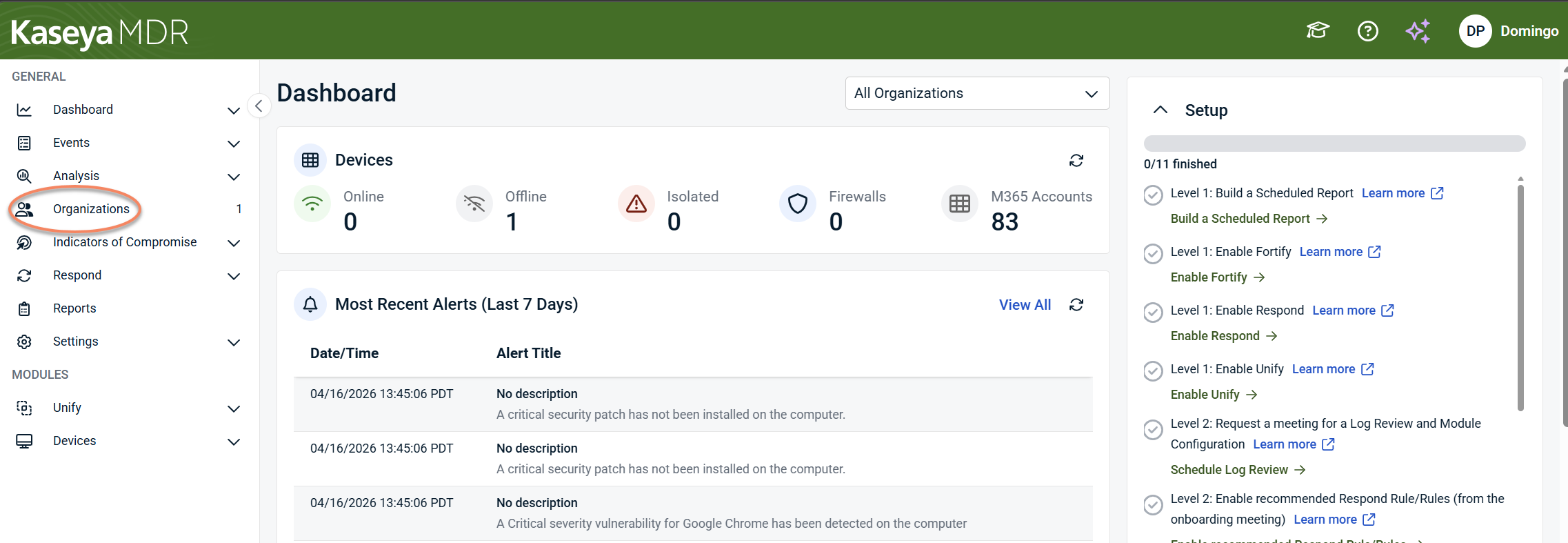
To access the Organizations page, click Organizations from the side navigation menu.
The Organizations page lists all organizations you manage and provides a structured summary of their status and configuration. Each row represents a separate organization. Actions taken on one organization do not automatically affect others unless explicitly configured at a higher scope.
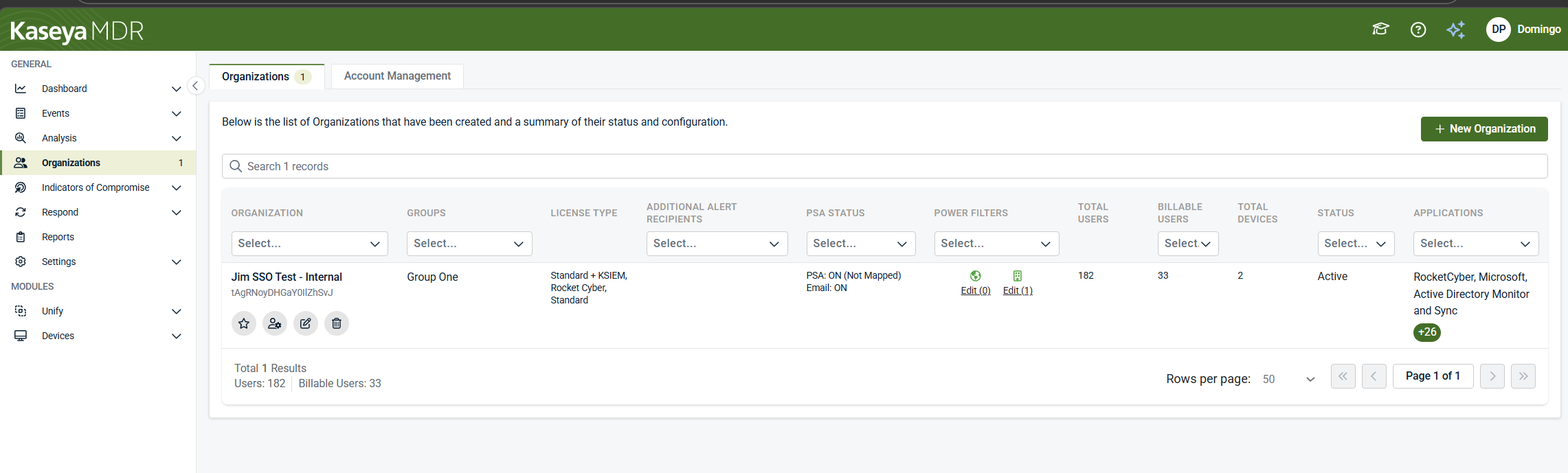
Each column displays organization‑level information and can also be used to filter the list:
-
Organization: The organization name
-
Groups: The group to which the organization is assigned
-
License type: The license applied to the organization
-
Additional alert recipients: Whether additional email recipients are configured for alerts
-
PSA status: The current alert routing configuration for the organization, indicating whether alerts are sent to a configured PSA, email recipients, or both
-
Power Filters: Whether organization‑level Power Filters are configured
-
Total users: The total number of users associated with the organization
-
Billable users: The number of users counted toward licensing and subscription usage
-
Total devices: The number of devices associated with the organization
-
Status: The operational state of the organization, such as Active, Broken Connection, or Pending Onboarding
-
Applications: The applications and data sources connected to the organization
Page features and action icons
The Organizations page provides both page‑level controls and row‑level action icons for managing organizations.
Page‑level controls
-
Search: Find organizations by name or keyword across the entire list.
Row‑level action icons
Each organization row includes inline icons that provide quick access to common actions:
-
Add to Favorites (star) icon: Mark frequently accessed organizations
-
Go to Accounts icon: Display accounts associated with the organization
-
Edit Organization (pencil) icon: Review and manage organization‑level configuration
-
Delete Organization (trash) icon: Permanently remove the organization. You must confirm the deletion.
IMPORTANT Deleting an organization permanently removes its configuration and associated data and cannot be undone.
Creating an organization
Use this procedure when creating a new organization in Kaseya MDR, either manually or by importing organization data from a supported PSA.
To add a new organization:
-
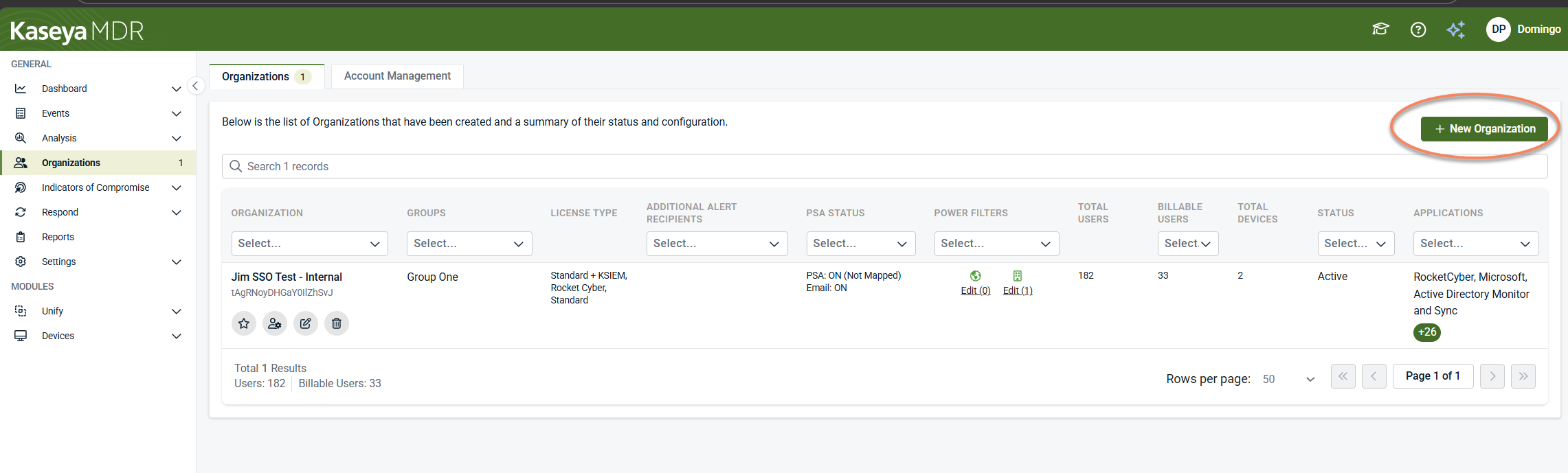
Select + New Organization from the upper‑right corner of the Organizations page.
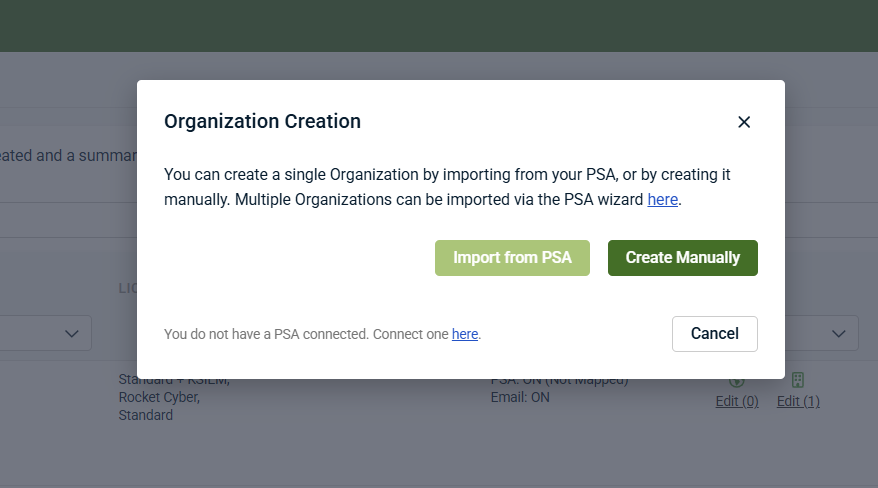
- In Organization Creation, choose one of the available creation methods:
-
Import from PSA (when available): Create an organization using data from a connected PSA and pre‑populate organization details. For prerequisites, supported PSA platforms, and connection setup, see the documentation for your PSA integration.
-
Create Manually: Enter organization details directly in Kaseya MDR.
 Required and optional configuration fields
When creating an organization manually, fields marked with an asterisk (*) on the Add a New Organization page are required and establish the baseline context for the environment.
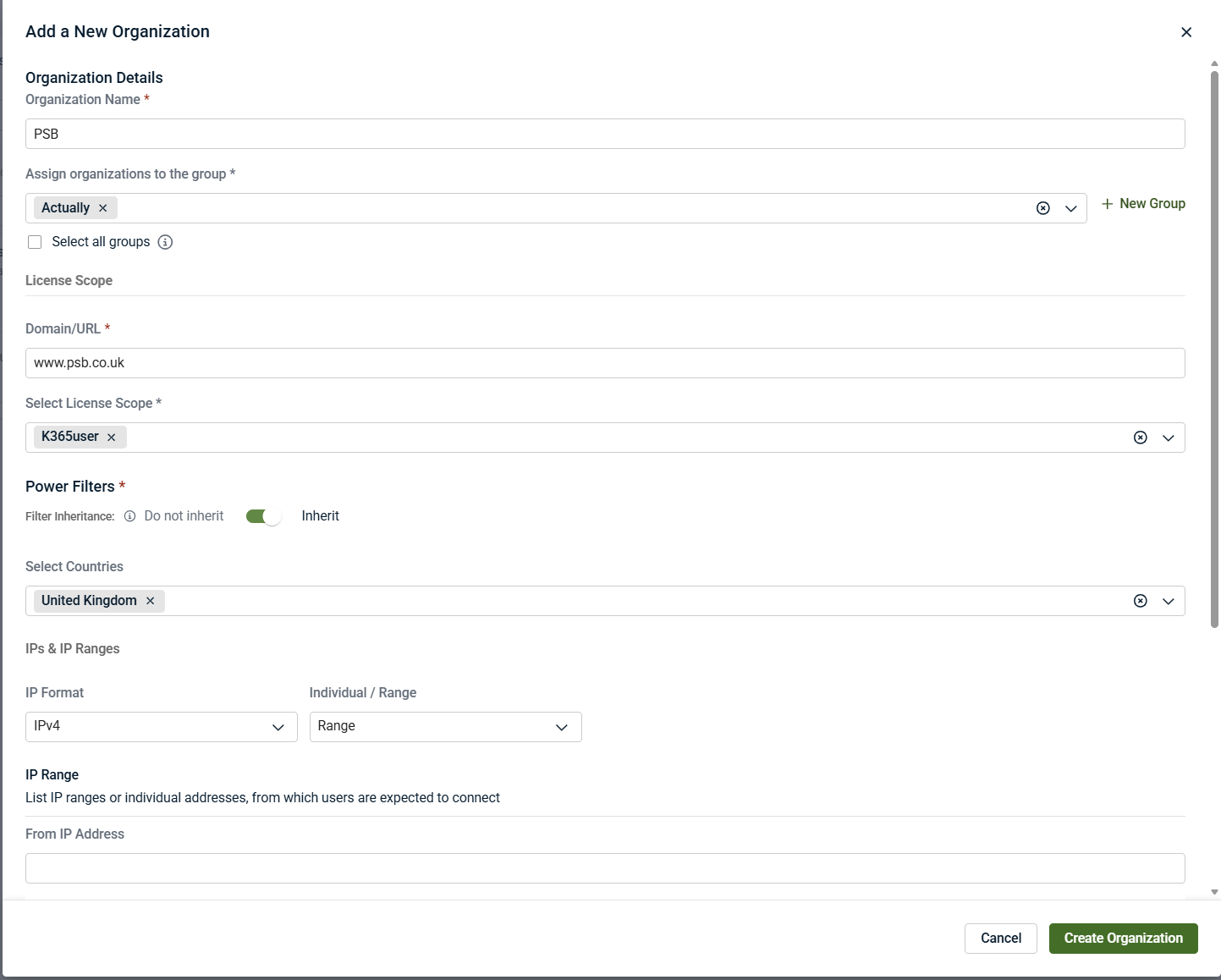
These fields typically include:
-
Organization name: Identifies the environment throughout Kaseya MDR. This name appears in alerts, investigations, and reports.
-
License type: Determines how the organization is licensed and monitored in Kaseya MDR.
-
Domain or URL: Associates incoming telemetry and activity with the correct environment.
-
Power Filters (expected activity content): Define allowlisting values such as a country, IP address, or IP range to indicate where legitimate activity is expected to originate.
-
Power Filters help reduce noise by focusing investigations on activity that falls outside expected patterns. They do not disable detection and can be refined later as the environment evolves.
-
Filter inheritance: Choose whether the organization inherits baseline Power Filters or uses organization‑specific values. This supports consistent defaults while allowing environment‑specific exceptions.
-
NOTE Power Filters can be adjusted after organization creation as visibility into the environment improves.
Refining expected activity
In addition to selecting a country, you can further refine expected activity using IP ranges and Approved ASN Names & Locations. These fields are optional and should be used only when you have confidence in the environment’s connectivity patterns.
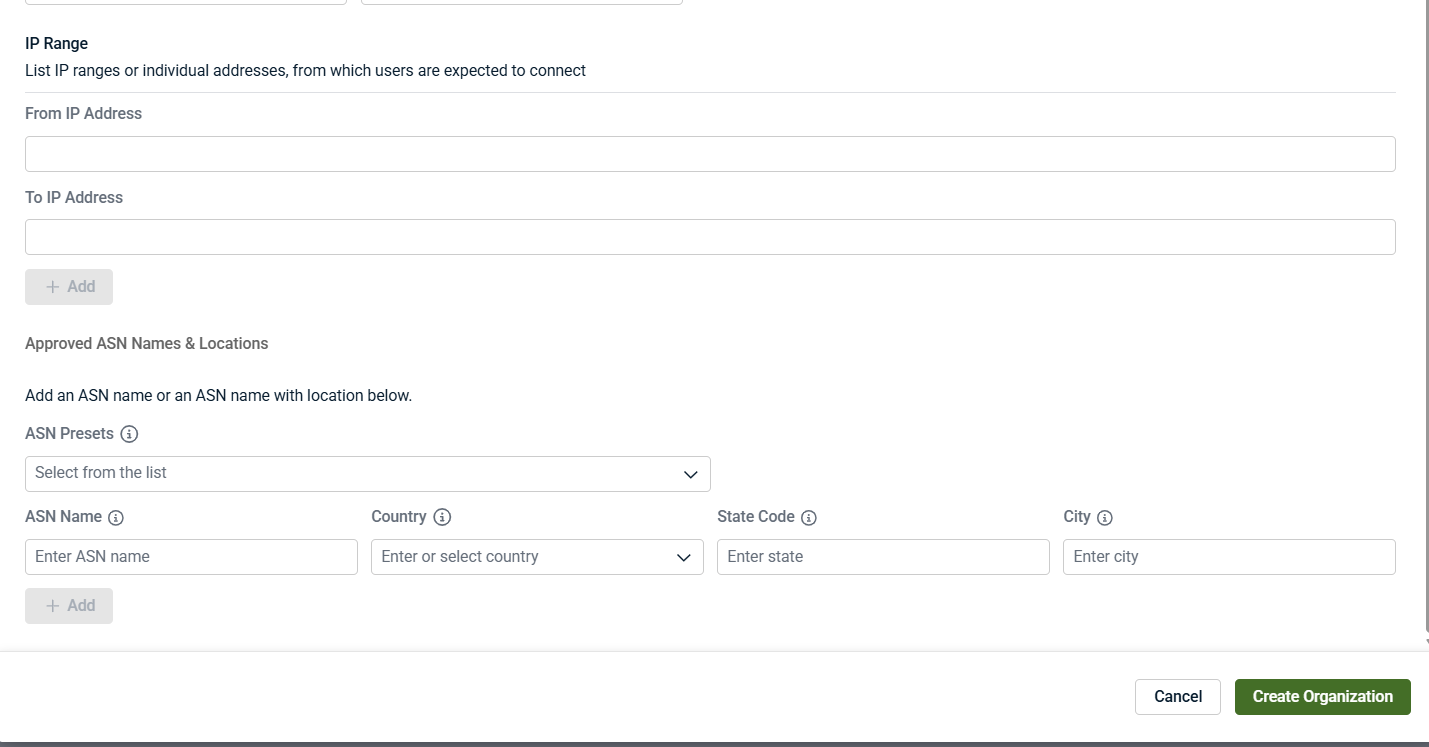
IP addresses and IP ranges
Use IP addresses or IP ranges when users are expected to connect from known, fixed networks, such as:
-
Corporate offices
-
VPN gateways
-
Secure data centers
These values indicate where legitimate user connections are expected to originate. Use them when you have stable, well‑known source IPs or fixed egress points.
Avoid using IP allowlisting when users connect from dynamic residential networks or when access patterns change frequently. Overly restrictive IP allowlisting can surface alerts for legitimate activity.
Approved ASN names and locations
An ASN (Autonomous System Number) represents a network provider, such as an ISP or cloud service.
Approved ASN entries allow you to mark traffic from specific providers as expected. You can optionally narrow the scope further by specifying country, state or region, and city.
The interface supports two approaches:
-
ASN presets: Select commonly used providers from a predefined list.
-
Manual ASN entry: Enter a specific ASN name and optionally restrict it by location.
Use ASN allowlisting when:
-
Users consistently connect through known ISPs or cloud providers
-
VPN or SASE traffic originates from predictable providers
-
You want more precision than country‑only allowlisting
Avoid using ASN allowlisting when providers or locations change frequently or when ASN values are uncertain.
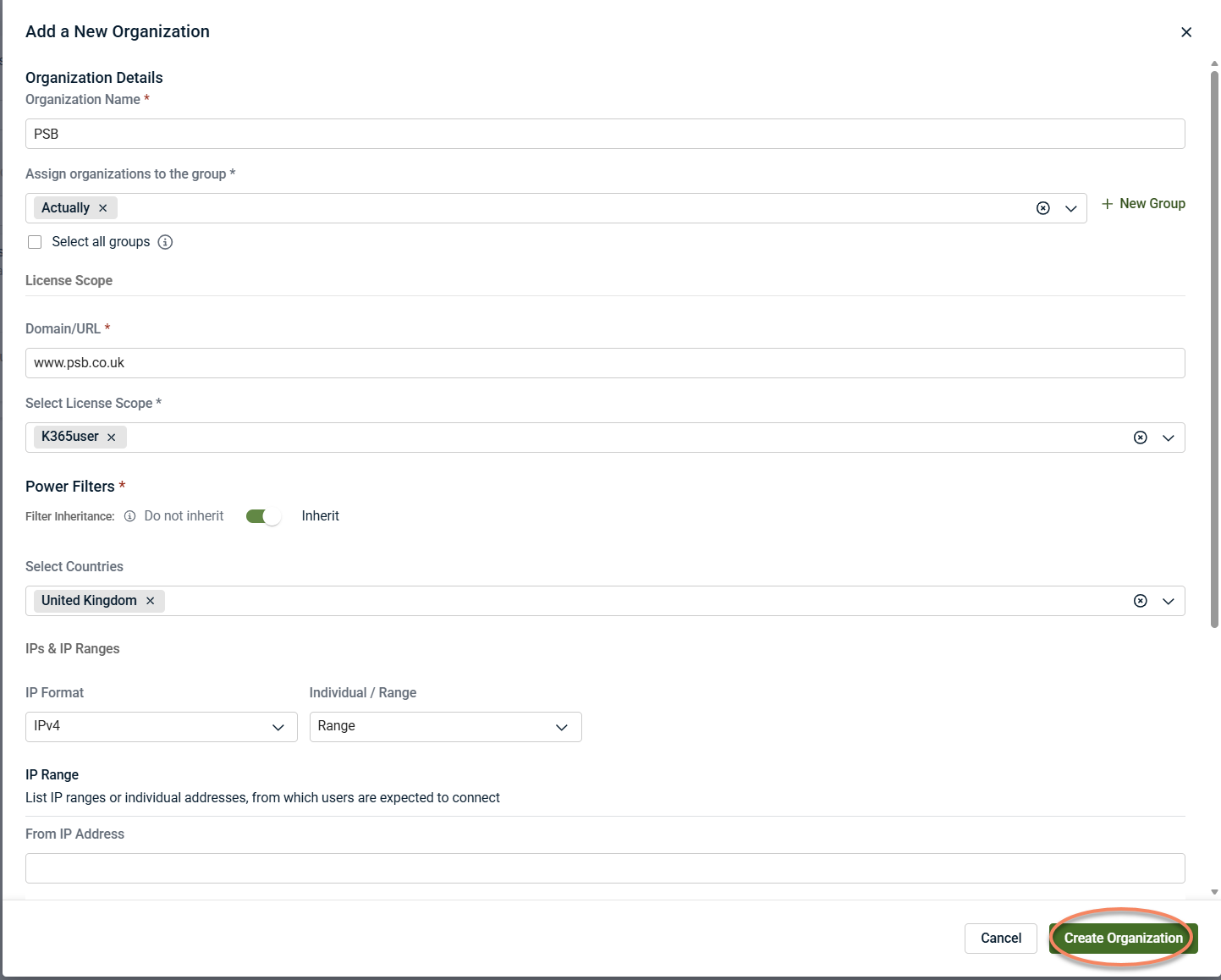
Once you have completed the Add a New Organization page, click Create Organization.
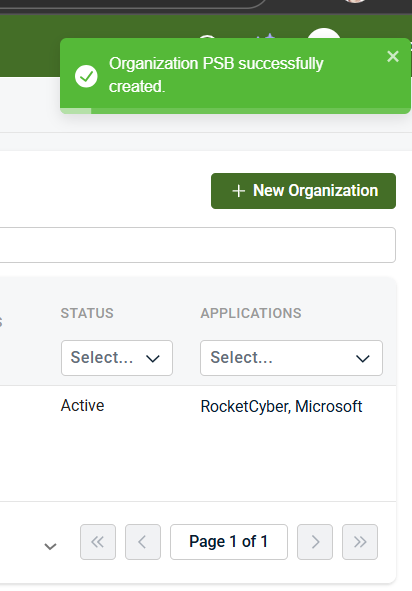
A confirmation message indicates that the organization was created successfully.
Organization creation and onboarding flow
Creating an organization establishes the administrative boundary, but monitoring does not begin immediately.
The organization onboarding flow follows this general sequence:
-
Organization is created: The organization is created with its initial governance and expected‑activity context, but no data sources are connected yet.
-
Pending onboarding state: Newly created organizations appear with a Pending onboarding status. This indicates that the organization exists, but no telemetry is being ingested and no alerts or investigations can be generated yet.
-
Applications tab opens by default: After creation, Kaseya MDR opens the organization directly in the Applications tab. This guides you to the next required step: connecting data sources so monitoring can begin.
-
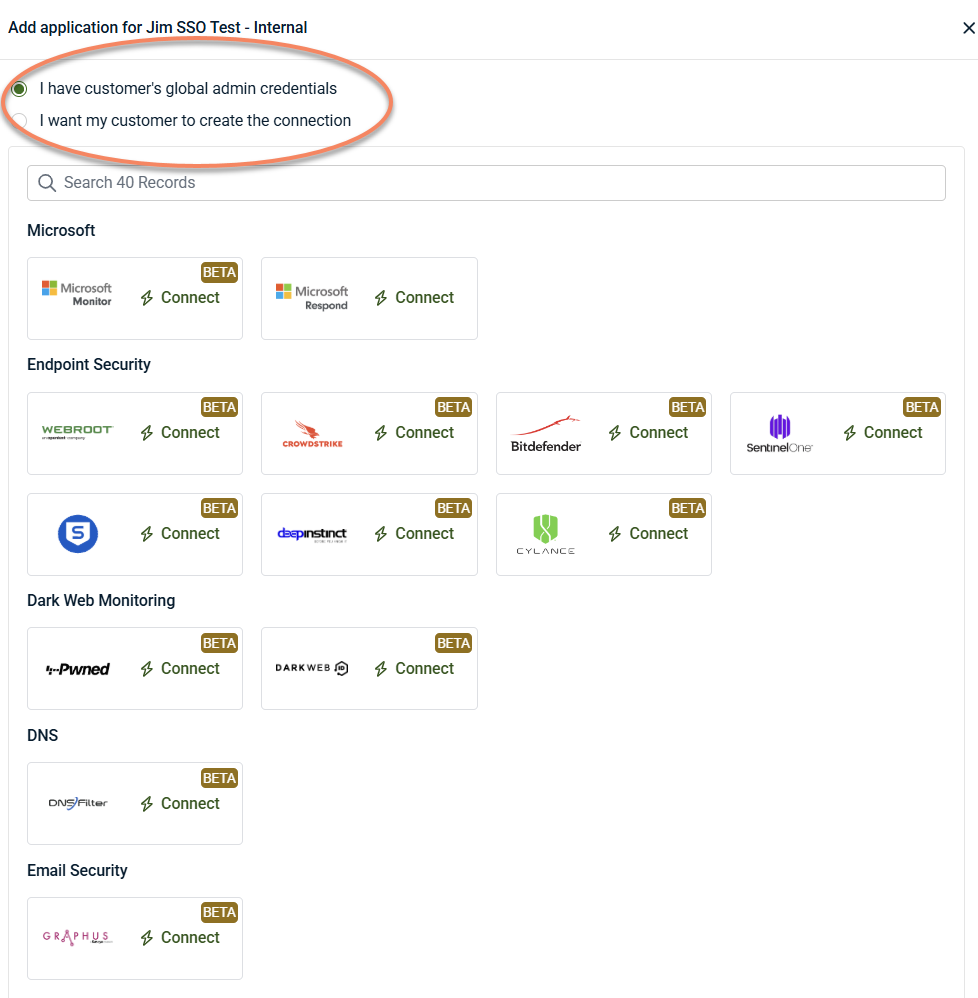
Connect applications: Click + New Application to connect data sources to start monitoring. Monitoring begins only after at least one application or data source is connected. When applications are added, connection setup involves using existing administrative credentials or allowing the organization to complete the connection process.
-
Applications are connected: Once at least one application is successfully connected:
-
Telemetry ingestion begins
-
Alerts and investigations can be generated
-
The organization transitions out of the Pending onboarding state
-
Organization tabs and administrative responsibilities
Each organization includes several tabs, each responsible for a specific aspect of administration and configuration. While connecting applications is the required step to begin monitoring, the other tabs control how activity is scoped, filtered, and managed over time.
The Applications tab
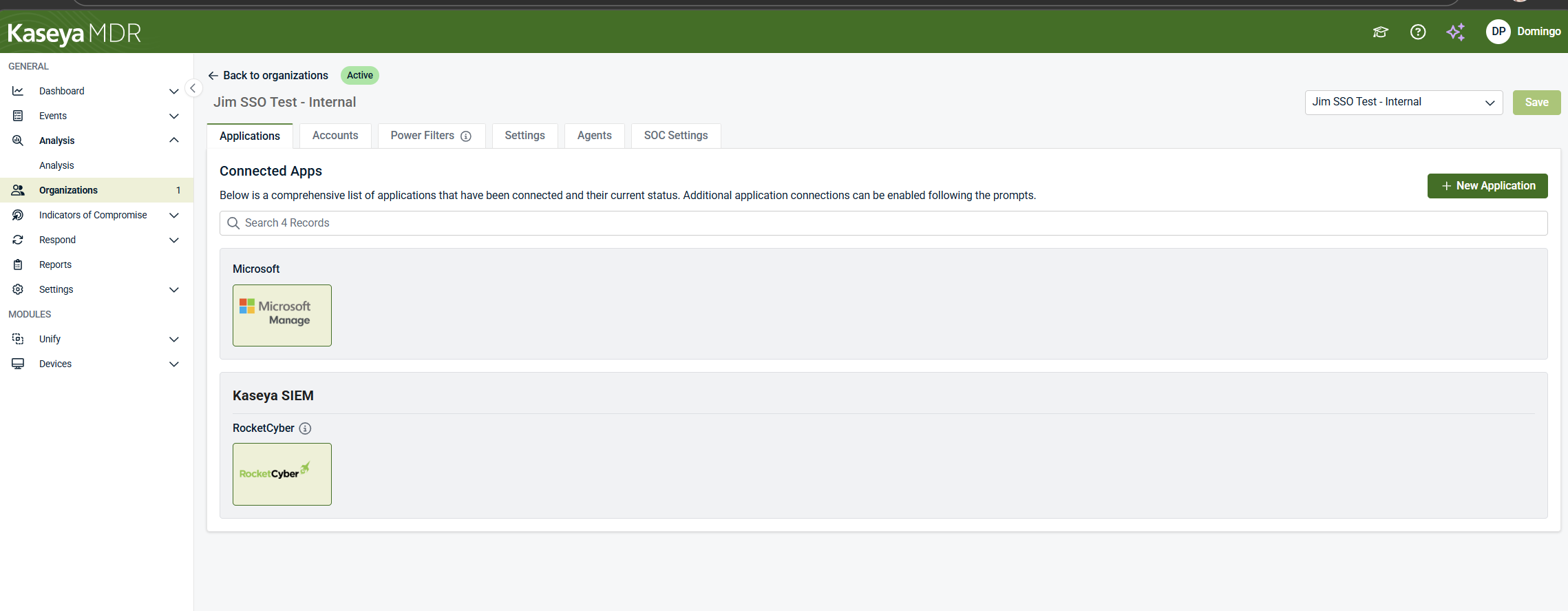
The Applications tab is where data sources and integrations are connected. Monitoring does not begin until at least one application is added. Application connection determines what telemetry is ingested and which detection capabilities are available.
The Accounts tab
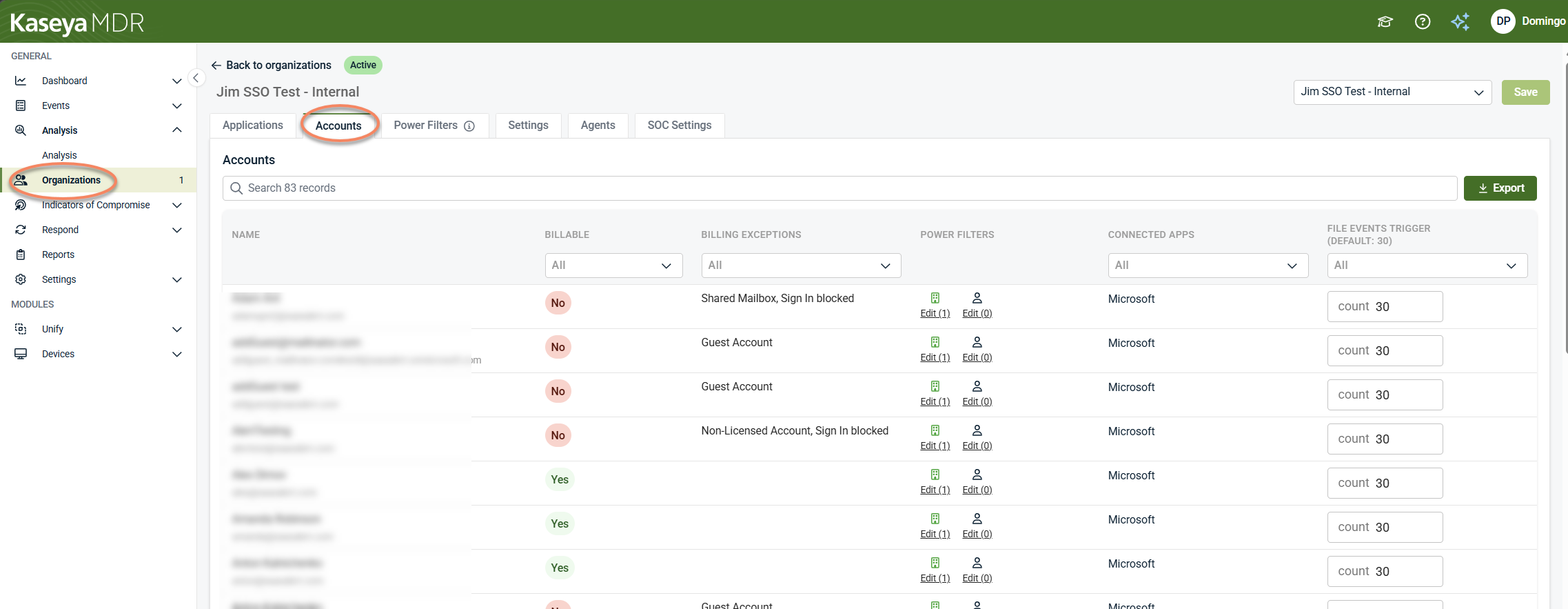
The Accounts tab provides visibility into the user accounts and entities associated with the organization.
This tab is used to:
-
Review which accounts are present within the organization boundary
-
Understand how those accounts are classified for billing and operational purposes
-
Identify configuration differences, such as customized file‑event triggers or Power Filter application
-
Filter and export account information for review or reporting
For details on account classification and billing context, see How billing and monitoring apply to accounts.
The Accounts tab is informational and contextual. It does not manage user access, assign roles, or change detection behavior. Changes to access control are handled through Settings > Users and Settings > User Privileges, while detection and visibility behavior are governed through other Settings areas.
The Power Filters tab
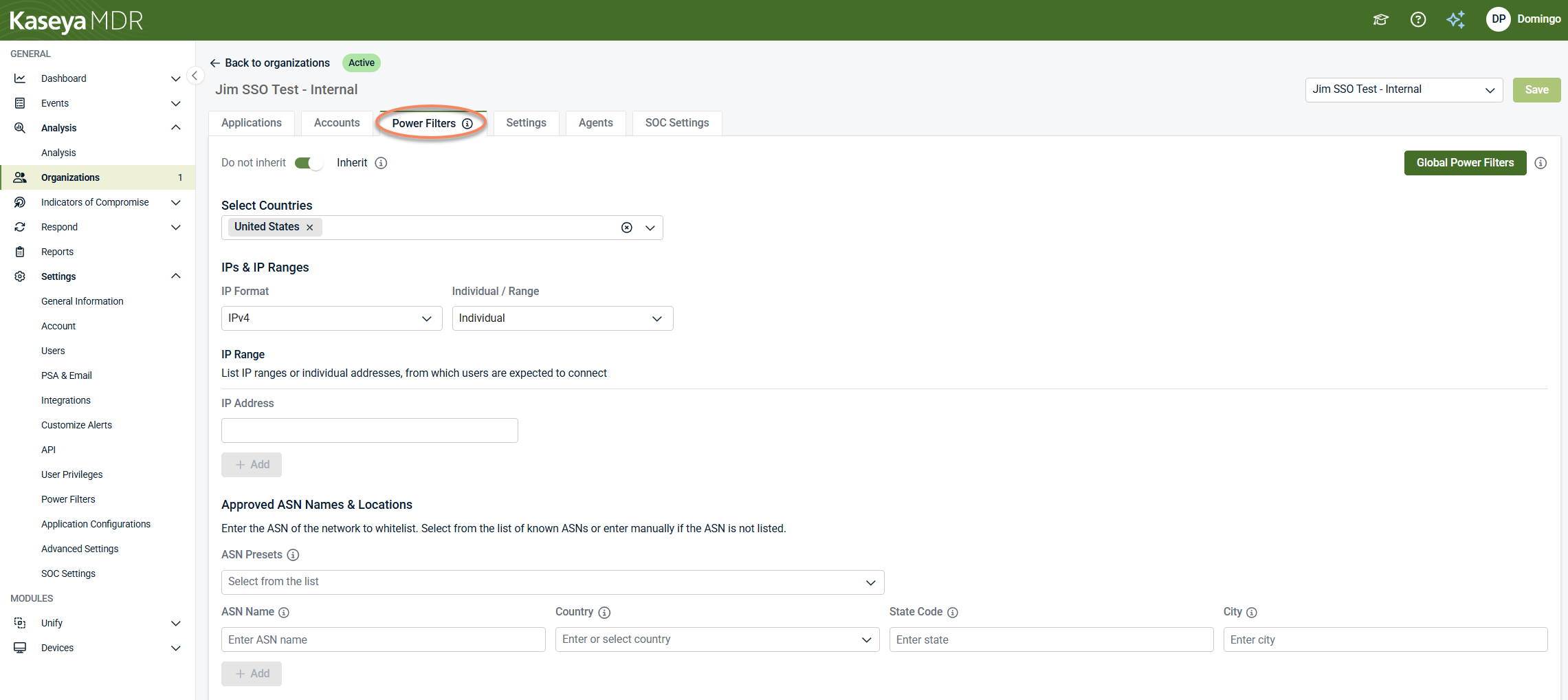
The Power Filters tab defines expected activity rules for the organization to help reduce noise during investigation.
Power Filters allow you to specify where legitimate activity is expected to originate, such as:
-
Countries
-
IP addresses or IP ranges
-
Approved network providers (ASN names and locations)
By default, organizations inherit global Power Filters. Organization‑specific Power Filters are applied only when inheritance is disabled and custom values are defined.
Power Filters do not change ingestion, detection logic, or alert generation. They affect visibility and investigation focus by helping distinguish expected activity from anomalous behavior.
At the organization level, Power Filters can:
-
Inherit global Power Filters, or
-
Override global values with organization‑specific expected activity
When organization‑specific Power Filters are defined, they apply only to that organization and do not affect others.
Use Power Filters when you need to refine which activity is surfaced for investigation based on known, legitimate patterns, rather than to suppress alerts or disable detections.
For details on configuring Power Filters and understanding their impact, see Power Filters and allowlisting logic.
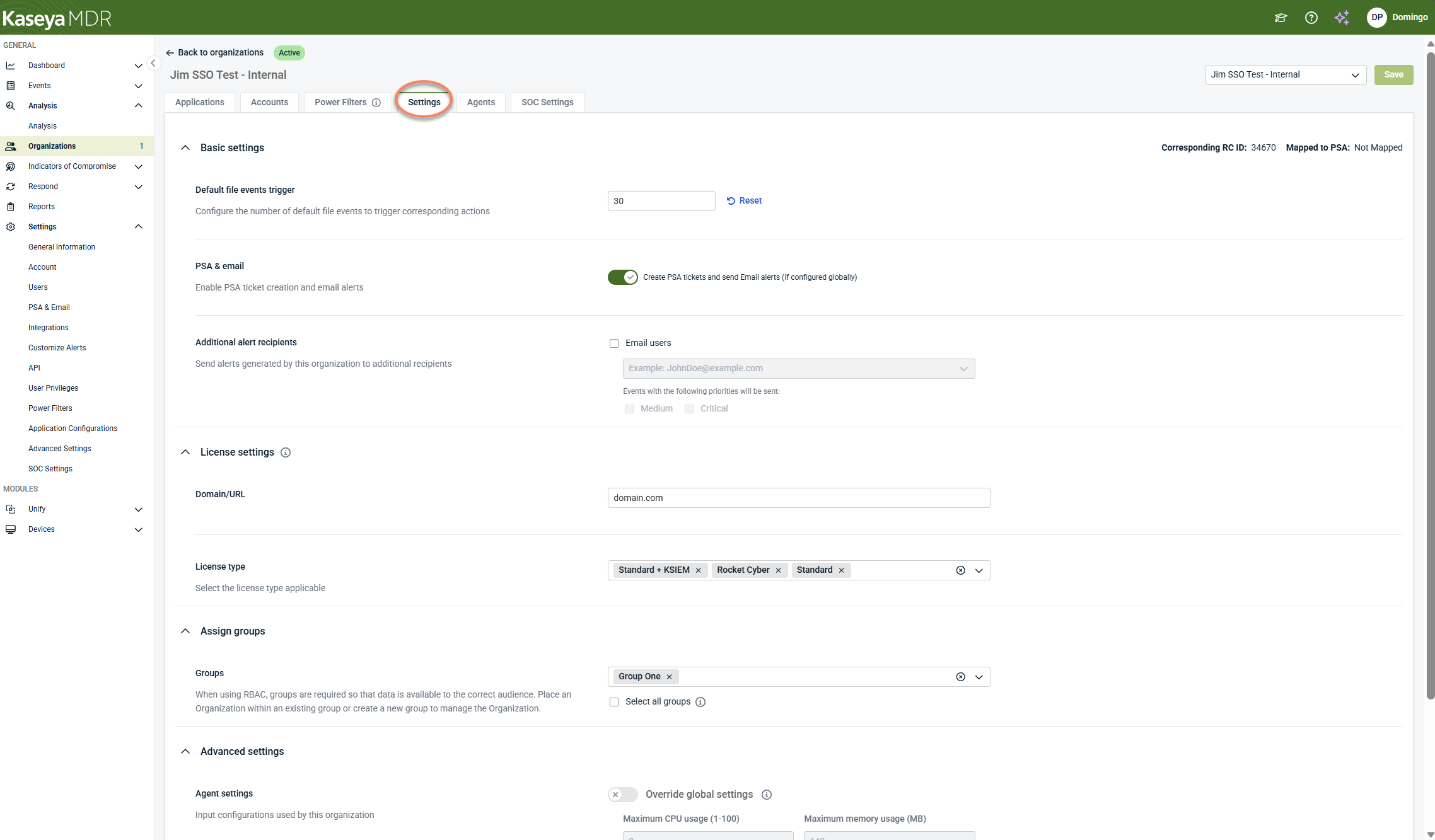
The Settings tab
The Settings tab contains organization‑specific administrative configuration that overrides or refines global defaults.
Organization‑level settings are used to control alert delivery, identity, licensing, and access context for a specific organization. These settings affect how alerts are delivered and how the organization is represented and scoped, not how alerts are detected or investigated.
The Settings tab includes controls for:
-
Alert delivery and routing: Enable or disable external alert delivery (email and PSA) for the organization, define additional email recipients, and specify which alert severities are delivered externally
-
Organization identity and licensing: Define organization‑specific identifiers such as domain or URL and apply the appropriate license type
-
Group assignment and access scope: Assign the organization to one or more groups to control which users can see and manage it, based on Group Access configuration
Changes made in the Settings tab apply only to the selected organization unless otherwise documented. For details on specific settings, see the related administration articles.
The Agents tab
The Agents tab displays agent associations for the selected organization and provides organization‑scoped visibility into agent presence.
The Agents tab is organization‑level only. It is not the primary surface for deploying agents or validating deployment success. During onboarding, or while backend association is still completing, this tab may appear empty. An empty Agents view does not indicate that agent deployment has failed.
Deployment success is validated through the global Devices > Agents inventory, which provides device‑level agent status and last‑seen information.
The organization‑level Agents tab provides context, while Devices > Agents provides deployment and device‑level verification. Both views reference the same underlying agents at different scopes.
Configuration of agent behavior—such as performance limits or operational overrides—is managed separately through Advanced agent settings, which support global defaults and organization‑level overrides.
For details on agent deployment and validating deployment status, see Deploying agents.
The SOC Settings tab
The SOC Settings tab defines how the Kaseya MDR Security Operations Center (SOC) interacts with the selected organization.
These settings establish communication preferences, organization‑specific context, and authorization boundaries that guide how SOC analysts handle investigations and response actions for this organization. SOC Settings do not initiate actions on their own and do not guarantee that a response action will be taken in every situation.
SOC Settings can be configured at both the global (partner‑level) and organization level. When accessed from the SOC Settings tab within an organization, the settings apply only to the selected organization. If no organization‑specific overrides are defined, the organization inherits the global SOC settings.
The SOC Settings tab includes controls for:
-
SOC communication preferences: Define how the SOC contacts your organization, including contact email addresses used during investigations or incidents.
-
Organization instructions: Provide organization‑specific handling guidance visible to SOC analysts, such as escalation preferences, operational constraints, or environmental context.
-
Maintenance windows: Define expected periods of activity so the SOC can take known maintenance into account during investigation and response.
-
SOC authorization settings: Specify which categories of response actions the SOC is authorized to perform for this organization, such as device isolation or remediation actions, when appropriate.
SOC authorization settings define what the SOC is permitted to do, not when actions occur or how they are triggered. Response execution behavior is governed separately through response rules and automation configuration.
Changes made in the SOC Settings tab affect only the selected organization unless a setting is inherited from a higher scope. For details on configuring SOC communication preferences and authorization boundaries, see Configuring SOC settings.
Each tab affects only the selected organization unless a setting is inherited from a higher scope. Together, these tabs define how monitoring, investigation, and noise‑reduction behavior operate for that organization.
Changes made within organization tabs take effect only after they are saved. Where additional configuration detail is required, this article links to the relevant task‑specific documentation.
Organization scope and inheritance
Kaseya MDR supports inheritance and overrides to balance consistency and flexibility.
-
Global or partner‑level defaults establish baseline behavior.
-
Organizations can inherit those defaults or override them when necessary.
-
Overrides apply only to the selected organization.
This model allows you to standardize behavior across many organizations while supporting environment‑specific exceptions.
For a detailed explanation on how inheritance and overrides work across Settings, see Global defaults and organization‑level behavior.
How organizations affect alerts and investigations
Alerts and investigations in Kaseya MDR are always evaluated in the context of an organization.
Within an organization:
-
Alerts are generated based on that organization’s configuration
-
Correlated activity is reviewed within the correct environment
-
Organization‑level controls affect how noise is reduced
This ensures investigations remain focused and prevents configuration changes from unintentionally affecting other organizations.
Organizations and noise‑reduction controls
Many noise‑reduction features in Kaseya MDR are applied per organization, including Power Filters and alert suppression rules.
Defining these controls per organization allows you to reduce noise based on expected behavior for that specific environment while preserving visibility elsewhere and avoiding global impact.
Organizations and access control
User access in Kaseya MDR is scoped by organization. Depending on assigned roles and permissions, users may:
-
View or manage one or more organizations
-
Access alerts and investigations only within permitted scopes
-
Configure organization‑level settings if authorized
This supports separation of duties and ensures users only interact with the environments they are responsible for.
For details, see User roles and permission boundaries.
Related articles
-
User roles and permission boundaries: Defines how access to organizations is controlled, including organization visibility, role‑based permissions, and delegated administrative capabilities
-
Global defaults and organization‑level behavior: Describes how global defaults and organization overrides affect configuration scope and why behavior can differ between organizations
-
Power Filters and allowlisting logic: Shows how to define expected locations and network attributes to reduce noise by controlling what activity is surfaced for investigation
-
Alert suppression: Covers how to prevent known, expected activity from escalating into alerts or downstream actions without stopping data ingestion


