Quiet Mode overview
Quiet Mode defines the default baseline alert severities applied in Kaseya MDR. It uses a conservative severity model designed to reduce unnecessary noise and escalation, particularly in environments with a large or expanding alert library.
This article documents how Quiet Mode affects default alert severity assignment and is intended as reference material for understanding baseline severity behavior—not as guidance for investigation, triage, or response decisions.
For guidance on when to adjust alert severity, how severity tuning compares to suppression or Respond rules, and how severity changes fit into detection governance, see Managing alert severity and detection tuning.
What Quiet Mode does
Quiet Mode applies a predefined set of default severity values across the alert library to better reflect real‑world alert relevance and frequency. Its goals are to:
-
Reduce alert noise caused by high‑frequency, low‑urgency signals
-
Prevent unnecessary escalation, especially during onboarding
-
Provide a stable severity baseline before customization
-
Preserve visibility while improving prioritization
Quiet Mode affects only default severity values. It does not change detection logic, data collection, or correlation behavior.
Quiet Mode does not:
-
Suppress alerts or prevent alerts from being generated
-
Remove alerts from dashboards, listings, or investigations
-
Override any existing custom severity settings
-
Confirm whether an alert represents a true incident
-
Replace investigation or analysis
All alerts continue to be generated, recorded, and available for review regardless of severity.
If an alert appears with lower severity after enabling Quiet Mode, it remains fully available for investigation and review.
How Quiet Mode fits into alert severity management
Alert severity in Kaseya MDR serves as a prioritization signal, not a confirmation of compromise or a mandate for response.
Quiet Mode defines the starting point for that prioritization. From there:
-
Investigation determines whether alerts are actionable
-
Custom severity overrides adjust prioritization based on evidence
-
Suppression and Respond rules are applied only when appropriate
Quiet mode should be treated as a baseline, not a substitute for tuning.
Configuring Quiet Mode
-
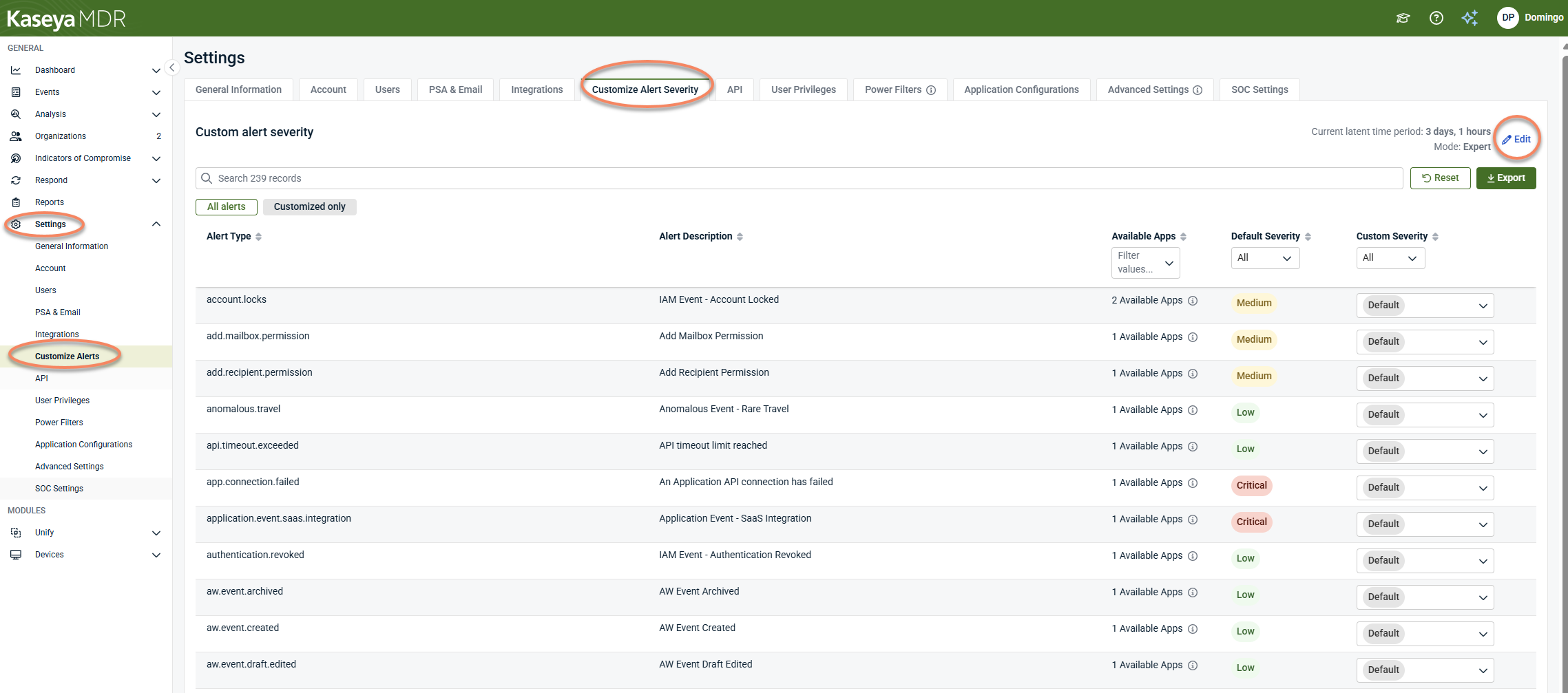
To configure Quiet Mode, go to Settings > Customize Alert Severity.
-
On the upper-right corner of the page, click Edit to change mode between:
-
Quiet Mode
-
Expert Mode
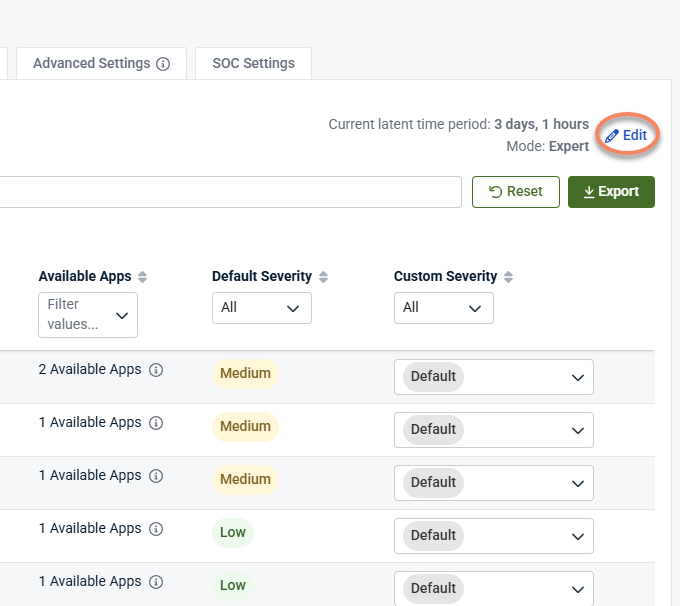
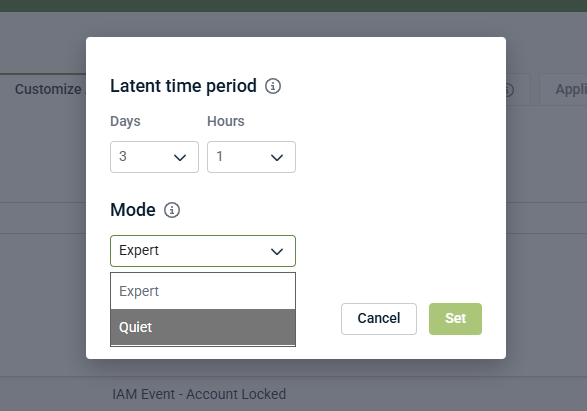
The selected mode determines how default severity values are applied across the alert catalog. It does not change any alert types that have already been customized.
Changes apply globally and affect future alerts only. Switching modes does not modify any existing custom severity overrides.
How Quiet Mode appears in the interface
When Quiet Mode is enabled, its effects are visible primarily in how alerts are prioritized and distributed across severity levels, not in how alerts are generated.
You may notice the following changes in the interface:
-
Fewer alerts classified as Critical or Medium in alert listings
-
A higher proportion of alerts classified as Low by default
-
Reduced urgency in alert trends and dashboards without a reduction in total alert volume
Quiet Mode does not remove alerts from the platform. All alerts continue to appear in alert listings, the Analysis page, and investigation workflows; only their default severity classification changes.
Quiet Mode and custom severity overrides
When Quiet Mode is enabled:
-
All existing custom severity overrides remain unchanged.
-
Only alerts still using platform default severities are affected.
-
Future alerts inherit Quiet Mode defaults unless overridden.
If severity has already been customized for specific alert types, those settings continue to apply.
Typical scenarios for using Quiet Mode
Quiet Mode is commonly used when:
-
Onboarding a new MDR environment with high initial alert volume
-
Reviewing alerts before enabling notifications or PSA integrations
-
Reducing escalation noise while investigation workflows are established
-
Re‑baselining severity after adding new data sources or integrations
Quiet mode is recommended as the default starting point for most environments.
Summary of default severity changes
Quiet Mode adjusts the overall distribution of default alert severities to reduce over‑prioritization. In general:
-
Many alerts previously marked Medium or Critical are reclassified as Low
-
A smaller number of high‑confidence signals may be elevated
-
The total number of Critical alerts is significantly reduced
These changes reflect observed alert frequency and investigation outcomes, not incident confirmation.
NOTE The specific list of alert types affected by Quiet mode may change over time as the alert library evolves.
Reviewing alert behavior after enabling Quiet mode
After enabling Quiet mode, it is recommended to:
-
Review alert volume and distribution using the Analysis page
-
Identify alert types that remain high‑volume or consistently low value
-
Apply custom severity overrides where appropriate
-
Re‑evaluate periodically as integrations and detections evolve
Quiet mode is most effective when paired with investigation‑driven tuning.
Best practices
-
Use Quiet Mode as a starting baseline, not a final configuration
-
Investigate representative alerts before lowering severity
-
Prefer severity tuning over suppression for globally low‑value alerts
-
Preserve alert visibility for audit and investigation purposes
-
Document why severity changes are made
Related articles
-
Managing alert severity and detection tuning: Guidance on when and how to adjust alert severity and compare tuning options
-
Managing repeated alerts: Decision framework for choosing between severity tuning, suppression, and automation


