Indicators of compromise
Indicators of compromise (IOCs) are rules used to identify potentially malicious or risky activity based on known indicators, behavioral signals, or threat intelligence.
In Kaseya MDR, IOC rules define conditions that flag activity for investigation when monitored telemetry matches specific criteria. An IOC match indicates that a condition was observed, not that an incident has occurred or that response action is required.
NOTE IOC rules surface signals, not conclusions. An IOC match indicates that a specific condition occurred and should be reviewed in context. IOC rules do not determine whether activity represents an incident or what response should occur. When escalation or automated response is required, IOC activity is combined with other signals using Respond rules.
When an IOC rule matches incoming data:
-
The activity is flagged for investigation
-
Additional context is added to analysis views
-
Alerting or escalation behavior depends on MDR service configuration
For guidance on how IOC activity is escalated into higher‑confidence alerts after investigation, see Creating high‑confidence alerts with Respond rules.
Managing IOC rules
IOC rules are managed from Indicators of Compromise > Rules.
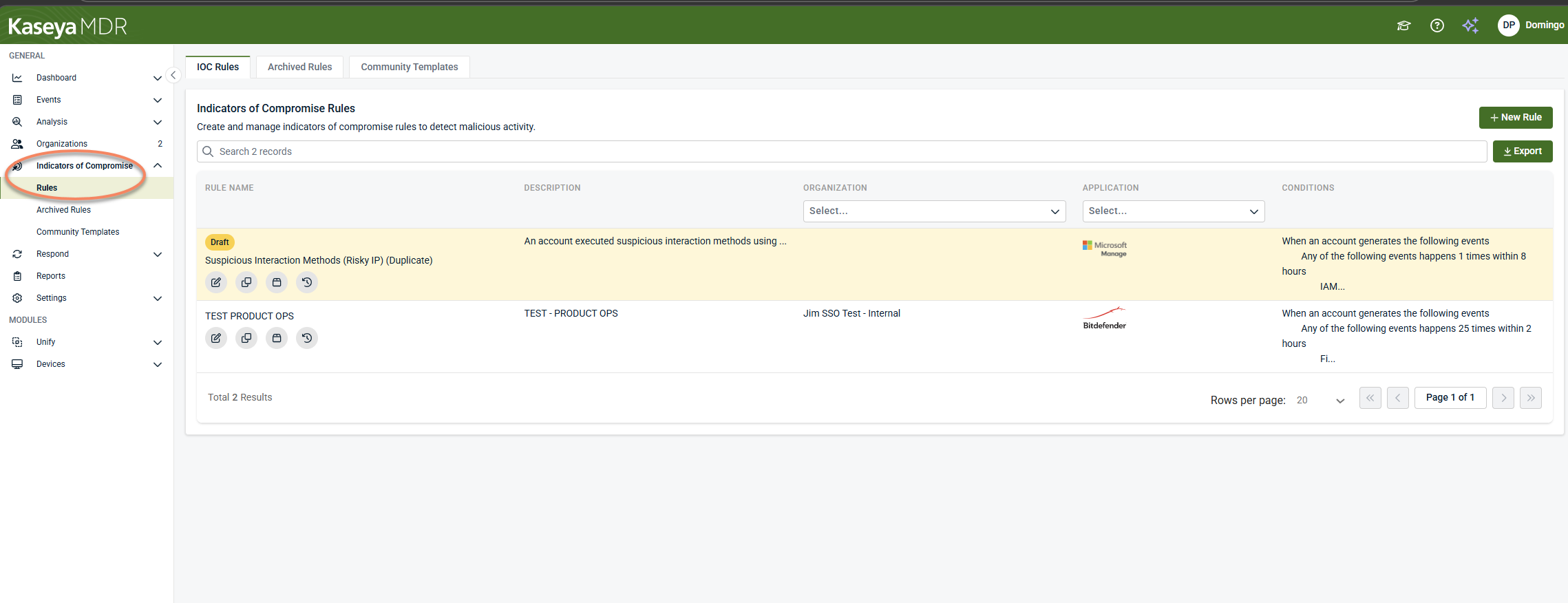
From this area, you can:
-
Create new IOC rules
-
View active IOC rules
-
Archive or restore rules
-
Apply community templates
Archived rules are disabled and not evaluated against incoming data. Rules cannot be deleted once created.
Creating an IOC rule
When creating an IOC rule, you define:
-
The data source or application to monitor
-
The organizations and accounts the rule applies to
-
The conditions that must be met, including events, filters, thresholds, and time windows
Rule definition
- Navigate to Indicators of Compromise > Rules.
- Select + New Rule.
- Select Untitled Rule to enter a name for the IOC.
- (Optional) Add a description to document the purpose of the rule.
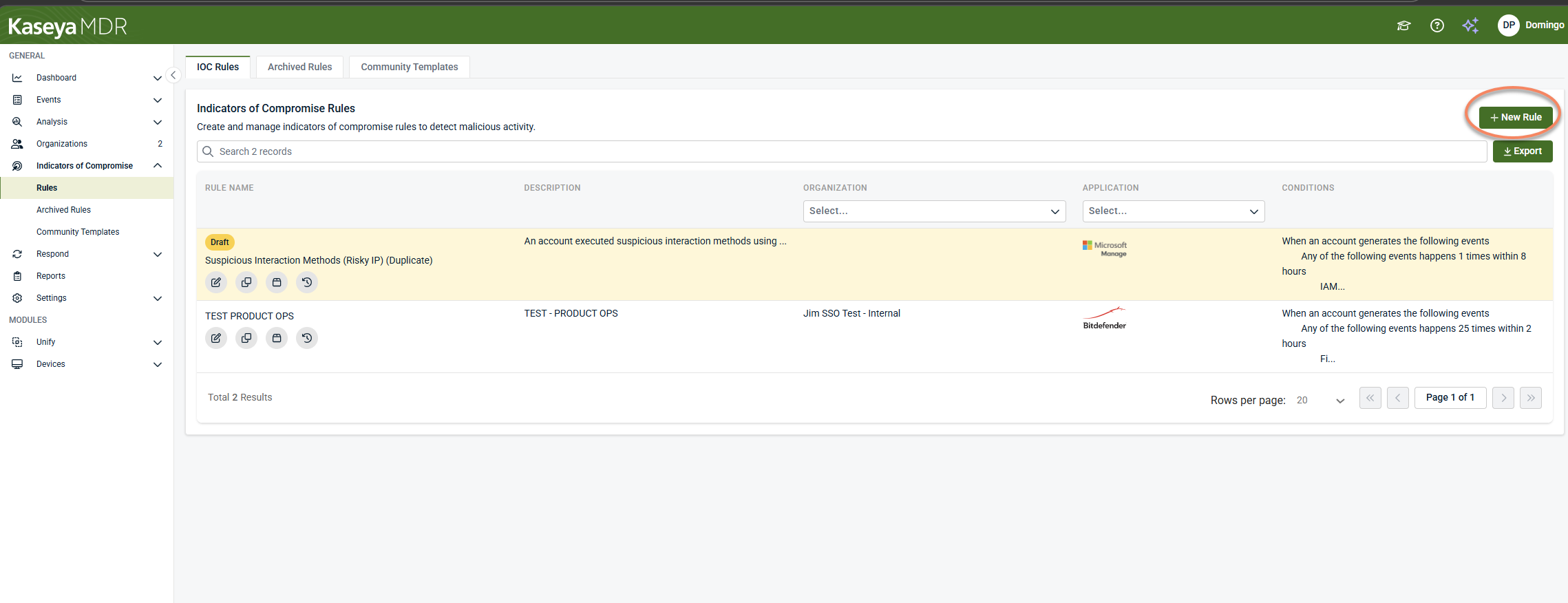
Rule names and descriptions are used throughout investigations and alerts to help identify why activity was flagged.
Scope selection
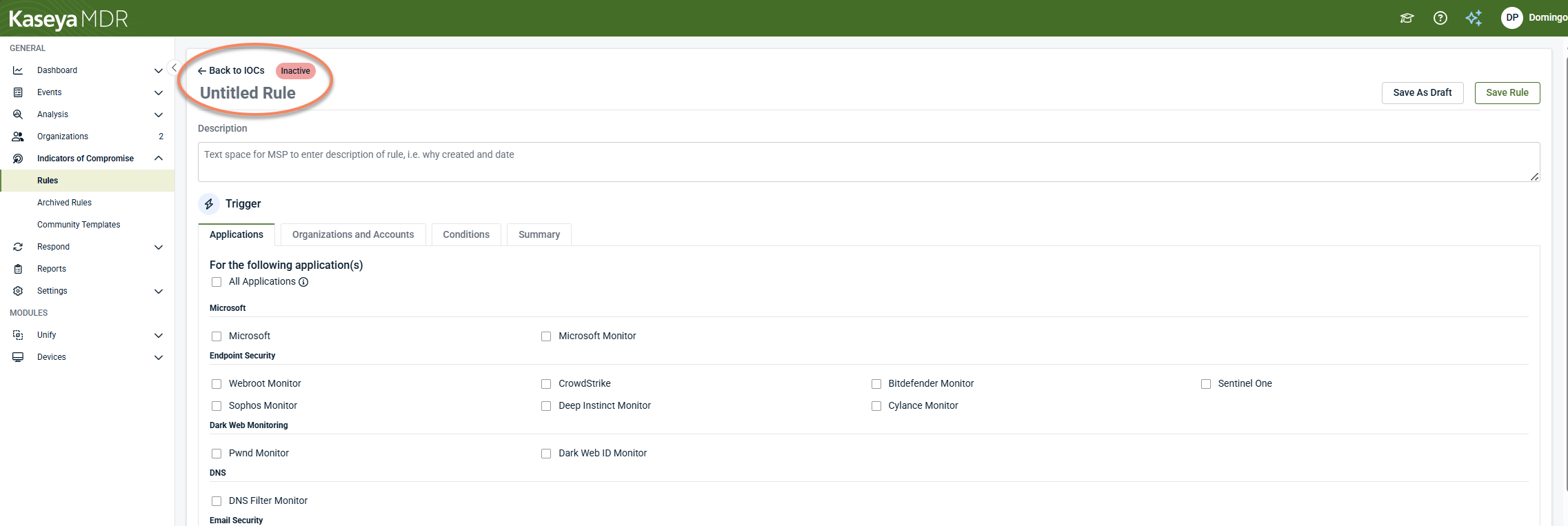
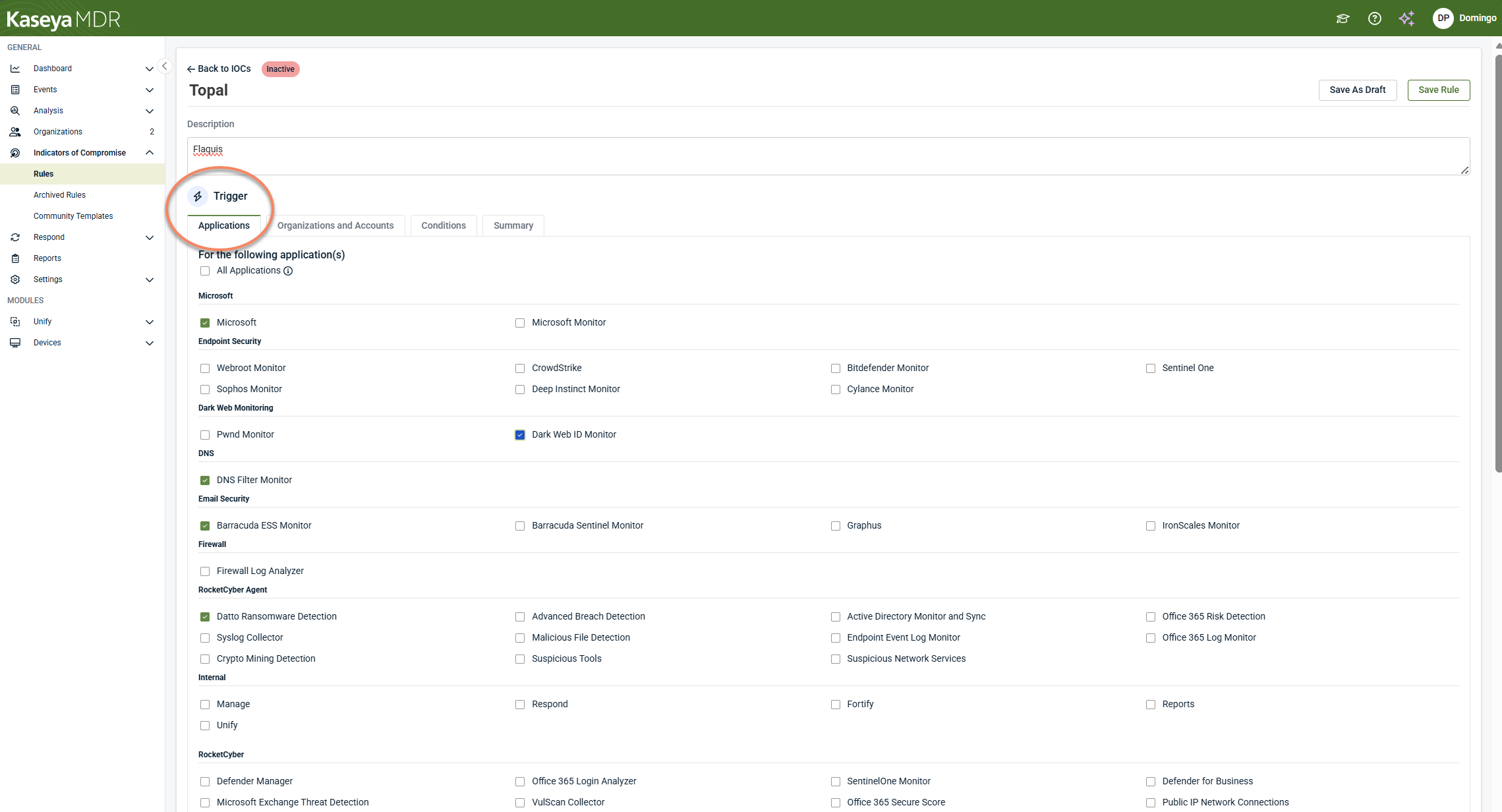
Under the Trigger section, select the scope of the IOC rule.
-
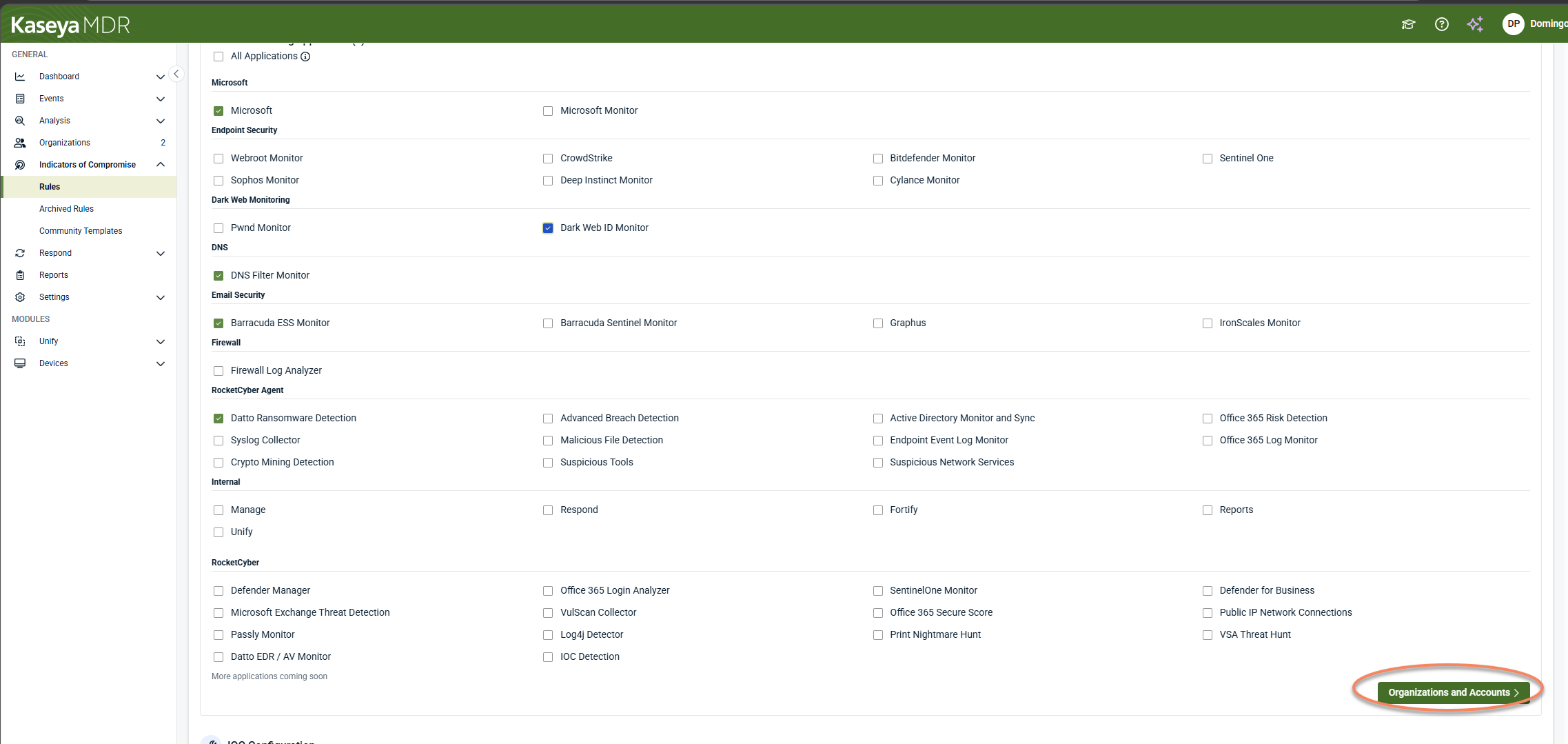
In the Applications tab, select the application or data source the rule should monitor.
- Select Organizations and Accounts.
- Choose one, multiple, or all organizations and accounts to be monitored. Partners can apply IOC rules broadly or limit them to specific tenants.
- Click Conditions to continue.
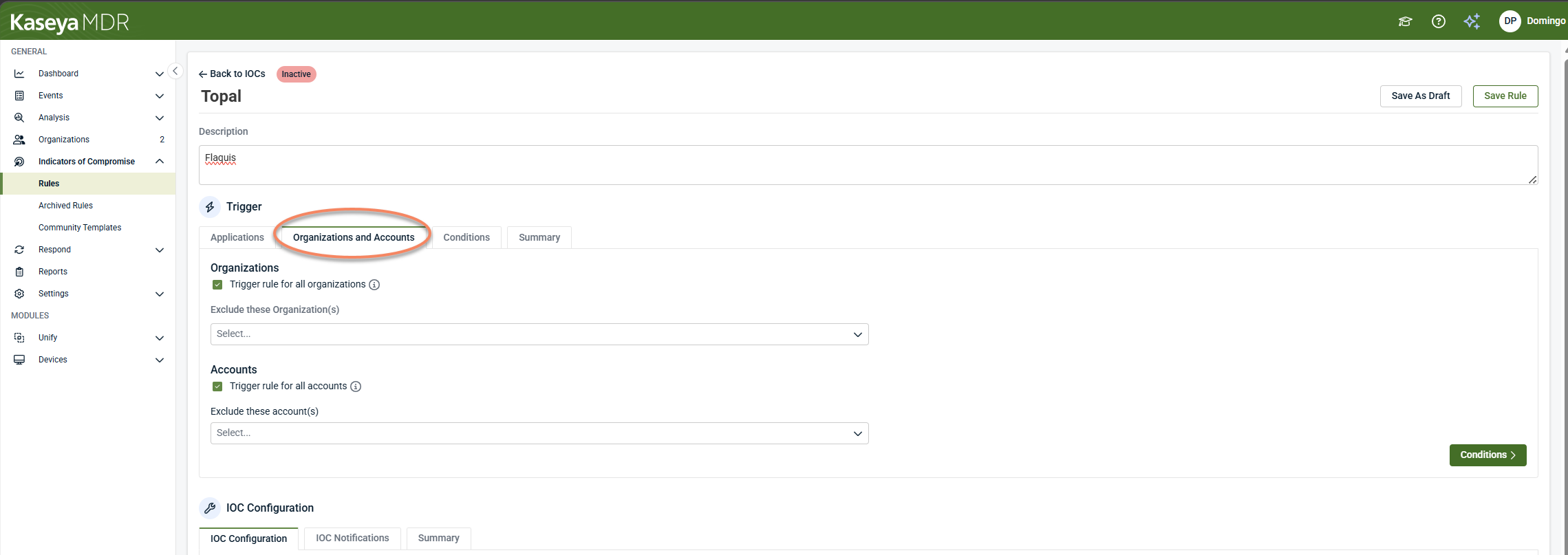
NOTE If Trigger rules for all organizations or Trigger rules for all accounts is enabled, the rule applies to all current and future organizations or accounts. When triggering for all organizations, specific organizations can still be excluded.
Condition configuration
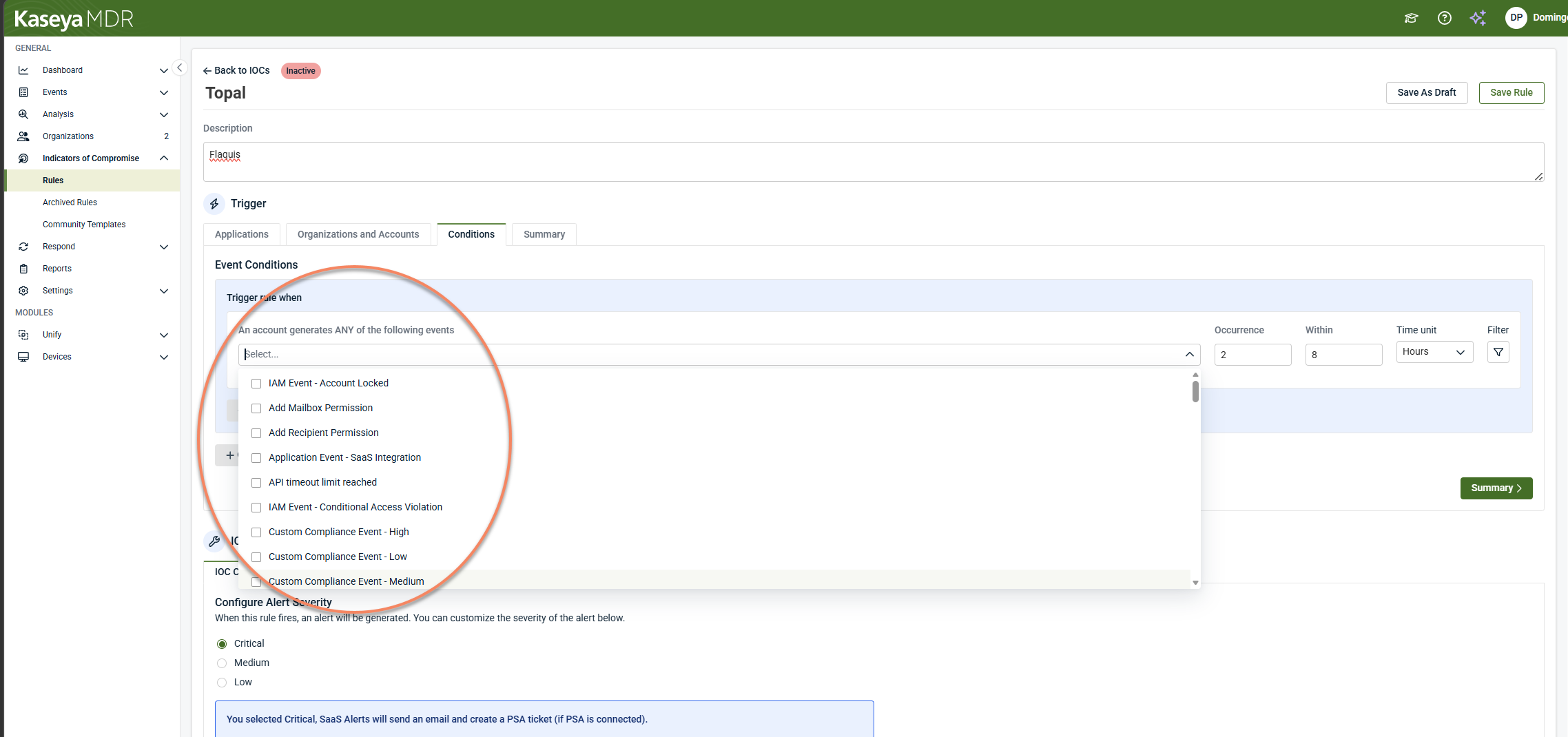
Conditions define what must occur for the IOC rule to trigger.
-
Select one or more events.
- You can configure:
-
One or more events
-
Number of occurrences
-
Timeframe (minimum: one event in 15 minutes)
-
AND / OR logic across events
-
Filters such as user, device, country, IP address, or event attributes
-
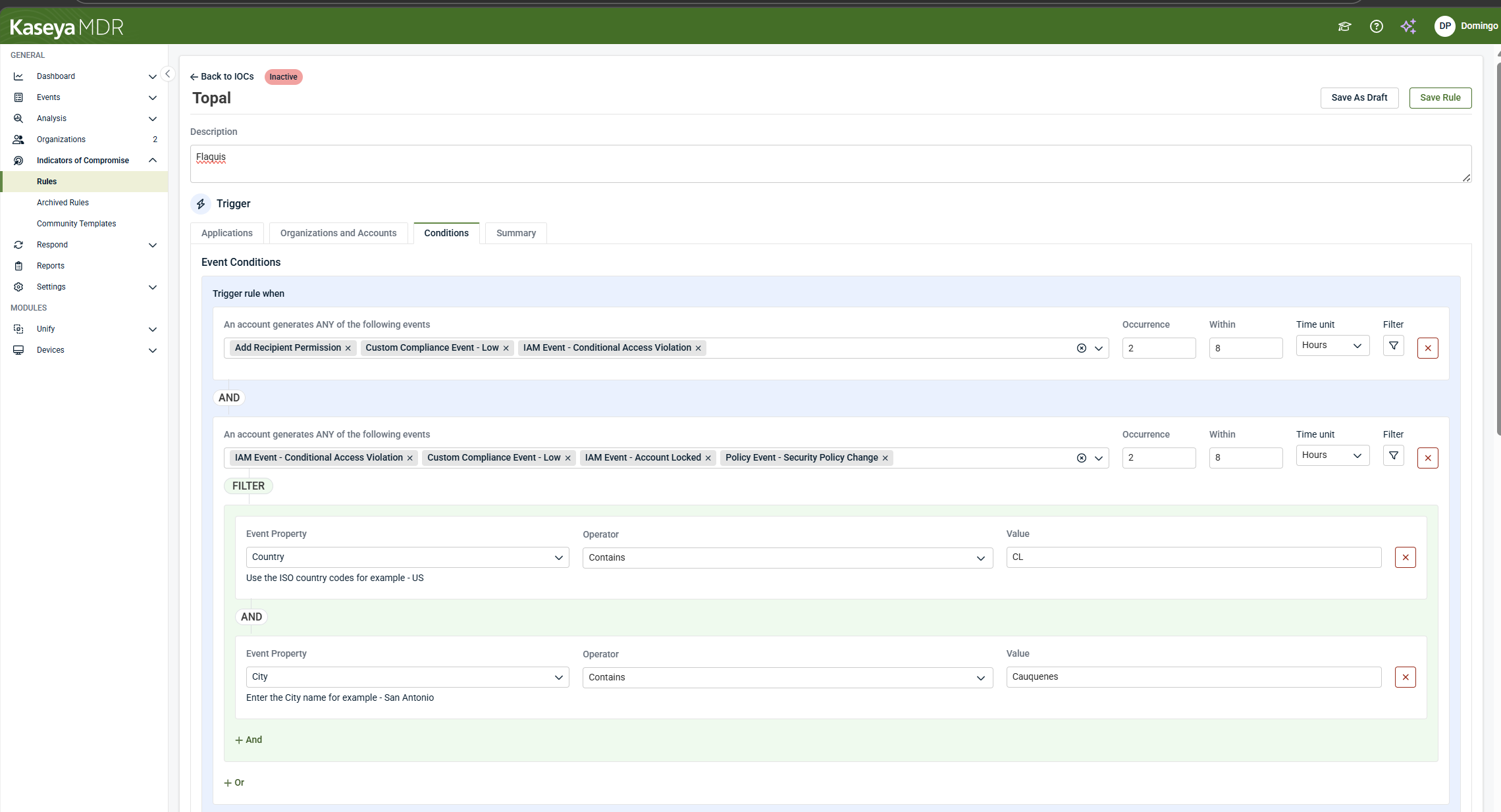
Filters to individual events as needed (for example: Country, Device Type, User, IP address).
-
Country contains US
-
Country does not contain US
- Click Summary.
Each selected event can include one or more filters to further refine matching behavior. For example:
NOTE IOC rules are evaluated every five minutes to determine whether conditions are met. Select Summary to review the trigger configuration.
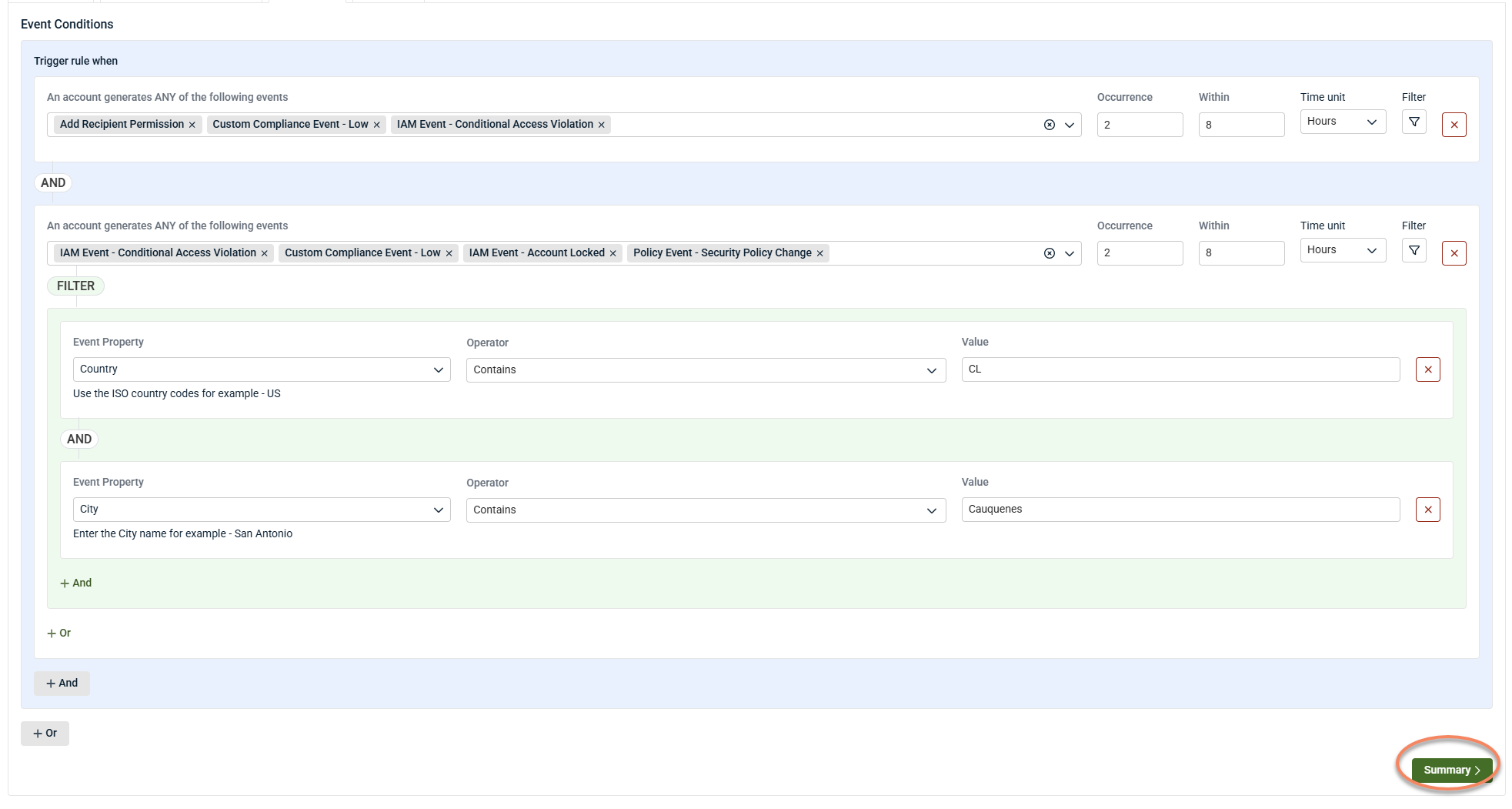
Trigger summary review
The Summary view displays:
-
Selected applications
-
Selected organizations and accounts
-
Configured events, filters, and logic
Edit icons allow you to return to previous steps if adjustments are needed.
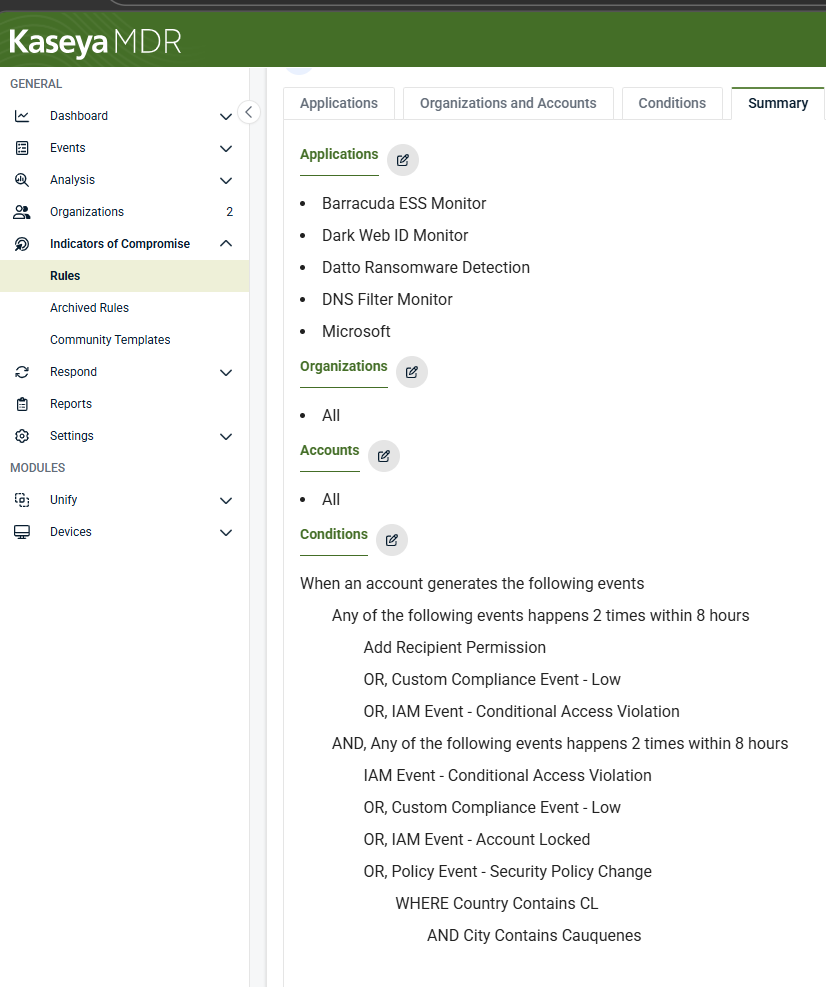
If the trigger configuration is correct, continue to the IOC Configuration section.
IOC configuration
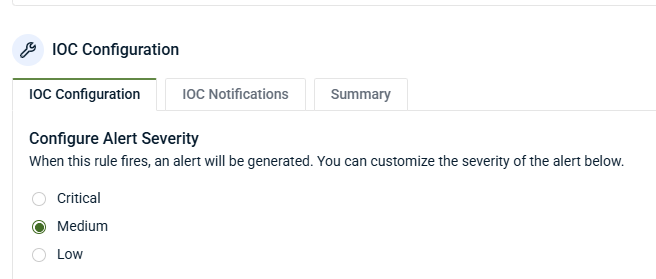
Alert severity
Set the severity level for the IOC event:
-
Low: Informational; no PSA ticket by default
-
Medium: Generates PSA tickets and notifications
-
Critical: High‑priority alerting
Many partners set individual IOC rules to Low and rely on Respond rules or correlation to escalate severity when IOC activity is combined with other signals.
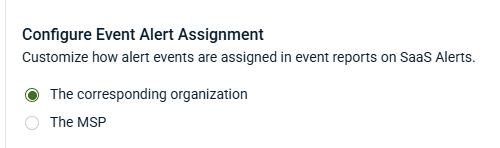
Configure event alert assignment
When configuring an IOC rule in Kaseya MDR, you can choose how any alert events generated by the rule are assigned for reporting and ownership purposes.
If supported in your environment, you can assign IOC‑generated alert events to:
-
The corresponding organization, or
-
The MSP
This setting controls how alert events are associated for reporting and downstream systems, such as PSA integrations, where applicable.
NOTE Event alert assignment controls how IOC‑generated alert events are associated for reporting and ownership. It does not affect how IOC rules evaluate activity or when they trigger.
Custom IOC event fields
IOC rules can also enrich investigations with descriptive event names, detailed context, and dynamic values pulled from triggering data. IOC events support customization of the following fields:
-
Event name
-
Event description
-
Event description detail
-
Event assignment
Select the blue field areas to customize values.
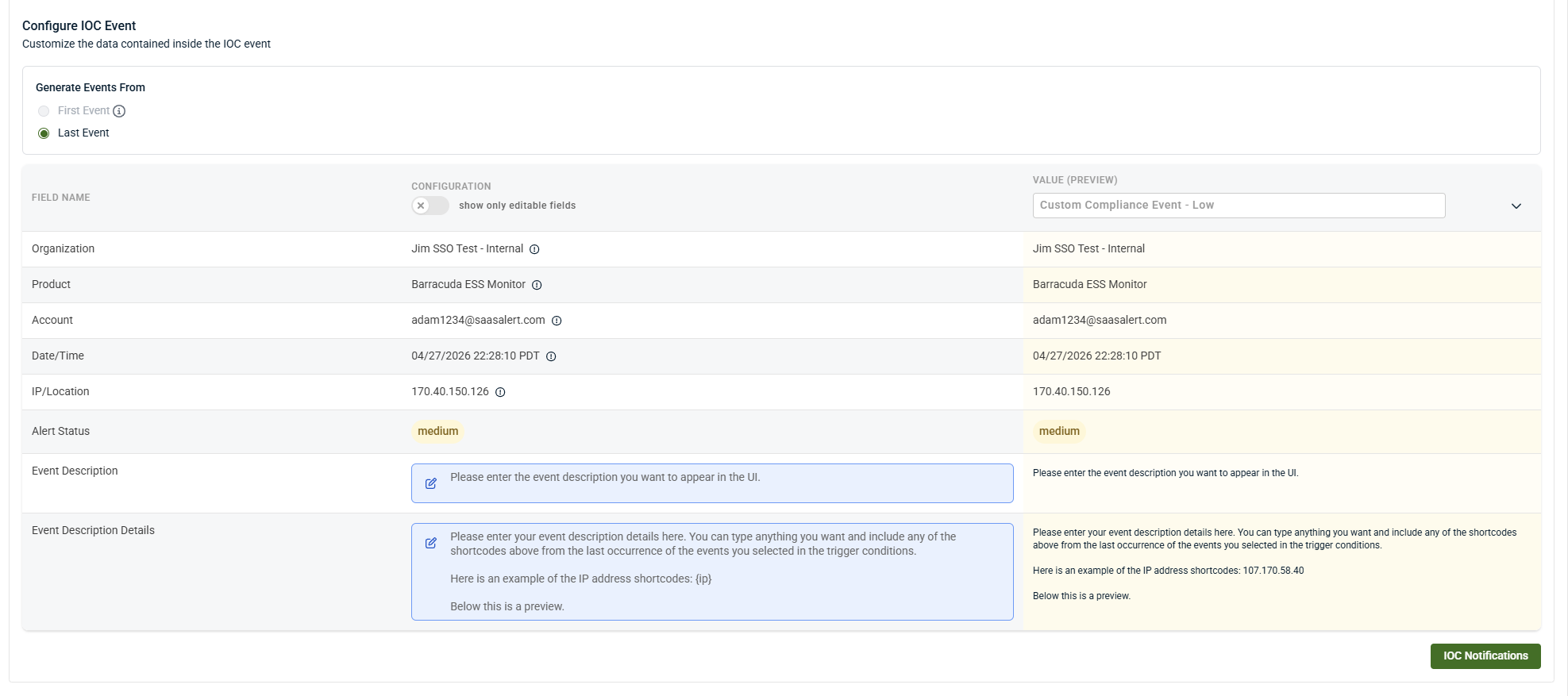
Short codes
Short codes dynamically insert values from triggering events, such as:
-
username
-
email address
-
device information
-
operating system
-
IP address
-
user agent
Short codes can be embedded into:
-
Event names
-
Event descriptions
-
Detailed descriptions
This allows IOC events to be descriptive, searchable, and context‑rich.
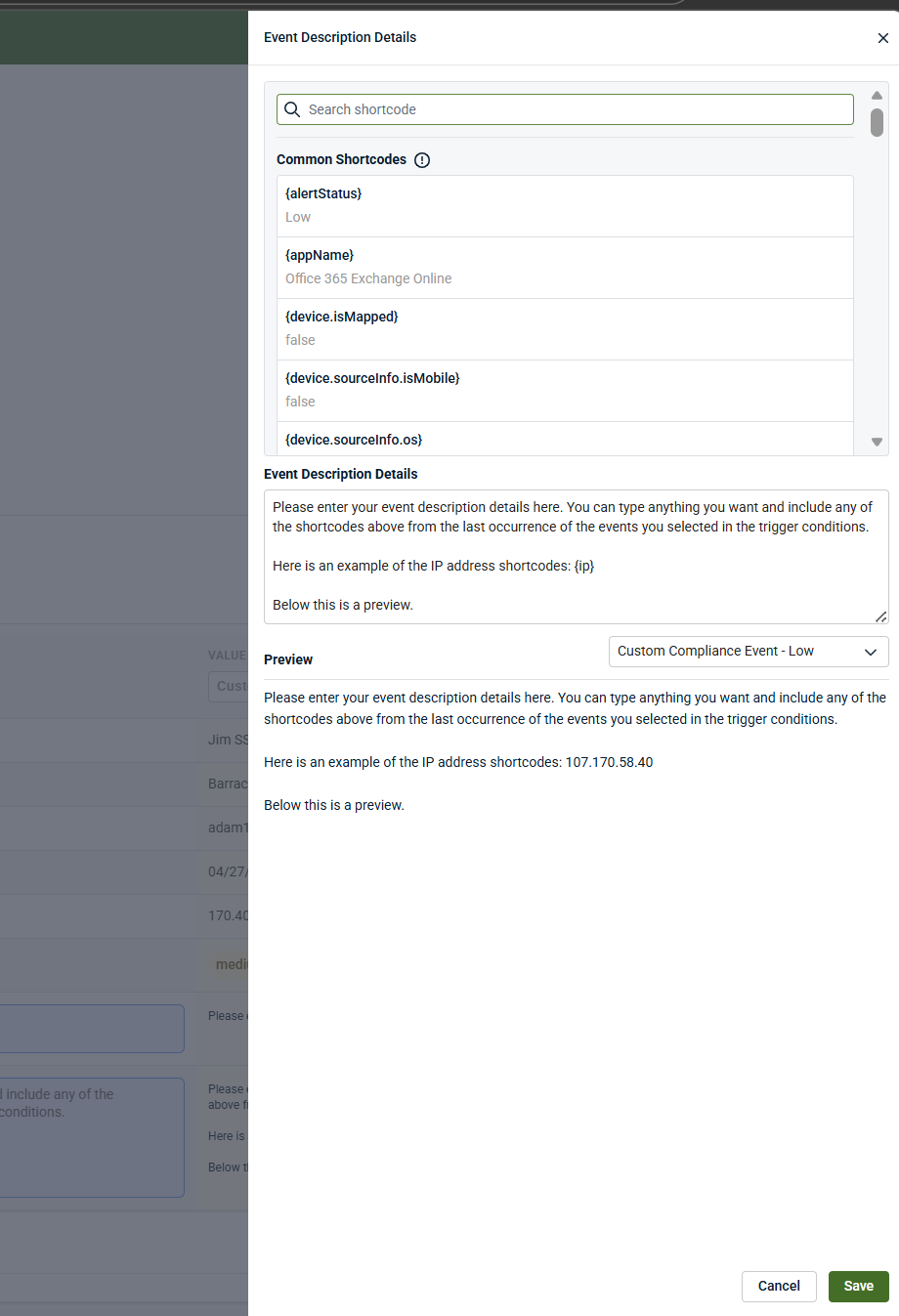
The Event Description Detail field provides extended context and is displayed as the smaller detail text under the event in Analysis.
This field:
-
Supports structured text and short codes
-
Can be filtered against in Respond rules or other IOC rules
-
Is commonly used to include remediation guidance, analyst notes, or investigation context
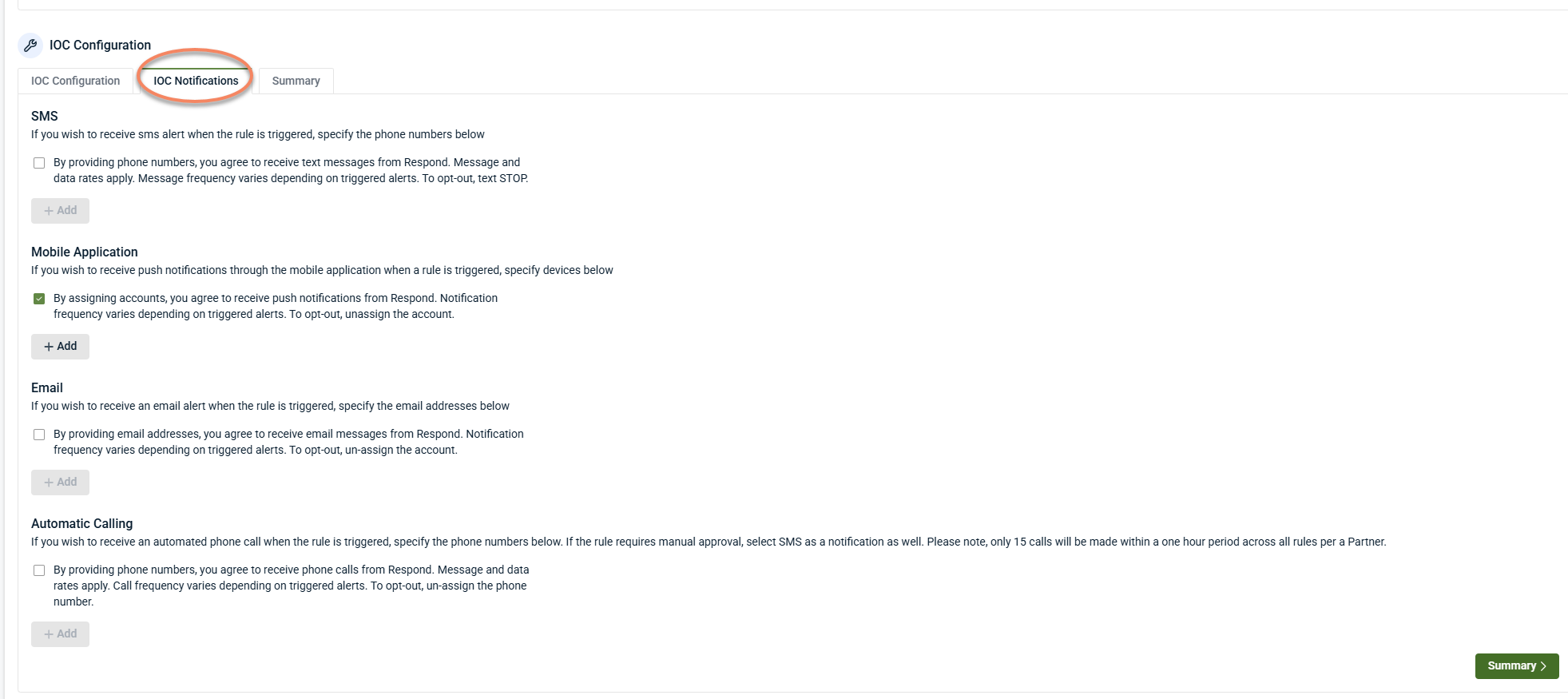
Notifications
Click IOC Notifications. IOC rules support optional notifications, including:
-
Email
-
SMS
-
Mobile push notifications
Select one or more notification types and add recipients as needed. Multiple recipients can be configured.
Notifications are independent of PSA ticket creation.
Click Summaryto review the IOC configurations. If you wish to add, modify, or remove any of the IOC configuration settings, please click the edit pencil icon to return to the previous screen.
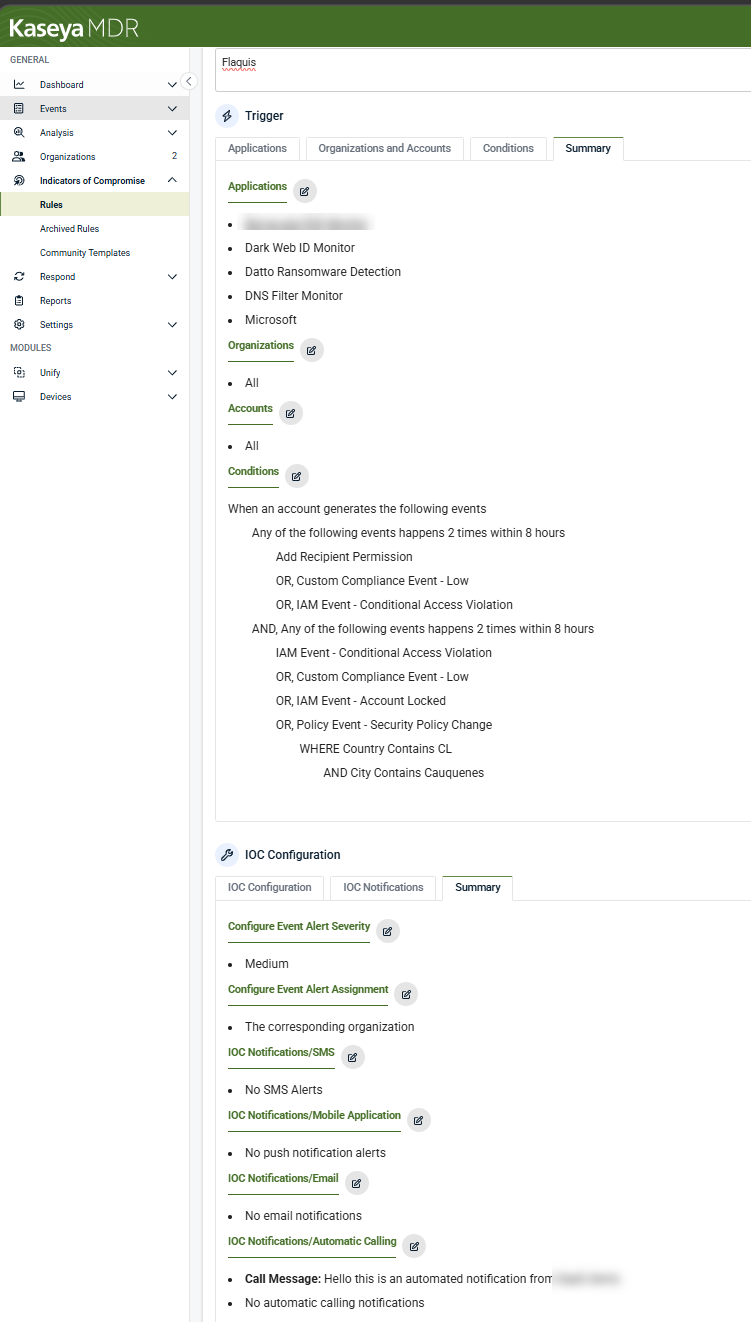
After reviewing the IOC configuration summary, select Save Rule in the upper‑right corner.
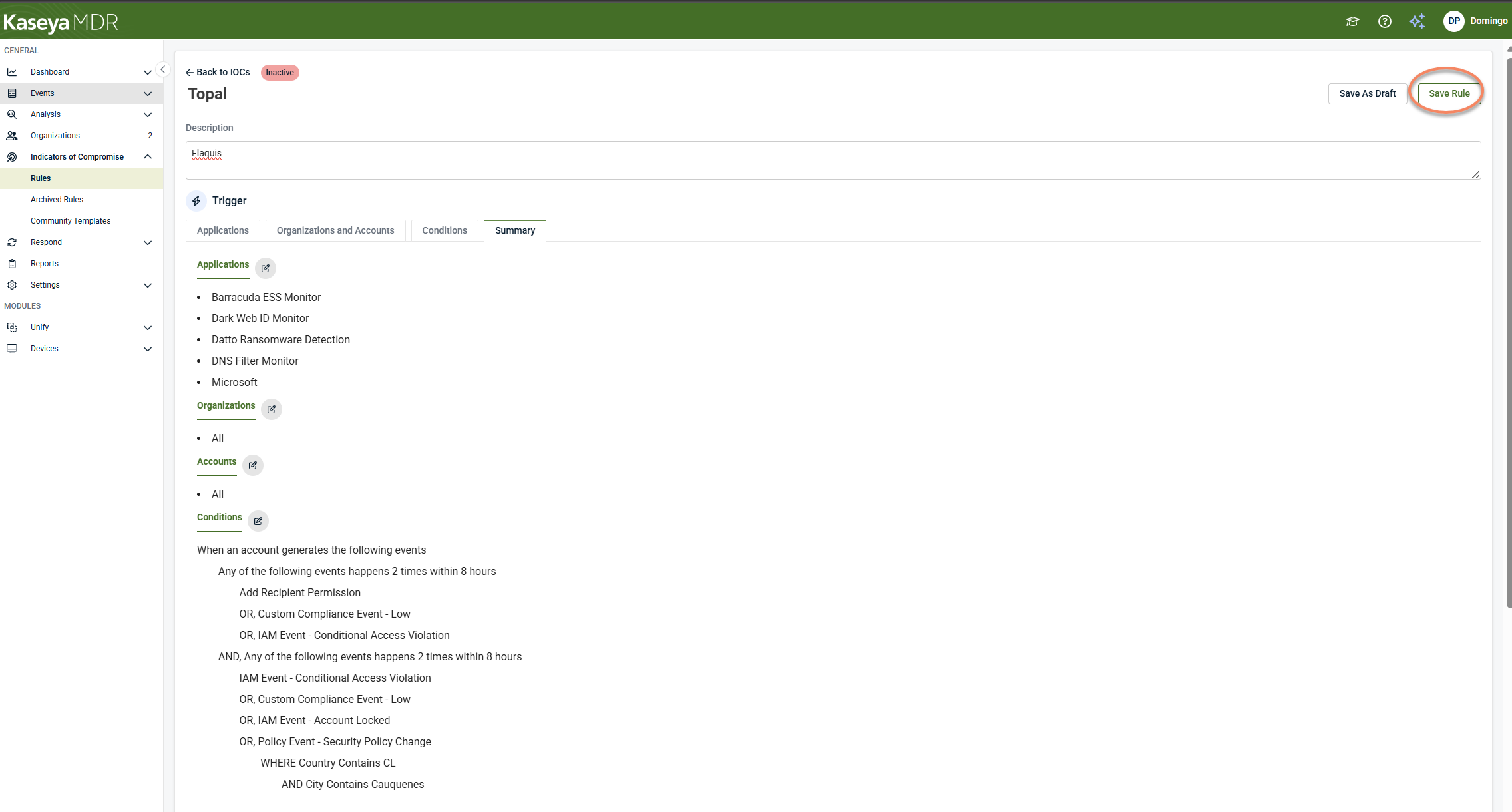
A confirmation message appears indicating that the IOC rule has been saved and is active.
The Archived Rules tab
Archived Rules are previously created IOC rules that have been intentionally disabled but retained for future reference or reuse.
Archived IOC rules:
-
Are not evaluated against incoming data
-
Do not generate alerts
-
Do not contribute to investigations or correlation
The rule’s configuration is preserved exactly as it was. Users can view archived rules, restore them if needed, and edit them after restoring.
Archiving allows teams to reduce noise, temporarily disable unused rules, retain configuration history, and avoid deleting rules permanently.
Community Templates
The Community Templates tab provides prebuilt IOC rule templates that you can review or duplicate to create new IOC rules: view community templates and create IOC rules from community templates.
Viewing a community template
To view a community template, follow these steps:
-
Navigate to Indicators of Compromise > Rules
-
Select the Community Templates tab
-
Click the View (eye) icon next to a template
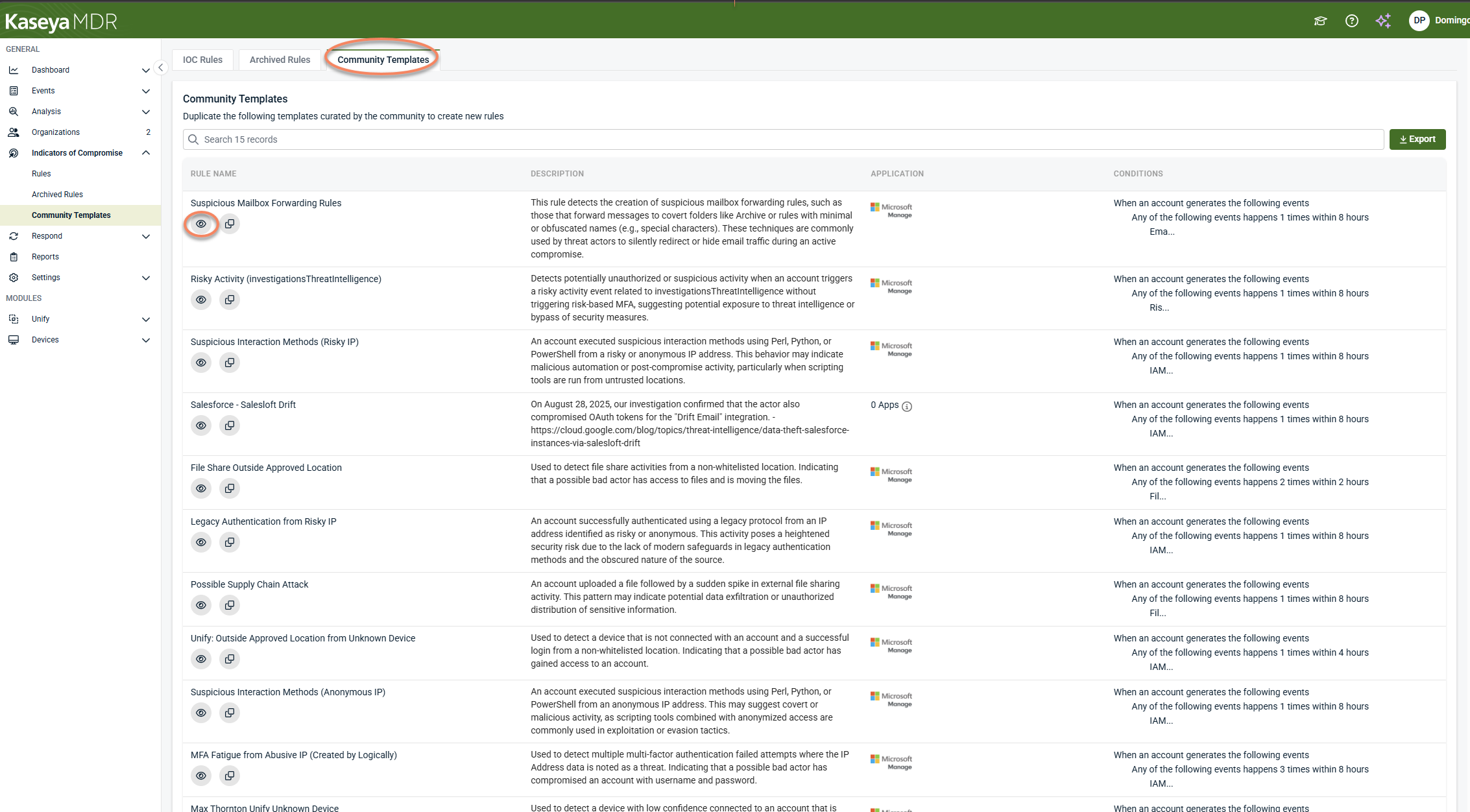
Viewing a template opens it in a read‑only view, allowing you to review the trigger and condition logic before creating a rule. From this view, you can choose to duplicate the template to create a new IOC rule.
Creating an IOC rule from a community template
You can create a new IOC rule from a template in either of the following ways:
Option 1: Duplicate from the template list
-
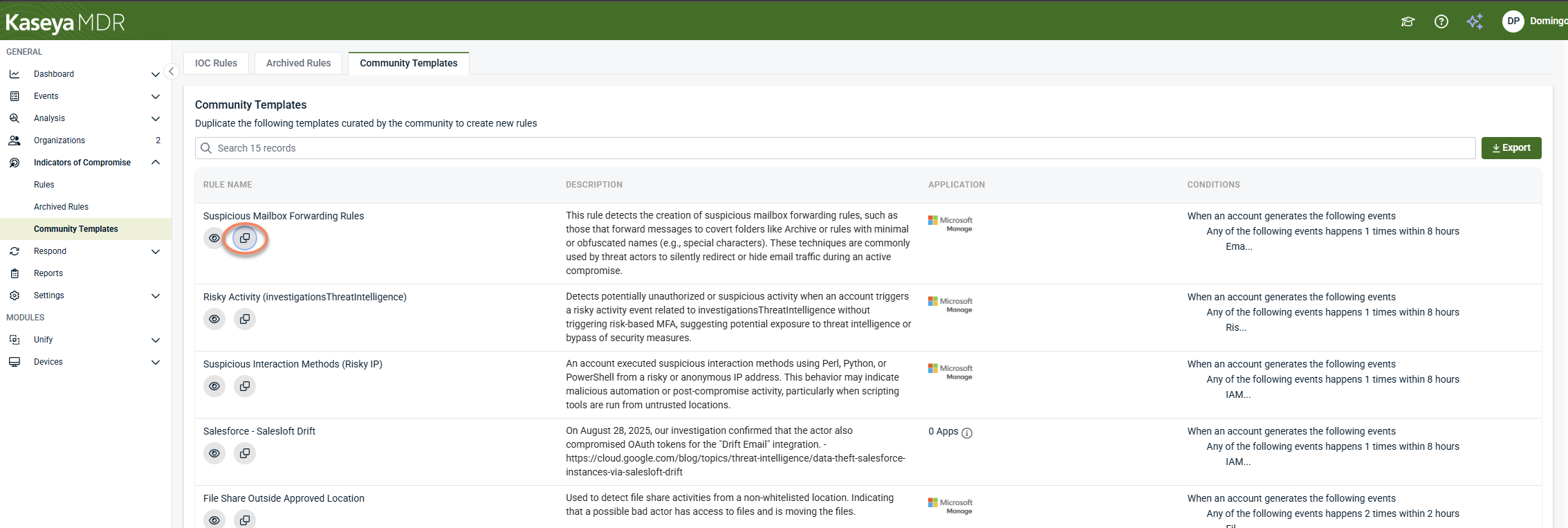
In the Community Templates tab, click the Duplicate icon next to a template.
-
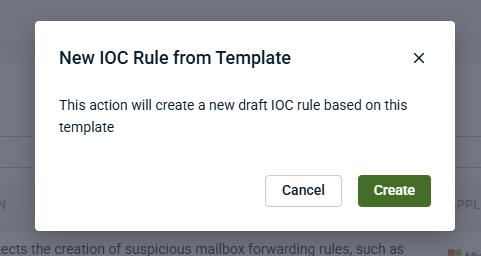
In the confirmation dialog, click Create.
Option 2: Duplicate from the template view
-
Click the View (eye) icon to open the template.
-
Select Duplicate.
-
In the confirmation dialog, click Create.
After confirming creation:
-
A new IOC rule is created using the template’s trigger and condition logic.
-
A success message appears in the upper‑right corner confirming the rule was created.
-
The new IOC rule is fully editable and behaves like any other IOC rule.
The newly created rule is created in a draft state and is not evaluated until it is saved and active.
Important behavior notes
-
Community templates themselves are not active rules.
-
Templates are not automatically applied, evaluated, or used for detection.
-
Templates do not generate alerts or enforce response actions.
-
Templates exist to accelerate rule creation, not to apply default detection behavior.
Related articles
-
Using the Respond Module: Introduces the Respond module and explains how Respond rules, templates, connections, and actions fit together before rules are created or automated
-
Creating Respond rules: Walks through how to build Respond rules that correlate multiple signals into higher‑confidence alerts, including rule structure, scope, conditions, schedules, and response outcomes
-
Investigating activity using the Analysis page: Review timelines, related events, and correlated context


