Securing your account with two‑factor authentication (2FA)
Two‑factor authentication (2FA) adds an extra layer of protection to your Kaseya MDR account by requiring two forms of verification when you sign in:
-
Something you know: your email address and password
-
Something you have: a time‑based, one‑time code generated by an authenticator app
Even if your password is compromised, 2FA helps prevent unauthorized access to your account. Kaseya strongly recommends enabling 2FA for all Kaseya MDR users.
2FA behavior in Kaseya MDR
In Kaseya MDR, 2FA is configured per user account from within the product interface:
-
Users manage their own 2FA settings.
-
Depending on your authentication model, multi‑factor enforcement may be centralized through KaseyaOne rather than managed individually within Kaseya MDR.
-
2FA uses one‑time passwords (OTP) generated by an authenticator app.
-
2FA settings are available under Settings > Account.
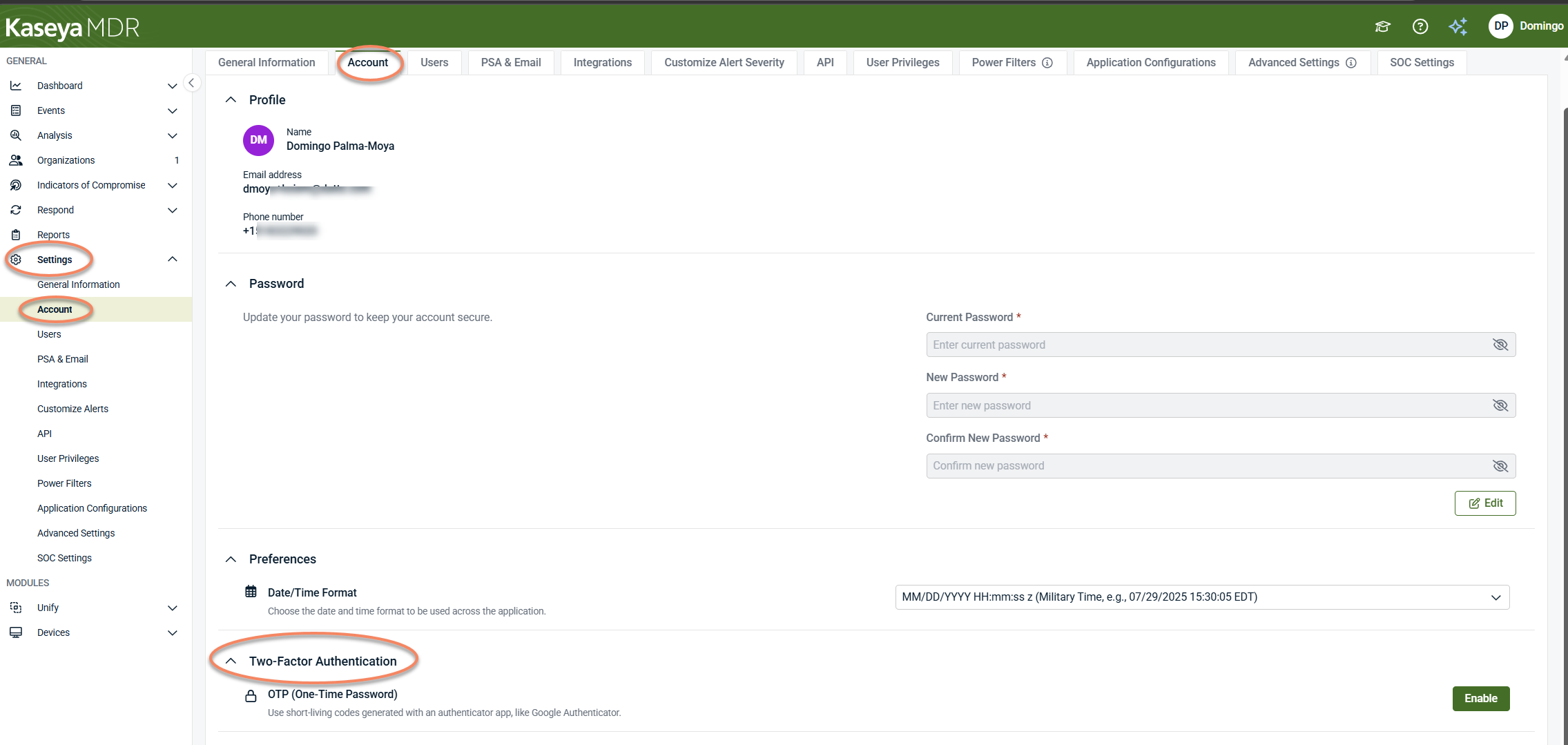
The steps for enabling 2FA are the same for all customers. What differs is:
-
How you started using Kaseya MDR
-
How you authenticate when signing in
Understanding both helps you know where 2FA is enforced.
Important: how you started using Kaseya MDR
Synchronization with RocketCyber
If your organization starts using Kaseya MDR through synchronization with RocketCyber, users and certain security‑related settings are designed to remain aligned between platforms.
If 2FA is already enabled or required in RocketCyber, users may arrive in Kaseya MDR with 2FA already enabled.
If 2FA is already enabled or required in RocketCyber, users may arrive in Kaseya MDR with 2FA already enabled.
No additional action is required unless users want to review or update their 2FA settings.
Starting directly in Kaseya MDR
If you start fresh in Kaseya MDR (no RocketCyber synchronization):
-
No prior security settings exist
-
Each user must enable 2FA manually from Settings > Account
Authentication model
Kaseya MDR supports two sign‑in models. Where multi‑factor authentication is enforced depends on which model your organization uses.
Direct sign‑in to Kaseya MDR
-
Users sign in using Kaseya MDR credentials
-
2FA is enforced by Kaseya MDR
-
Users enable 2FA from Settings > Account
Unified Login with KaseyaOne
If your organization uses Unified Login with KaseyaOne, authentication and multi‑factor authentication (MFA) are enforced through KaseyaOne, not directly within Kaseya MDR.
-
Users sign in through KaseyaOne
-
Authentication (including MFA) occurs during the KaseyaOne sign‑in flow
-
The 2FA setting in Kaseya MDR may still be visible, but it is not the primary enforcement point. When Unified Login with KaseyaOne is enabled, changes to the 2FA setting in Kaseya MDR do not affect sign‑in behavior.
For details, see Unified Login with KaseyaOne.
Enabling two‑factor authentication
If your organization uses direct sign‑in to Kaseya MDR, follow these steps:
-
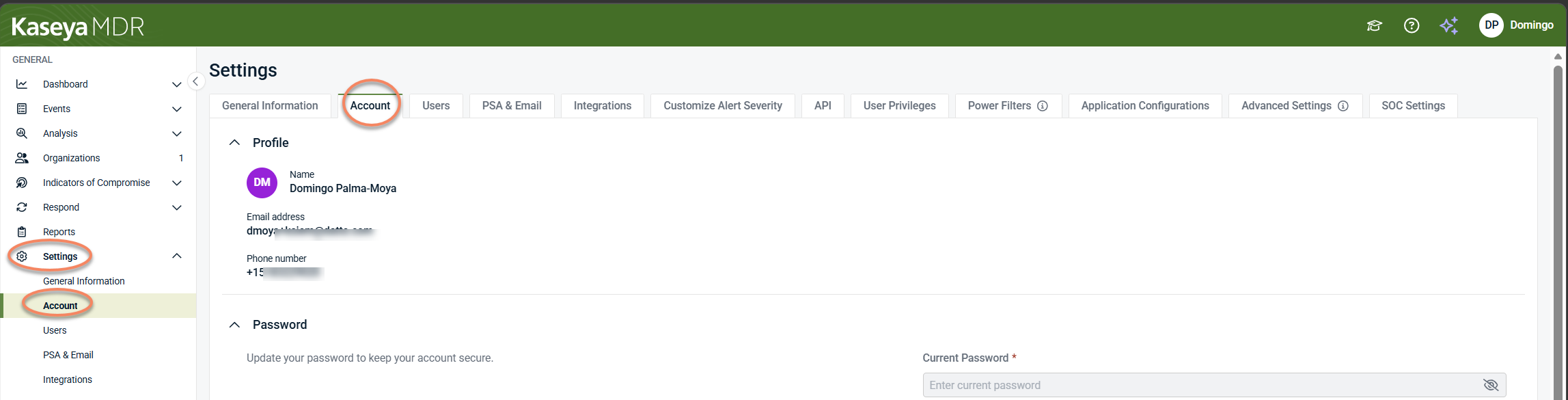
From the side navigation menu, click Settings and select the Account tab.
-
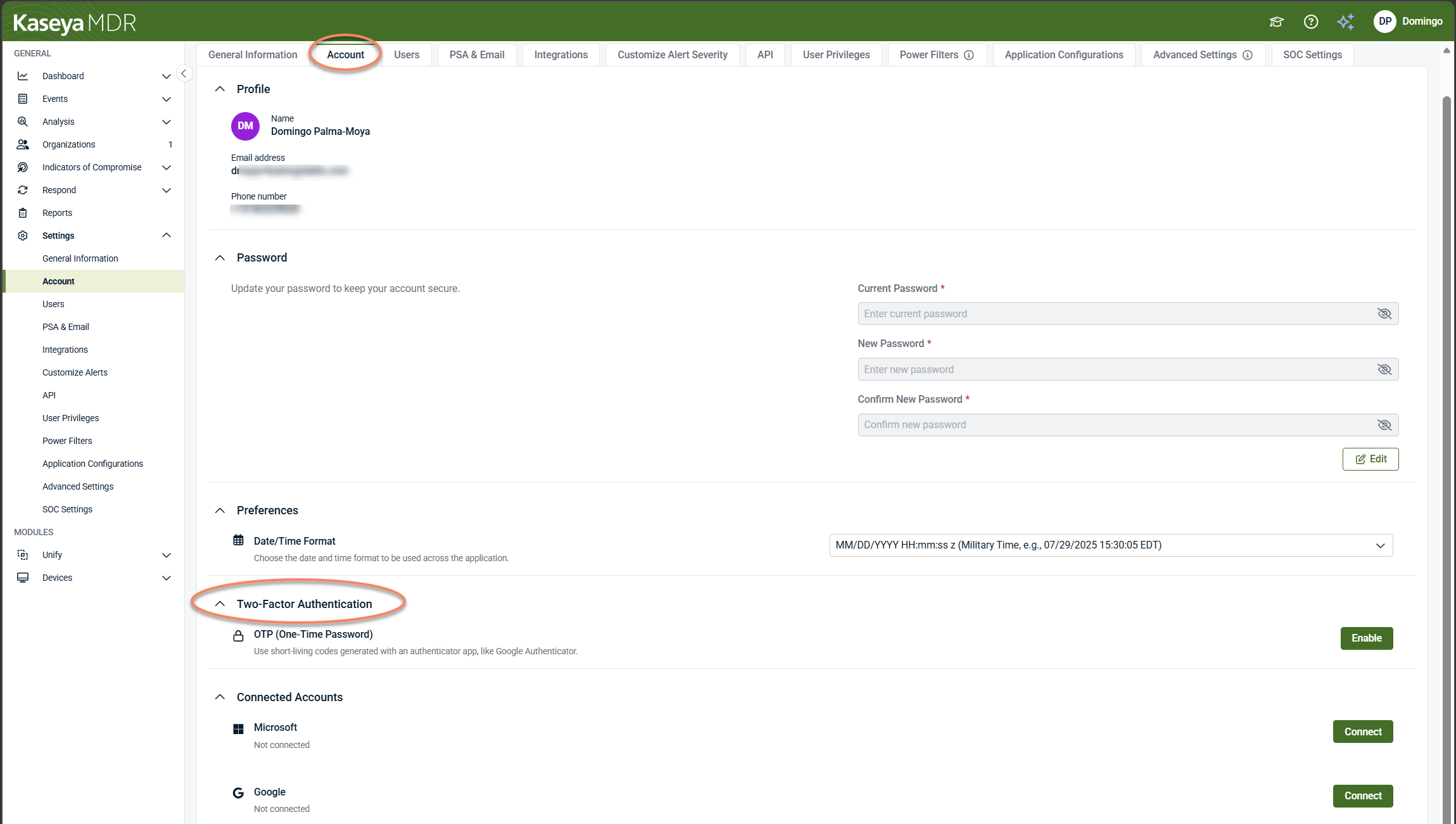
Locate the Two‑Factor Authentication section.
-
Click Enable in the Two‑Factor Authentication section.
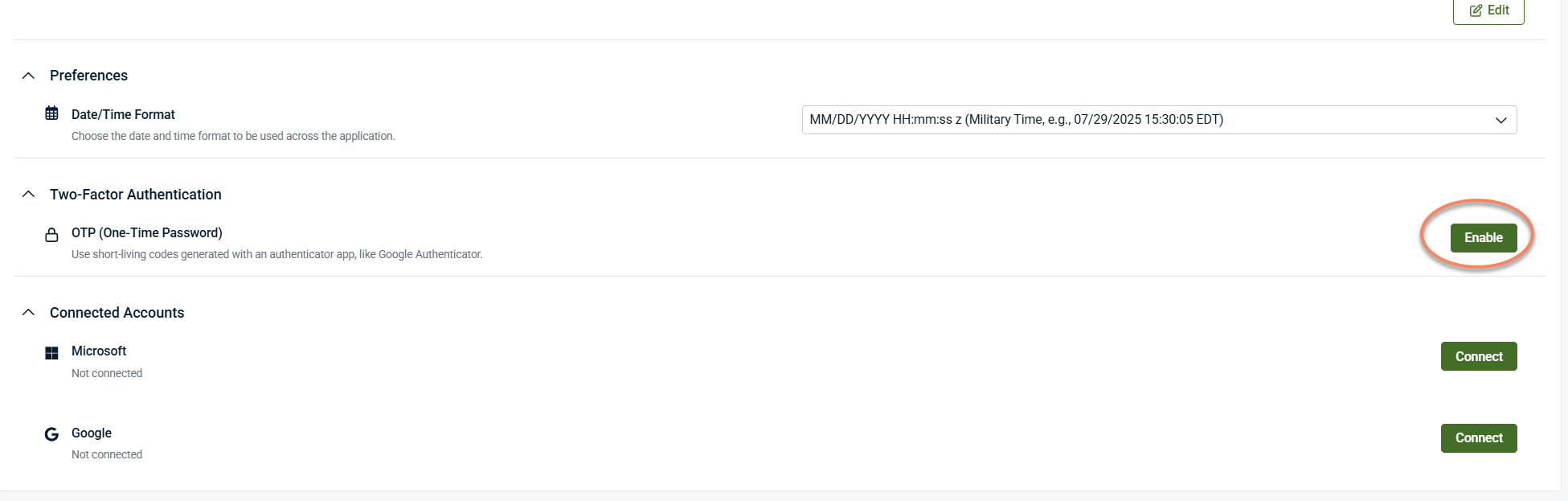
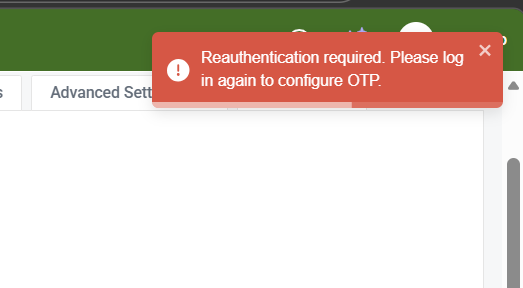
You may be prompted to log out and log in again.
Setting up your authenticator app
Kaseya MDR supports standard OTP authenticator apps, such as:
-
Authy (iOS or Android)
-
Google Authenticator (iOS or Android)
To complete setup:
-
Open your authenticator app.
-
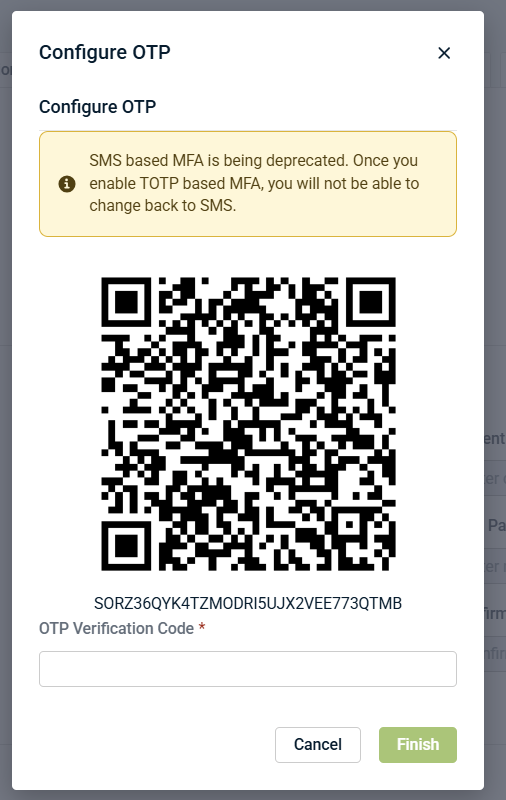
Scan the QR code displayed in Kaseya MDR.
-
Enter the generated one‑time code when prompted.
-
Click Finish.
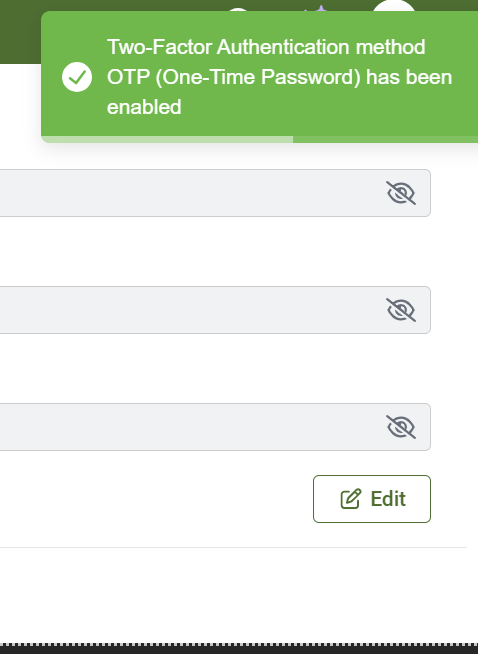
A confirmation message appears in the upper‑right corner to indicate that setup was successful.
Saving your recovery codes
After enabling 2FA, Kaseya MDR provides recovery codes.
Store these codes securely. They are required if:
-
Your phone is lost or replaced
-
Your authenticator app is unavailable
Each recovery code can be used once.
Adding a new authentication device
If you need to set up 2FA on a new phone:
-
Sign in to Kaseya MDR
-
Go to Settings > Account
-
Select View QR Code
-
Scan the code using your new device’s authenticator app
You must already be signed in to add a new device. If you cannot sign in, use a recovery code.
Disabling two‑factor authentication
While not recommended, you can disable 2FA if required:
-
Go to Settings > Account.
-
Locate the Two‑Factor Authentication section.
-
Select Disable.
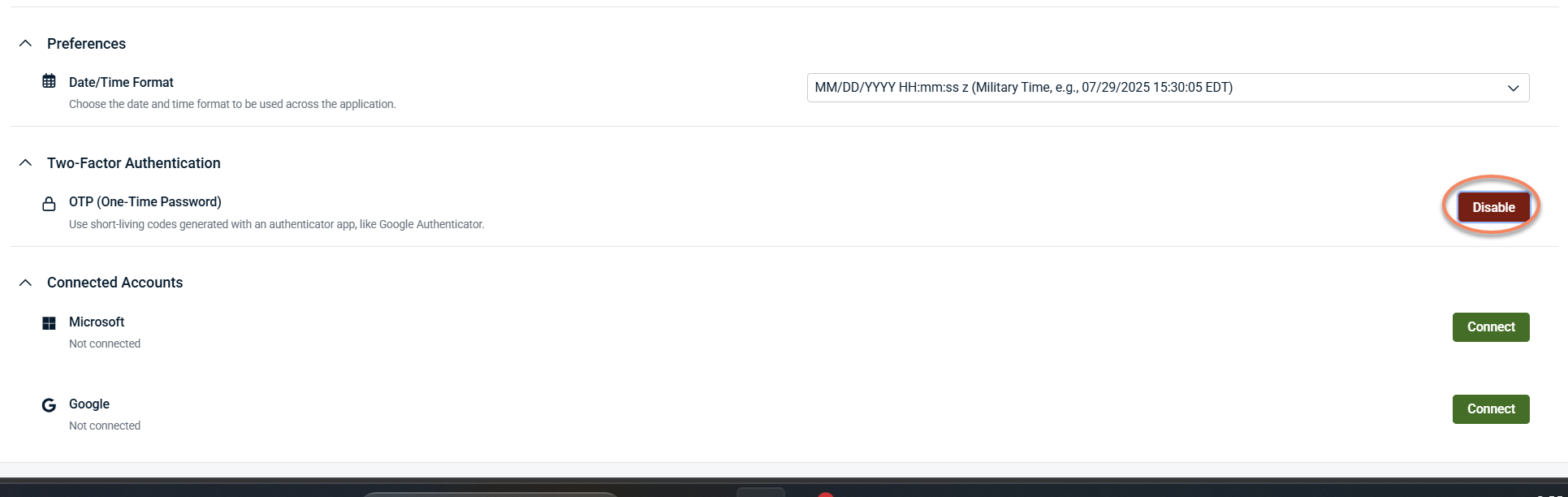
Disabling 2FA significantly reduces account security. Consider re‑enabling it as soon as possible. Some response actions or approvals may be unavailable while 2FA is disabled.
Key takeaways
-
2FA is enabled per user account in Kaseya MDR.
-
Users synchronizing from RocketCyber may already have 2FA enabled.
-
Users starting directly in Kaseya MDR must enable 2FA themselves.
-
Enforcement depends on how users authenticate:
-
Direct sign‑in: Kaseya MDR enforces 2FA
-
Unified Login: KaseyaOne enforces MFA during sign‑in
-
Related articles
-
Unified Login with KaseyaOne: Explains how authentication and multi‑factor authentication are enforced when accessing Kaseya MDR through KaseyaOne Unified Login, including how this differs from direct sign‑in
-
Account, access, and governance: Provides reference information about user accounts, access controls, authentication options, and governance‑related settings in Kaseya MDR


