User roles and permission boundaries
Kaseya MDR uses role‑based and scope‑based controls to define which organizations MSP users can access, what administrative actions they can perform in the platform, and how access is delegated across multiple organizations.
These controls support separation of duties, least‑privilege access, and safe delegation for MSP administrators managing MDR on behalf of multiple customers.
This article explains how MSP user access is structured, where it is configured, and how permission boundaries should be established when managing organizations in Kaseya MDR.
Common questions this article answers include:
-
How do MSP user roles and access work in Kaseya MDR?
-
How can I limit which organizations a technician can see?
-
What is the difference between Group Access and capability toggles?
-
Do user roles affect SOC investigation or response actions?
What access controls govern
User roles and permission boundaries in Kaseya MDR determine:
-
Organization visibility: Which organizations an MSP user can see and manage in the Kaseya MDR platform
-
Administrative capabilities: Which Kaseya MDR platform features and configuration areas an MSP user can manage
-
Delegated responsibilities: How limited administrative tasks can be assigned without granting full access
These controls define MSP user access to the Kaseya MDR platform only.
They do not control how the Security Operations Center (SOC) evaluates alerts, investigates activity, or performs response actions on behalf of managed organizations.
Kaseya MDR does not define predefined functional roles beyond the MSP Admin designation. Access is determined through a combination of organization visibility and delegated administrative capabilities.
Configuring access controls
Access controls in Kaseya MDR are managed from two primary areas:
-
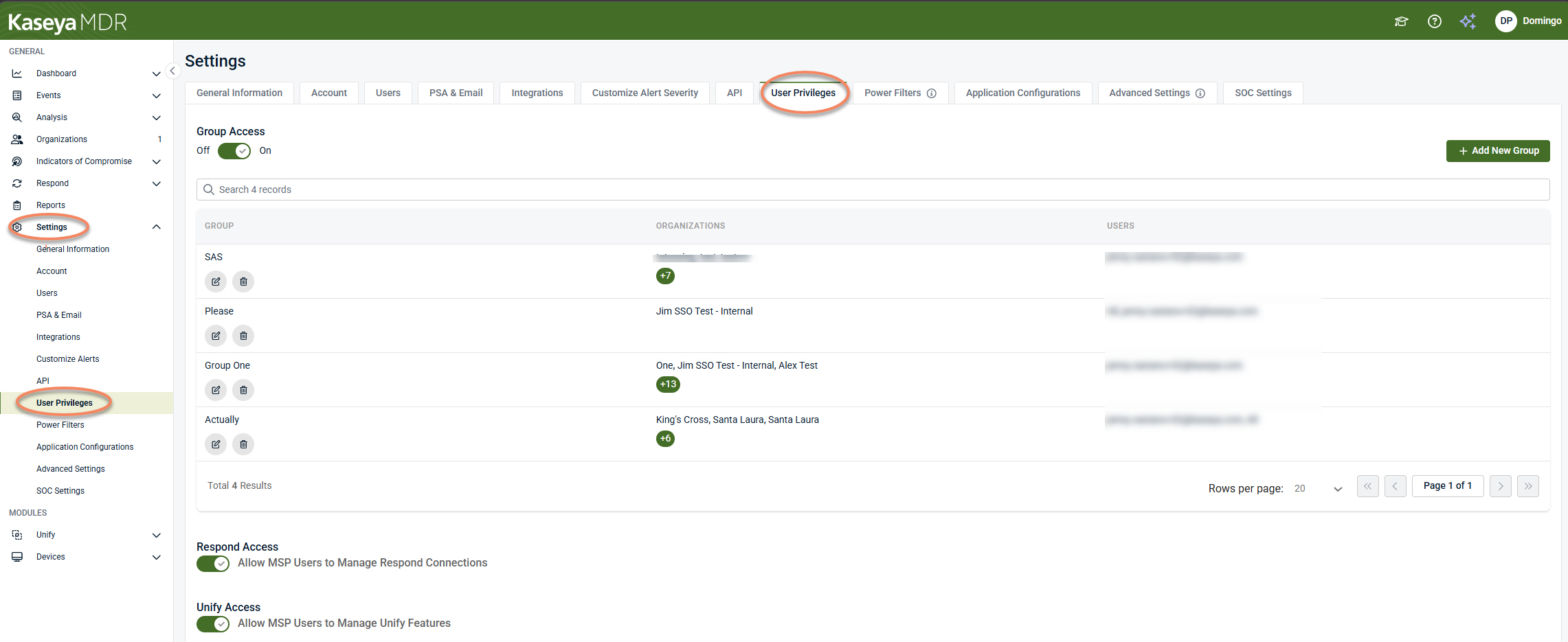
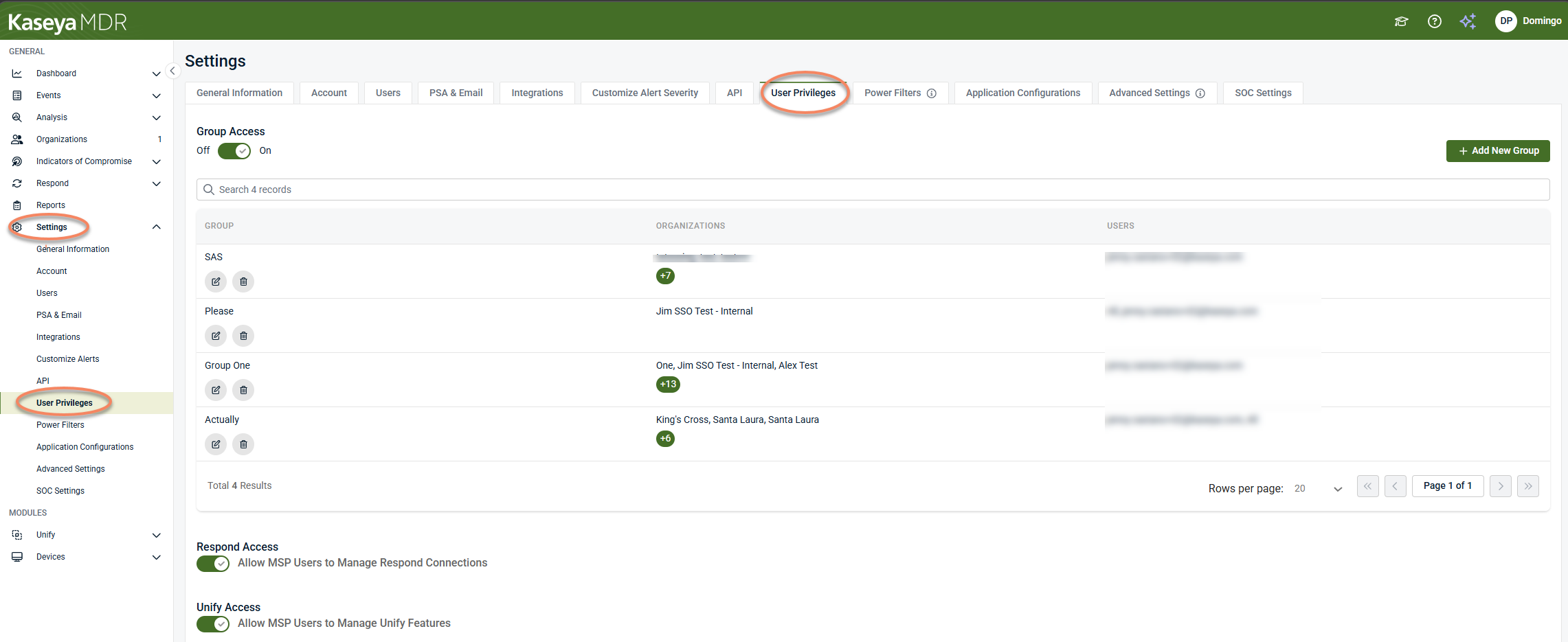
Settings > User Privileges : Controls organization visibility and delegated administrative capabilities for MSP users
-
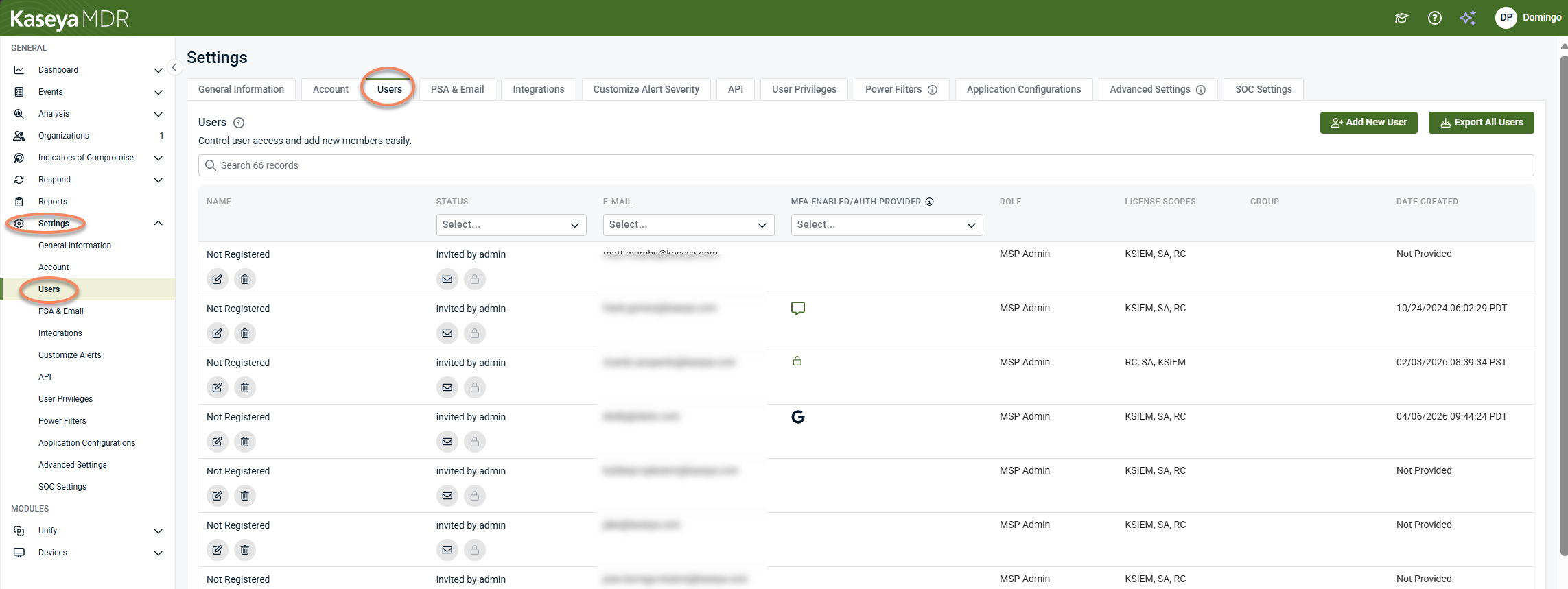
Settings > Users: Creates and manages MSP user accounts, including MSP Admin designation and authentication or provisioning options
To keep access governance clear, use these pages together as follows:
-
Use Settings > User Privileges to define who can see which organizations and which MDR capabilities are delegated
-
Use Settings > Users to create MSP users and apply the access model during user setup
Only users with the MSP Admin role can modify access boundaries and delegated capabilities.
Settings > User Privileges (organization visibility, groups, and capabilities)
Organization visibility (Group Access)
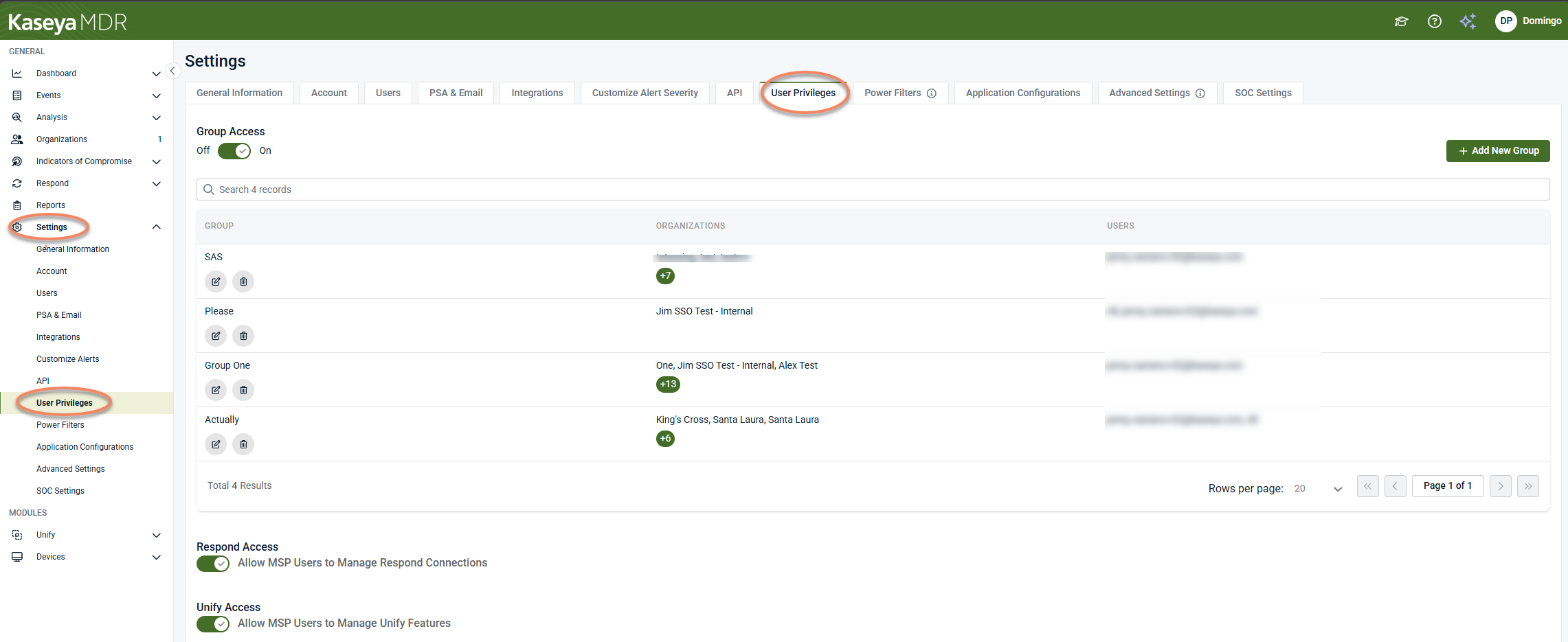
Organization visibility and MSP user privilege boundaries are managed from Settings > User Privileges.
On this page you can:
-
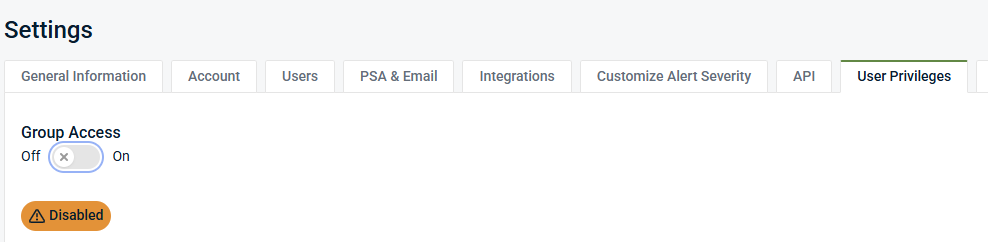
Turn Group Access on/off: Controls which organizations an MSP user can see
-
Create and manage Groups: Determines which organizations are visible to specific users
-
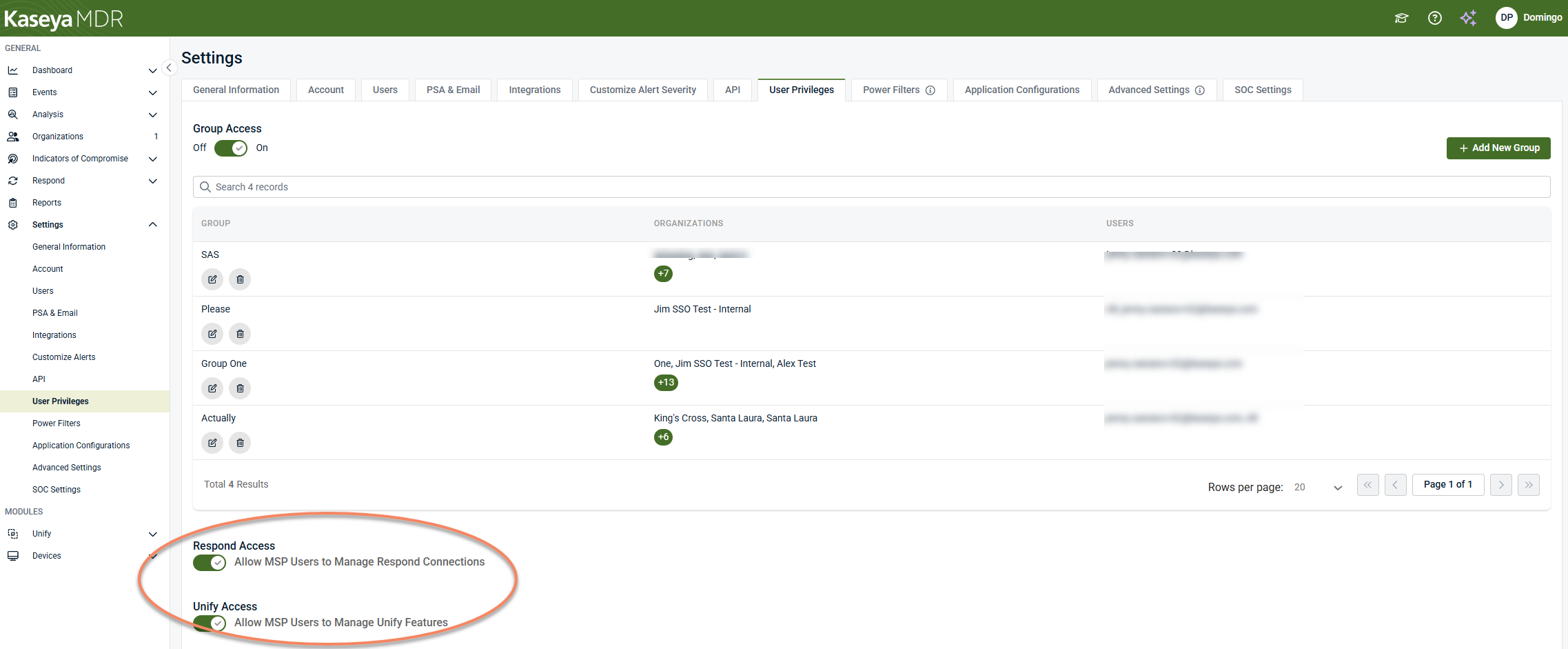
Enable or disable capability toggles: Includes options such as Respond Access and Unify Access.
How Group Access works
Group Access controls organization visibility using group membership.
-
Groups define collections of organizations.
-
MSP users are assigned to one or more groups.
-
Visibility is scoped by group membership, not by individual permissions.
Group Access is an all‑or‑nothing visibility control:
-
If Group Access is On, organization visibility is scoped by groups.
-
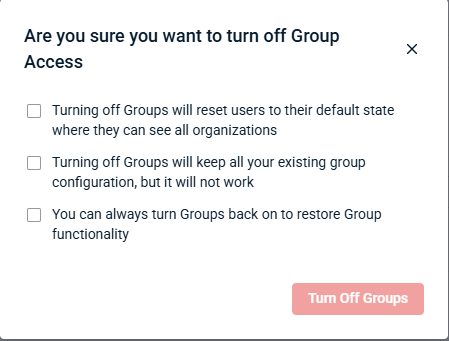
If Group Access is Off, scoped visibility no longer applies.
Use Group Access when you need to:
-
Limit which customers different technicians can see
-
Support specific organizations without exposing the full tenant
-
Separate visibility by customer, region, or responsibility
Boundary: Group Access controls visibility only. It does not grant permission to perform actions.
Group Access behavior in practice
When Group Access is On:
-
MSP users see only the organizations included in their assigned group or groups.
-
Organization‑scoped areas of the platform are limited accordingly.
When Group Access is Off:
-
MSP users revert to the default state where they can see all organizations.
-
Existing group definitions may remain listed, but group scoping does not apply until Group Access is re-enabled.
Group Access should be treated as an all‑or‑nothing visibility control. If it is disabled, scoped visibility disappears.
Groups: defining which organizations a user can access
Groups define which organizations are visible to specific users. Each group includes:
-
A group name
-
One or more organizations assigned to the group (including a Select all organizations option)
-
One or more users assigned to the group (including Select all users when available)
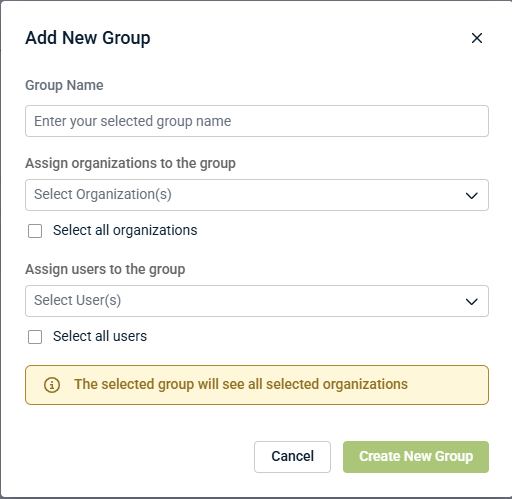
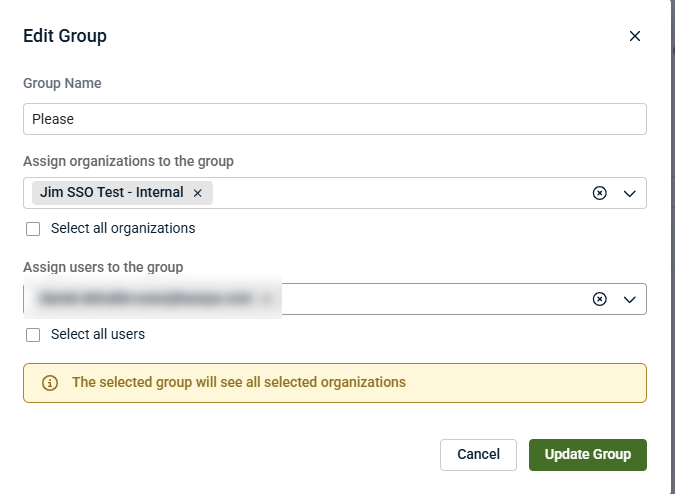
The group configuration confirms the outcome: the selected group will see all selected organizations.
Creating a group
-
Go to Settings > User Privileges.
-
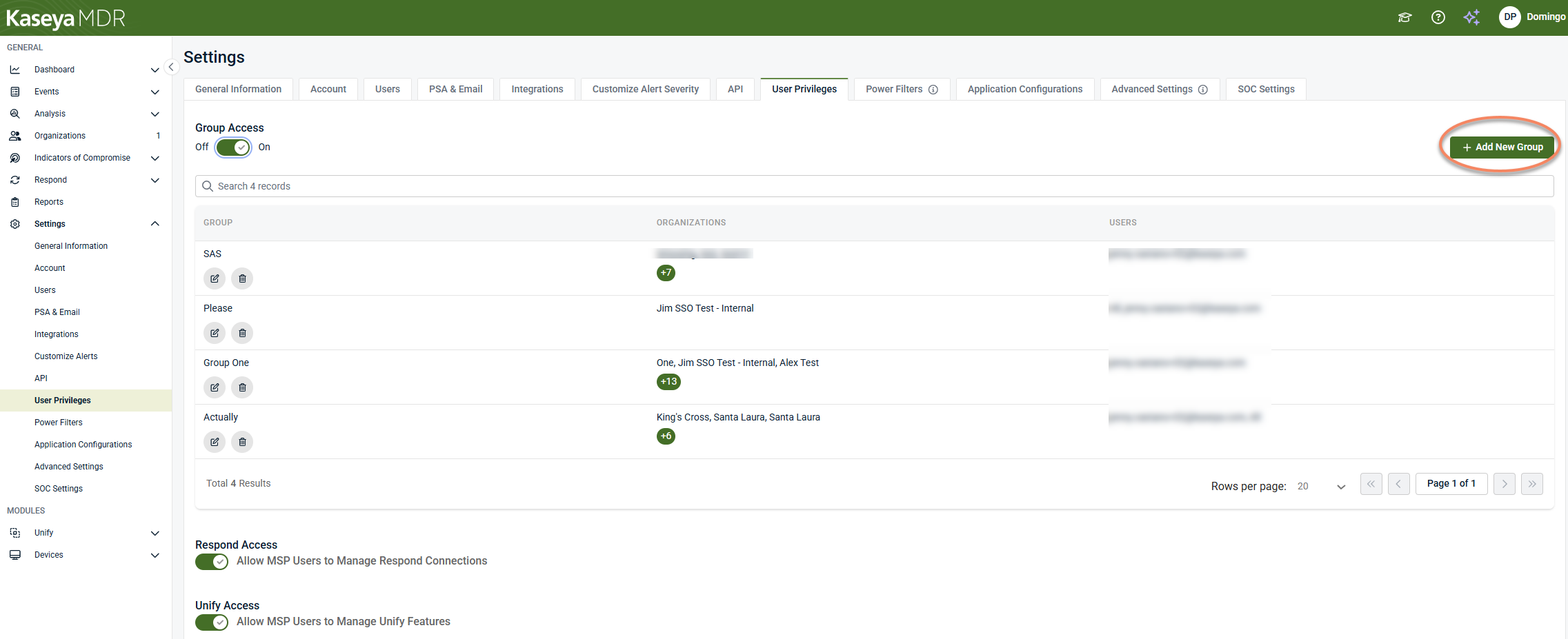
Select + Add New Group.
-
In the Add New Group dialog:
-
Enter a Group Name.
-
Under Assign organizations to the group, select one or more organizations, or select Select all organizations.
-
Under Assign users to the group, select one or more users, or Select all users.
-
-
Select Create New Group.
-
A confirmation message will be displayed.
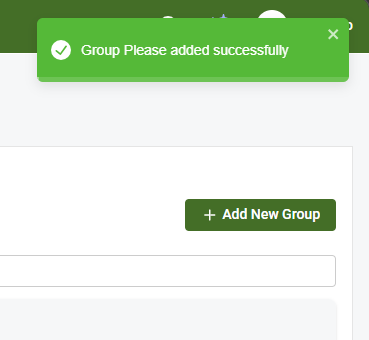
After creation, users assigned to the group see only the organizations assigned to that group.
Editing a group
-
Go to Settings > User Privileges.
-
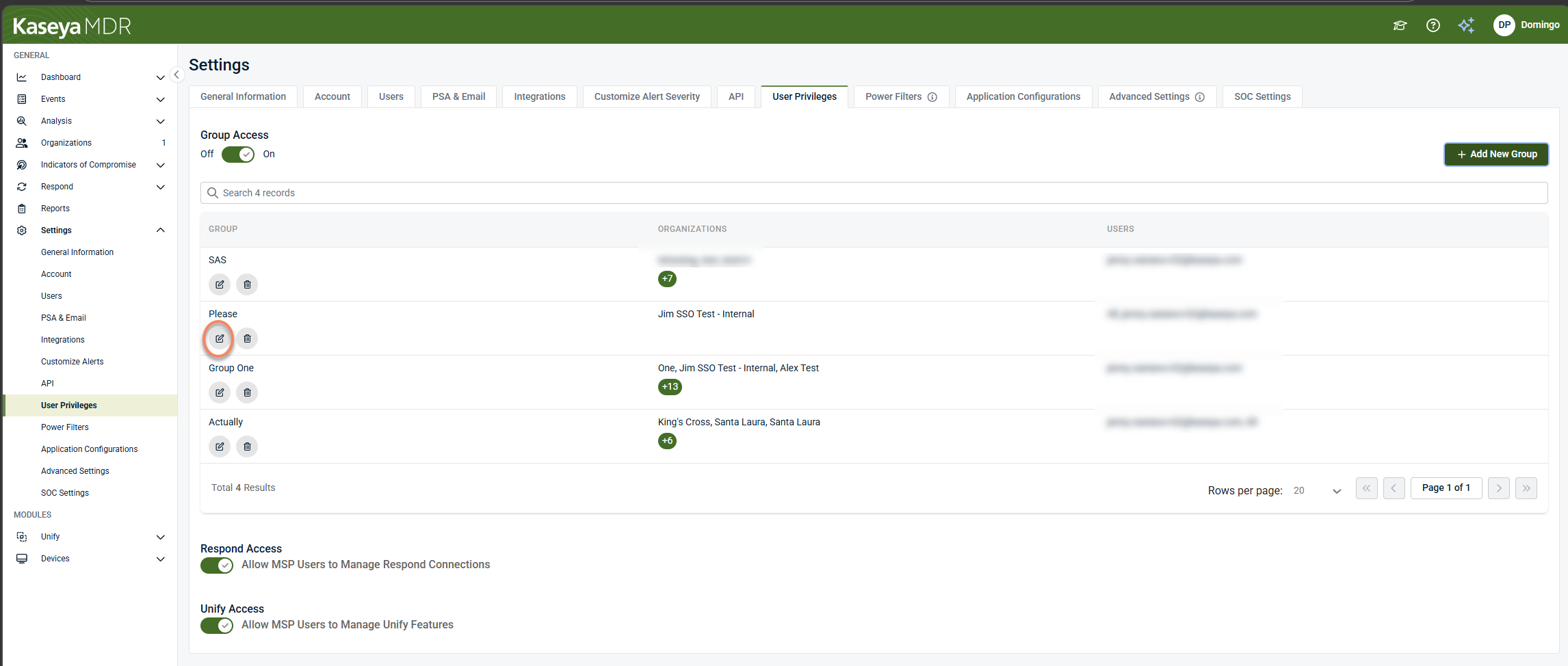
Select Edit group (pencil icon) for the group.
-
In the Edit Group dialog:
-
Update the Group Name as needed.
-
Update the organizations assigned to the group (including Select all organizations).
-
Update the users assigned to the group.
-
-
Select Update Group.
-
A confirmation message will be displayed.
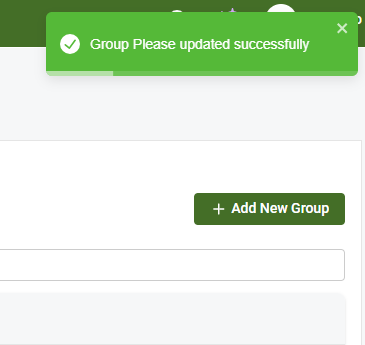
Edits apply immediately to group‑scoped visibility.
Deleting a group
-
Go to Settings > User Privileges.
-
Select Delete group (trash can icon) for the group.
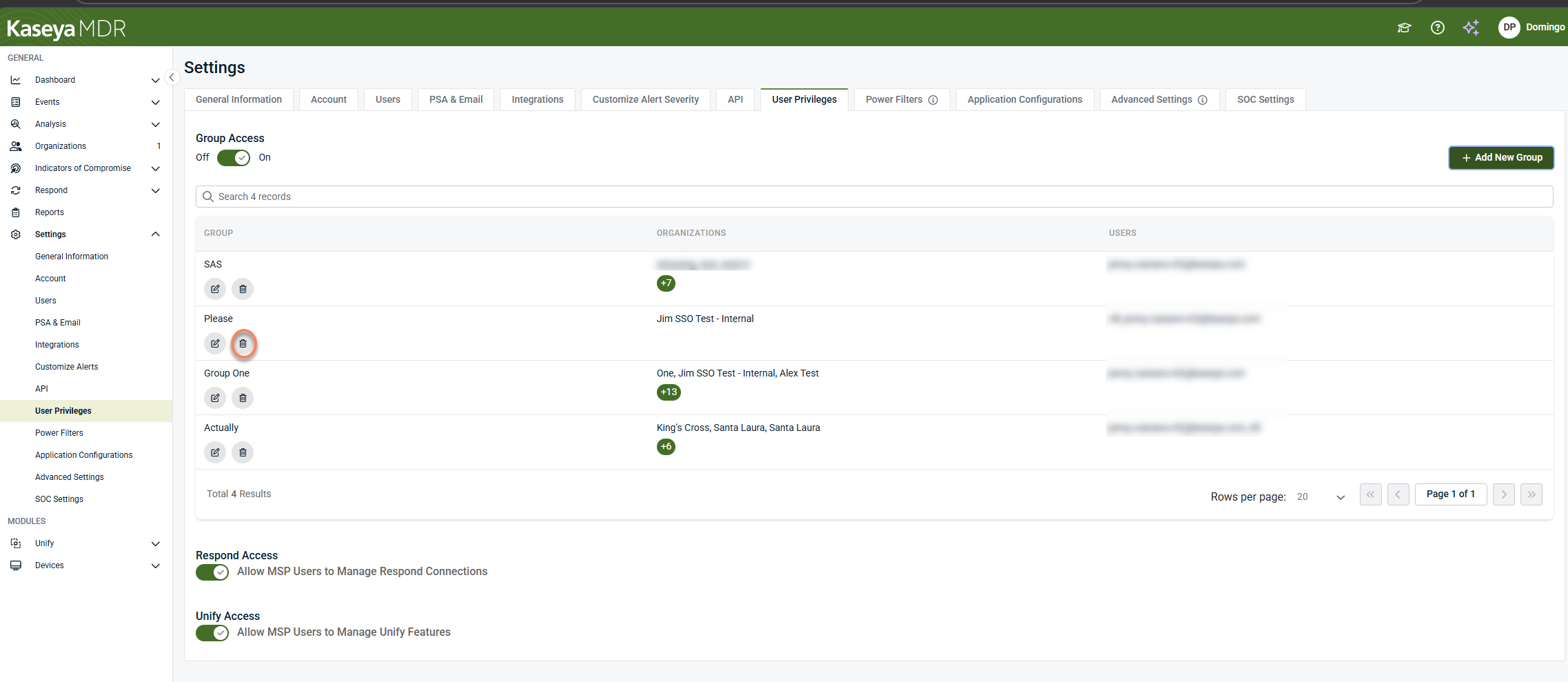
-
In the Delete Group dialog, use Assign user to group if reassignment is required.
-
Select Delete.
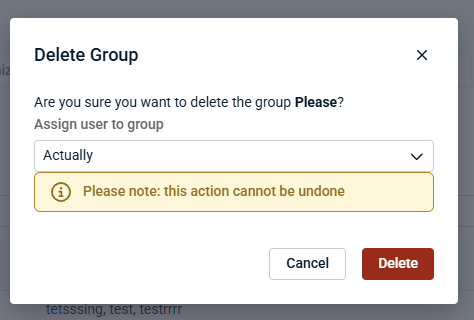
Group deletion is permanent and cannot be undone.
Group list navigation tools
The Groups area supports operational use at scale, including:
-
A search field to filter group records
-
Pagination controls and a rows‑per‑page selector
-
A summary count of results
MSP capability toggles: delegating limited platform access
Below the Groups table on Settings > User Privileges, Kaseya MDR provides capability toggles that delegate limited administrative access to specific MDR platform feature areas.
-
Respond Access: Allows MSP users to manage Respond connections
-
Unify Access: Allows MSP users to manage Unify features
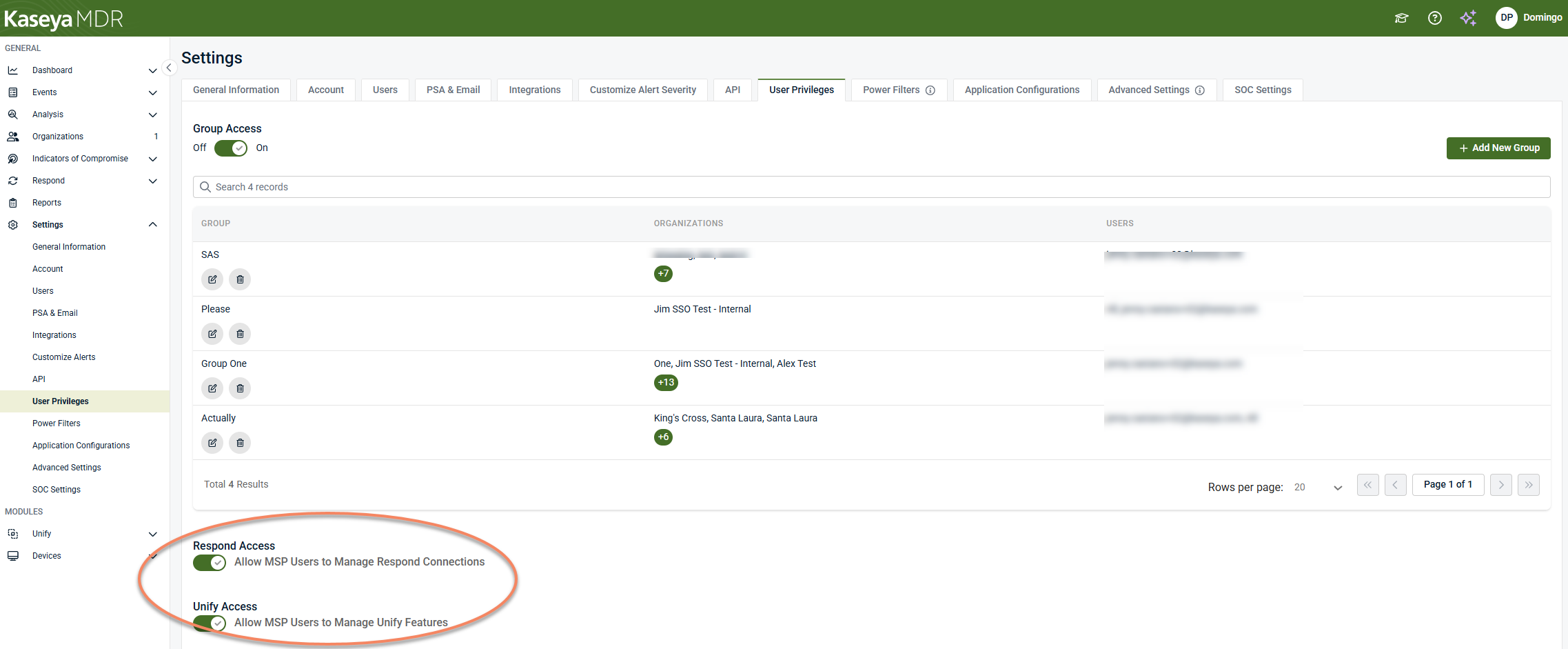
These toggles delegate access to specific MDR platform feature areas without expanding organization visibility. They control whether MSP users can manage functionality related to Respond, or Unify within the organizations they can already see. For more information about what each feature includes, see the Using the Respond module and Unify configuration and context association.
These toggles delegate access to specific MDR platform feature areas without expanding organization visibility.
Important boundary
-
Group Access controls which organizations MSP users can see.
-
Capability toggles control which limited administrative actions MSP users can take.
They work together, but they do not control the same thing.
NOTE Group Access applies to MSP users. MSP Admin users are not subject to organization visibility restrictions.
IMPORTANT These controls apply to MSP platform access only and do not affect SOC investigation or response workflows.
Common access patterns (recommended)
| Scenario | Use this control | Why |
|---|---|---|
| You have multiple organizations and need to limit what different technicians can see | Group Access | Restricts organization visibility so users see only the organizations assigned to their group, rather than the full tenant list |
| You want users to support specific customers without exposing all organizations | Group Access | Allows access to be scoped by customer or responsibility without creating separate tenants. |
| You need technicians to manage specific operational areas (for example, connection or feature management) | MSP capability toggles | Delegates specific administrative capabilities without expanding organization visibility or granting full administrative access |
| You want to temporarily remove scoped organization visibility for all users | Disable Group Access | Restores full organization visibility while preserving existing group definitions for later re‑enablement |
| You want to delegate tasks without exposing sensitive configuration or full access | Group Access + MSP capability toggles | Separates organization visibility from limited action permissions |
IMPORTANT Disabling Group Access removes organization‑level visibility restrictions for all users. Use this option intentionally and only when full organization visibility is required.
Settings > Users (user creation, group assignment, and user‑level options)
User administration and visibility assignment
User account administration is handled under Settings > Users.
This is where administrators can:
-
Invite users and manage user status
-
Assign the MSP Admin designation (when applicable)
-
Assign Group Access membership during user creation
-
Configure user‑level options such as Single Sign‑On and Enable Automatic User Creation
User assignment: applying group visibility during user setup
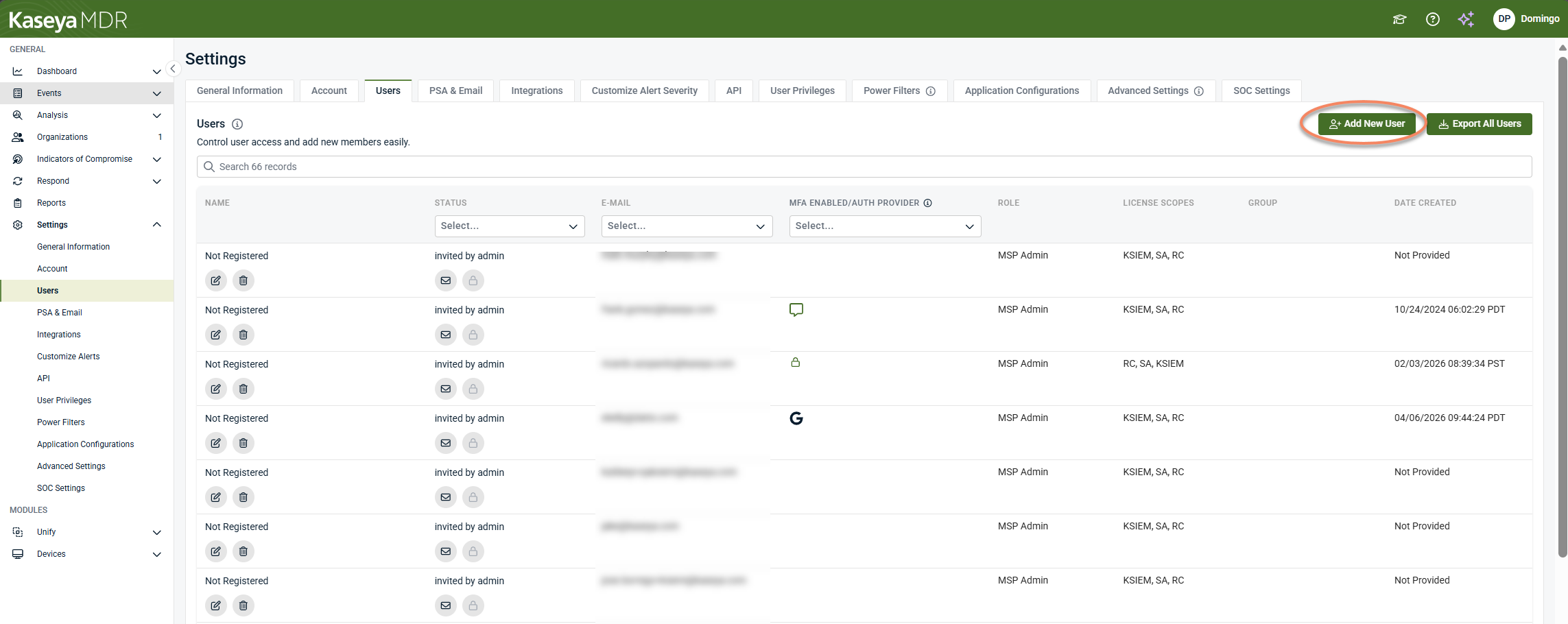
Group scoping is applied to users through Settings > Users. This page provides:
-
A user list including user status and role information
-
A Group column to reflect group assignment
-
Buttons for Add New User and Export All Users
NOTE As part of a RocketCyber to Kaseya MDR synchronization, the existing user list is transferred to the Kaseya MDR tenant. This is a point‑in‑time operation and does not imply ongoing synchronization between RocketCyber and Kaseya MDR. For context on what follows, see Getting started with Kaseya MDR as a RocketCyber user.
User invitation and group assignment
-
Go to Settings > Users.
-
Select Add New User.
-
In the Add MSP User dialog:
-
Enter the user’s email address and license scope.
-
Select MSP Admin when applicable.
-
Under User Privileges, use the Group Access drop-down menu to assign group membership.
-
Use Add/Edit Groups to manage groups if needed.
-
-
Select Send User Invite.
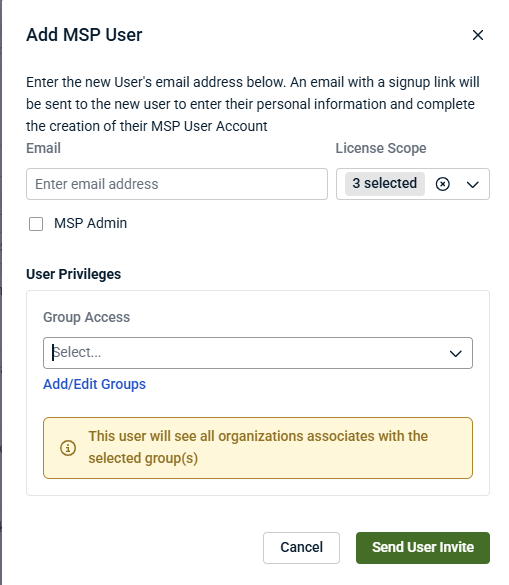
The dialog confirms the access outcome: the user will see all organizations associated with the selected group or groups.
User‑level access options
The Users page also includes a Single Sign‑On section with the following options:
-
Allow Users to Log in with KaseyaOne (user login method configuration)
-
Require Login with KaseyaOne (enforces KaseyaOne as the required login method; available when KaseyaOne login is enabled)
-
Enable Automatic User Creation (user provisioning behavior; available when KaseyaOne login is enabled)
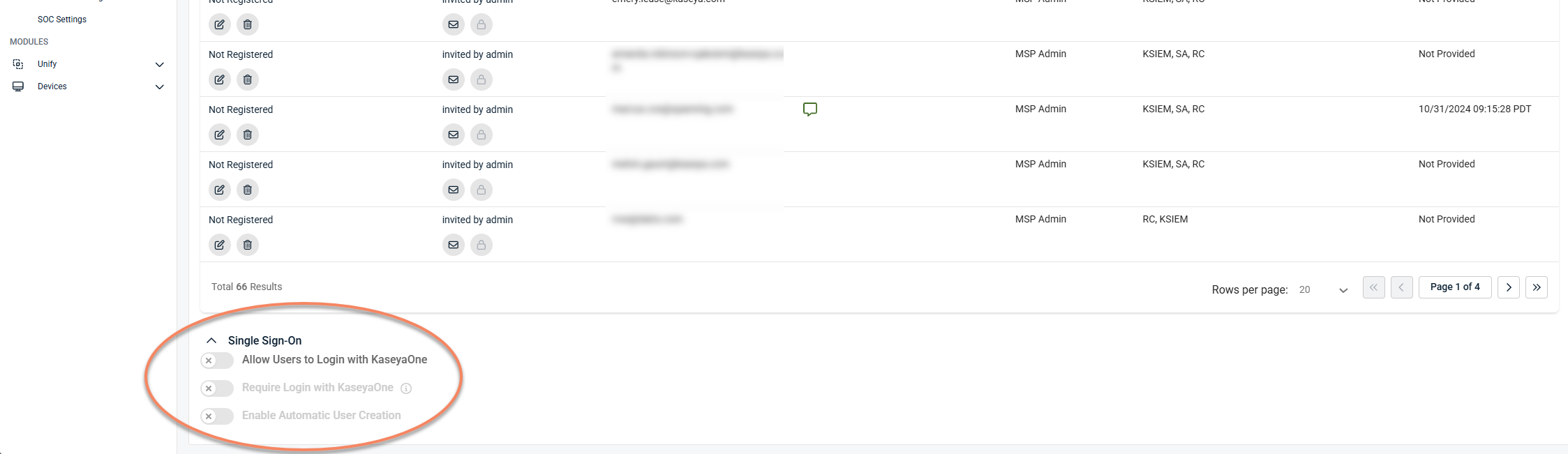
These options affect how MSP users are created and authenticated and should be configured according to your organization’s access and provisioning requirements. For more information, see Unified Login with KaseyaOne and Setting up automatic user creation.
Related articles
-
Managing organizations: Describes how organizations define security and configuration boundaries that access controls are applied against
-
Setting up automatic user creation: Explains how user accounts can be provisioned automatically through authentication without assigning permissions
-
Global defaults and organization‑level behavior: Explains how configuration scope, inheritance, and overrides work across Settings and why behavior can differ by organization


