Deploying agents
Deploying agents installs endpoint visibility capabilities on supported devices so they can send telemetry to Kaseya MDR.
This article covers deployment mechanics only: what deployment methods are supported, where installation artifacts are obtained, and how to confirm that agents are installed and reporting. Configuration of agent behavior, performance limits, and operational overrides is handled separately through Advanced agent settings and organization overrides.
This article explains:
-
Supported agent deployment methods
-
Deployment prerequisites
-
Where installation commands and keys are obtained
-
How deployment success is validated
-
What agent deployment does not configure
Supported deployment methods
The following are the only supported agent deployment methods for Kaseya MDR:
-
GUI installer: Download and manually install the agent on the endpoint.
-
CLI installer: Run a single command manually or execute it through an RMM tool.
-
PowerShell installer: Install the agent using a PowerShell script.
-
RMM‑based deployment using:
-
Kaseya VSA 10
-
Datto RMM
-
IMPORTANT These are the supported deployment paths. Other scripting approaches may be technically possible but are not documented or supported.
Platform support notes
-
Windows: GUI, CLI, PowerShell, and RMM‑based deployment are supported.
-
macOS and Linux: CLI installation is the supported method.
Deployment prerequisites
Before deploying agents:
-
An organization must already exist in Kaseya MDR.
-
Agent deployment is performed within an organization context.
Agents are associated with the organization selected when installation artifacts are retrieved.
Retrieving deployment artifacts
Agent installation artifacts are obtained from the organization context in Kaseya MDR.
From Organizations > Edit Organization > Agent Deployment, administrators can:
-
View supported installation methods by operating system
-
Copy installer commands or scripts
-
Download installers where applicable
-
Retrieve organization‑specific license keys (Windows) or API keys (macOS/Linux)
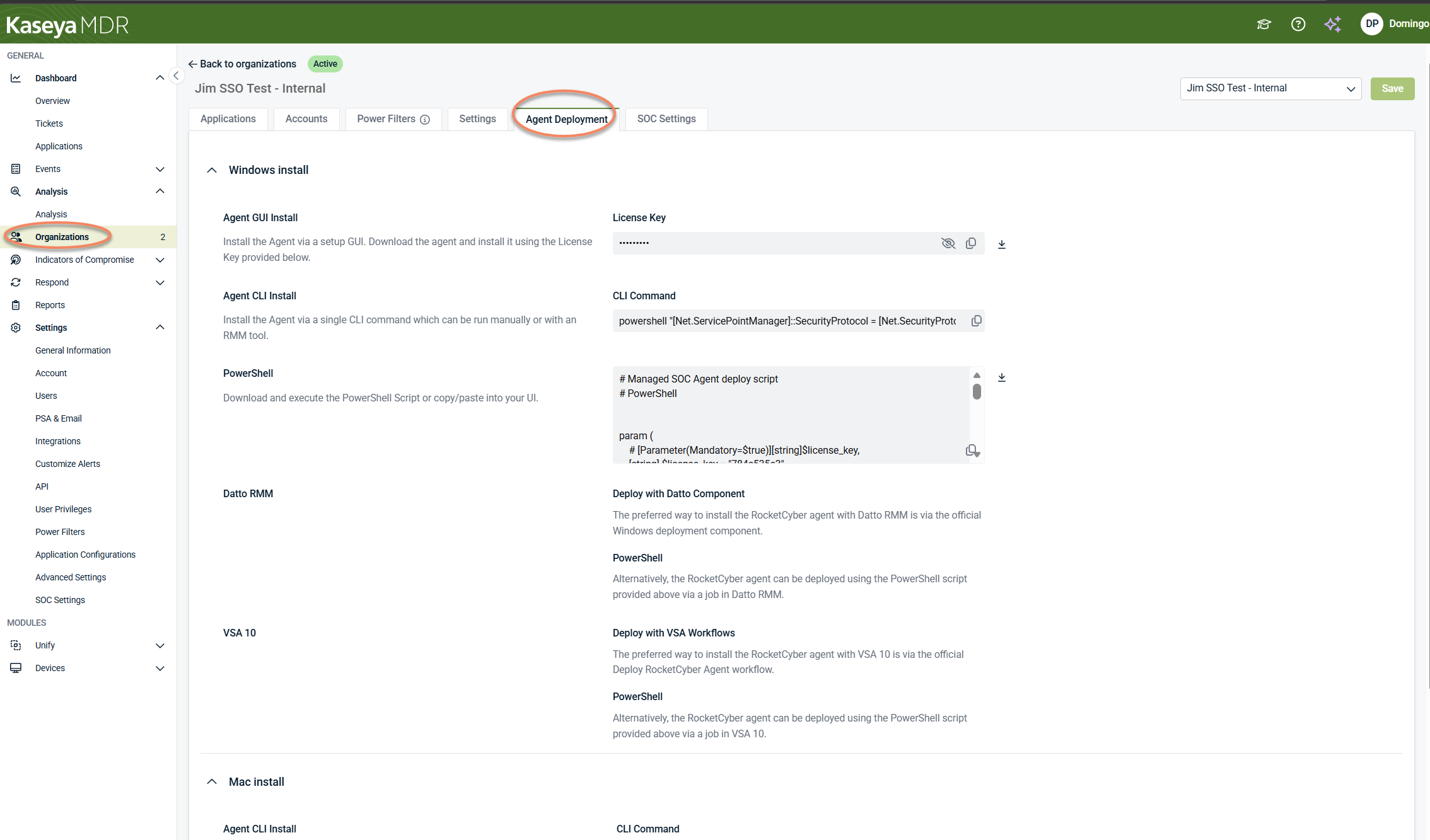
This page provides installation artifacts only. It does not:
-
Initiate or schedule deployments
-
Push agents to devices
-
Configure agent behavior or platform features
Deployment actions are always performed outside the platform using a supported deployment method.
RMM‑based deployment (overview)
RMM‑based deployment is a supported way to install the agent using your existing RMM tooling such as Datto RMM or VSA 10.
What RMM‑based deployment does
-
Delivers and installs the agent on selected endpoints
-
Uses supported RMM components, tasks, or scripts
-
Installs the same agent used across RocketCyber, Kaseya MDR, and Kaseya SIEM
What RMM‑based deployment does not do
-
Establish organization identity
-
Configure integrations, alerting, or SOC behaviors
-
Determine licensing, access scope, or monitoring coverage
-
Validate that telemetry is being ingested
Kaseya MDR remains the system of record for agent identity, visibility, and status. The detailed procedure for Datto RMM is documented here.
Deployment behavior by environment
Net‑new Kaseya MDR users (no RocketCyber history)
For net‑new Kaseya MDR users (with no RocketCyber history):
-
Organizations are created before deployment
-
Agents are installed into the selected organization context
-
No RMM‑side variables are required to associate agents with MDR
After deployment, validate agent presence before proceeding with integrations or alerting configuration.
Existing RocketCyber users enabling Kaseya MDR
For environments already using RocketCyber:
-
The same agent is reused by Kaseya MDR.
-
No agent uninstall or redeployment is required solely to enable MDR.
Deployment steps in this article apply only when:
-
Installing agents on new endpoints, or
-
Expanding coverage to endpoints that did not previously have an agent installed
This applies regardless of whether agents were originally deployed.
For environments that already use RocketCyber, the required organization context typically already exists when enabling Kaseya MDR. No additional organization setup is required solely to continue using existing agents.
This separation avoids conflating concepts:
-
Coexistence allows the same agents to be shared.
-
Deployment applies only when installing agents where none exist.
Mixed environments
If some endpoints already have an agent and others do not:
-
Existing agents continue operating without change.
-
RMM‑based deployment should be used only for endpoints without an agent installed.
Validating deployment success
After deployment, validate agent presence using Devices > Agents. The Devices > Agents view is a global inventory and management surface, not a deployment surface. It is used to confirm that agents are present and accessible after deployment has occurred.
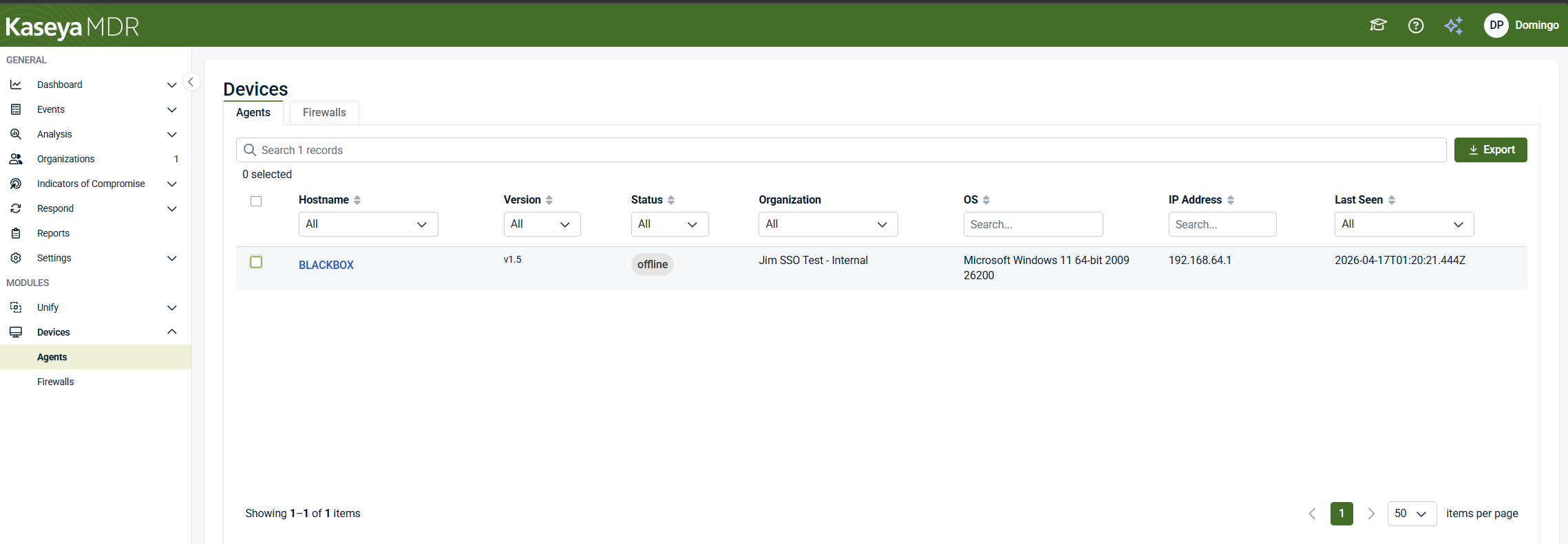
This view answers the question: Did my deployment work, and are agents checking in?
The Devices > Agents view displays a list of endpoints where the agent is installed, including information such as:
-
Device hostname
-
Agent version
-
Online or offline status
-
Associated organization
-
Operating system
-
IP address and Last‑seen timestamp
RMM job completion only indicates that an installation task ran. Deployment is considered successful only when the device appears in the agent inventory and reports status.
Agent actions in Devices > Agents
When one or more agents are selected in Devices > Agents, a set of contextual actions becomes available. These actions apply to the selected device(s) and support post‑deployment management and investigation.
Available actions include:
-
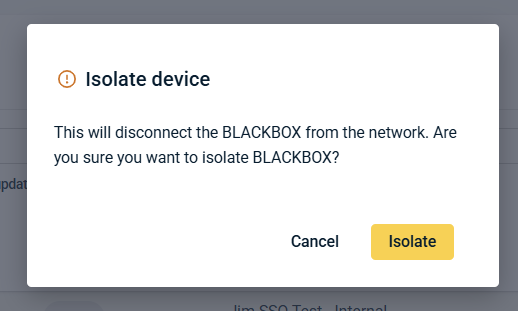
Isolate: Initiate device isolation to restrict network activity, subject to platform configuration and authorization. When you select Isolate, a confirmation dialog is displayed indicating that the device will be disconnected from the network. You must explicitly confirm the action before isolation is applied.
-
Restore: Restore network connectivity for an isolated device.
-
Restart agent: Restart the RocketCyber agent service on the selected endpoint.
-
Check for updates: Check for available agent updates and apply them if applicable.
-
Upload agent log: Upload diagnostic agent logs for investigation or troubleshooting.
-
Share: Share device‑level information or context, depending on permissions and integrations.
-
Delete: Remove the device from the device inventory. This affects visibility in the platform and does not document agent uninstall procedures.
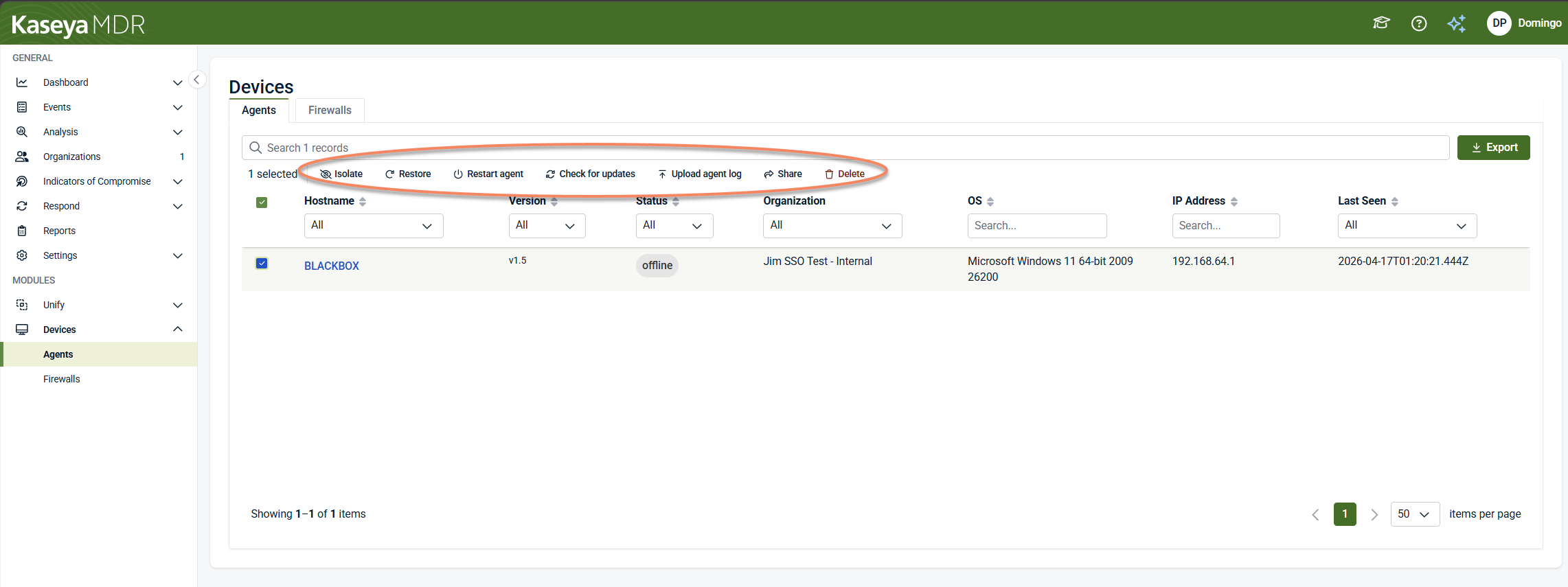
These actions are available only after agents are deployed and visible in the device inventory.
Viewing device details
Clicking a device hostname in Devices > Agents opens a device details panel. This panel provides read‑only device context and agent information for the selected endpoint.
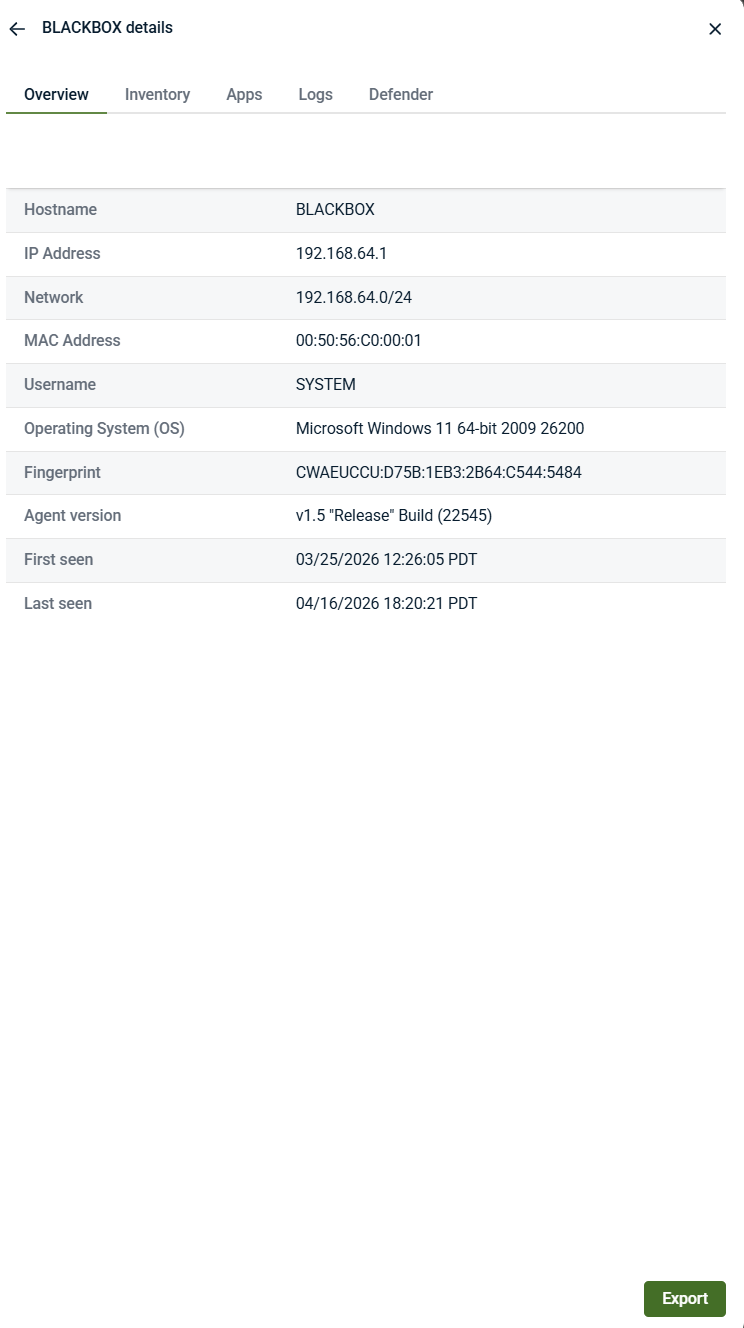
The device details panel includes information such as:
-
Hostname and network identifiers
-
Operating system details
-
Agent version and fingerprint
-
First‑seen and last‑seen timestamps
This panel may also include additional tabs that provide contextual information (for example, inventory, applications, logs, or security‑related data), depending on available integrations and permissions.
Device details are intended for visibility and investigation context, not for deployment or configuration.
What successful deployment looks like
Agent deployment is considered successful when:
-
The agent is installed on the endpoint using a supported method.
-
The endpoint appears in Device > Agents with a Status and Last Seen timestamp.
-
Endpoint activity can contribute telemetry for investigation and response.
In Kaseya MDR, deployed agents enable endpoint telemetry collection. SOC‑managed detection and response workflows become active only after onboarding is complete. Agent deployment alone does not initiate SOC-managed detection or response.
What agent deployment does not configure
Deploying an agent does not automatically configure the following:
-
User roles or permissions
-
Integrations
-
Alerting, detection tuning, or suppression rules
-
SOC workflows or response actions
-
Agent performance limits or operational behavior
These concerns are managed separately through configuration and governance controls.
Agent behavior settings (separate from deployment)
Agent deployment determines where agents are installed.
Agent behavior settings determine how deployed agents operate.
To configure agent behavior—such as performance limits or operational controls—go to Settings > Advanced settings > Agent settings.
These settings:
-
Apply globally by default
-
May support organization‑level overrides depending on configuration model
-
Do not install agents
-
Do not affect agent inventory placement
For details see, Advanced agent settings and organization overrides.
Troubleshooting notes
If agents do not appear as expected:
-
Confirm the agent was deployed using a supported method
-
Confirm the endpoint is associated with the intended organization
-
For RMM‑based deployments, confirm the deployment task completed successfully and the endpoint has outbound connectivity
Related articles
-
Advanced agent settings and organization overrides: Configure how deployed agents operate, including CPU and memory limits, logging verbosity, and error reporting. Agent behavior is configured separately from deployment.
-
Supported operating systems for the agent: Review the operating systems on which the agent is supported for use with Kaseya MDR
-
Configuring the agent for VDI environments: Configure agent registration behavior for non‑persistent or image‑based virtual desktop environments
-
Uninstalling the agent: Remove the agent from endpoints when decommissioning systems or ending MDR coverage


