Power Filters and allowlisting logic
Power Filters allow administrators to reduce investigation noise by limiting which alerts are surfaced when activity is known or expected. This helps focus operational review on higher‑value activity without weakening detection coverage.
In Kaseya MDR, Power Filters affect alert visibility only. They do not stop telemetry collection, disable detections, modify IOCs or correlation logic, or override SOC‑managed detection or response behavior. Underlying events continue to be ingested and retained by the platform.
Power filters are part of the Settings experience and work alongside Application Configurations and detection logic. They are configured globally by default and are inherited by organizations unless inheritance is disabled at the organization level. For details on organization‑specific behavior and inheritance, see Managing organizations.
Using power filters
Use power filters when:
-
Activity is expected and well understood but generates repetitive noise.
-
You want to reduce investigative distraction without weakening detection coverage.
-
Investigation focus needs to be refined after onboarding or after environment changes.
Do not use power filters when:
-
You need to change how detections behave.
-
You want to suppress alerts entirely.
-
You need to modify SOC response authorization or permissions.
For those scenarios, use Application configurations, Alert suppression, or Configuring SOC settings, as appropriate.
Accessing power filters
Power filters are managed from the Settings area.
To access Power Filters:
-
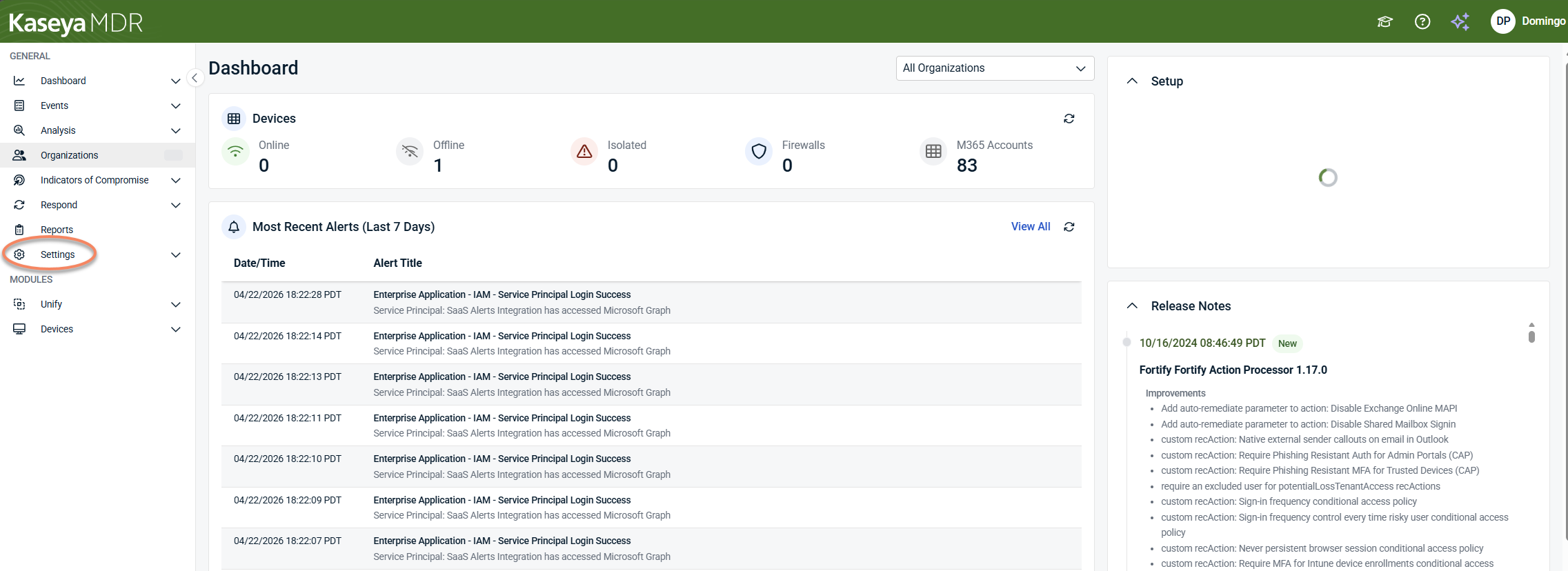
Open Settings from the side navigation menu.
-
Select Power Filters.
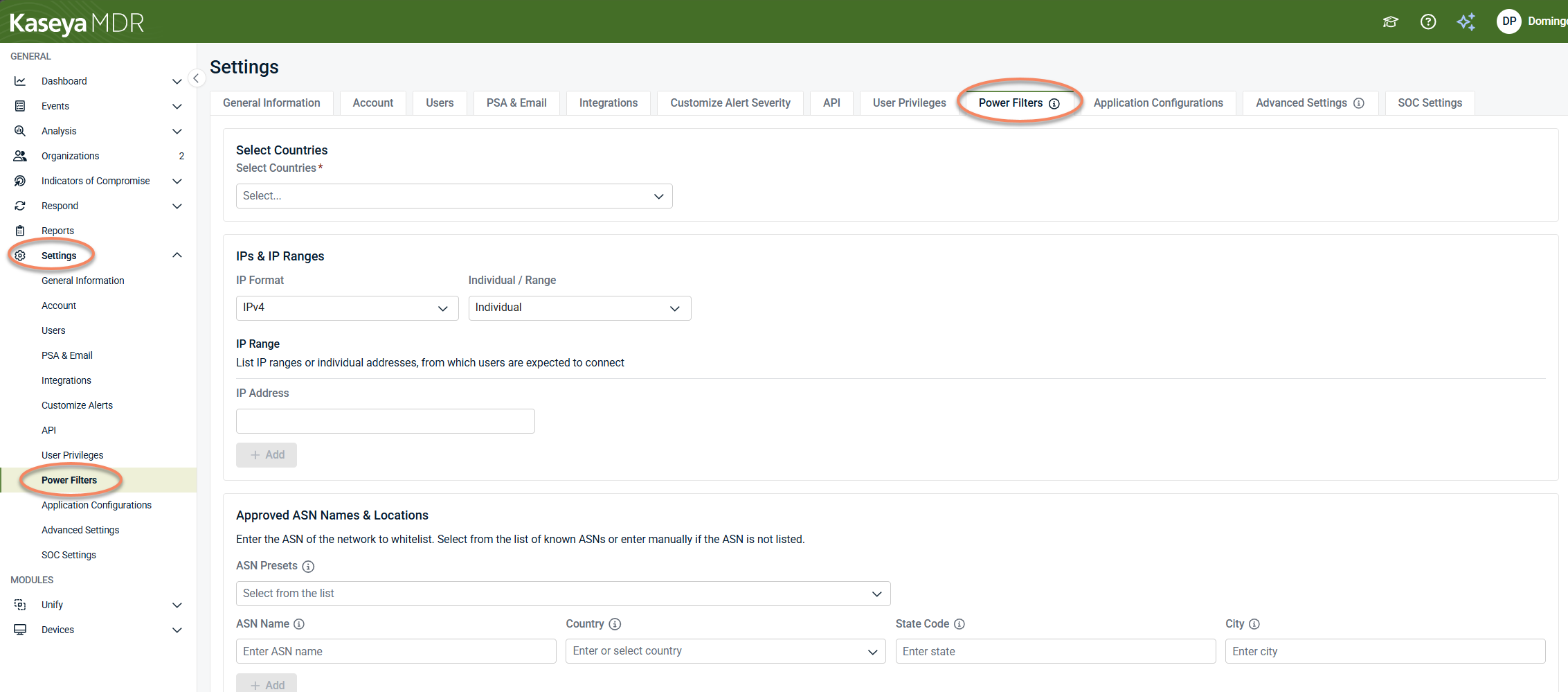
The Power Filters page allows administrators to define allowlisting criteria based on location and network attributes.
Organization‑level Power Filters
By default, Power Filters are configured at the global level from the Settings > Power Filters page. These global Power Filters act as the default allowlisting behavior for all organizations and are inherited unless inheritance is disabled.
Power Filters can also be configured at the organization level to override globally defined Power Filters.
When inheritance is enabled, the organization uses the same country, IP, and ASN allowlisting criteria defined globally.
If inheritance is disabled:
-
The organization uses its own Power Filter configuration.
-
Global Power Filters no longer apply to that organization.
-
Changes apply only to the selected organization.
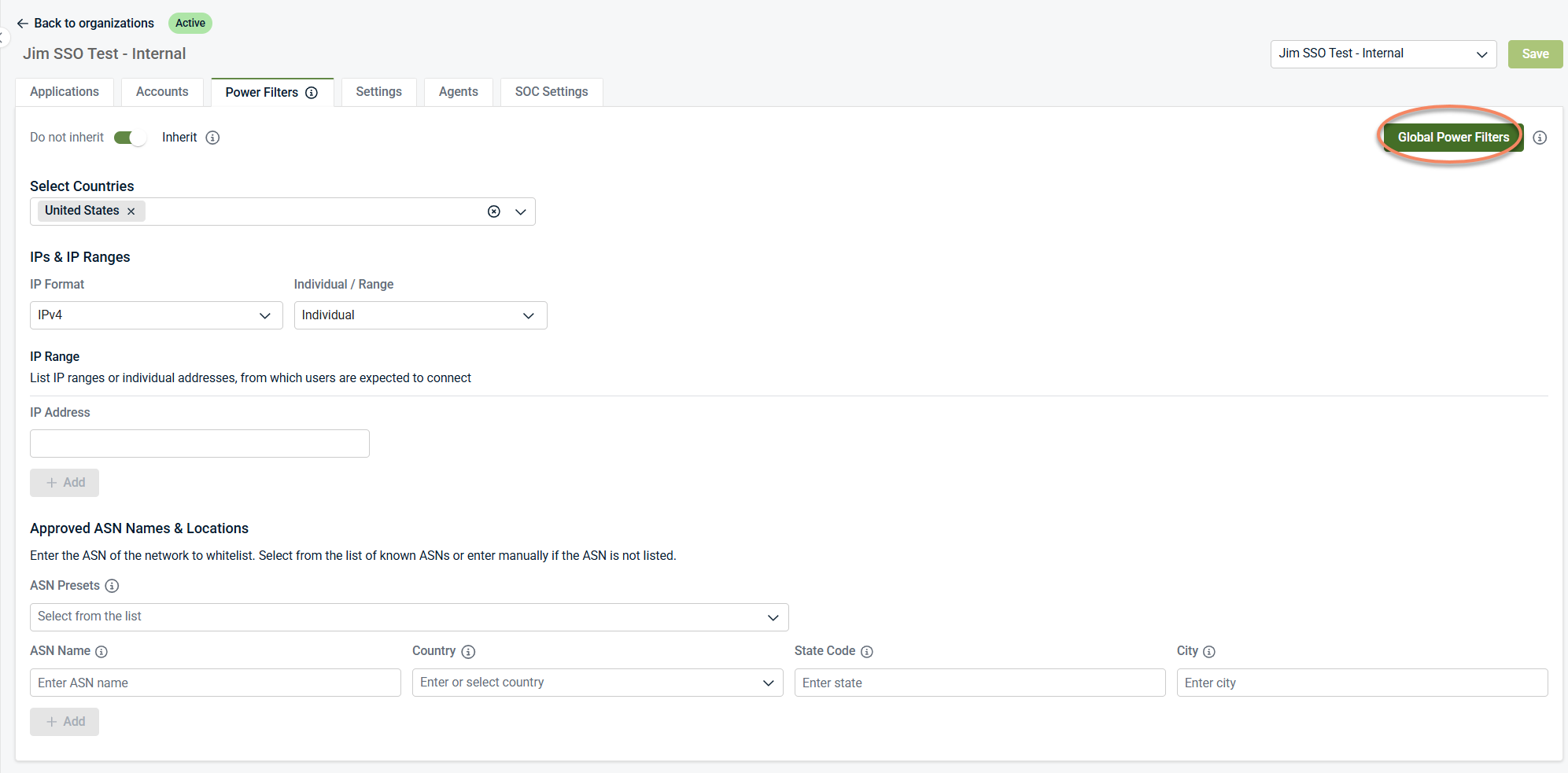
The Global Power Filters button opens the global Power Filters configuration page under Settings, where global Power Filters are managed. Changes made there apply as global defaults and are inherited by organizations unless inheritance is disabled at the organization level.
To manage organization‑level Power Filters:
-
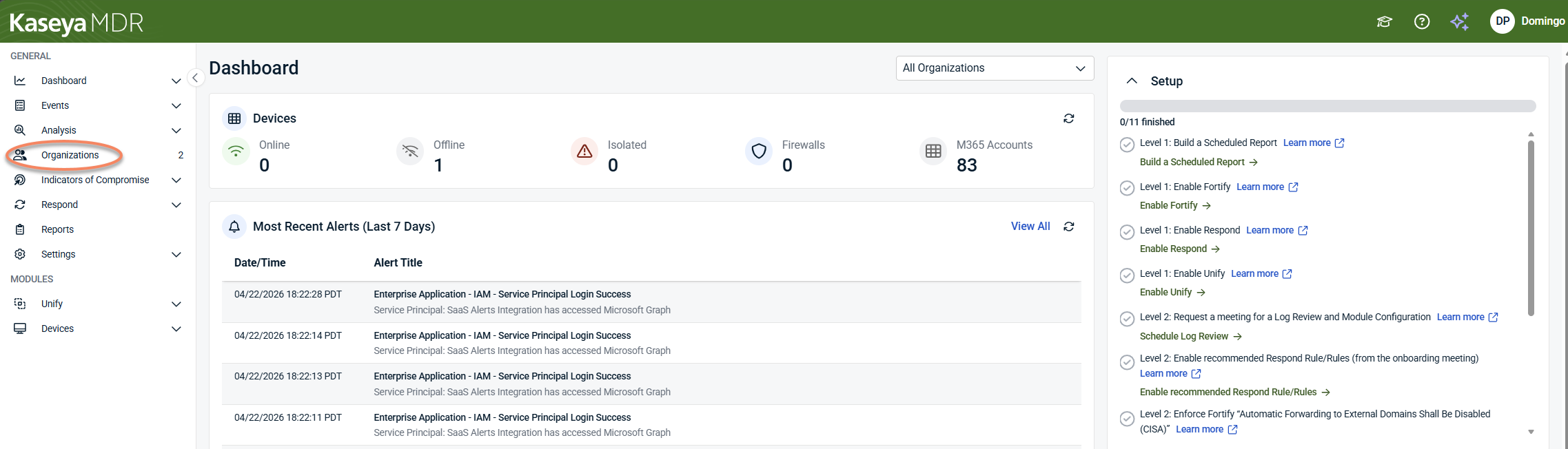
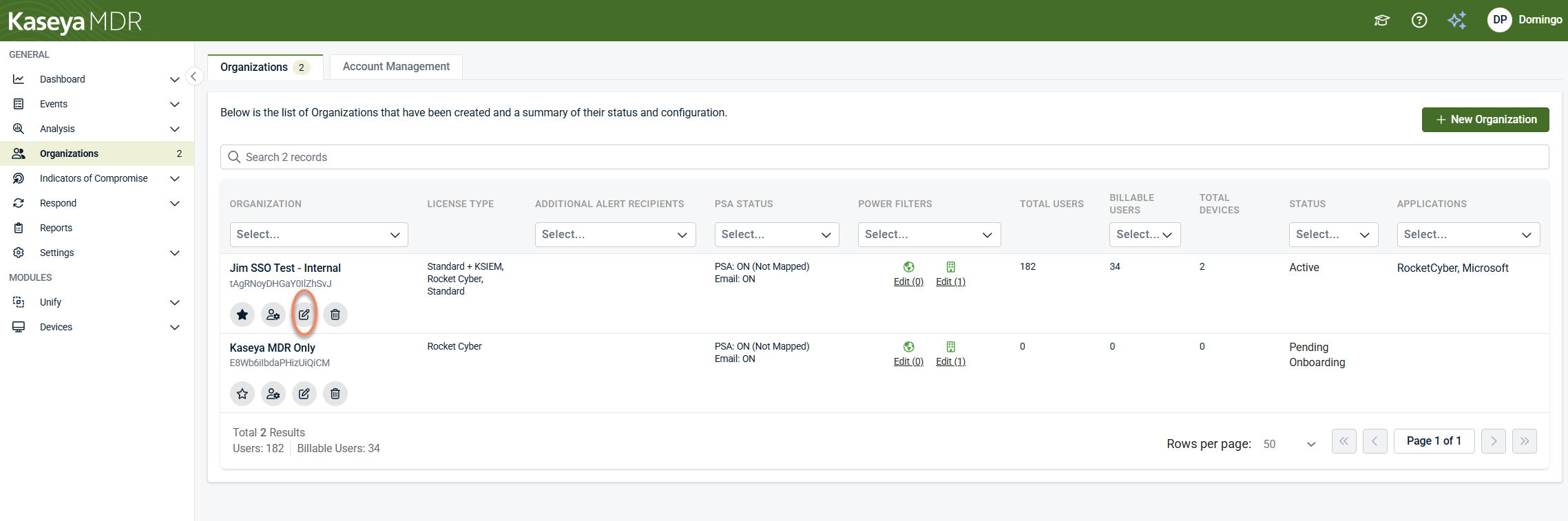
From the side navigation menu, click Organizations.
-
Click the Edit Organization icon (pencil icon) for the organization you want to modify.
-
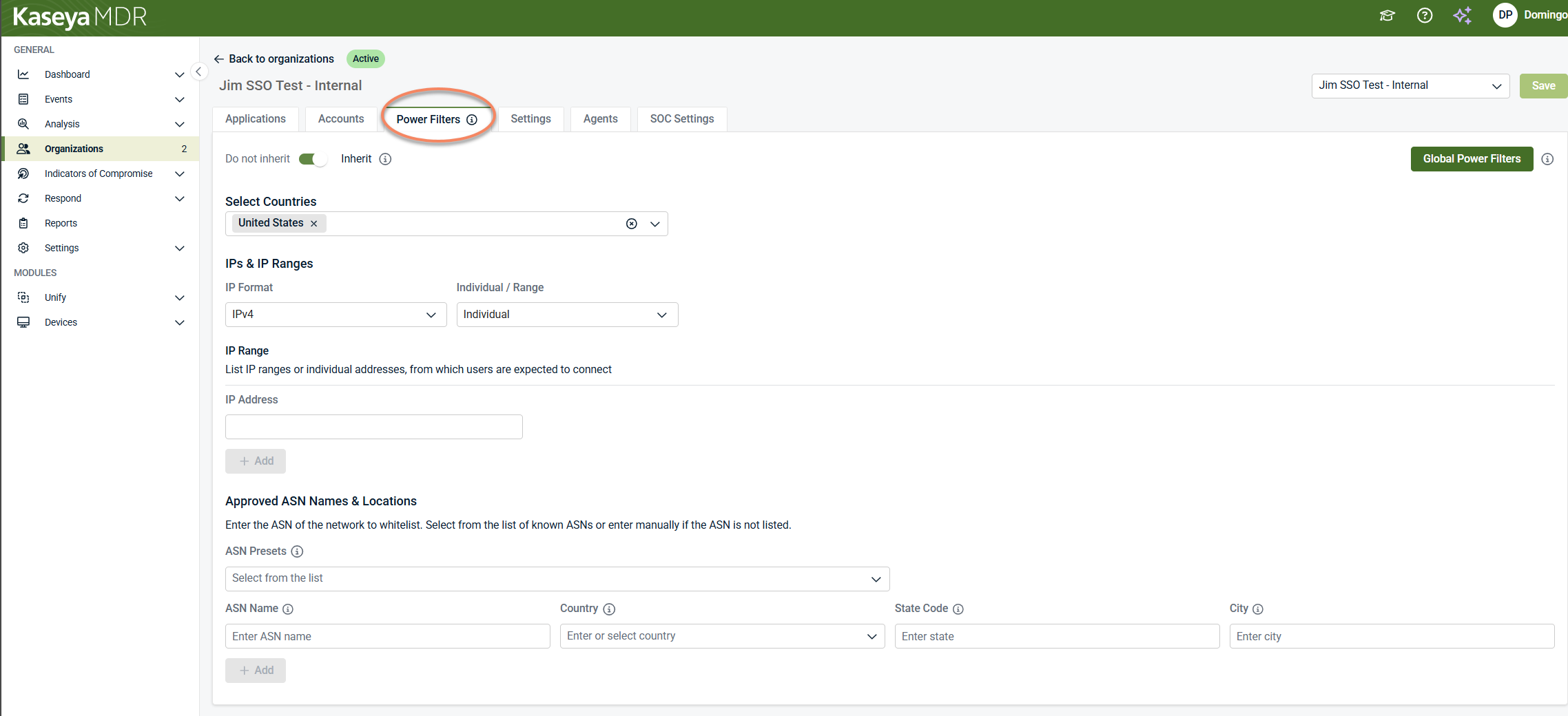
Open the Power Filters tab.
-
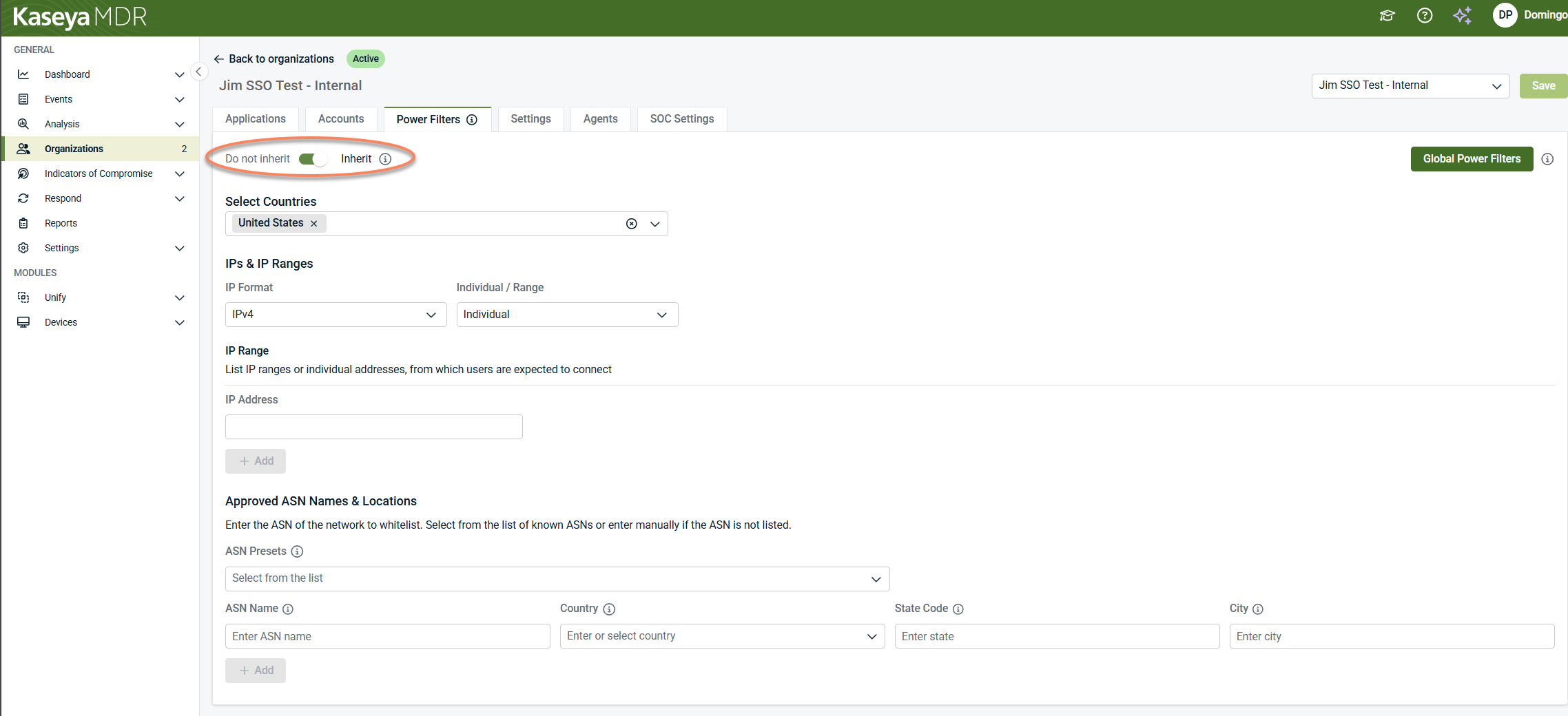
Use the Do not inherit / Inherit toggle to control scope.
-
Inherit (default): The toggle is enabled (green), and the organization uses the global Power Filters configured under Settings > Power Filters.
-
Do not inherit: The toggle is disabled (gray), and the organization uses its own Power Filter configuration. Global Power Filters no longer apply to this organization.
-
-
Configure organization‑specific Power Filters as needed.
-
Select Save in the upper right-corner to apply changes.
The configuration options available at the organization level are the same as those described later in this article (countries, IP addresses, and ASN allowlisting). The difference is scope: when configured at the organization level, the filters apply only to the selected organization.
Organization‑level Power Filters affect visibility during investigation only, just like global Power Filters. They do not change detection behavior, telemetry collection, or SOC response authorization.
Applying power filters
Power Filters affect what activity is surfaced during investigation, not whether telemetry exists.
-
Changes take effect after you save the configuration.
-
Multiple allowlisting criteria may be evaluated together.
-
When filters overlap, precedence determines which filter takes effect.
Because Power Filters influence investigation context, they should be adjusted incrementally and reviewed as environments evolve.
Allowlisting by location and network attributes
Power Filters support multiple allowlisting dimensions. You can use these individually or in combination, depending on your environment.
Allowlisting by country
Use country allowlisting when activity from specific regions is expected and well understood.
Typical use cases include:
-
Users consistently connecting from known geographic regions
-
Managed environments with predictable regional access patterns
Country allowlisting reduces surfaced activity from selected locations while preserving detection coverage.
To allowlist by country:
-
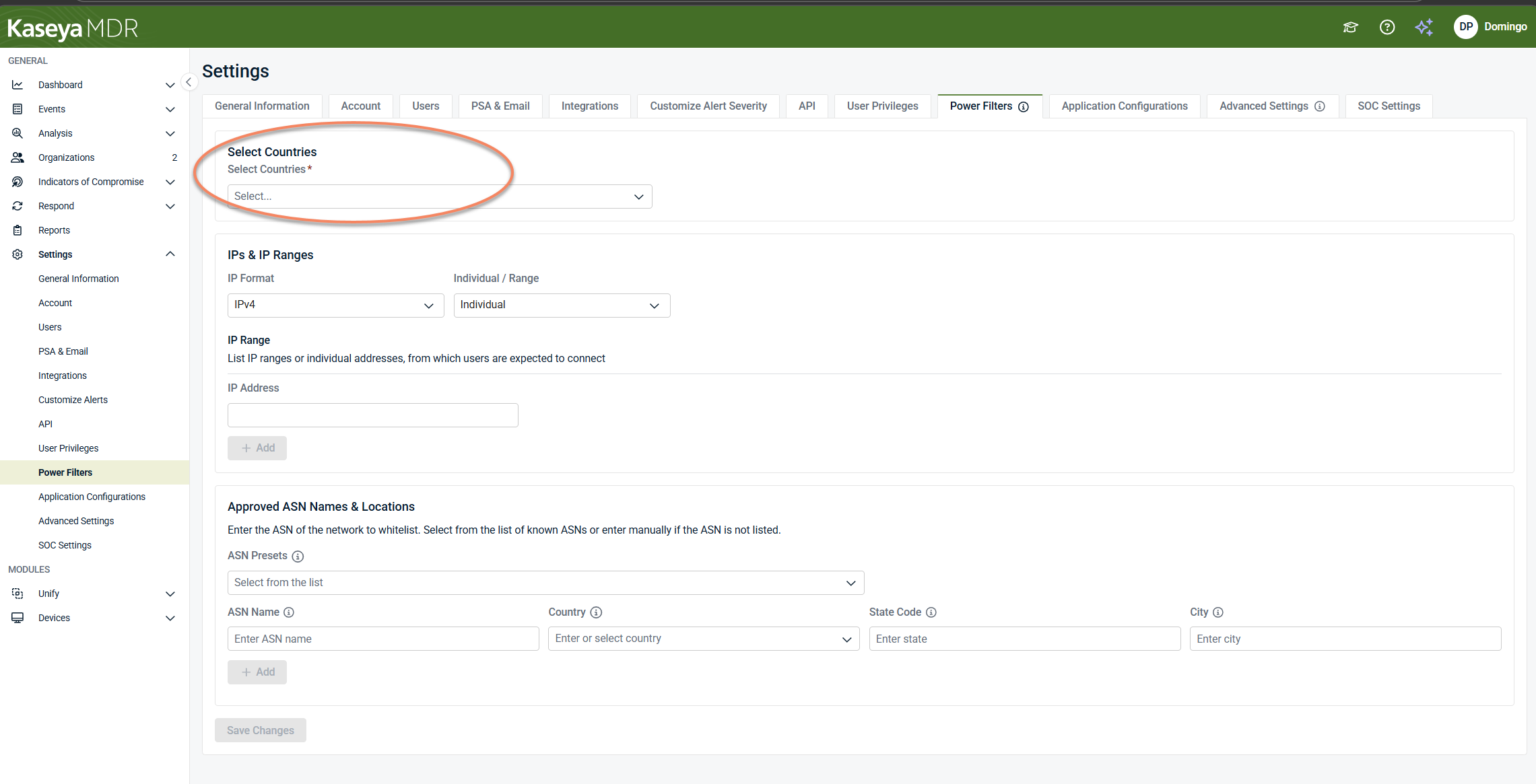
In Power Filters, locate Select Countries.
-
Choose one or more countries from the list.
-
Save your changes.
Allowlisting by IP address or IP range
Use IP addresses or IP ranges when activity is expected to originate from known, fixed networks, such as:
-
Corporate offices
-
VPN gateways
-
Secure data centers
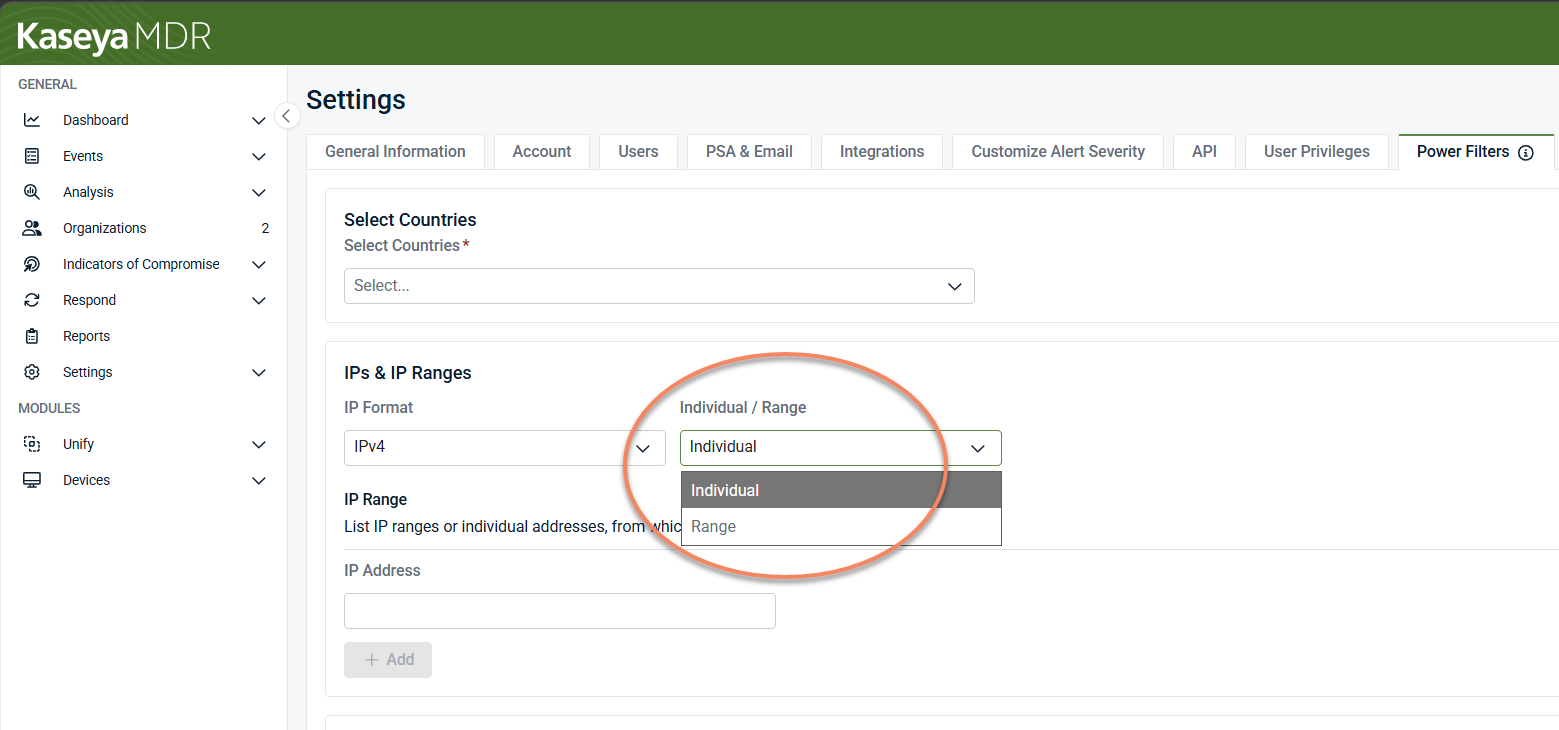
You can specify individual IP addresses or IP ranges. These values indicate where legitimate activity is expected to originate.
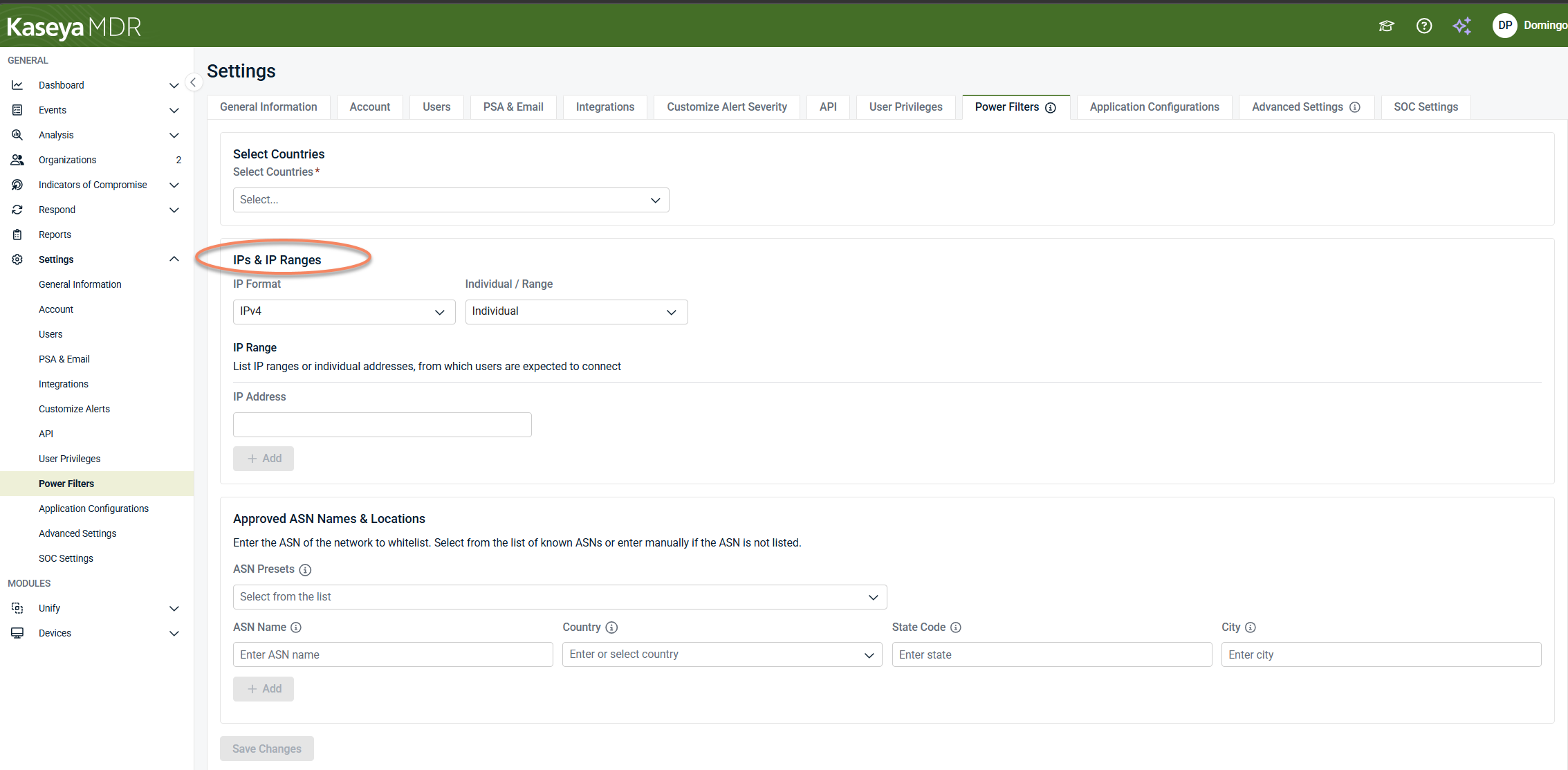
To allowlist by IP address or IP range, follow these steps:
-
In Power Filters, locate IPs & IP Ranges.
-
Select whether you want to allowlist an Individual IP or an IP Range.
-
Enter the IP address or range.
-
Select + Add, then save your changes.
IP‑based allowlisting should be used cautiously and reviewed regularly.
Allowlisting by ASN and location
In some environments, Power Filters support allowlisting based on Autonomous System Names (ASNs) and location.
Use ASN‑based allowlisting only when you have high confidence in the organization’s connectivity patterns and ownership of the network ranges involved.
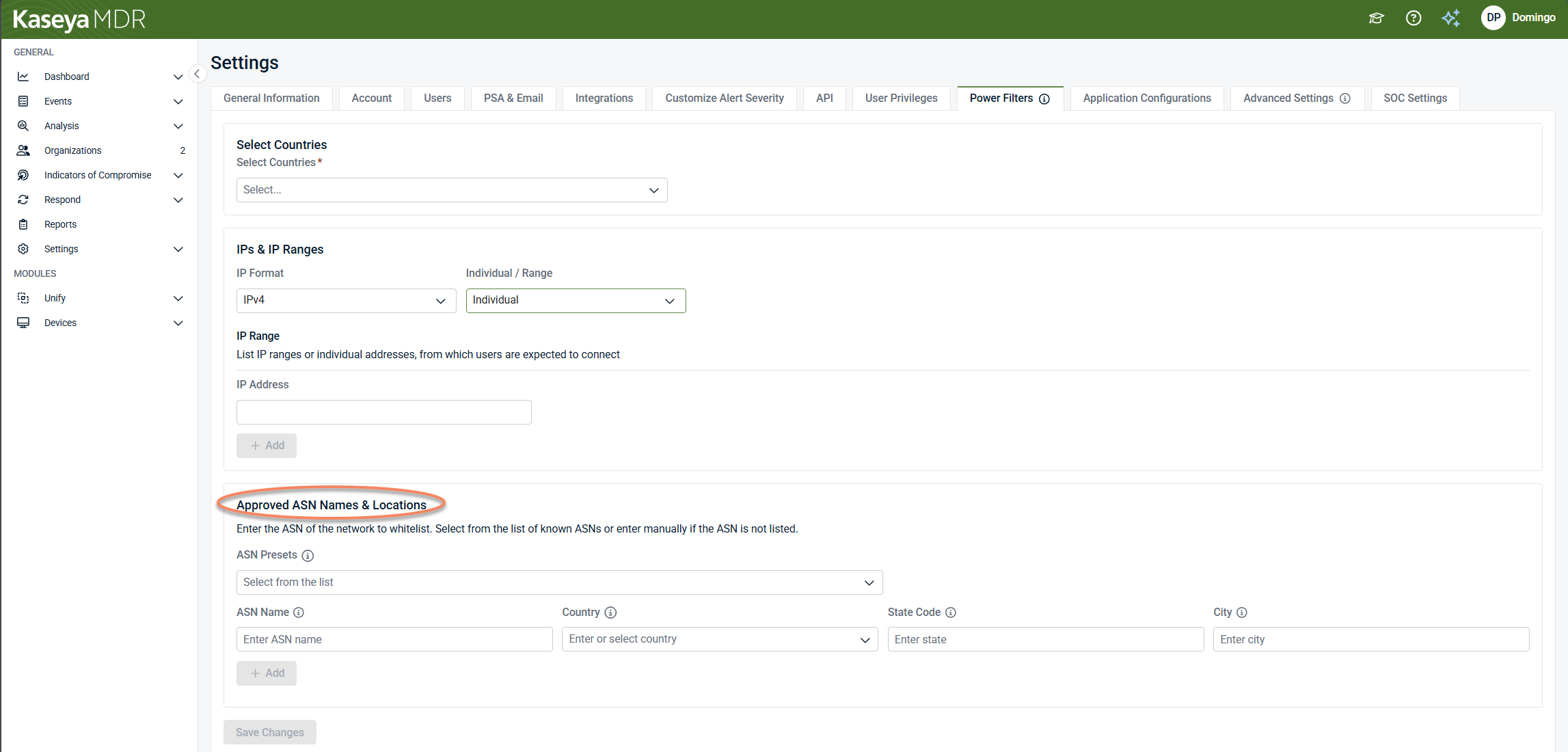
To allowlist by ASN, follow these steps:
-
In Power Filters, locate Approved ASN Names & Locations.
-
Select an ASN from the predefined ASN Presets list, or enter the ASN manually in the ASN Name field.
-
Optionally refine the allowlist by country, state, or city.
-
Select + Add, then save your changes.
Allowlisting vs detection
Allowlisting through Power filters is not the same as disabling detection. Filters affect visibility, not analysis.
Even when activity is filtered:
-
Events may still be ingested.
-
Detections may still occur.
-
Correlation logic continues to operate as defined.
Power filters should be used to improve focus and reduce noise, not to hide unresolved or poorly understood issues.
Use cases
Power filter use cases include the following:
-
Known infrastructure behavior that generates repetitive alerts.
-
Approved tools or services with predictable activity.
-
Expected automation or integration activity.
Filters should be based on well‑understood patterns and revisited as environments evolve.
Best practices
To use power filters safely and effectively:
-
Start with narrow allowlisting criteria and expand gradually.
-
Avoid filtering activity that is not fully understood.
-
Document why each filter exists.
-
Review filters periodically to ensure they still reflect expected behavior.
-
Use power filters alongside Application Configurations, not as a replacement for them.
Related articles
-
Application configurations: Explains how application‑level configuration defines baseline ingestion and detection context
-
Global defaults and organization overrides: Use when behavior differs between organizations and you need to understand scope and inheritance
-
Advanced agent settings and organization overrides: Use when managing agent performance, logging, or diagnostics


