How billing and monitoring apply to accounts
In Kaseya MDR, billing classification and monitoring behavior are separate concerns. Kaseya MDR continues to ingest telemetry and surface security‑relevant activity independent of how accounts are classified for billing purposes. Billing classification is used for subscription and licensing review, not to control detection, investigation, or response behavior.
This article explains billable and monitored accounts by starting with organization‑level summaries and then examining account‑level details using the different account views available in Kaseya MDR.
Account‑level information can be reviewed in two ways:
-
Organization‑scoped Accounts view: Accessed from the Organizations page by selecting an organization and then using either the Go to Accounts icon or the Edit Organization option (pencil icon).
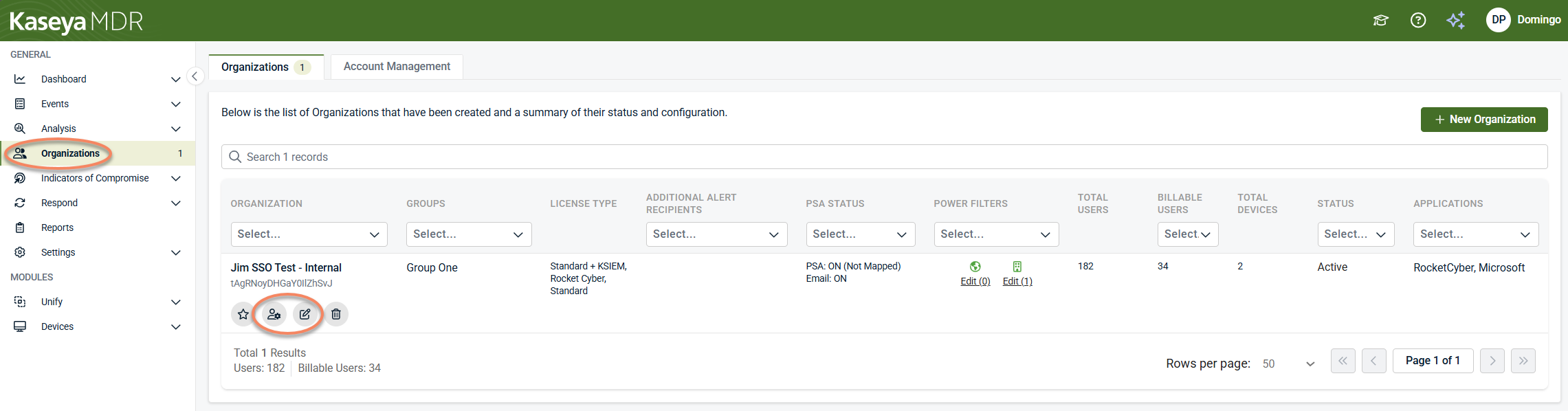
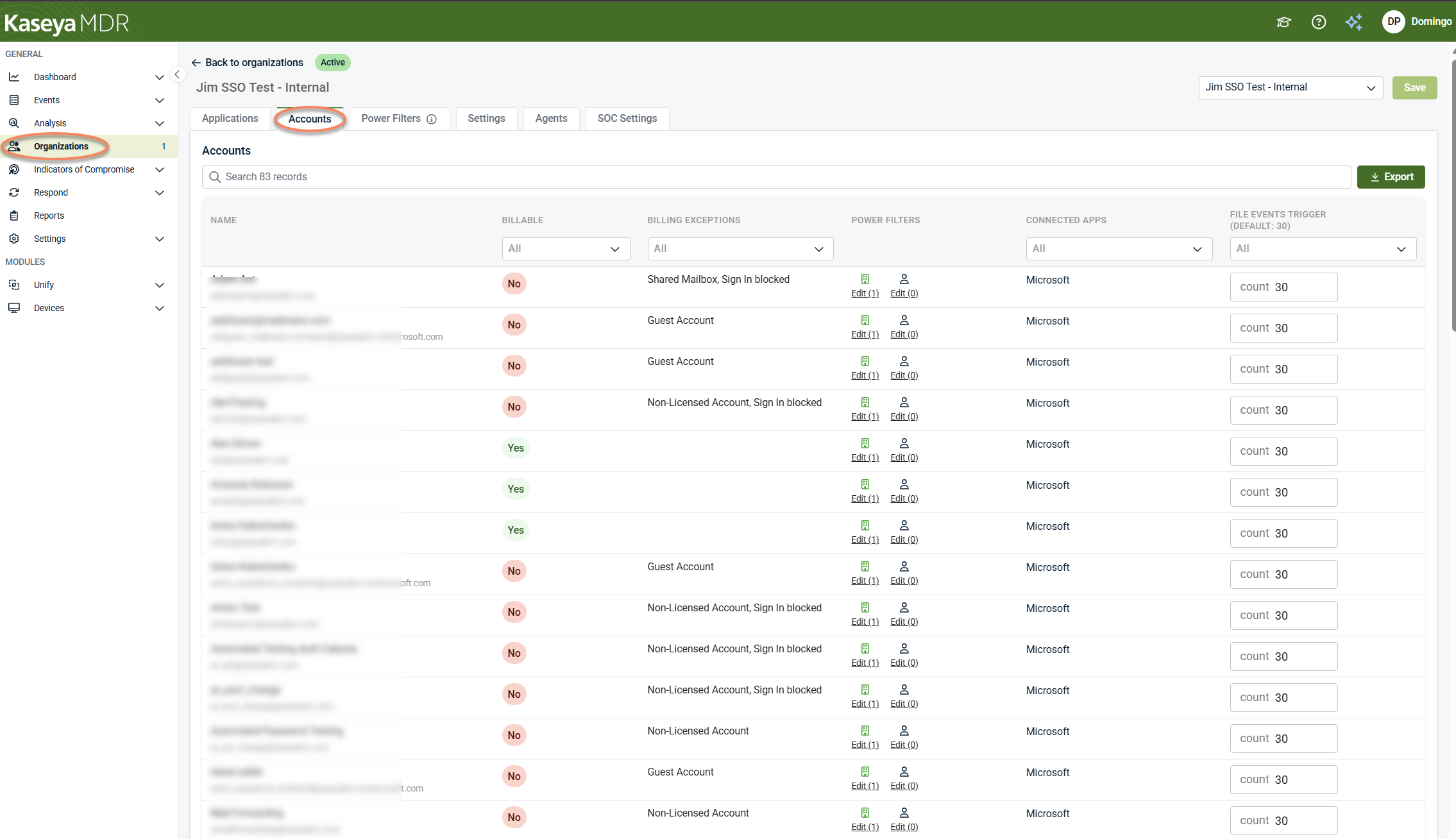
The Go to Accounts icon opens the Accounts tab directly, while the Edit Organization option opens the organization view, from which the Accounts tab is available. This view provides per‑organization context such as billing classification, connected applications, Power Filters context, and organization‑level defaults.
-
Account Management view: A global view accessed from Organizations > Account Management, used to review and act on accounts across multiple organizations, particularly for identity hygiene tasks such as identifying stale, guest, or sign‑in‑blocked accounts.
In the organization‑scoped Accounts view, additional columns appear to provide context about how an account behaves within the selected organization, such as Connected Applications, Power Filters, Billing Exception state, or organization‑level defaults like File Events Trigger thresholds. These columns primarily provide contextual visibility into account behavior and organizational scope. While some governance‑level settings can be accessed from this view (such as Power Filters), it does not control telemetry ingestion, detection logic, billing calculation, or SOC response behavior.
Step 1: Review billable and monitored counts at the organization level
The Organizations page provides the first, high‑level view of how usage is represented across tenant organizations.
To review organization‑level counts:
-
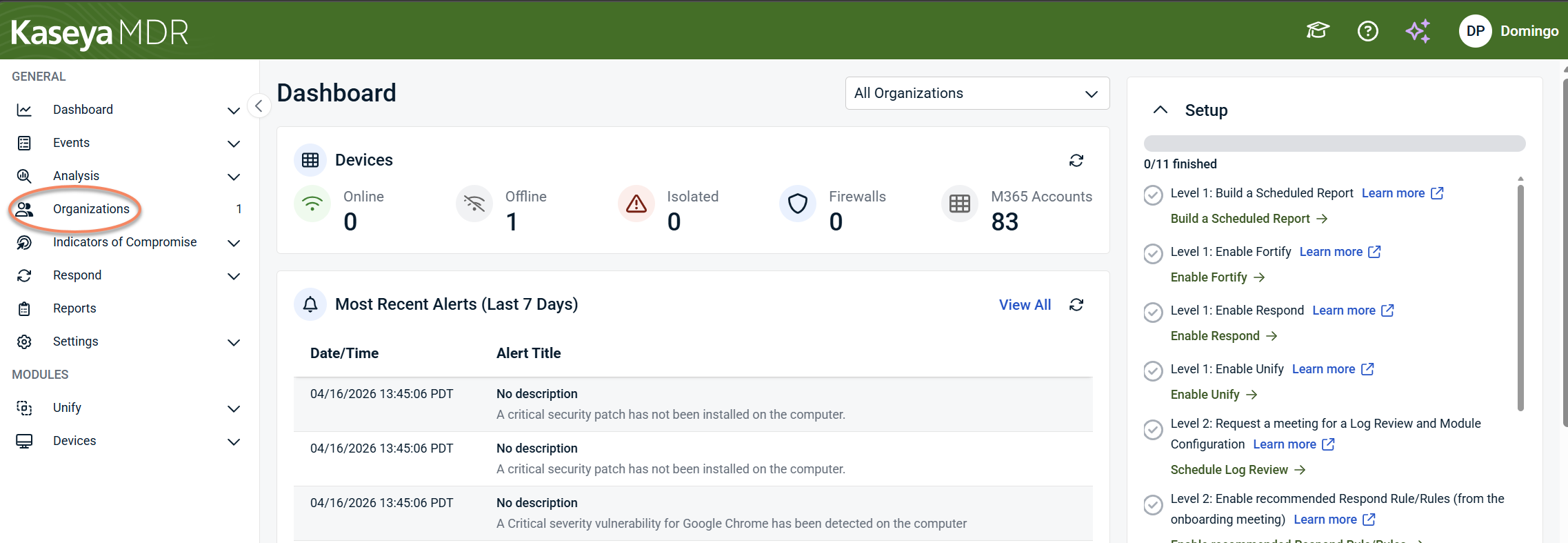
From the side navigation menu, select Organizations.
-
On the Organizations tab, review the organization list and columns, including:
-
License Type
-
Total Users
-
Billable Users
-
Total Devices
-
Status
-
Applications
-
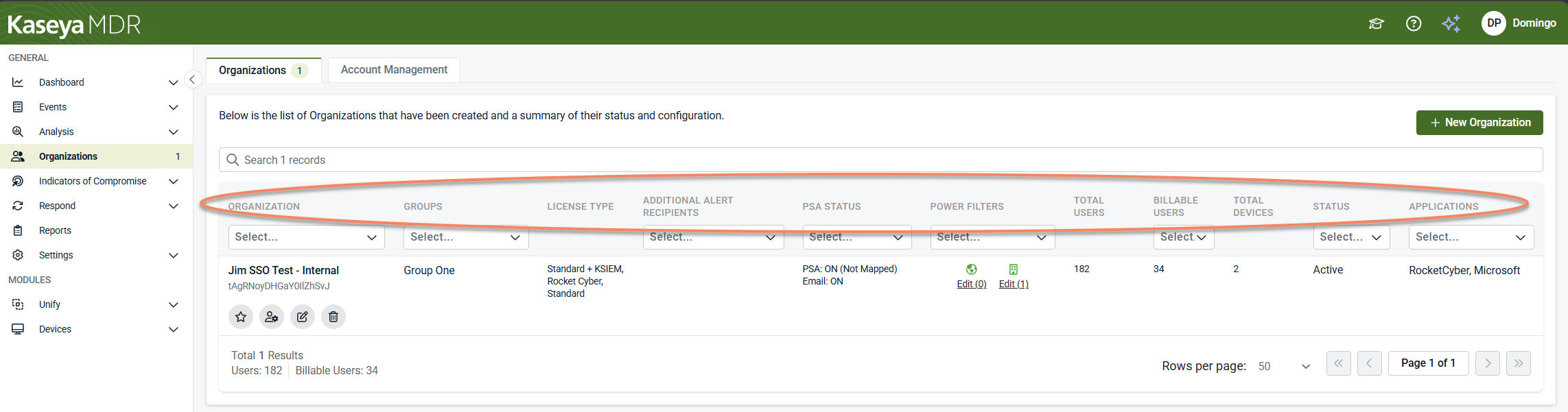
This view allows you to:
-
Compare Total Users vs Billable Users per organization
-
Identify organizations where monitored activity exceeds billable counts
-
Spot onboarding, connection, or status conditions that may affect usage totals
If an organization appears in more than one product, review its License Type configuration to confirm which products are intended. License selection determines product association and may explain unexpected usage patterns. Changes to license type selection at the organization level can also affect how accounts and usage appear across products. For background on how license selection influences product association and billing context, see Understanding license type selection and product association.
At this stage, the goal is observation, not resolution. Differences between Total Users and Billable Users do not indicate a security or monitoring issue.
Step 2: Review account‑level context within an organization
After identifying an organization where counts differ, review account‑level context within that organization to understand why.
From the Organizations page, select an organization and open its Accounts tab using either the Go to Accounts icon or the Edit Organization option (pencil icon).
This view provides per‑organization account context used to explain how usage and monitoring are represented.
The Accounts tab is primarily informational and contextual. It helps explain how identity data is interpreted within the organization and supports limited governance interactions (such as Power Filters), but it does not control detection behavior, billing enforcement, or identity lifecycle actions such as blocking or deleting accounts.
Step 3: Review and act on accounts across organizations
When the goal is to review or act on accounts across multiple organizations, use the Account Management tab. The Account Management tab, accessed by clicking Organizations in the side navigation menu, provides a global, cross‑organization perspective.
The Account Management view is specifically intended to help explain and resolve discrepancies between monitored and billable account counts. It presents billing‑related context and highlights accounts that fall under billing exceptions so differences in totals can be reviewed as part of subscription accuracy, not treated as configuration or security errors.
The Account Management tab allows MSPs to filter accounts by application, organization, billing exception, and last activity to identify stale, guest, sync, or sign‑in‑blocked accounts across tenant organizations.
Unlike the organization‑scoped Accounts tab, the Account Management view supports hygiene‑oriented actions such as blocking sign‑ins or removing unused accounts to reduce attack surface.
NOTE Account‑level actions such as blocking sign‑ins or deleting accounts require an active Respond connection for the organization. These actions apply to organizations connected to supported identity providers (such as Microsoft Entra ID). Detection and account visibility remain available regardless of Respond status, but response actions execute only when the organization is connected to Respond. For details, see Managing Respond connections.
Step 4: Filter and review accounts
Filters and indicators are available in both the organization‑scoped Accounts tab and the Account Management view to help explain billing classification, monitoring context, and account status. Some filters are only available in the Account Management view.
Billing status and exceptions
Use the Billable and Billing Exception filters to review accounts that may not be counted toward subscription usage, such as:
-
Sign‑in blocked accounts
-
MSP user accounts
-
Guest accounts
-
Sync accounts
-
Service accounts
-
Suspended accounts
These exception categories help identify accounts that are still monitored, may not be counted toward licensing, or represent reduced or elevated identity risk. Selecting a billing exception does not disable monitoring or alert generation.
Connected applications
The Connected Apps column shows which integrations contribute identity‑related telemetry for the account within the selected organization. This helps explain why an account appears in monitoring even when billing exceptions apply.
Power Filters
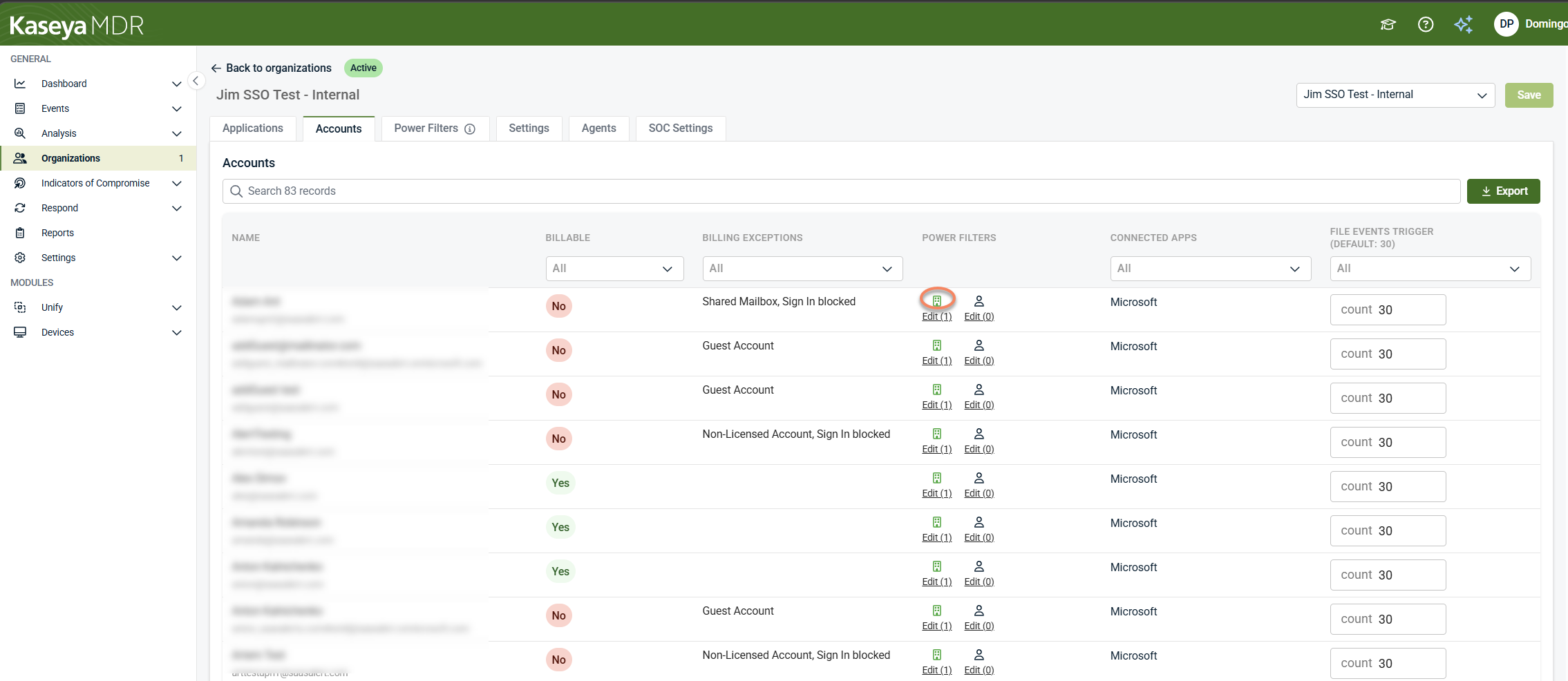
The Power Filters column in the Accounts table provides a summarized view of location‑based filtering context for each account. It reflects where Power Filters are applied and whether those filters are inherited or defined at the account level.
When you interact with the Power Filters column, there are three separate clickable controls, each with a different outcome:
-
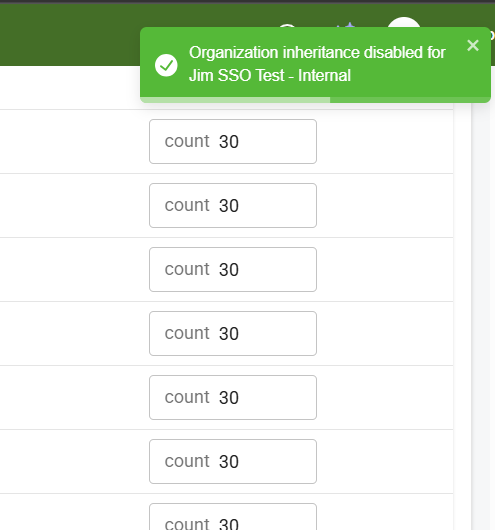
Organization icon (inheritance toggle): Clicking the organization icon enables or disables inheritance for the account.
A confirmation message indicates whether inheritance was enabled or disabled.
-
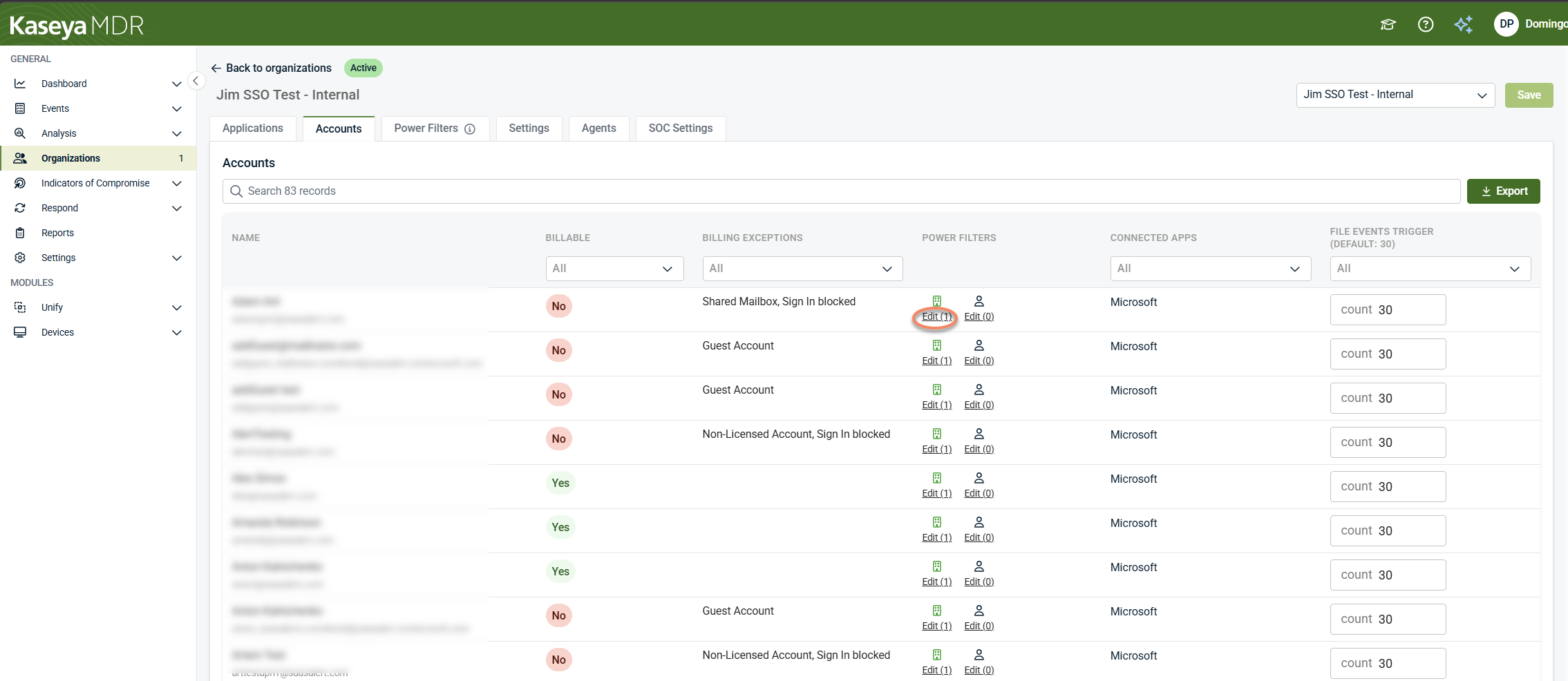
Edit under the organization icon (organization-level Power Filters): Clicking the Edit link under the organization icon opens the organization’s Power Filters tab, where organization-level Power Filters can be reviewed or modified. The number shown in Edit (n) reflects how many organization‑level filter entries currently exist.
-
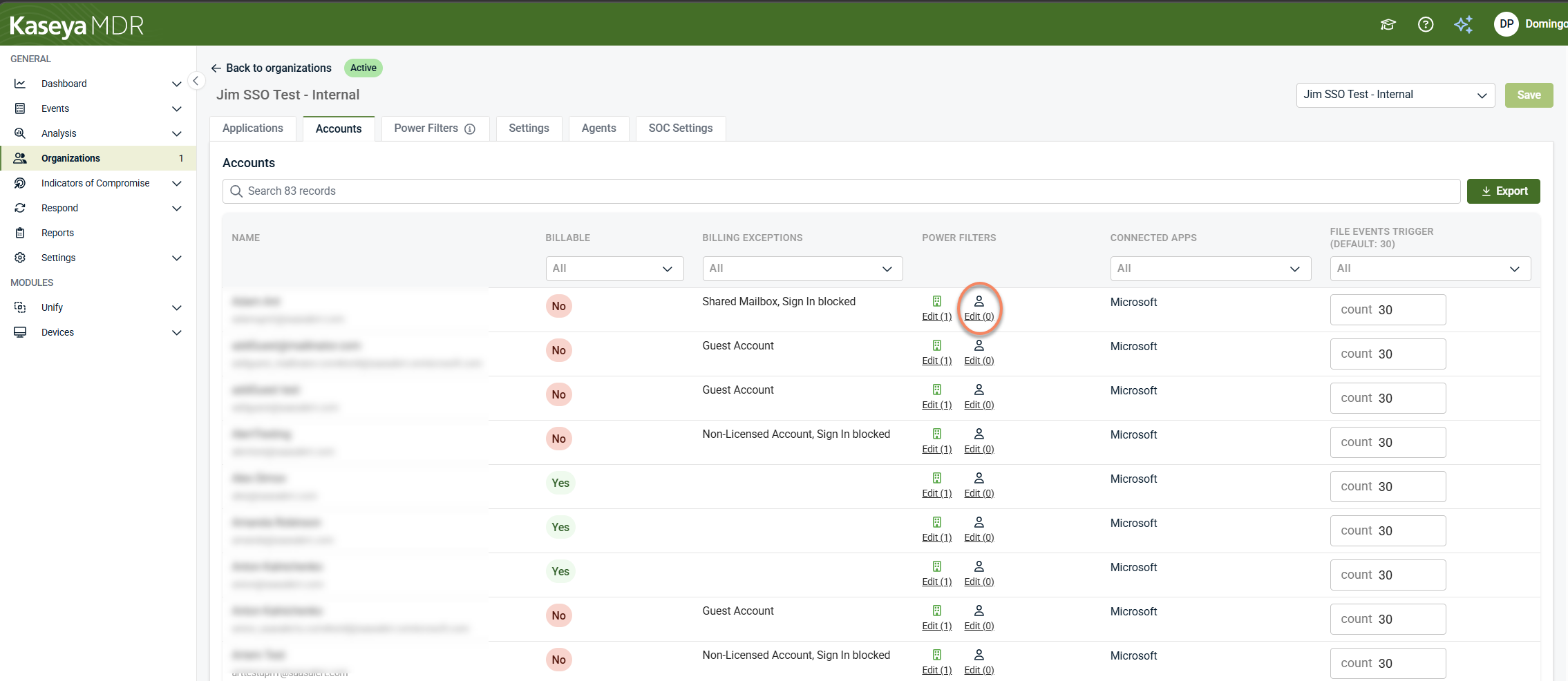
Edit for account-level Power Filters (account dialog): Clicking the other Edit control opens an account-level Power Filters dialog, where Power Filters can be added, modified, or removed for that specific account. The number shown in Edit (n) reflects how many account‑level filter entries currently exist.
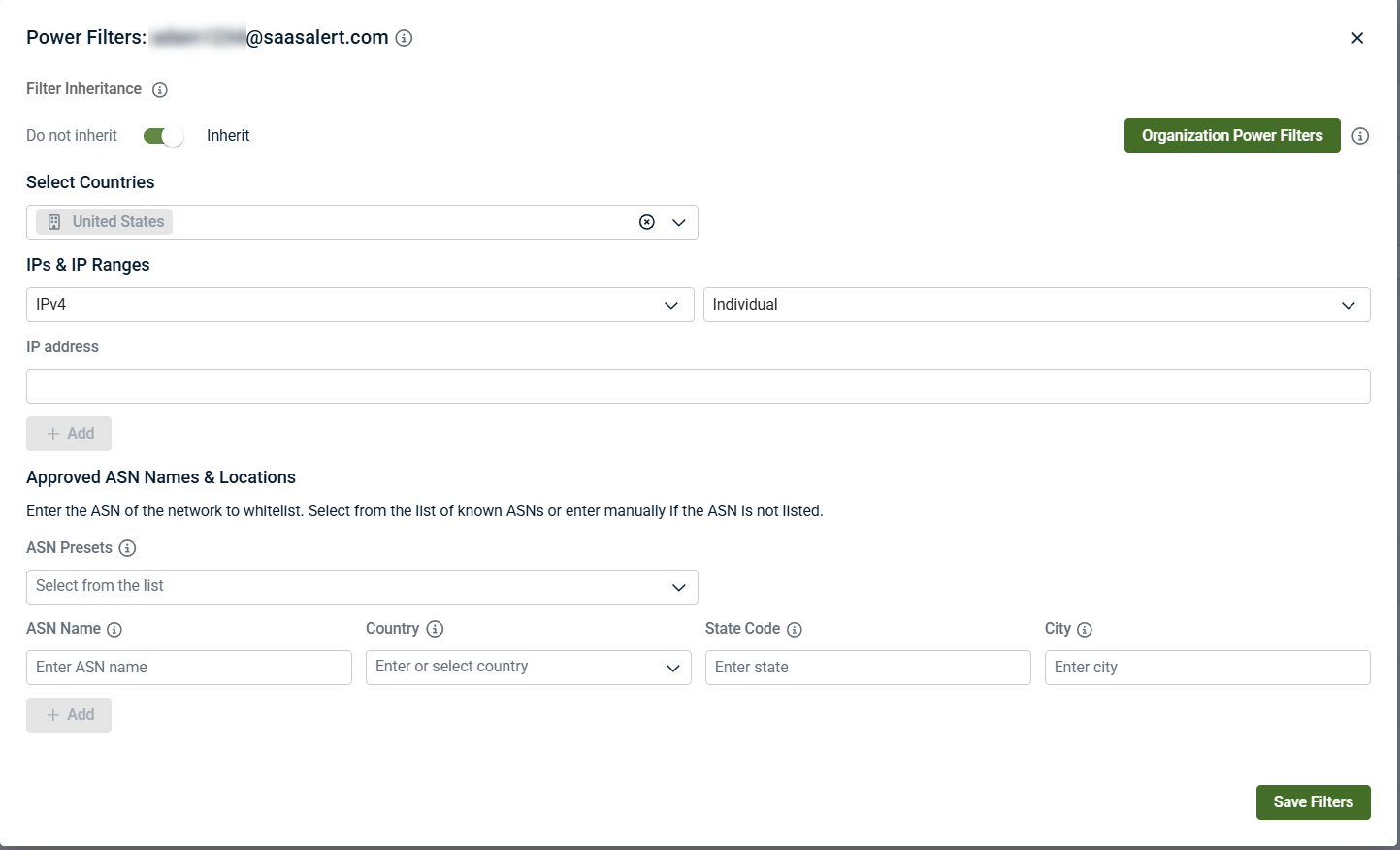
Conceptually, the Power Filters column explains how filtering scope is applied to the account, not whether specific activity is allowed or blocked. Power Filters can exist at multiple scopes—global, organization, and account—and inheritance can be enabled or disabled as needed.
Power Filters influence investigation focus by distinguishing expected activity from anomalous behavior. They do not stop telemetry ingestion, do not prevent alerts from being created, and do not change whether an account is billable. For more detail, see Power filters and allowlisting logic.
File events trigger (organization default)
The File Events Trigger column shown in the Accounts view shows which file‑event trigger setting applies to the account and provides visibility into the organization‑level default currently in use.
In this view, the File Events Trigger is displayed with the following indicators:
-
Default: The account is using the organization’s default file‑event trigger setting. The default value is shown in the column label (for example, Default: 30).
-
Customized: The account is associated with a customized file‑event trigger setting defined at the organization level.
-
All: File events are included without applying the organization’s default trigger threshold.
The numeric value shown (such as count 30) reflects the organization‑level default threshold and is displayed for context only.
From the Accounts tab, the File Events Trigger column does not allow direct modification of the threshold value and does not represent a per‑account configuration control. It is shown to help explain how file‑event alerting is scoped for the account within the organization and does not affect billing classification, telemetry ingestion, or monitoring coverage.
The organization‑level default for File Events Trigger is configured from the Organizations page by selecting an organization, clicking the Edit Organization (pencil icon), and opening its Settings tab. The Default file events trigger setting defines the numeric threshold used as the organization's default value and applies wherever the File Events Trigger is shown as Default in the Accounts view.
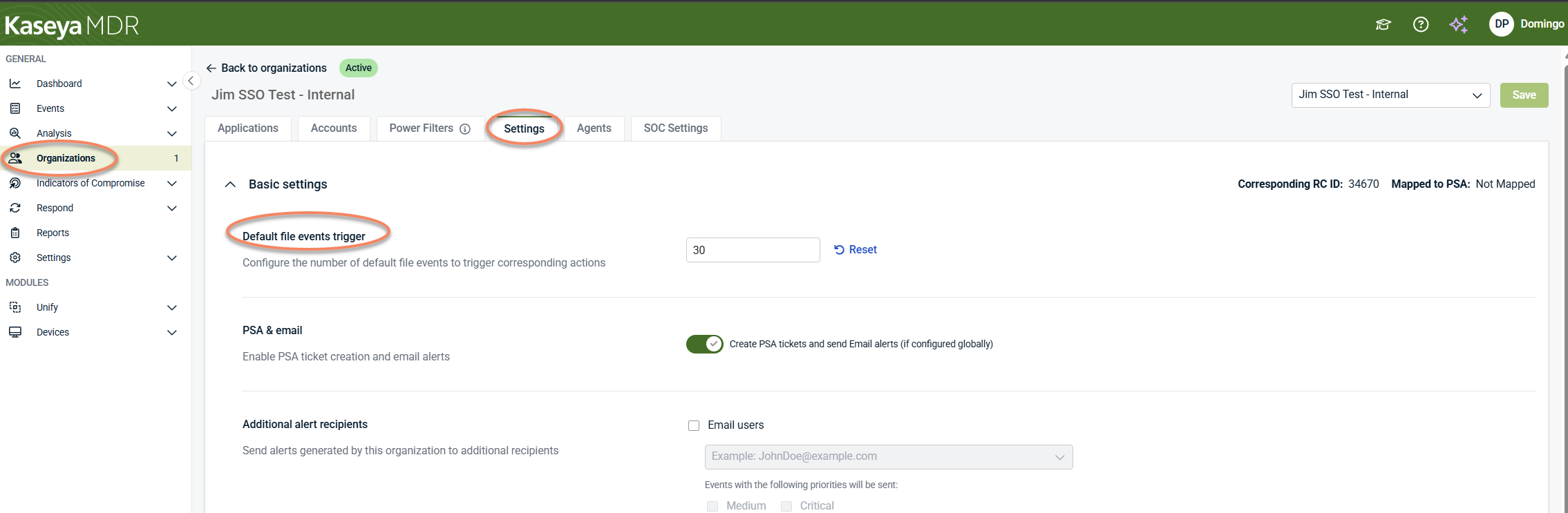
Changes to the Default file events trigger setting take effect only after selecting Save in the organization’s Settings tab.
Step 5: List and review accounts in Account Management
In the Account Management view, after applying filters such as Application, Organization, Billing Exception, or Last Activity, select List Accounts to display the resulting account list.
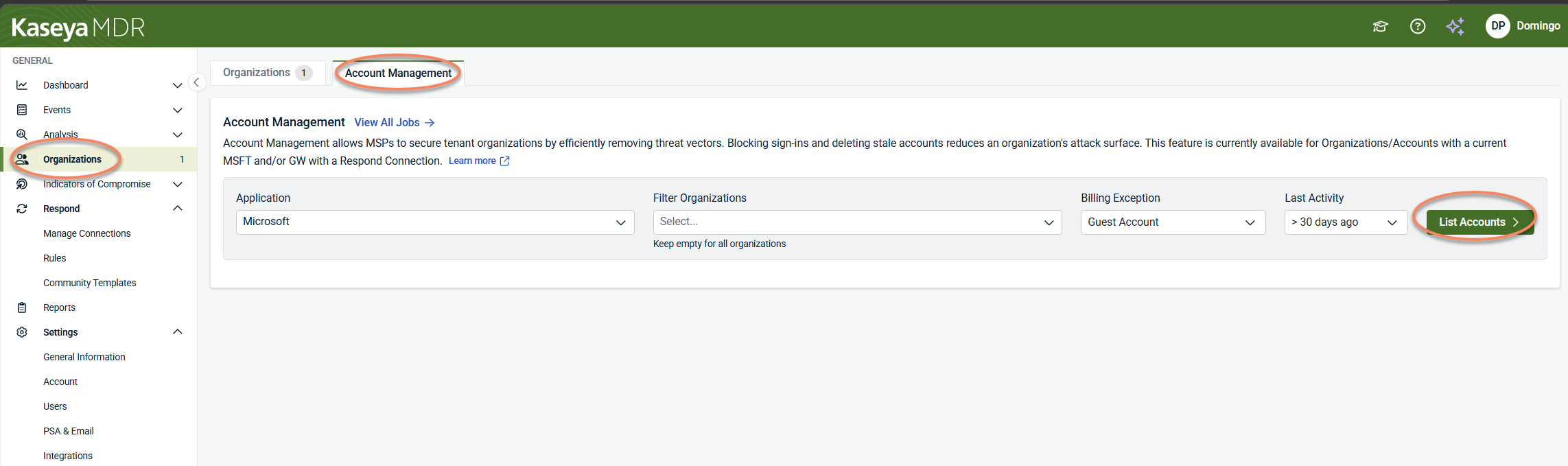
The results provide account‑level details such as:
-
Account identity and associated organization
-
Billing and licensing state, including billable and exception status
-
Activity‑related indicators, such as last sign‑in activity or pending deletion state
-
Connected application context relevant to response actions
This view is used to:
-
Understand differences between monitored and billable accounts across organizations
-
Support internal review and reporting
-
Identify candidates for cleanup or sign‑in restriction to reduce attack surface
Understanding billable vs monitored accounts
In Kaseya MDR:
-
Monitored accounts are identities whose activity is ingested and evaluated for security visibility.
-
Billable accounts are identities counted toward licensing usage based on your Kaseya MDR subscription.
Billable status is evaluated for subscription reporting purposes only, while monitoring and alerting remain active for all supported identities regardless of billing classification.
An account may be monitored even if it is classified under a billing exception. Billing classification does not suppress:
-
Telemetry ingestion
-
Alert generation
-
Correlation or investigation workflows
What billing classification does not affect
Billing classification does not change:
-
Log ingestion
-
Alert generation
-
Correlation or investigation workflows
-
Fortify posture evaluation
-
Respond rule execution
-
Reporting or evidence availability
Security behavior remains consistent regardless of billing status.
Key takeaway
-
Start at the Organizations page to understand usage at a glance.
-
Use the Accounts tab to explain why billable and monitored counts differ within an organization.
-
Use Account Management to review and act on accounts across organizations.
-
Billing affects subscription reporting, not security enforcement
-
Some account types may be consistently counted toward billing by design to ensure accurate subscription tracking, even when they represent administrative or elevated access
-
Changes to license type selection can also influence where organizations appear and how usage is represented across products.
Related articles
-
Understanding license type selection and product association: Explains why organizations may appear in multiple products and why usage changes after license updates
-
Global defaults and organization overrides: Explains how settings, inheritance, and scope affect organizations and accounts
-
Power Filters and allowlisting logic: Deep dive into Power Filters behavior, inheritance, and approved‑location evaluation
-
Managing organizations: Provides broader context for organization‑level configuration and governance
-


