Understanding license type selection and product association
The License type setting at the organization level determines which Kaseya security products an organization is associated with. Some license types include access to more than one product, and multiple license types can be selected for the same organization.
Because license selection affects both product association and billing, it is important to understand the implications of selecting one or more license types before saving changes.
UI context
The behavior described in this article applies when editing an organization’s settings in the management interface. You’ll encounter the License type setting under Organizations > Edit Organization (pencil icon) > Settings tab.
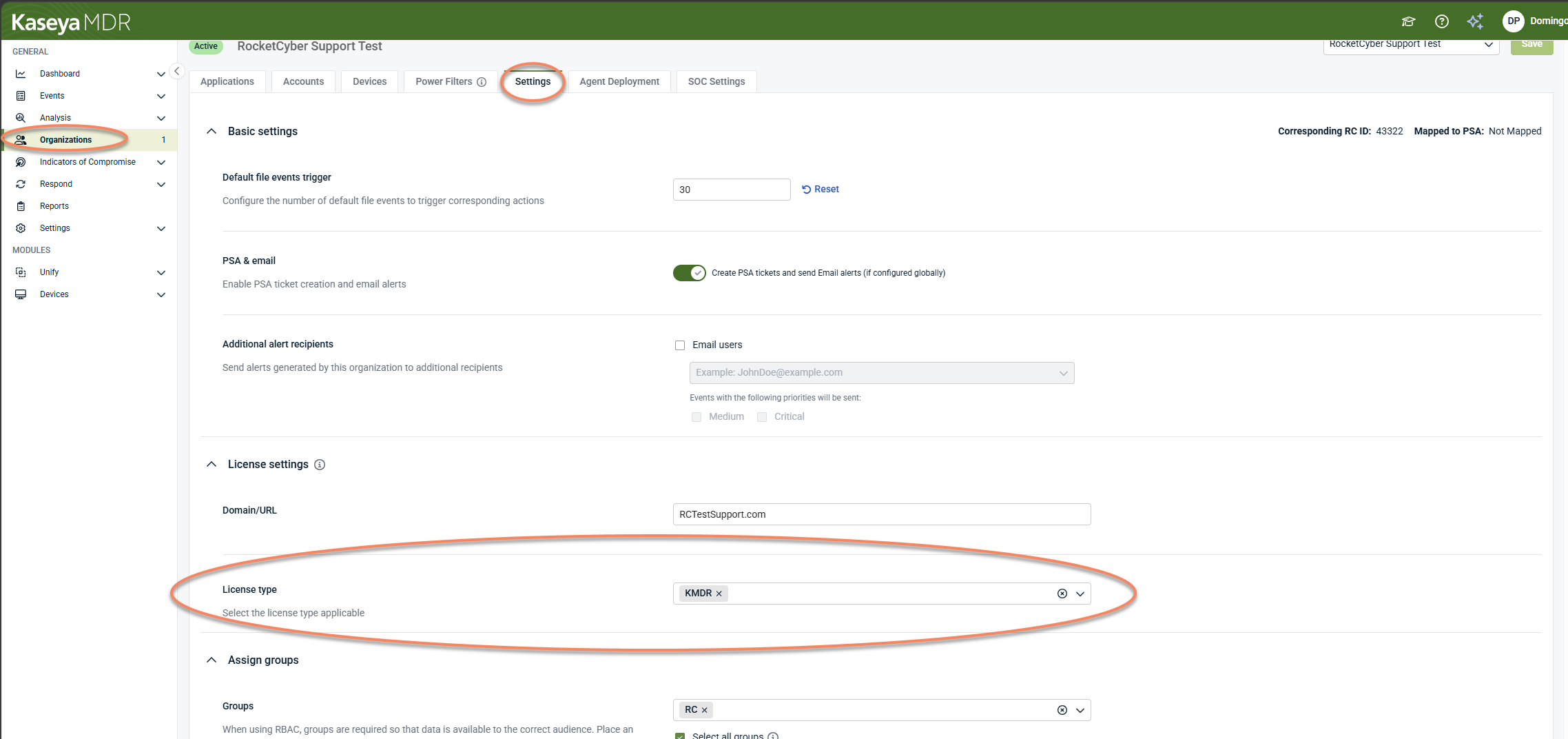
How license type selection works
When you modify the License type setting for an organization, the available license options are shown in a drop‑down menu that may include standalone products and combined or cross‑product offerings. More than one license option can be selected at the same time.
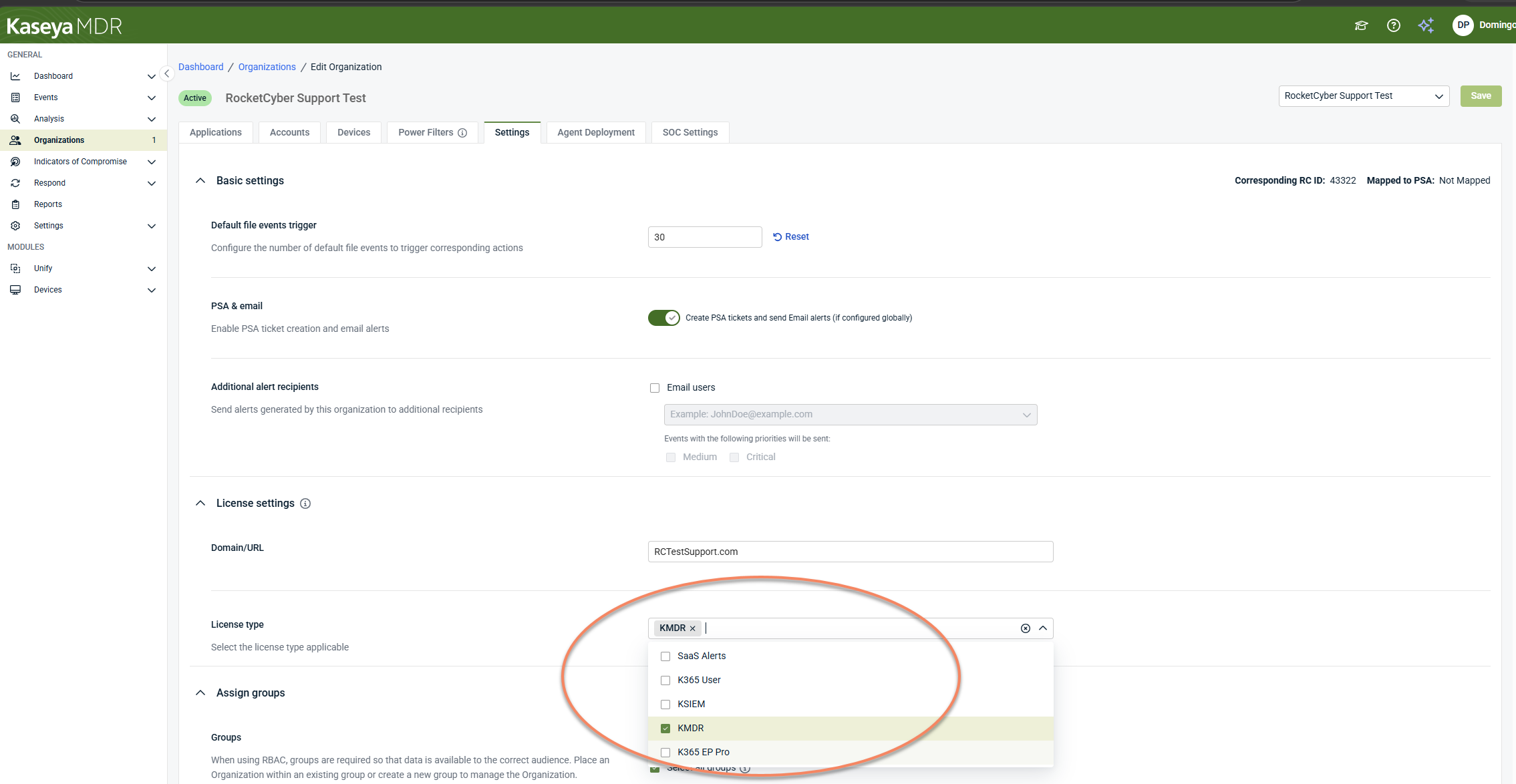
The menu displays multiple license options, including standalone products and combined or cross-product offerings. More than one license option can be selected at the same time.
Selecting a license type determines:
-
Which products the organization is associated with
-
The billing context used for subscription and usage calculations
License type selection does not:
-
Connect or disconnect data sources
-
Control telemetry ingestion
-
Affect detection, monitoring, investigation, or response behavior
When you change the license type selection, the platform displays a confirmation modal summarizing the current and newly selected license types. The change is not applied until you confirm and save.
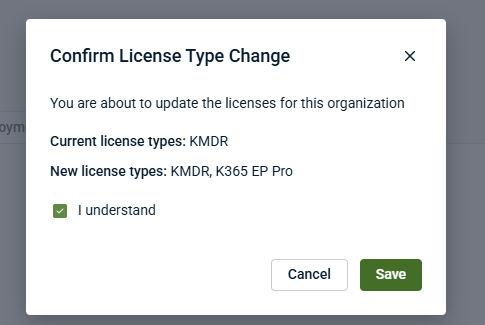
This interaction ensures that license changes are explicit before they take effect.
Product association and billing considerations
An organization can exist in more than one product if the selected licenses include multiple products. For example, selecting a license option that includes Kaseya SIEM, while also leaving Kaseya MDR‑related license options selected, results in the organization being associated with both products.
When this occurs:
-
The organization appears in each enabled product.
-
Usage and billing reflect the products that are enabled for that organization.
If licenses for both Kaseya MDR and Kaseya SIEM are selected, the organization may be billed for both products. This behavior reflects the selected license configuration rather than an error condition.
Billing eligibility and billable account criteria are defined at the product level and may differ by integration. For product‑specific billing rules, see the applicable billing documentation for each product. For details on how licensing and usage are measured at the account level, see How billing and monitoring apply to accounts.
Common configuration pattern
In most environments, partners associate an organization with one primary security product. When transitioning an organization from one product to another (for example, from Kaseya MDR to Kaseya SIEM), this typically involves:
-
Selecting the license type that enables the target product
-
Removing or unselecting license types for products that are no longer intended for that organization
In the License type drop-down menu, this means ensuring only the desired product (or combined offering) remains selected before saving changes. This helps ensure the organization exists in only the desired product and avoids unintended multi‑product billing.
When multiple license selections are intentional
In some cases, partners may intentionally enable more than one product for the same organization.
Examples include:
-
Organizations that consume capabilities across multiple products
-
Transitional states where more than one product is temporarily enabled
The License type selector allows this flexibility by design and does not enforce a single‑product selection.
Important considerations before saving changes
All organizations must have at least one license type selected. If no license type is explicitly configured, default billing behavior may apply depending on the product.
Before saving license changes:
-
Review which products are included in the selected license types
-
Confirm whether the organization is intended to exist in one product or multiple products
-
Ensure the selected licenses align with the desired billing outcome
The platform does not automatically remove licenses or make assumptions about which product an organization should use. Reviewing billable and monitored account counts can help validate that license selection changes align with subscription expectations.
When organizations are newly created or imported from external systems, an initial license type may be preselected. Administrators should review the selected license types to ensure that only the intended products are associated and to avoid unintended multi‑product billing.
Key takeaway
-
The License type drop-down menu controls which products an organization is associated with.
-
Multiple selections can result in multi‑product access and billing.
-
Most organizations are associated with a single product, but multi‑product configurations are supported.
-
Reviewing the selected license options and confirmation modal before saving helps avoid unexpected results.
-
Account‑level views such as Billable vs monitored accounts help confirm the effects of license selection over time.
Related articles
-
Managing organizations: Explains how organizations are created, edited, and governed, including organization-level identity, licensing, and configuration boundaries
-
How billing and monitoring apply to accounts: Explains how billing classification is represented in Kaseya MDR, how to interpret organization- and account-level usage differences, and why monitoring continues regardless of billing status
-
Using the Reports module: Describes how to review billing-related reports and validate usage at the organization and account level


