Reports overview
Reporting in Kaseya MDR provides a structured way to review, summarize, and document security‑relevant information that the platform has already collected and processed. Reports are designed to help teams step back from individual alerts and investigations and look at activity, configuration state, and trends in a form that can be reviewed, shared, or retained.
In practice, this information is accessed through the Reports module in the Kaseya MDR interface, which includes the Risk Dashboard, individual report views, scheduling options, and branding settings. These views are designed for review and documentation after investigation, not for live analysis.
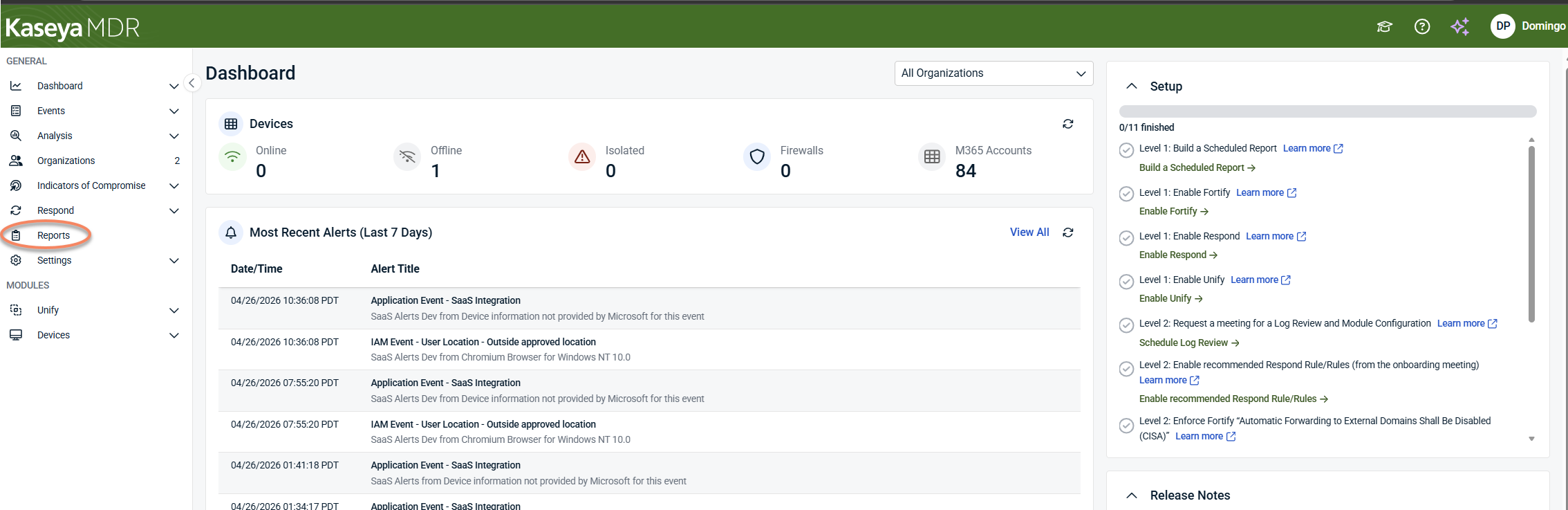
For managed service providers, reporting is most commonly used after investigation to explain outcomes, support customer conversations, and retain evidence for later review. Reports help MSPs summarize what was observed during an incident, provide visibility during periodic security reviews, and respond to audit or evidence requests without re‑running investigations or modifying detection behavior.
Reporting is intentionally descriptive rather than operational. It reflects observed activity and configuration state; it does not generate alerts, determine severity, influence detection logic, or execute response actions. Those decisions occur earlier in the security workflow, during alert triage, investigation, and response. Reporting exists after that work, when context has already been established and information needs to be consolidated.
Reporting in the security workflow
In Kaseya MDR, reporting sits after detection and investigation: Detect > Investigate > Review and document.
Reports and dashboards help translate investigation results into structured outputs, such as summaries, timelines, configuration snapshots, and shareable or exportable artifacts.
For example, investigation context built in the Analysis experience is later reviewed and summarized using reports and dashboards in the Reports module, rather than being recreated or re‑analyzed.
This separation is intentional. By placing reporting after investigation, the platform ensures that reports remain descriptive—reflecting what was observed—rather than prescriptive, influencing how the system behaves.
Activity timelines and documentation
Kaseya MDR does not generate a dedicated timeline or case object. Instead, timelines are formed implicitly from investigation results and report data that already exist in the platform.
Investigations establish what occurred, when it occurred, and how different pieces of activity are related. Reports then capture and preserve that understanding in a form that can be reviewed or shared outside the live investigation experience.
This means timelines are reconstructed by reviewing report output and dashboards, rather than through a single standalone “timeline” screen.
This approach keeps reporting focused on documentation and explanation, rather than discovery or response, and avoids treating reports as operational artifacts.
What reporting is used for
In practice, reporting is most often used when teams need to communicate outcomes rather than make decisions. This includes summarizing activity for internal review, explaining findings to customers, validating configuration state, or retaining artifacts that support later follow‑up.
Because reports present information that has already been processed, they are well suited for recurring review and documentation. They allow teams to revisit what was observed without re‑running investigations or modifying detection behavior.
These review and communication tasks are typically performed using individual Executive, Operational, or Configuration reports, as well as the Risk Dashboard, depending on the level of detail required.
Types of reporting information
Reporting in Kaseya MDR covers multiple perspectives on the same underlying data. Some reports are designed to provide high‑level summaries suitable for oversight and communication. Others focus on operational detail, such as alert volumes or integration status. Configuration‑oriented reports provide visibility into current state, allowing teams to review settings, account attributes, or security posture without modifying them.
These distinctions are reflected directly in how reports are organized and categorized within the Reports module.
All reports reflect data already ingested and processed by the platform, subject to integration scope and availability.
What reporting does not replace
Reporting is not a substitute for investigation. It should not be used to determine root cause, assess intent, or decide on response actions in isolation. Those activities belong in investigation workflows, such as Investigating activity using the Analysis page.
Similarly, reporting should not be treated as a compliance engine. While reports can support audit conversations or evidence requests, they do not certify compliance, enforce regulatory requirements, or guarantee coverage.
Understanding report context
Most reports can be interpreted directly from their descriptions and placement. In some cases, a report may require additional context, such as prerequisites, permissions, or data‑sourcing nuances.
That additional guidance is provided in report‑specific reference articles linked from within the Reports section, rather than by expanding general reporting documentation.
When reviewing report output, always consider integration scope, available data, and the selected time range.
Using reporting effectively
Reporting is most effective once investigation has already clarified what happened and what matters. Use reports to capture and communicate that understanding, not to discover it.
If you are still working through alerts or determining the scope of an incident, investigation workflows should come first.
Details on navigating reports, dashboards, scheduling, and presentation options are covered in Using the Reports module.
Exporting investigation data
Exporting allows you to capture report output and investigation‑related data for offline review, sharing, or retention. Exports reflect the state of the data at the time they are generated and do not update automatically.
Exporting does not change data, trigger alerts, or affect investigation results. It is used for documentation and communication after investigation has established context.
Related articles
-
Using the Reports module: Learn how to navigate reports and dashboards, schedule and share reports, and export reporting data once you are ready to work with report output in the UI
-
Investigating activity using the Analysis page: Use this article to understand how investigations are performed and how timelines and context are established before reporting is used for review or documentation
-
Understanding the MFA Report: Provides report‑specific interpretation guidance, including how MFA data is sourced and why report results may differ from Microsoft admin views
-
Mailbox Forwarding Rule Report: Explains prerequisites, permissions, and expected behavior for the Mailbox Forwarding Rule Report, including common reasons a report may return no results


