Integration: Kaseya MDR and Datto RMM
 Security and navigation
Kaseya MDR
NAVIGATION Settings > Integrations
PERMISSIONS Permission to manage integrations or organization applications in Kaseya MDR
Datto RMM
NAVIGATION Setup > Global Settings
NAVIGATION Setup > Users
PERMISSIONS Administrator access to Datto RMM
Overview
This integration connects Datto RMM with Kaseya MDR so endpoint and operational telemetry from Datto RMM can be ingested, mapped to the correct organizations, and used to provide context for detection, investigation, and response.
This integration establishes a single connection to Datto RMM and relies on organization mapping to determine where telemetry is visible within Kaseya MDR.
This article covers connection setup and telemetry association only. It does not cover agent deployment, Datto RMM automation, scripting, or MDR detection and response behavior.
What this integration does and does not do
This integration:
-
Establishes API-based connectivity between Datto RMM and Kaseya MDR
-
Associates Datto RMM telemetry with MDR organizations through mapping
-
Makes device and operational activity available for investigation and context
This integration does not:
-
Deploy or manage endpoint agents
-
Configure Datto RMM automation, monitoring policies, or scripts
-
Replace Datto RMM administrative workflows
-
Control detection logic, alert thresholds, or response actions
Agent deployment and endpoint management are covered in separate articles.
Prerequisites
Before configuring the integration:
-
Enable API access in Datto RMM
-
Create an API user with Administrator-level permissions
-
Generate API credentials (API URL, API Key, API Secret Key)
-
Ensure Datto RMM organizations are structured per customer where possible
Use case
A managed service provider uses Datto RMM to manage devices across multiple customer environments.
By connecting Datto RMM to Kaseya MDR and mapping organizations:
-
Device and operational activity from Datto RMM becomes available to MDR investigations
-
Analysts gain additional context about device state and activity during security investigations
-
Telemetry is scoped correctly per customer through organization mapping
How the integration works
Datto RMM is connected once at the partner (MSP) level. It is not connected separately for each customer organization.
Instead:
-
A single Datto RMM integration is established
-
Customer onboarding is handled through organization mapping
-
Mapping determines how telemetry is associated and displayed within Kaseya MDR
-
Mapping does not create additional integrations. It controls how data from the single connection is scoped.
Single integration model
Kaseya MDR supports a single Datto RMM integration per Datto RMM instance.
Do not create multiple integrations for the same Datto RMM environment. Creating duplicate integrations can result in duplicate telemetry and inconsistent data association.
How to...
Set up the integration in Kaseya MDR
To enable the integration:
-
Go to Settings > Integrations.
-
Click + New Integration.
If Datto RMM is connected more than once, remove duplicate integrations and retain a single connection before continuing.
-
When prompted, select an organization for this integration.
-
Choose an internal or MSP‑level organization (for example, an admin or operations organization).
-
This organization is used as the default location for Datto RMM user activity until organization mapping is completed.
-
-
Select Datto RMM to continue with the connection wizard.
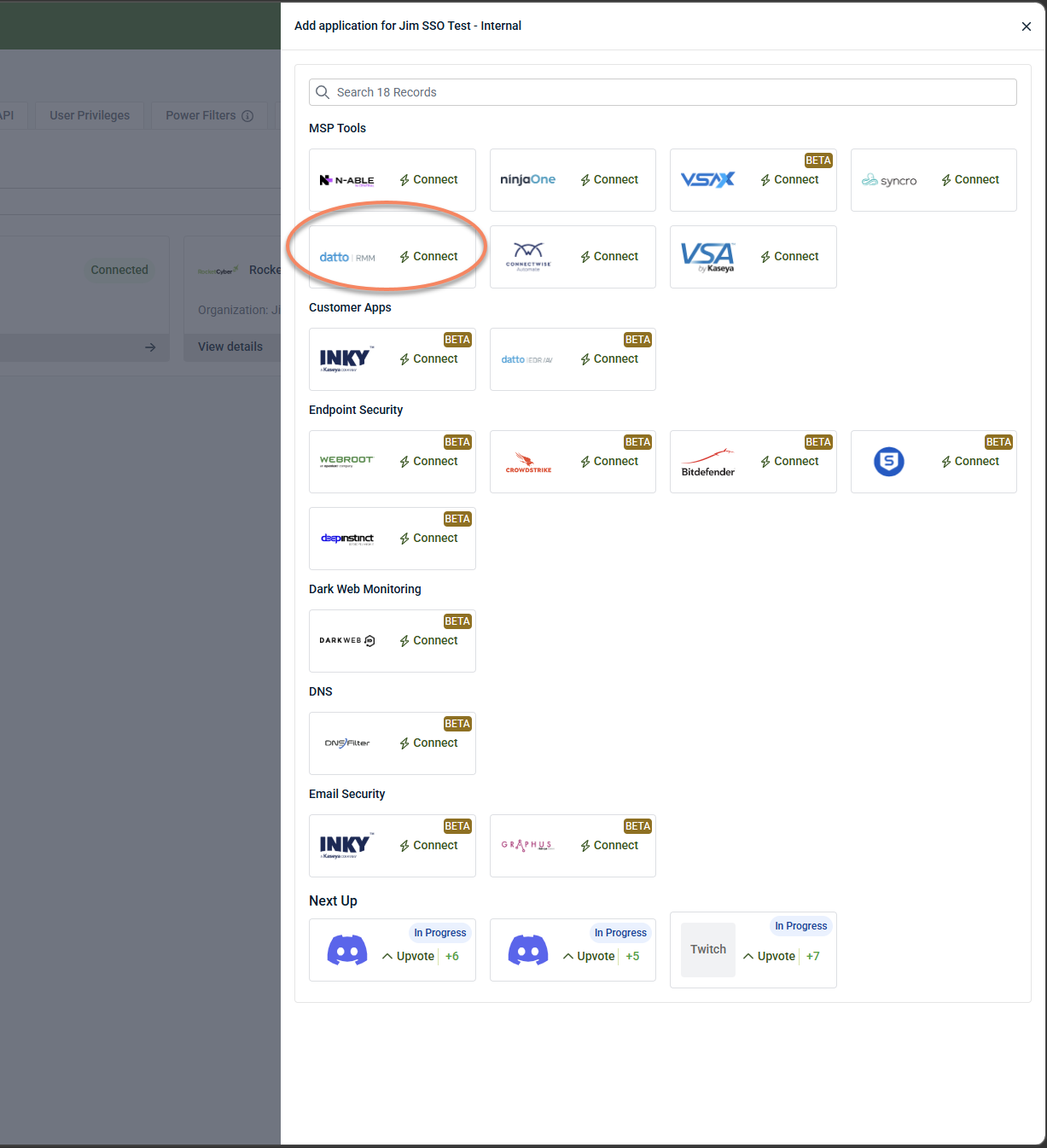
NOTE If a message indicates a Datto RMM integration already exists, cancel unless you are intentionally connecting a separate Datto RMM instance. Creating duplicates can result in duplicate data.
-
In Set Credentials:
-
Select your Datto RMM region (for example: Vidal, Merlot, Zinfandel).
-
Paste the API Key and API Secret Key generated in Datto RMM (see Set up the integration in Datto RMM). The API Secret Key is displayed only once and cannot be recovered later.
These credentials are required in Kaseya MDR during the connection process, where they are entered in the Set Credentials step of the integration wizard.
-
Select Next.
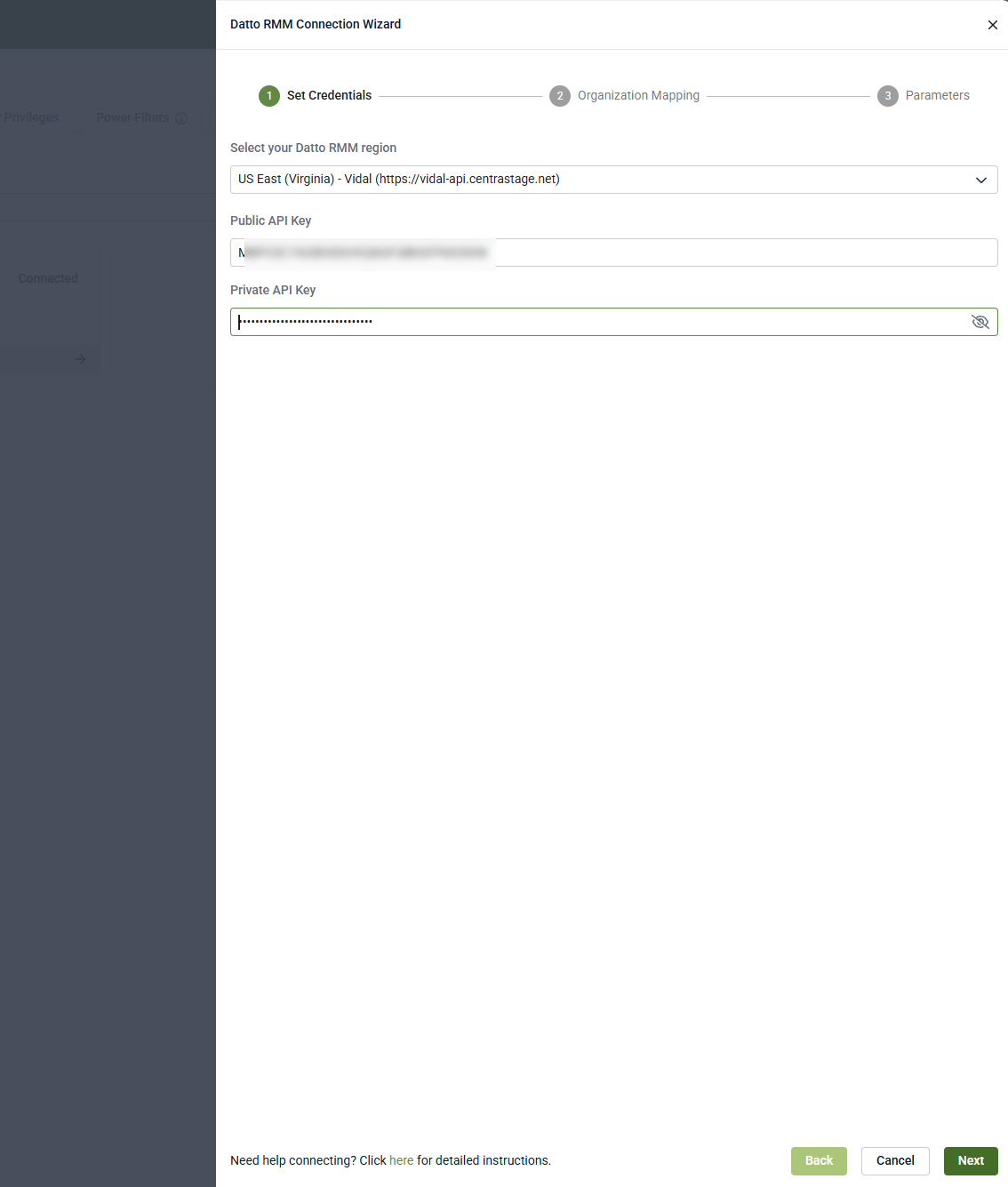
If credentials are valid, the wizard proceeds to Organization Mapping.
-
Set up the integration in Datto RMM
Complete the following steps:
Step 1: Enable global API access
-
Sign in to Datto RMM as an Administrator.
-
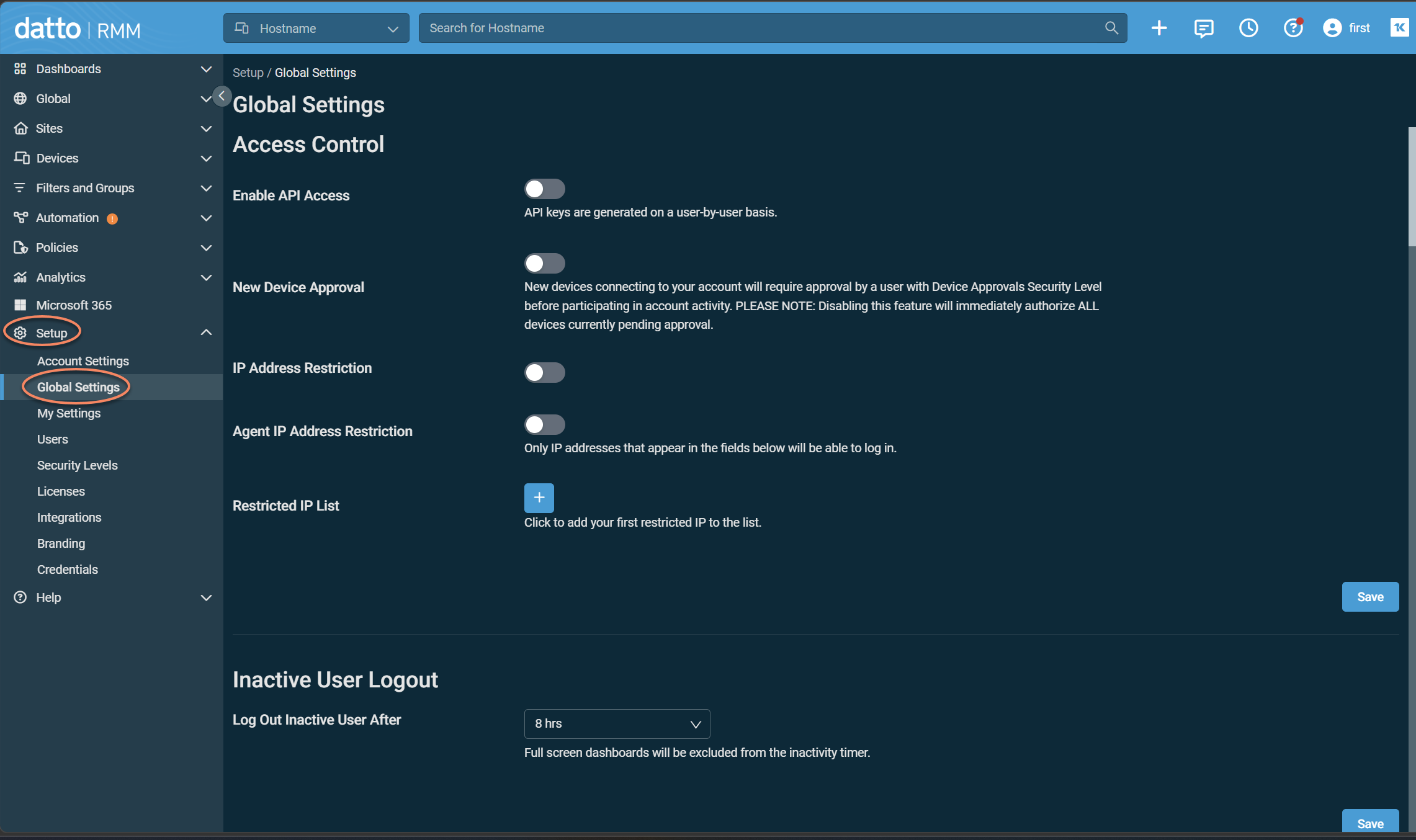
From the side navigation menu, go to Setup > Global Settings.
-
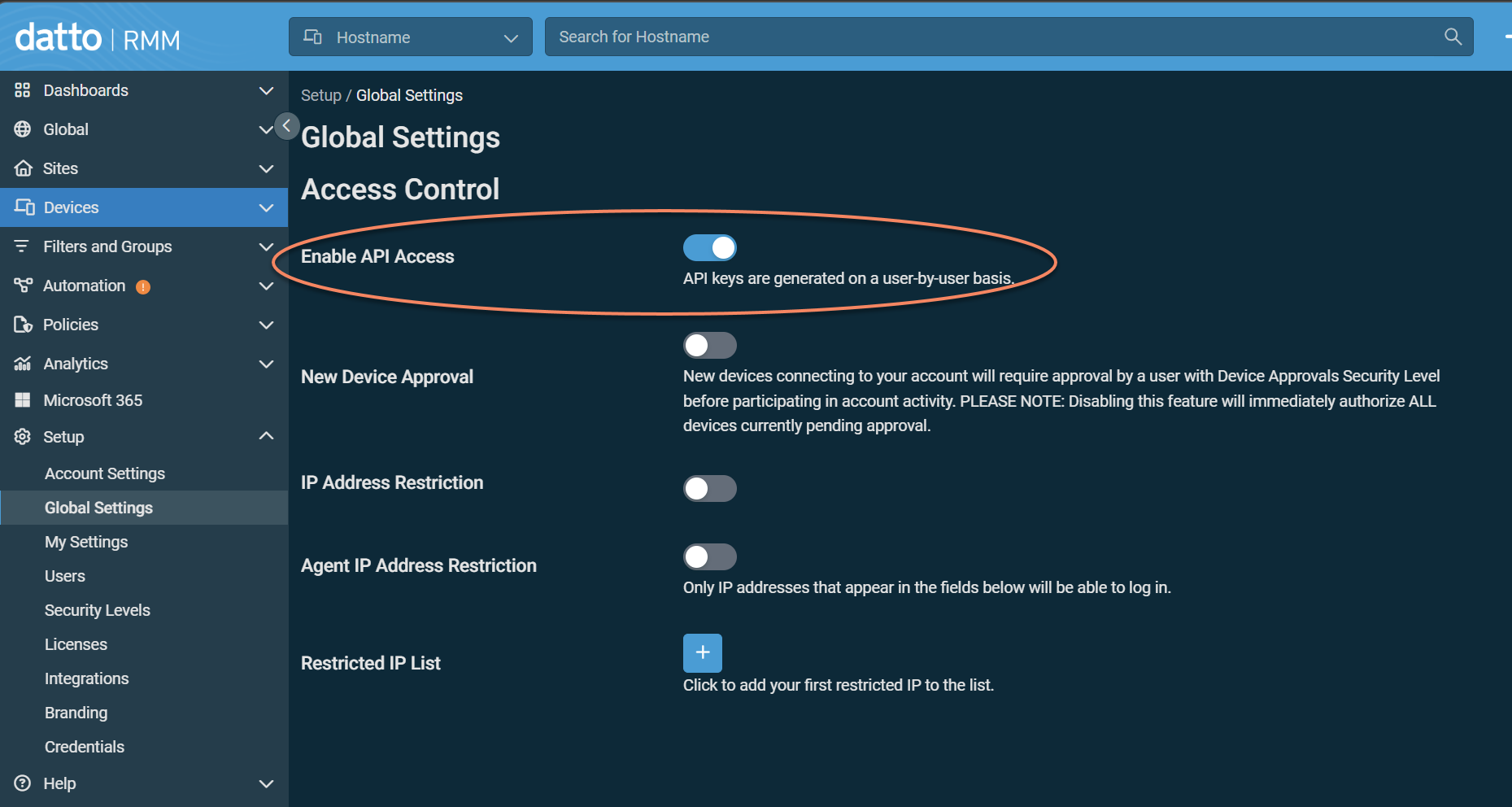
Turn on Enable API Access.
-
Click Save and confirm.
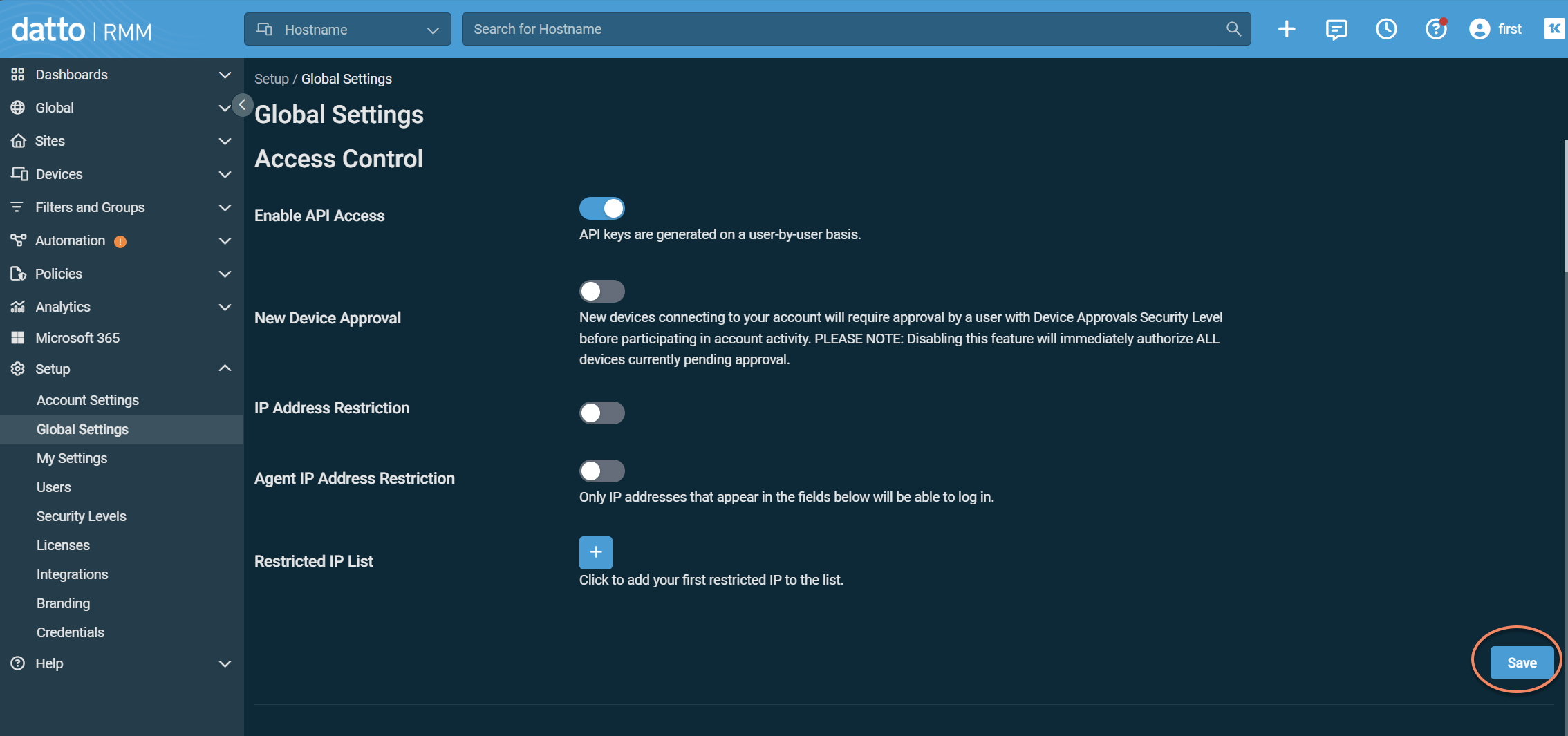
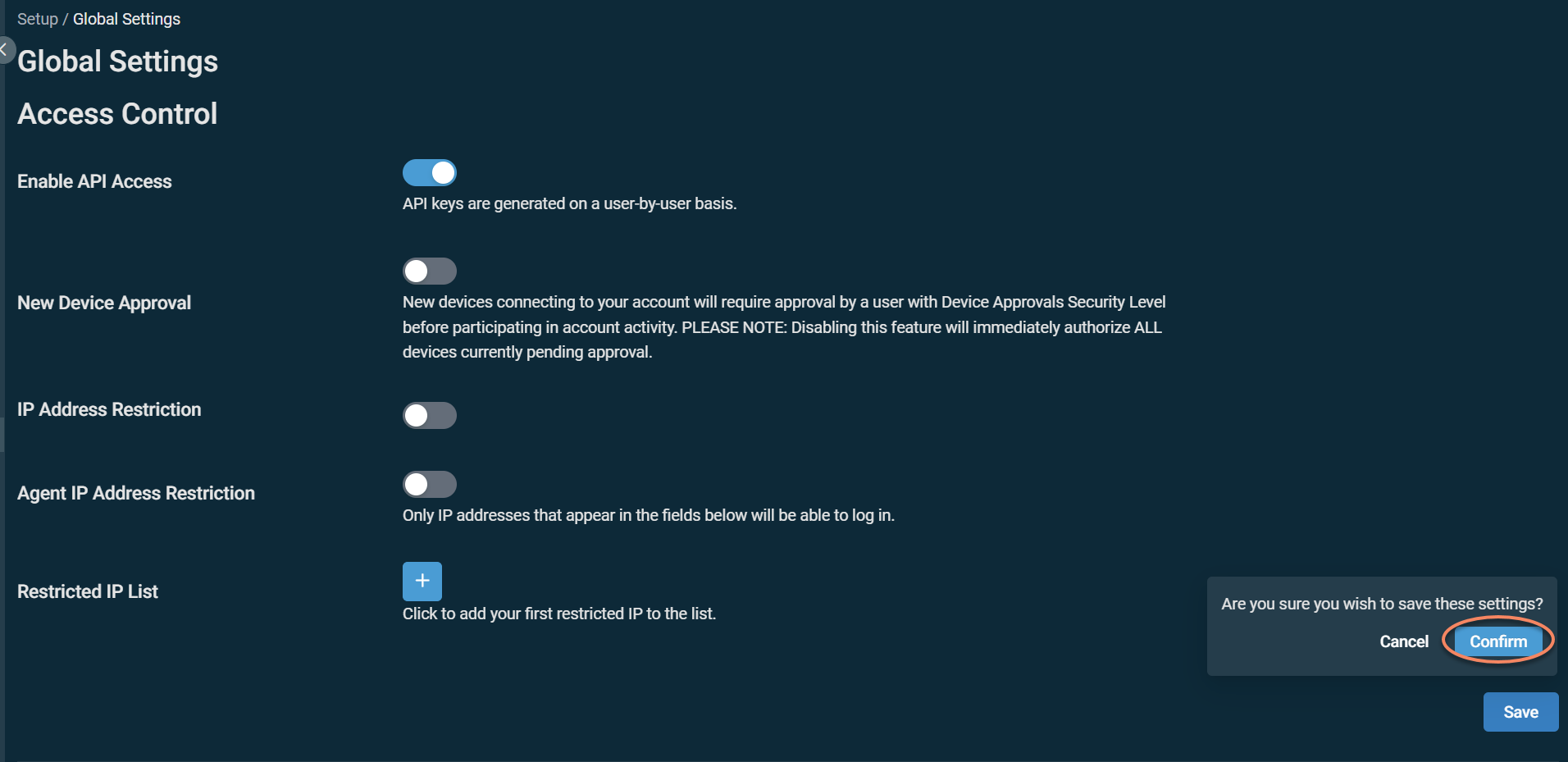
IMPORTANT API keys cannot be generated until global API access is enabled. Make sure you click Save and confirm.
Step 2: Create or select an API user
-
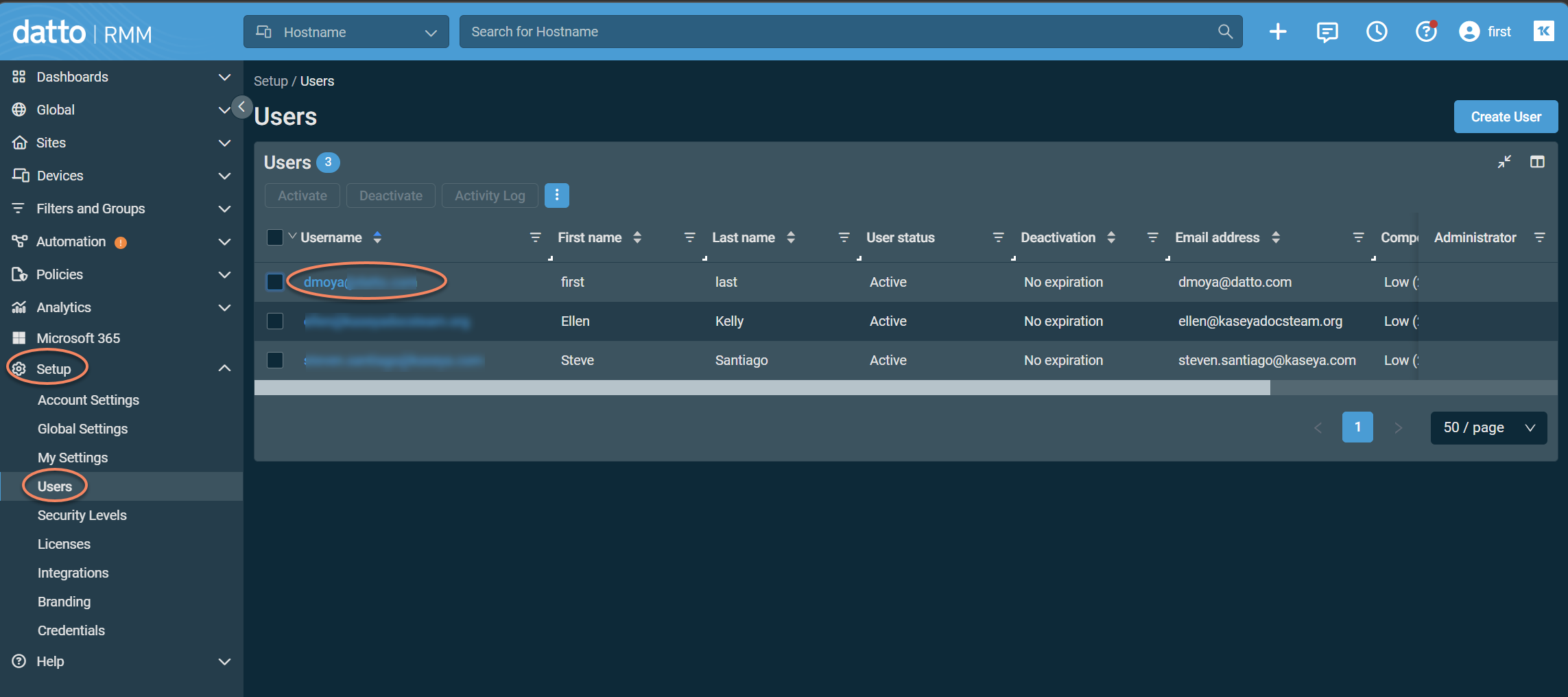
Go to Setup > Users.
-
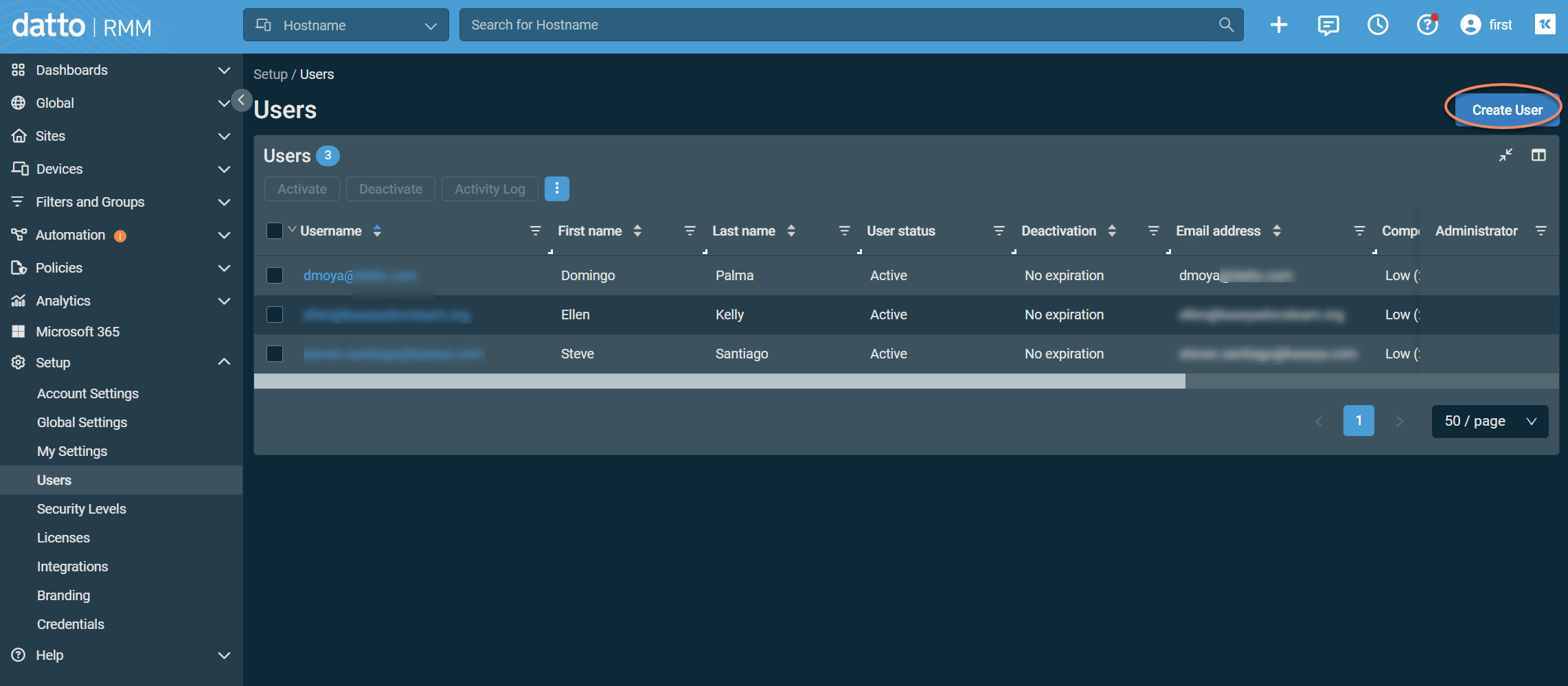
Select or create a user.
-
Configure the user with the following details:
-
Component Level: Super (5)
-
Security Levels: Administrator
-
Step 3: Generate API keys
-
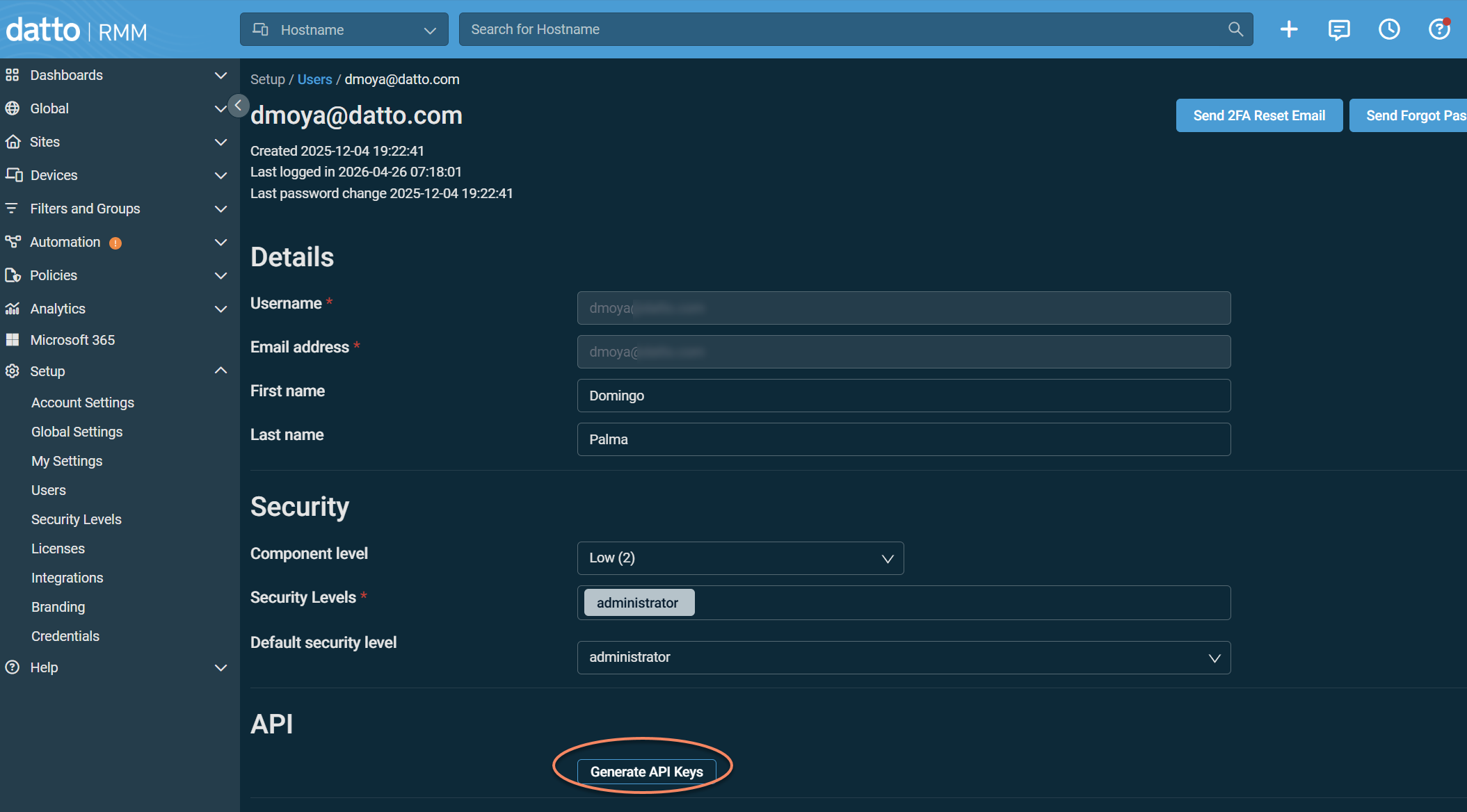
Open the selected user.
-
Scroll to the API section.
-
Click Generate API Keys.
-
Immediately copy and store:
-
API URL
-
API Key
-
API Secret Key
-
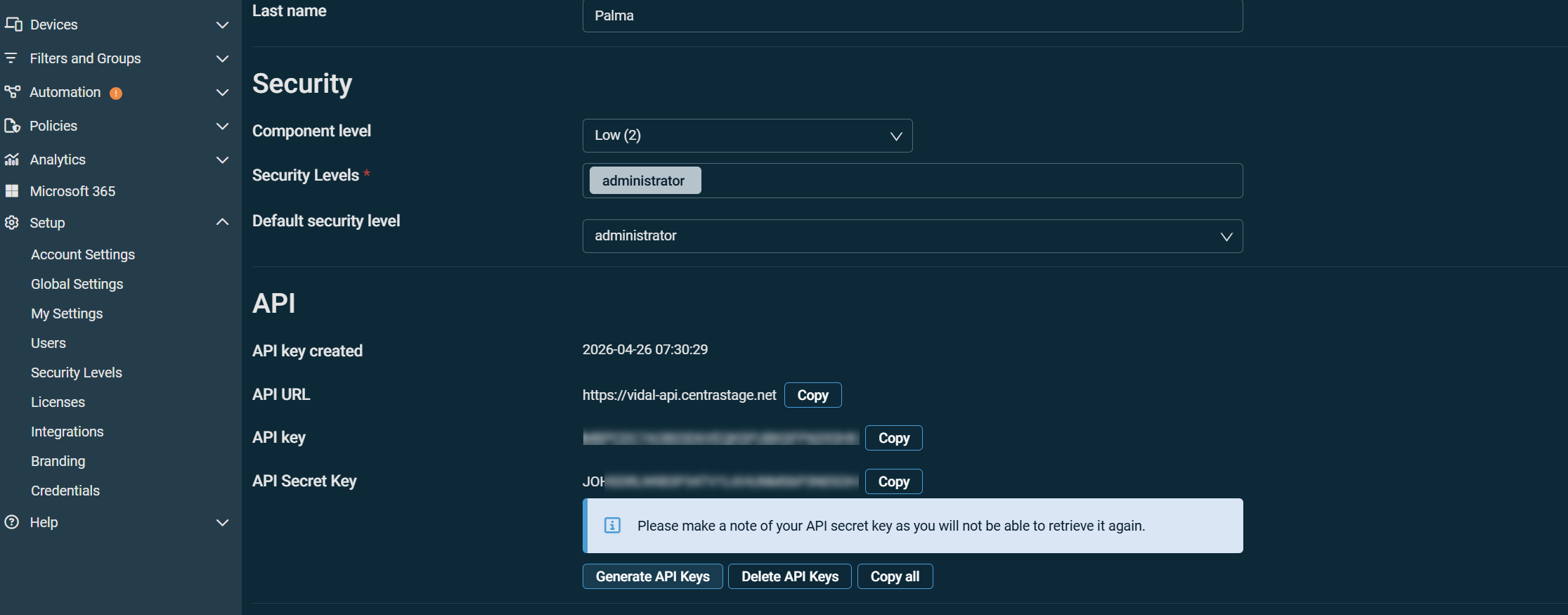
IMPORTANT The API Secret Key is displayed only once and cannot be recovered later. All API access configuration is completed in Datto RMM.
Configure additional functionality
Organization mapping
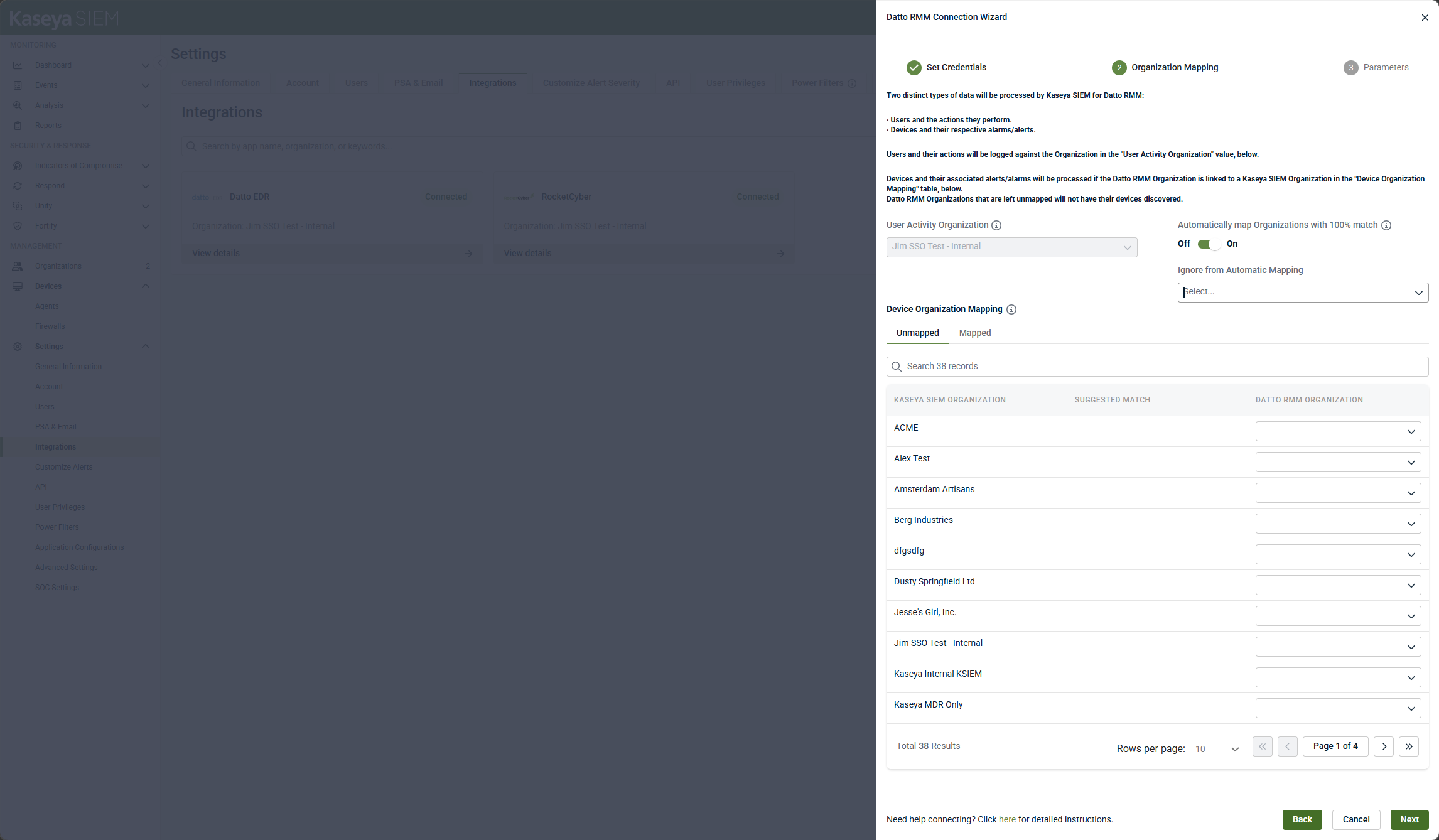
Organization mapping determines how Datto RMM telemetry is associated with MDR organizations.
Kaseya MDR processes two types of Datto RMM data:
-
User Activity Organization: All Datto RMM user actions are logged against a single MDR organization selected during setup.
-
This value cannot be changed after the integration is created.
-
It is typically an internal or MSP-level organization.
Best practice: Select an internal or administrative organization, not a customer organization.
-
-
Device organization mapping: Device activity and alerts are ingested only for mapped organizations.
-
Unmapped Datto RMM organizations do not contribute device telemetry.
-
Device context is not available for analysis for unmapped organizations.
Each Datto RMM organization should be mapped to a corresponding MDR organization.
-
Automatic mapping (optional)
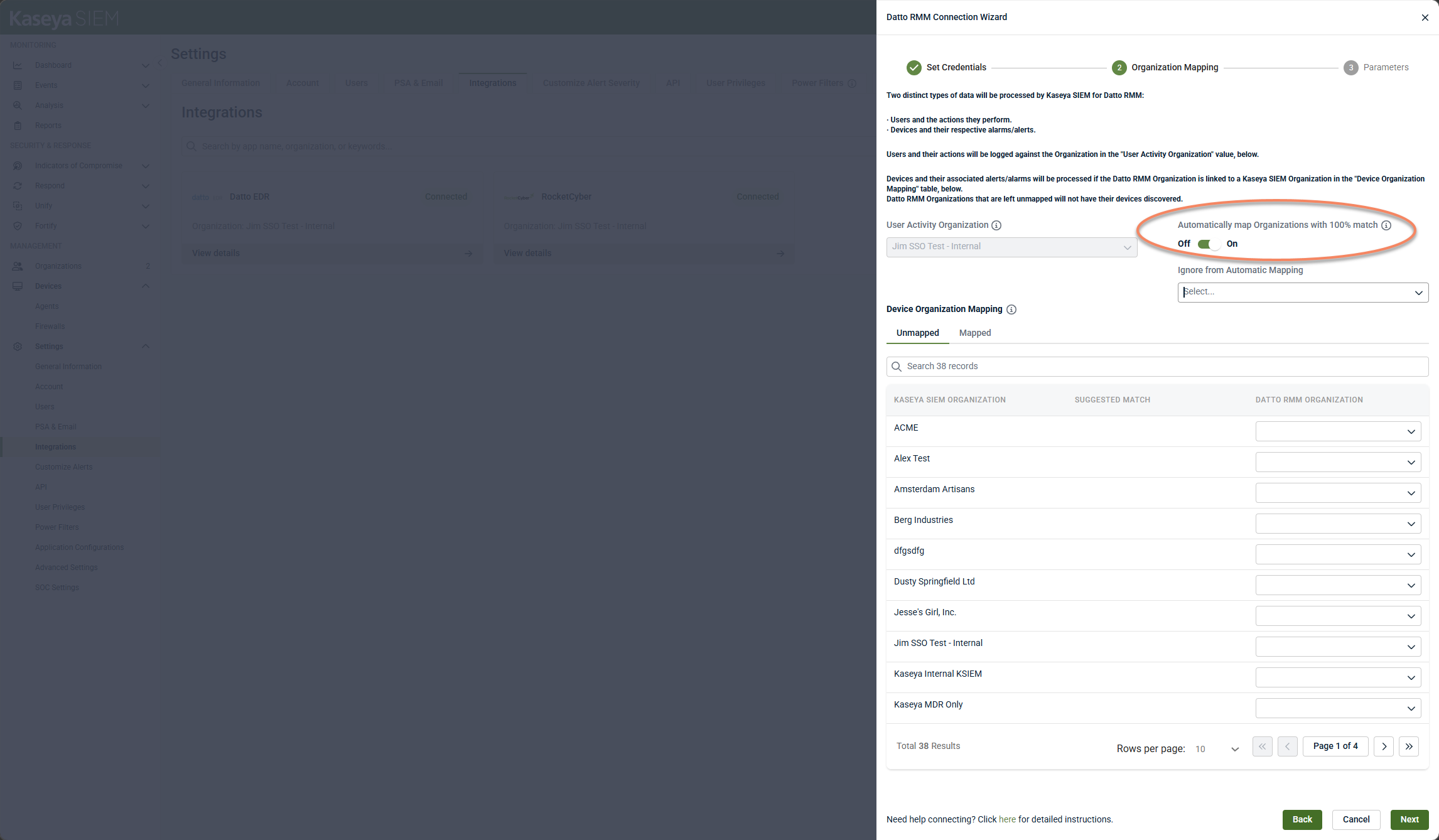
Automatically map organizations with 100% match maps organizations whose names exactly match between Datto RMM and MDR.
Use this option only if:
-
Organization names are identical across systems.
-
Each Datto RMM organization represents a single customer.
If these conditions are not met, map organizations manually.
Selecting Datto RMM organization types
When mapping devices, select organization types that represent active devices:
-
Managed: Typical customer devices (recommended)
-
OnDemand: Optional, depending on environment
-
Deleted Devices: Not recommended
IMPORTANT If Datto RMM is not structured using separate organizations per customer, mapping may result in devices being grouped under a single default organization. For best results, organize Datto RMM environments so each customer is represented as a distinct organization.
After mapping
After saving organization mapping:
-
Allow up to 10-30 minutes for devices to appear.
-
Datto RMM device context becomes available in the MDR Analysis experience and contributes to SOC‑led detection and investigation.
Synchronization is not immediate. Allow several minutes after mapping changes.
Parameters: Microsoft Entra Device ID mapping (optional)
In the final step of the Datto RMM connection wizard, you may see an option to map a Microsoft Entra Device ID custom field from your RMM.
This mapping is not required but improves correlation accuracy when associating identity-based activity (such as Microsoft Entra or Microsoft 365 events) with known, managed devices.
This option is recommended in environments that rely on Microsoft identity signals or automated investigation workflows.
You can complete onboarding without this mapping and configure it later if needed.
Verify the integration
During initial connection, the integration may display temporary status messages while validating access and retrieving data. This process may take several minutes depending on environment size.
After completing organization mapping:
-
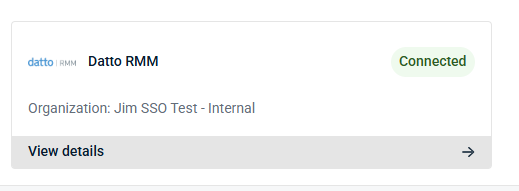
Go to Settings > Integrations > Datto RMM and confirm the status is Connected.
-
Confirm that Datto RMM devices appear within relevant MDR organizations.
-
Confirm that Datto RMM telemetry contributes endpoint context to alerts and investigations handled by the MDR service.
Synchronization is not immediate. Allow several minutes after mapping changes.
Disable the Datto RMM integration in Kaseya MDR
From Settings > Integrations > Datto RMM, you can select Disconnect Application to remove the Datto RMM integration.
When you disconnect the integration:
-
Historical Datto RMM data already ingested into Kaseya MDR remains available for investigation and reporting.
-
New data ingestion stops from the time of disconnection.
-
Datto RMM data is no longer applied toward billing from the point of disconnection forward.
Disconnecting the integration does not remove MDR organizations, mappings, or previously collected investigation context. To resume ingestion, the Datto RMM integration must be reconnected.
NOTE Disconnecting the integration is different from organization mapping. If your goal is to adjust where data is associated, update organization mapping rather than disconnecting the integration.
Related articles
-
Integrations and data sources: Explains how telemetry enters Kaseya MDR and how data sources are associated with organizations
-
Endpoint and infrastructure sources: Describes how endpoint‑based telemetry appears in Kaseya MDR
-
Deploying the agent using Datto RMM: How to install the agent and enable endpoint visibility before integrating Datto RMM telemetry with Kaseya MDR


