Integration: Kaseya MDR and Webroot Monitor
 Security and navigation
Kaseya MDR
NAVIGATION At the partner level: Settings > Integrations > + New Integration > choose organization > Next > Webroot
NAVIGATION At the organization level: Organizations > Edit Organization (pencil icon) > + New Application > Webroot
PERMISSIONS Permission to manage integrations or organization applications in Kaseya MDR
Webroot Monitor
NAVIGATION Settings > Unity API Access
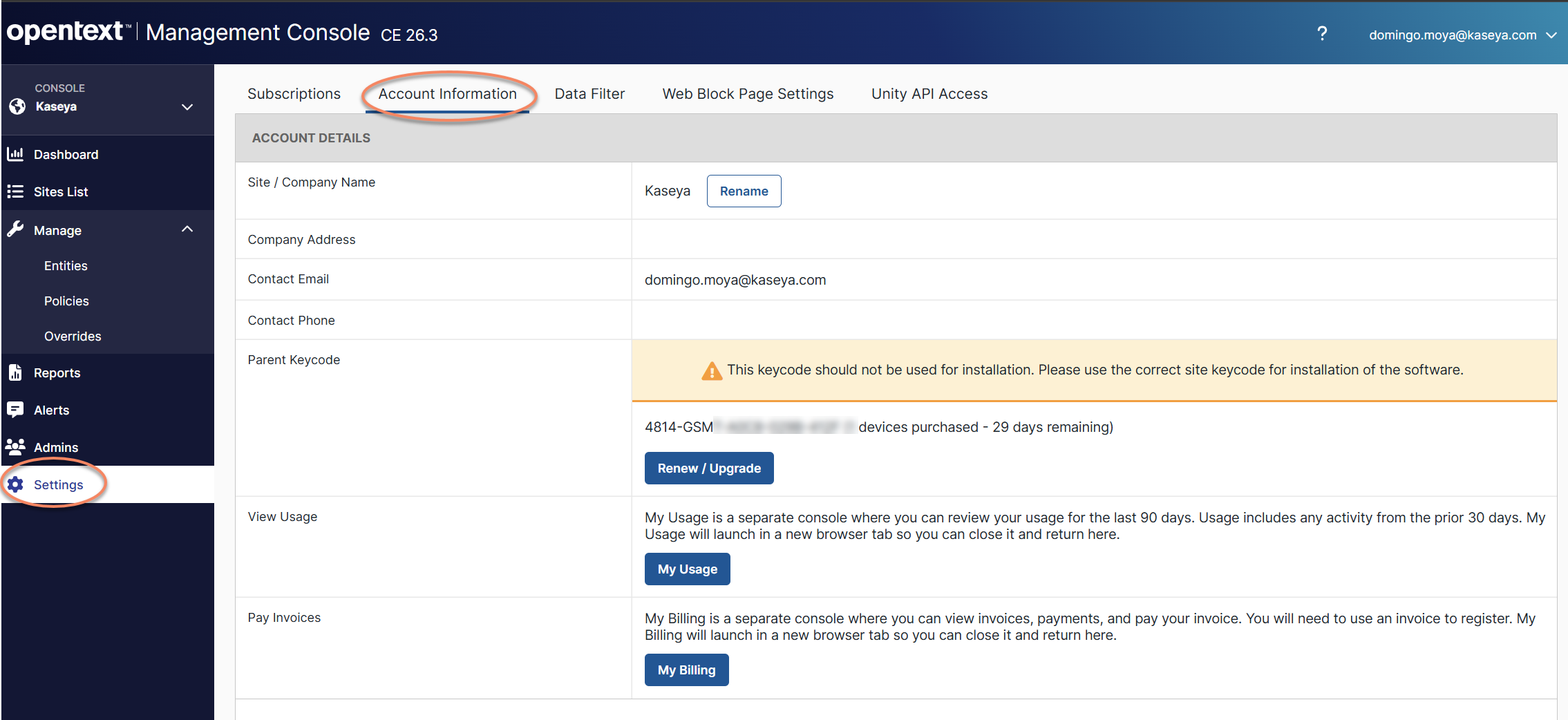
NAVIGATION Settings > Account Information
PERMISSIONS Webroot account with access to create Unity API credentials and view account information
The Kaseya MDR and Webroot Monitor integration retrieves Webroot threat and activity data and surfaces it in Kaseya MDR, enabling the SOC to monitor and respond to activity associated with connected Webroot organizations.
Prerequisites
-
The Webroot instance must be configured as an MSP in order for the Unity API Access menu to be available.
-
This integration requires the following information from OpenText Webroot:
-
Username
-
Password
-
Client ID
-
Client Secret
-
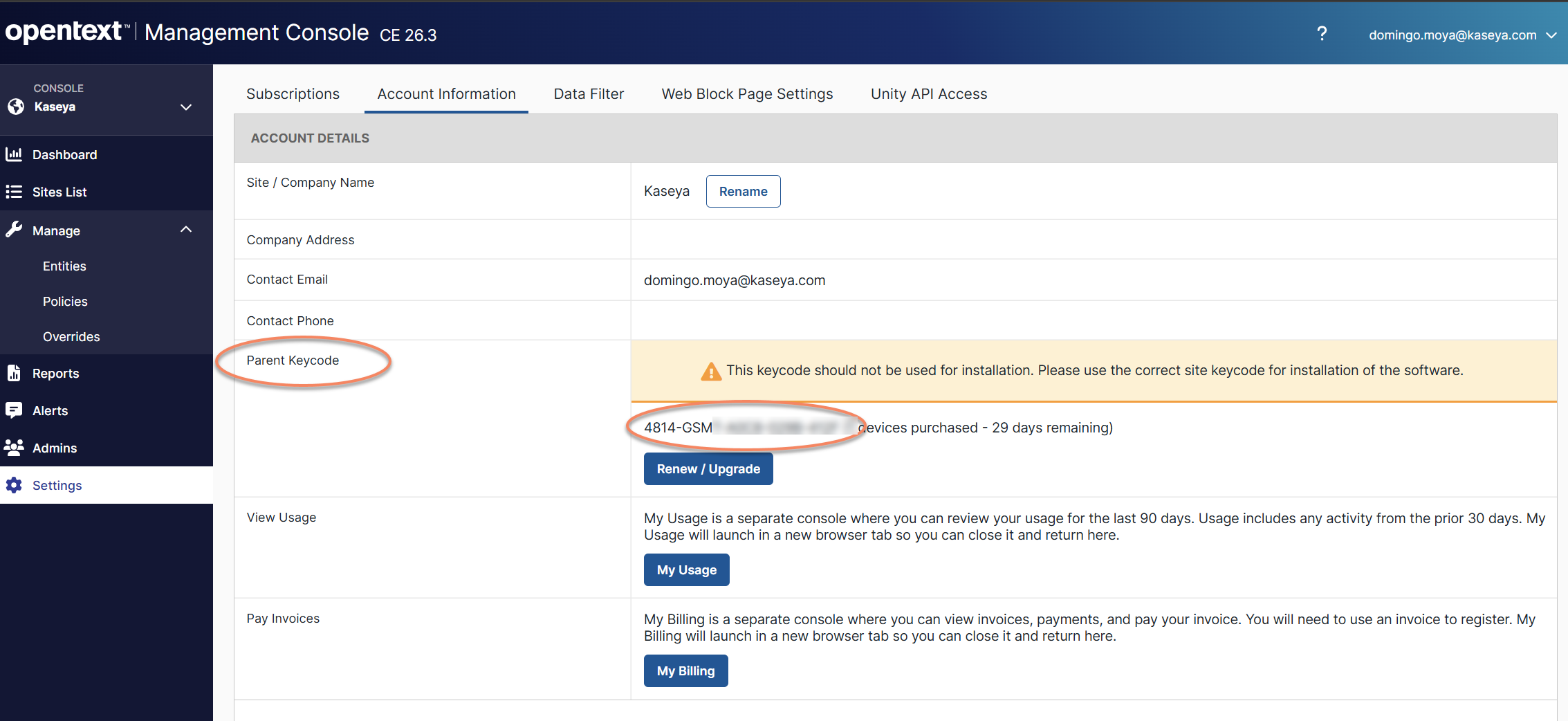
GSM Key (Parent Keycode)
The Username and Password are the same credentials used to sign in to the OpenText Management Console.
-
How to...
Generate API credentials in OpenText Webroot
To generate the credentials required for the integration, complete the following steps:
-
Log in to the OpenText Management Console.
-
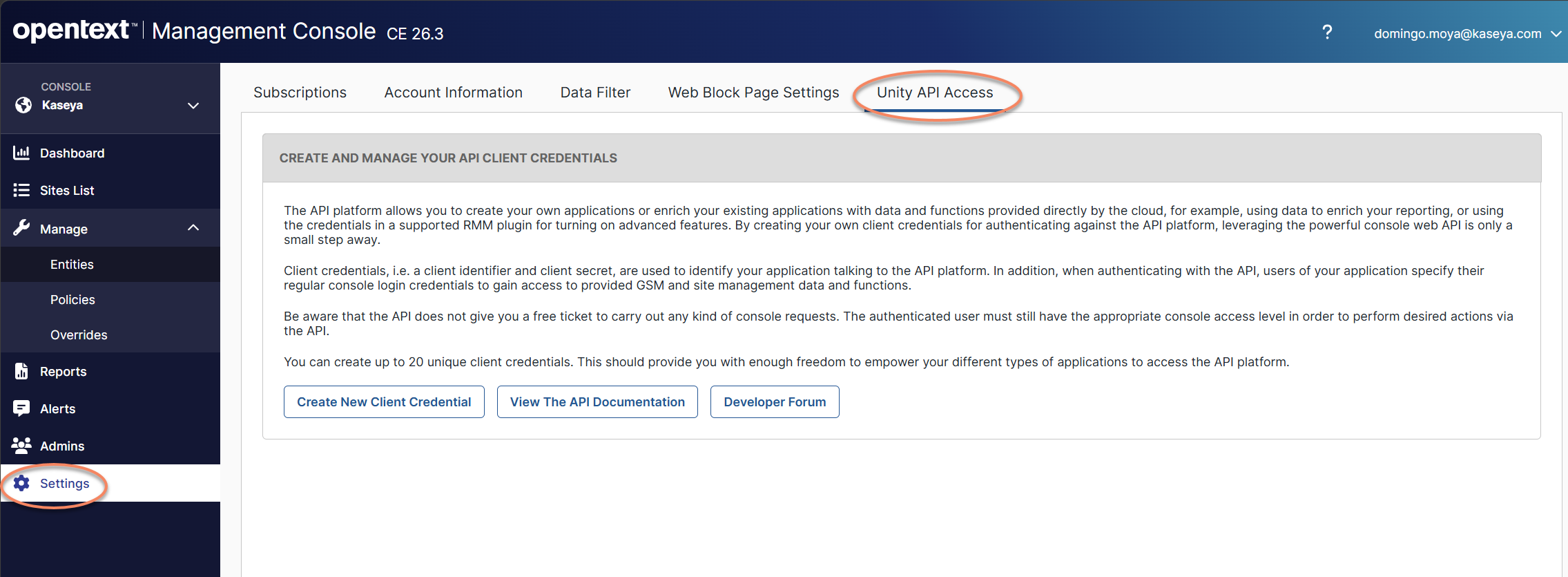
Navigate to Settings > Unity API Access.
-
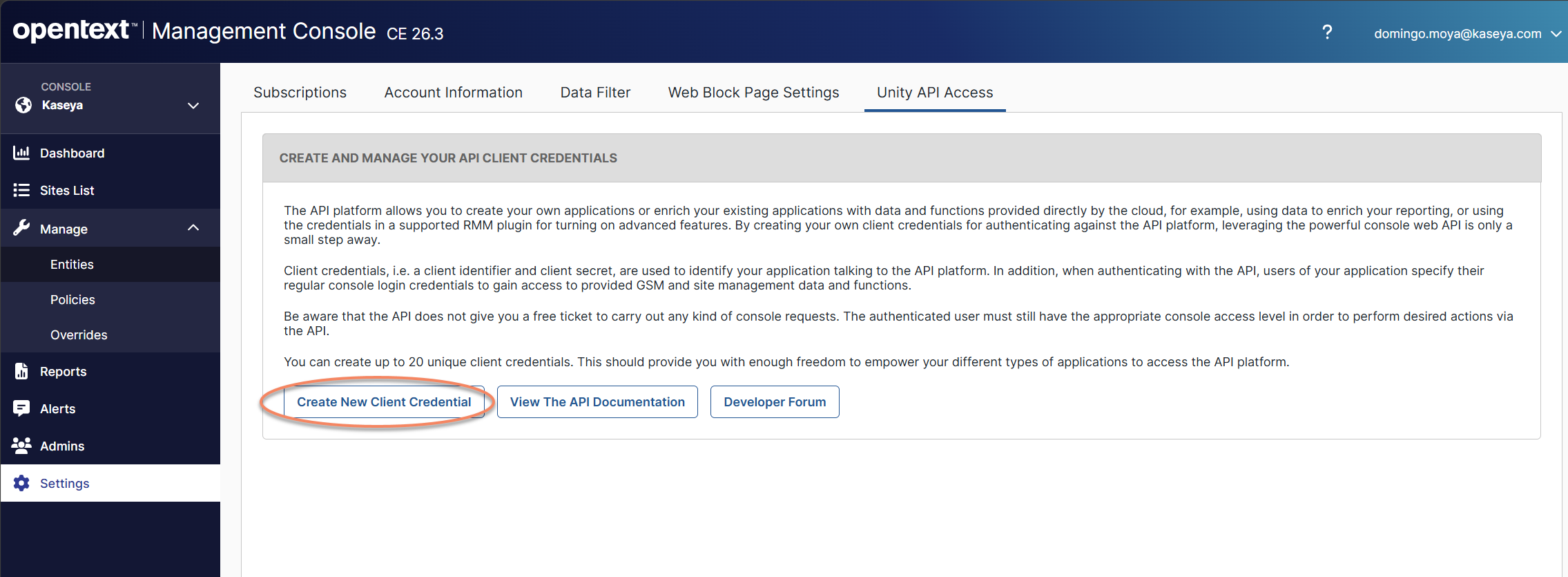
Click Create New Client Credential.
-
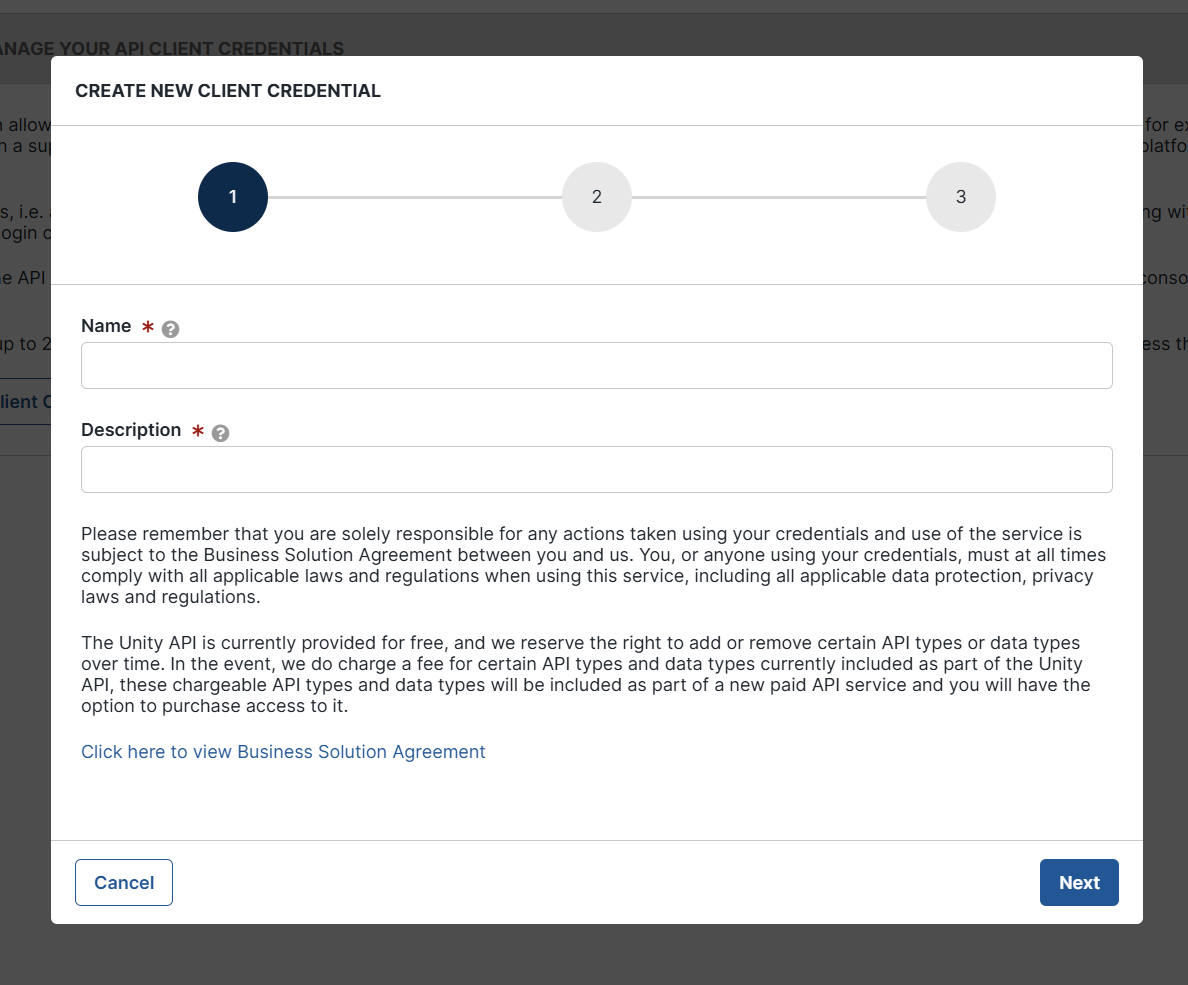
Enter a name and description for the credential.
-
Click Next.
-
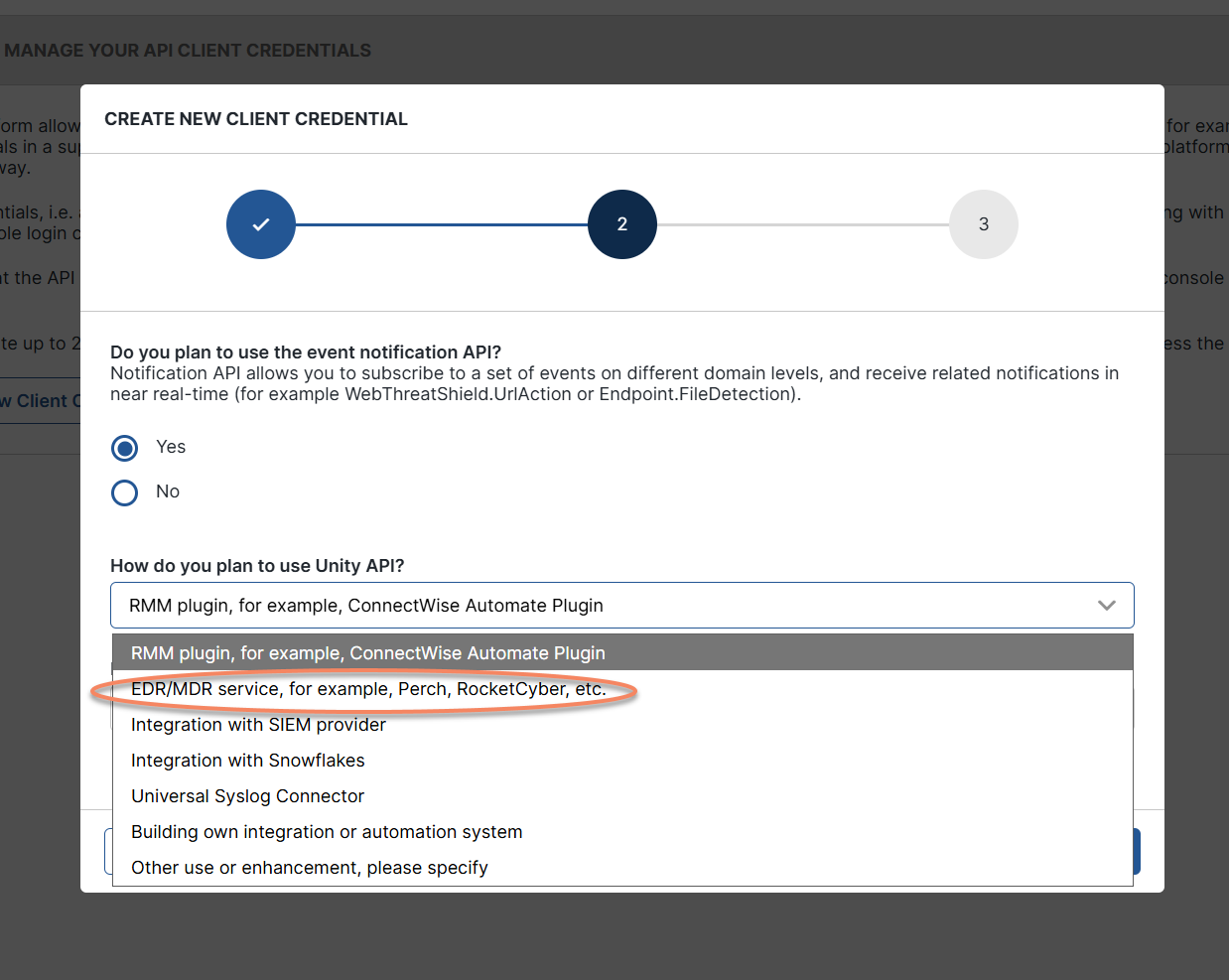
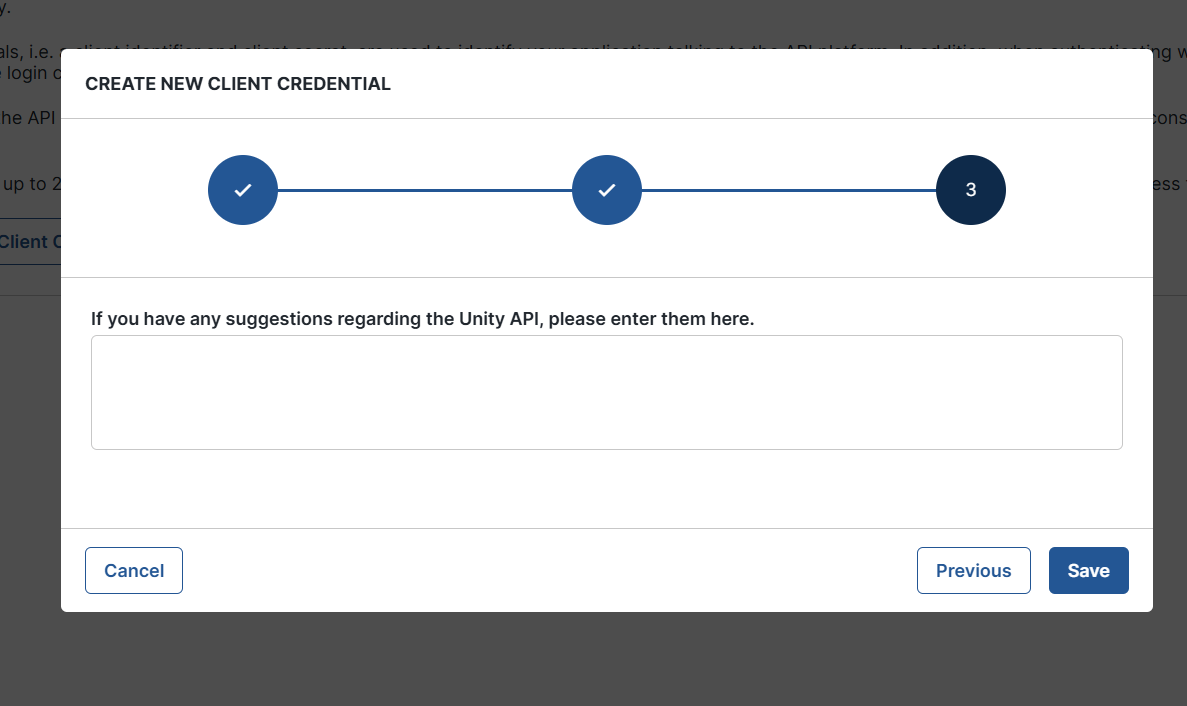
Select Yes for Do you plan to use the Event Notification API?
-
Select EDR/MDR service as the integration type.
-
Click Save to complete the wizard.
-
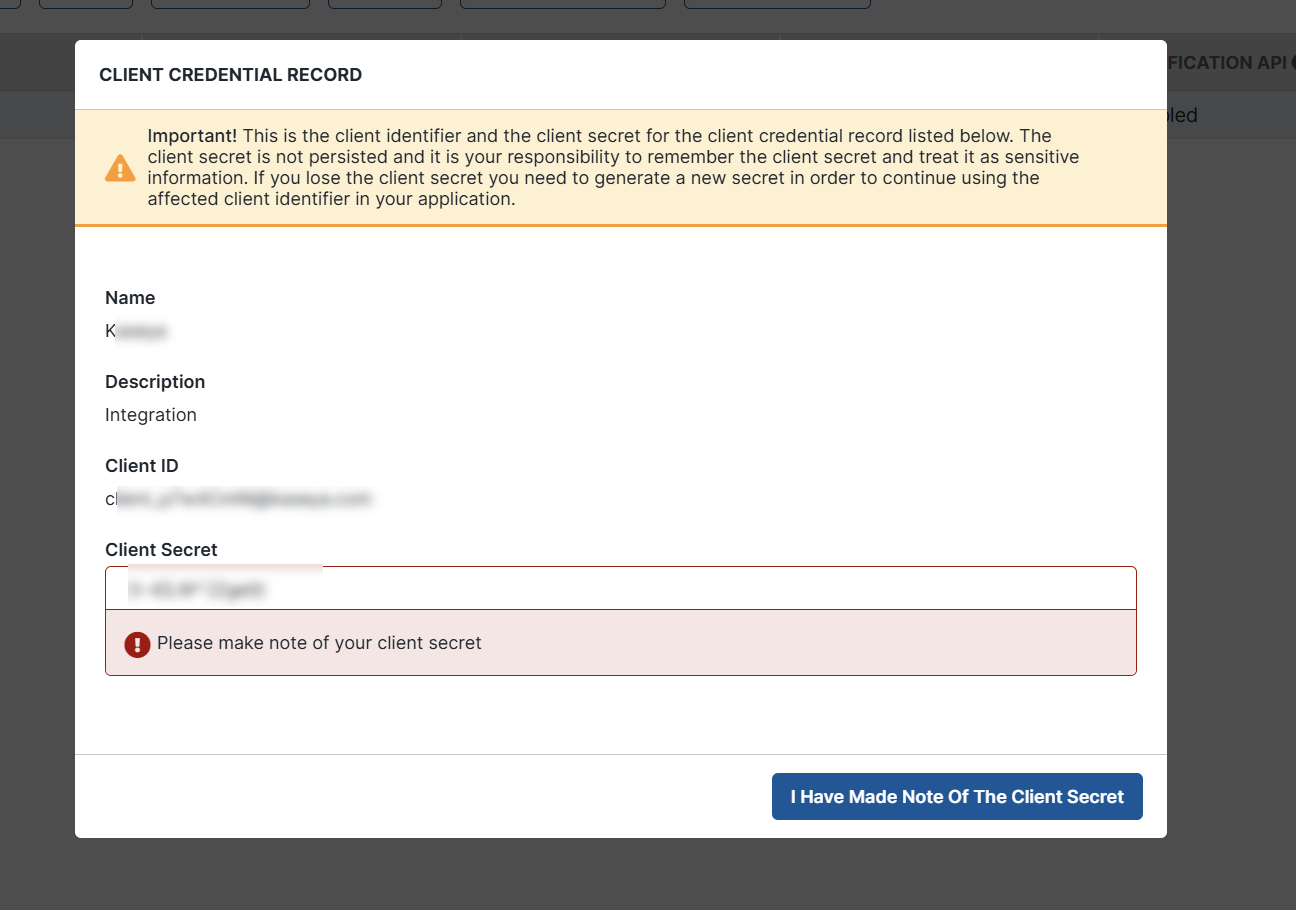
Copy and securely store the generated Client ID and Client Secret.
IMPORTANT If Event Notification API support is not enabled, Webroot detections will not be ingested into Kaseya MDR.
IMPORTANT The Client Secret is displayed only when it is created. If it is lost, you must generate a new credential.
Obtain the GSM Key (Parent Keycode)
-
In the OpenText Management Console, navigate to Settings > Account Information.
-
Locate and copy the Parent Keycode (GSM Key).
Connect Kaseya MDR to Webroot at the partner level
-
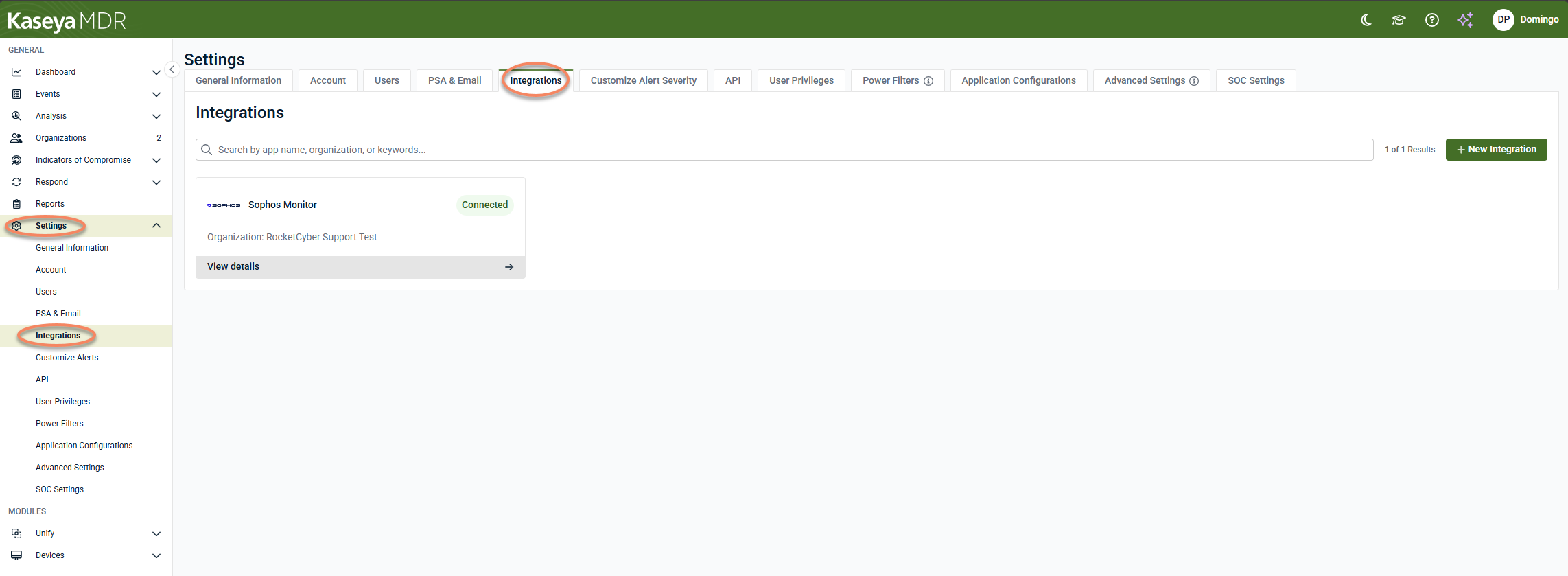
In Kaseya MDR, navigate to Settings > Integrations.
-
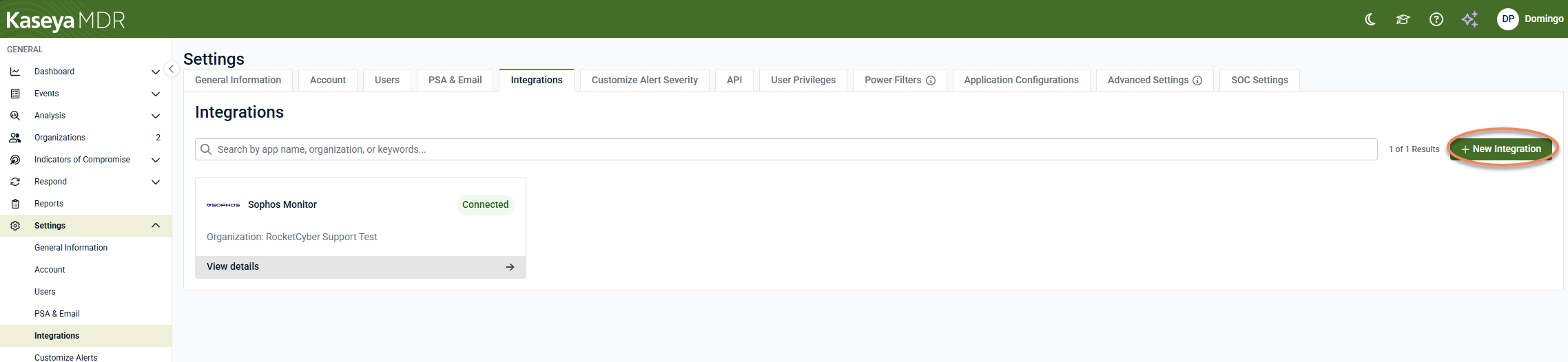
Click + New Integration.
-
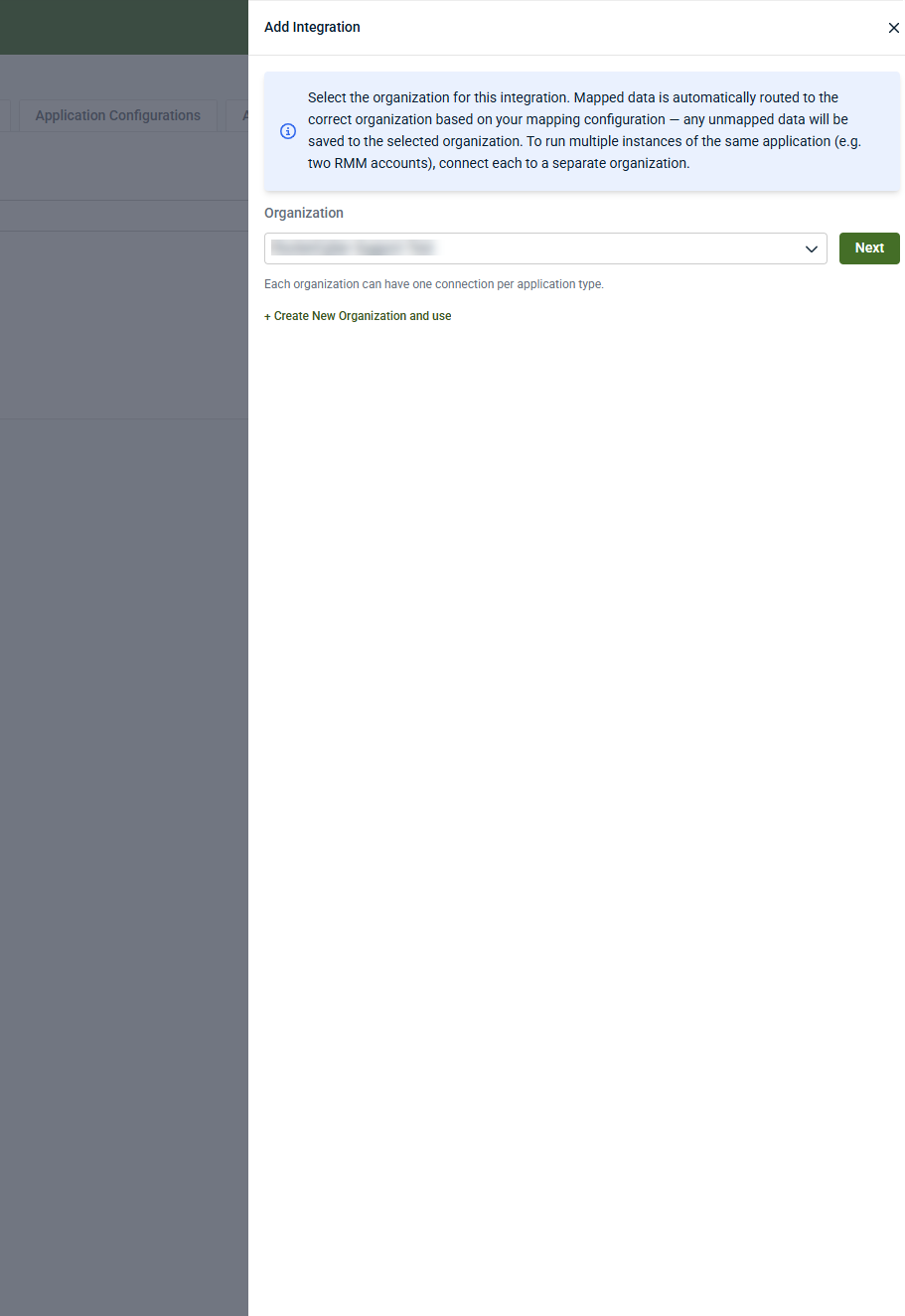
Select the organization that will receive the Webroot data, and then click Next.
-
To create a new organization and use it for the integration, click Create New Organization and use.
-
Each organization can have one connection per application type.
-
-
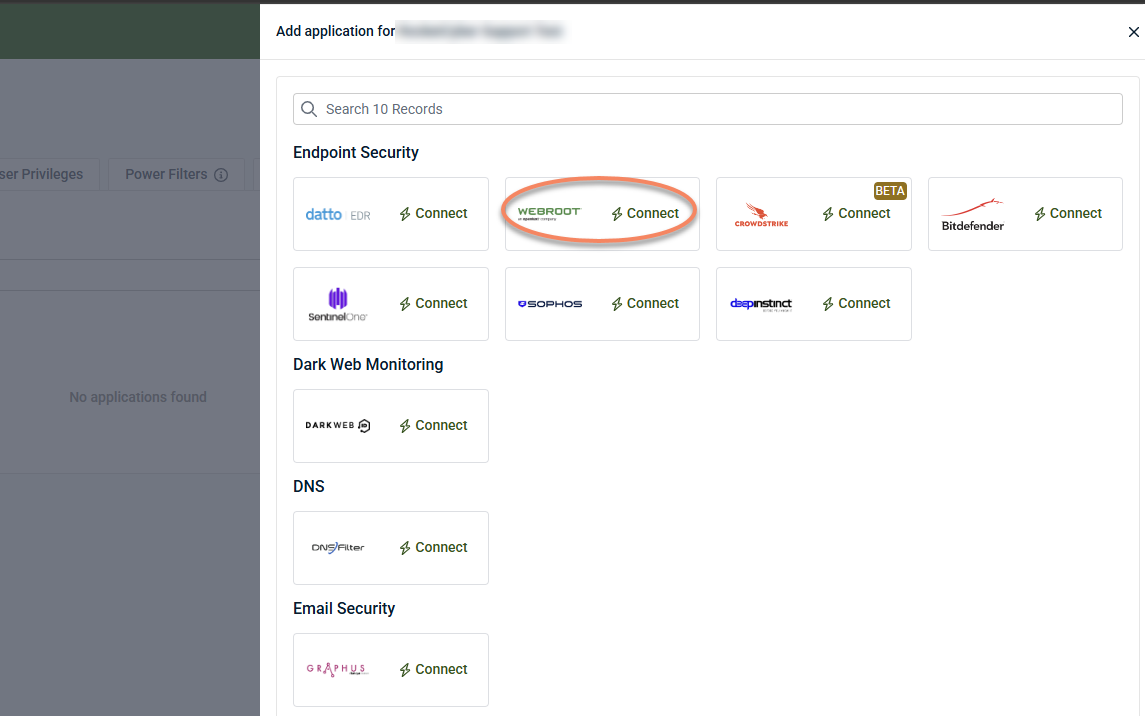
Under Endpoint Security, locate Webroot and click Connect.
-
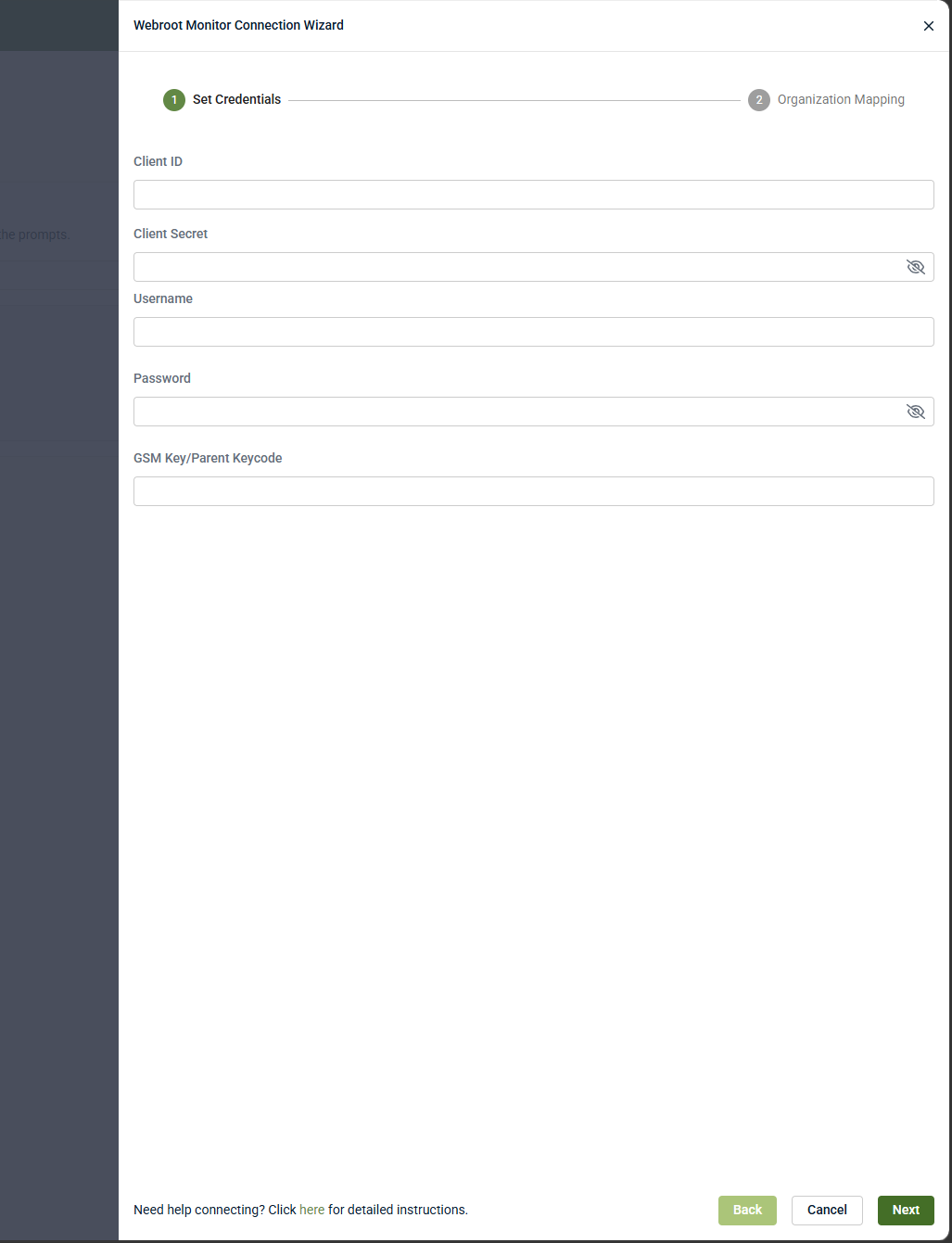
In the Webroot Monitor Connection Wizard, enter the following values:
-
Username
-
Password
-
Client ID
-
Client Secret
-
GSM Key (Parent Keycode)
-
-
Click Next.
-
Complete the Organization Mapping step.
-
Select a User Activity Organization.
-
Map discovered Webroot organizations to Kaseya MDR organizations as needed.
-
-
Click Finish
When configured at the partner level, Webroot Monitor appears in Settings > Integrations and displays the associated organization.
Connect Kaseya MDR to Webroot at the organization level
-
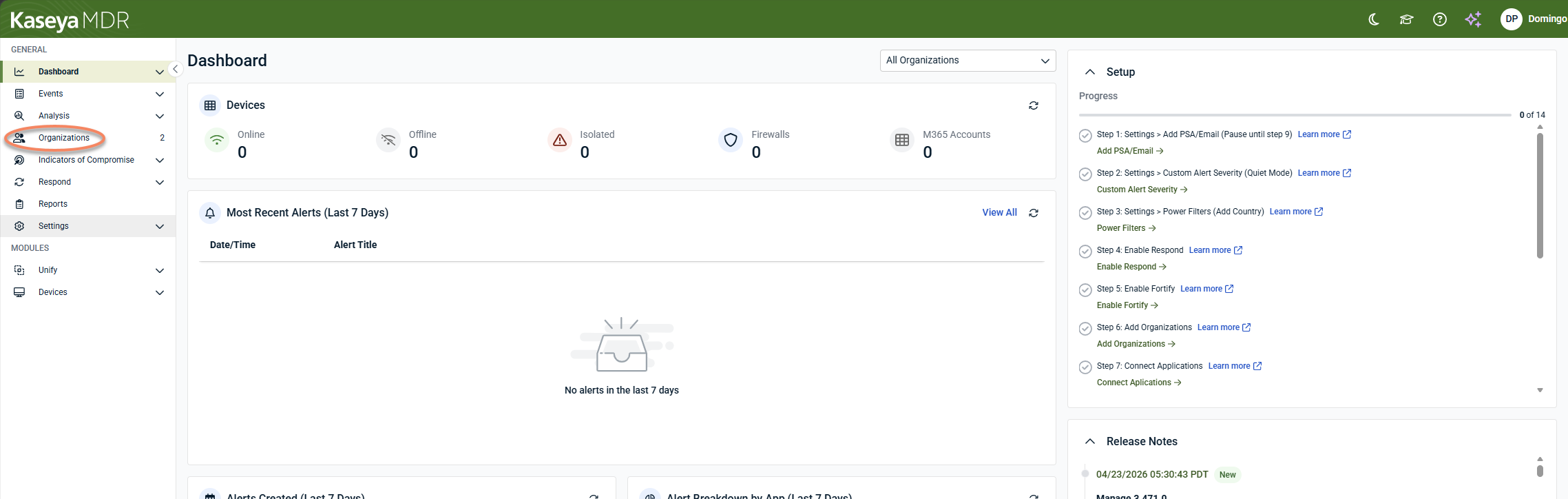
In Kaseya MDR, from the side navigation menu, go to Organizations.
-
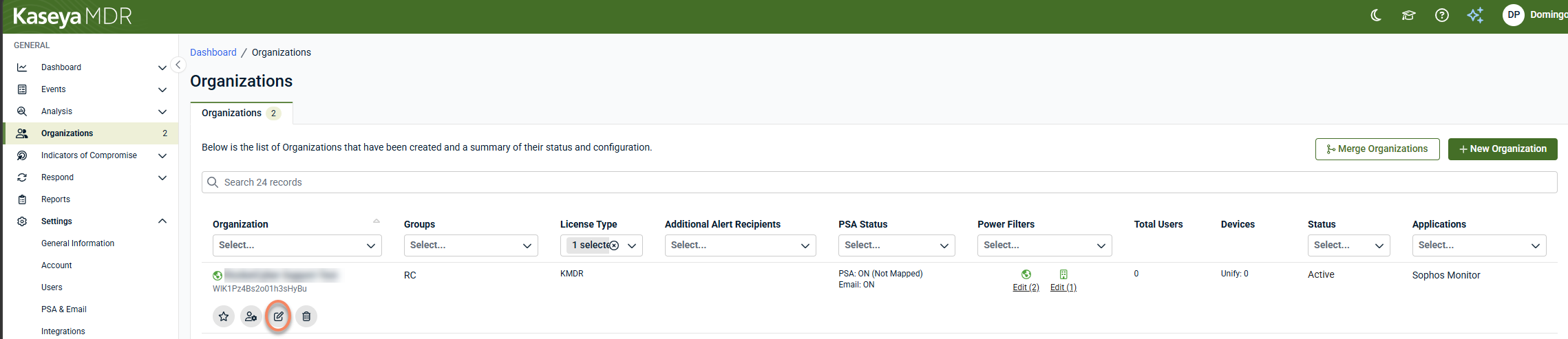
Click Edit Organization (pencil icon) for the organization you want to connect Webroot to.
-
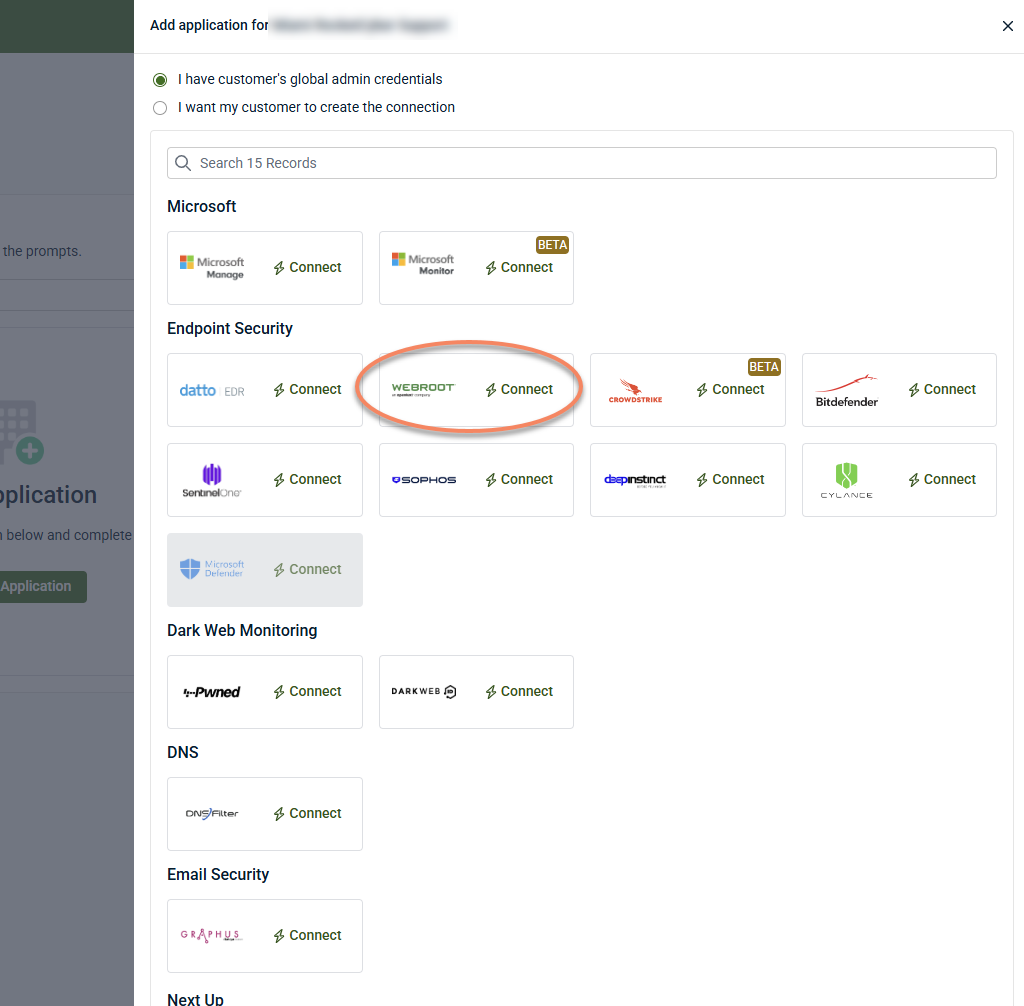
Click +New Application.

-
Under Endpoint Security, locate Webroot and click Connect.
-
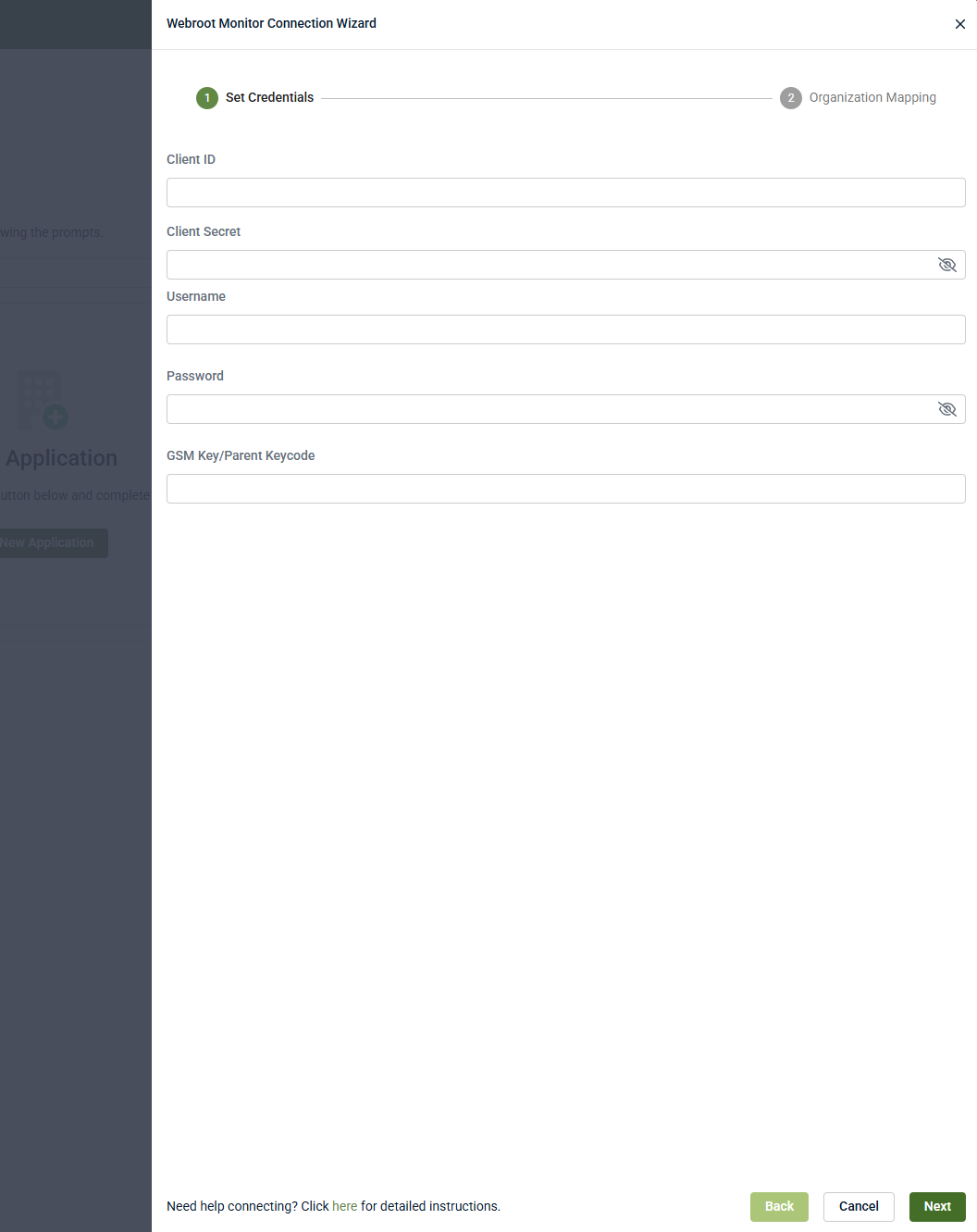
In the Webroot Monitor Connection Wizard, enter the following values:
-
Username
-
Password
-
Client ID
-
Client Secret
-
GSM Key (Parent Keycode)
-
-
Click Next.
-
Complete the Organization Mapping step.
-
Select a User Activity Organization.
-
Map discovered Webroot organizations to Kaseya MDR organizations as needed.
-
-
Click Finish.
When configured at the organization level, the Webroot application appears under the organization's Applications tab.
Disable the integration in Kaseya MDR
To disable the integration:
-
Navigate to the Webroot integration.
-
If configured at the partner level, go to Settings > Integrations, locate Webroot, and select View details.
-
If configured at the organization level, go to Organizations, select the organization, and then open the Applications tab.
-
-
Select Disconnect Application.
-
Confirm the action.
Results
-
Webroot activity is no longer associated with organizations in Kaseya MDR.
-
Existing Webroot deployments and configurations remain unchanged.
-
If Webroot is configured at the partner level, disconnecting it affects all organizations mapped to that connection.
The integration can be reconnected later using the same workflow, if needed.
FAQ
What should I do if authentication fails?
Verify that the Username, Password, Client ID, Client Secret, and GSM Key (Parent Keycode) are entered correctly. Also ensure that the Webroot account has access to the organizations being integrated and that the Client Secret has not expired or been regenerated.


