Integration: Kaseya MDR and Cylance (Aurora Endpoint Defense)
 Security and navigation
Kaseya MDR
NAVIGATION Organizations > Edit Organization (pencil icon) > + New Application > Cylance
PERMISSIONS Permission to manage integrations or organization applications in Kaseya MDR
Cylance Monitor
NAVIGATION Settings > Integrations
PERMISSIONS Administrator access to the Aurora Endpoint Defense console
Overview
Kaseya MDR integrates with Aurora Endpoint Defense (formerly CylancePROTECT and CylanceOPTICS) using an application-based API connection. This integration allows Kaseya MDR to retrieve device, threat, and memory protection data from Aurora Endpoint Defense, providing visibility into protected endpoints.
Prerequisites
-
Administrator access to the Aurora Endpoint Defense console
-
Administrator access to the Kaseya MDR portal
-
Your Aurora/Cylance tenant's Base URL to identify the correct region
How to...
Set up the integration in Aurora Endpoint Defense (Cylance)
To generate the credentials Kaseya MDR needs, complete the following steps:
-
Sign in to the Aurora Endpoint Defense console as an administrator. Only administrators can create an application integration.
-
Navigate to Settings > Integrations.
-
Click Add Application.
-
Enter a unique Application Name (e.g., Kaseya MDR).
-
Select the required scopes/privileges for this application: device:list, threat:list, threat:read, memoryprotection:list, opticsdetect:list.
-
Click Save. The Application ID and Application Secret are generated and displayed.
-
Copy the Application ID and Application Secret and save them to a safe, encrypted location.
-
On the Integrations page, copy the Tenant ID and save it to a safe, encrypted location.
-
Note your Base URL (for example, https://protectapi.cylance.com). You'll use it when selecting the region in Kaseya MDR.
IMPORTANT If this application is later deleted or its credentials are regenerated in Aurora Endpoint Defense, the Kaseya MDR integration will stop working until the connection is reconfigured with the new credentials.
Aurora Endpoint Defense generates the credentials needed to complete setup in Kaseya MDR.
Set up the integration in Kaseya MDR
Complete the following steps:
-
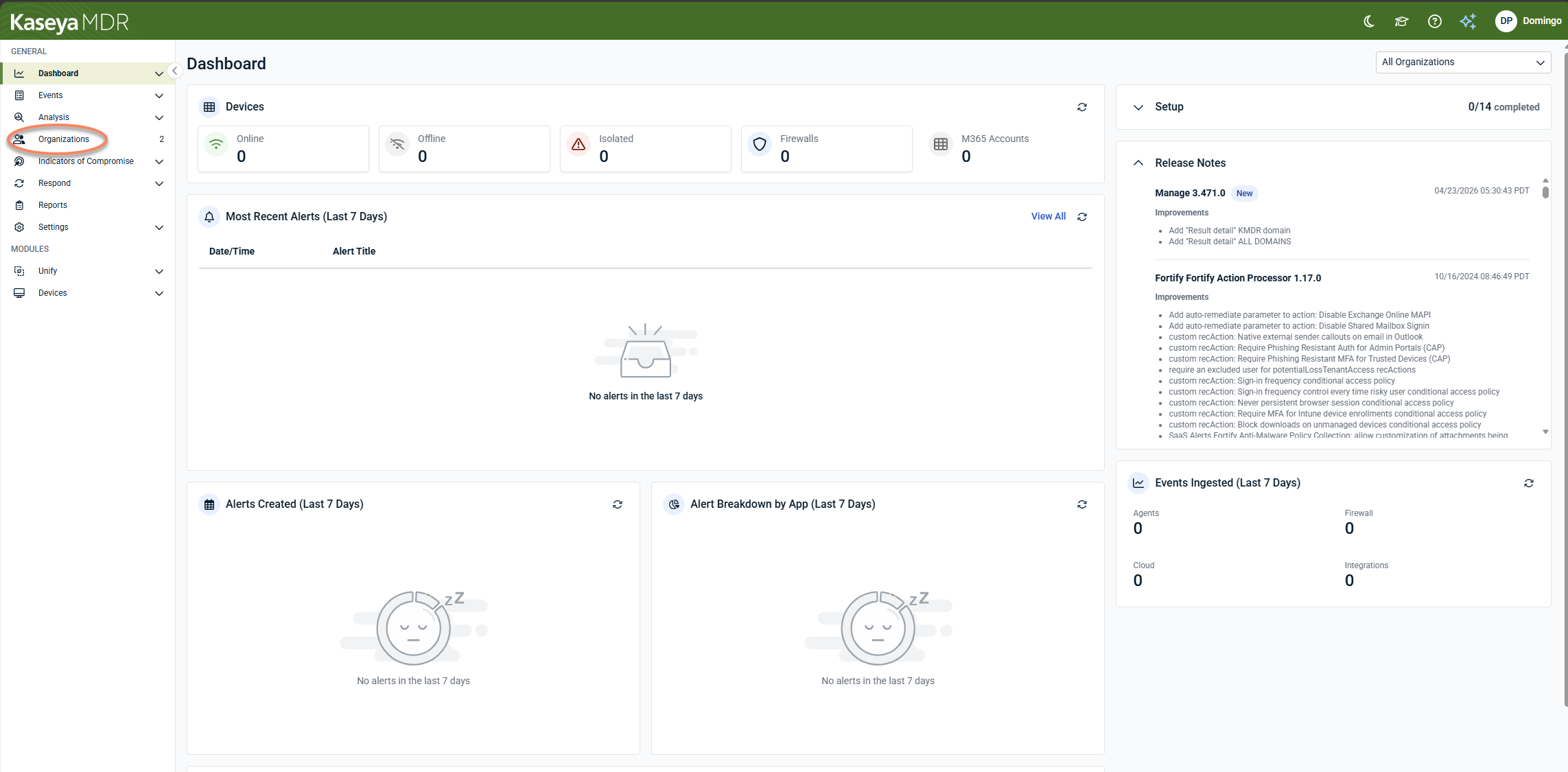
In Kaseya MDR, from the side navigation menu, go to Organizations.
-
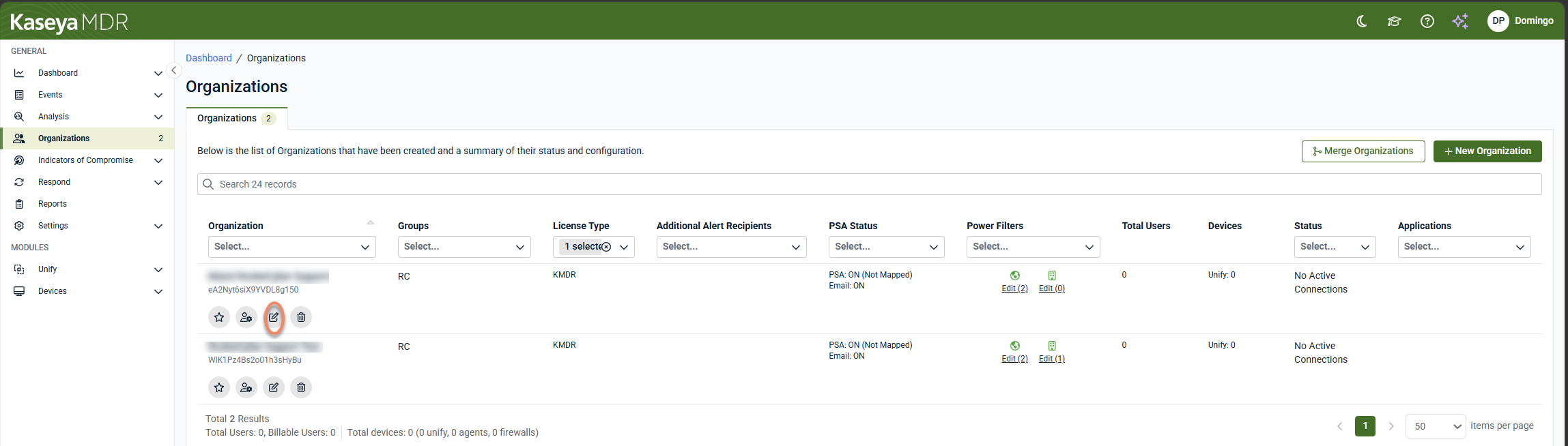
Click Edit Organization (pencil icon) for the organization you want to connect Cylance to.
-
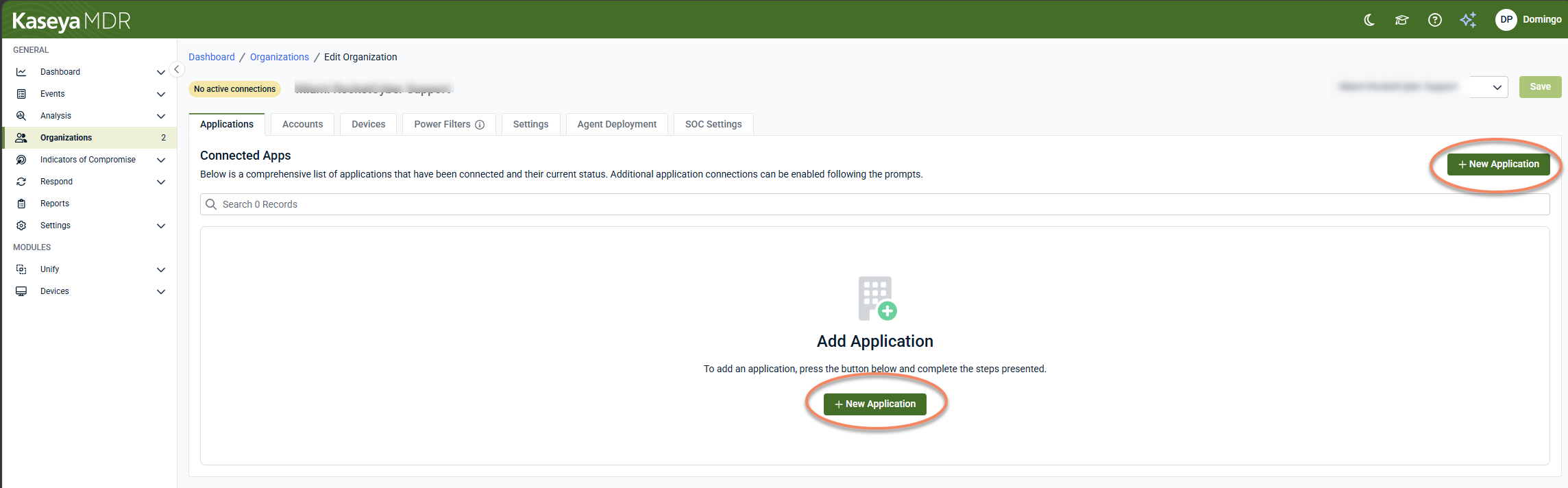
Click +New Application.
-
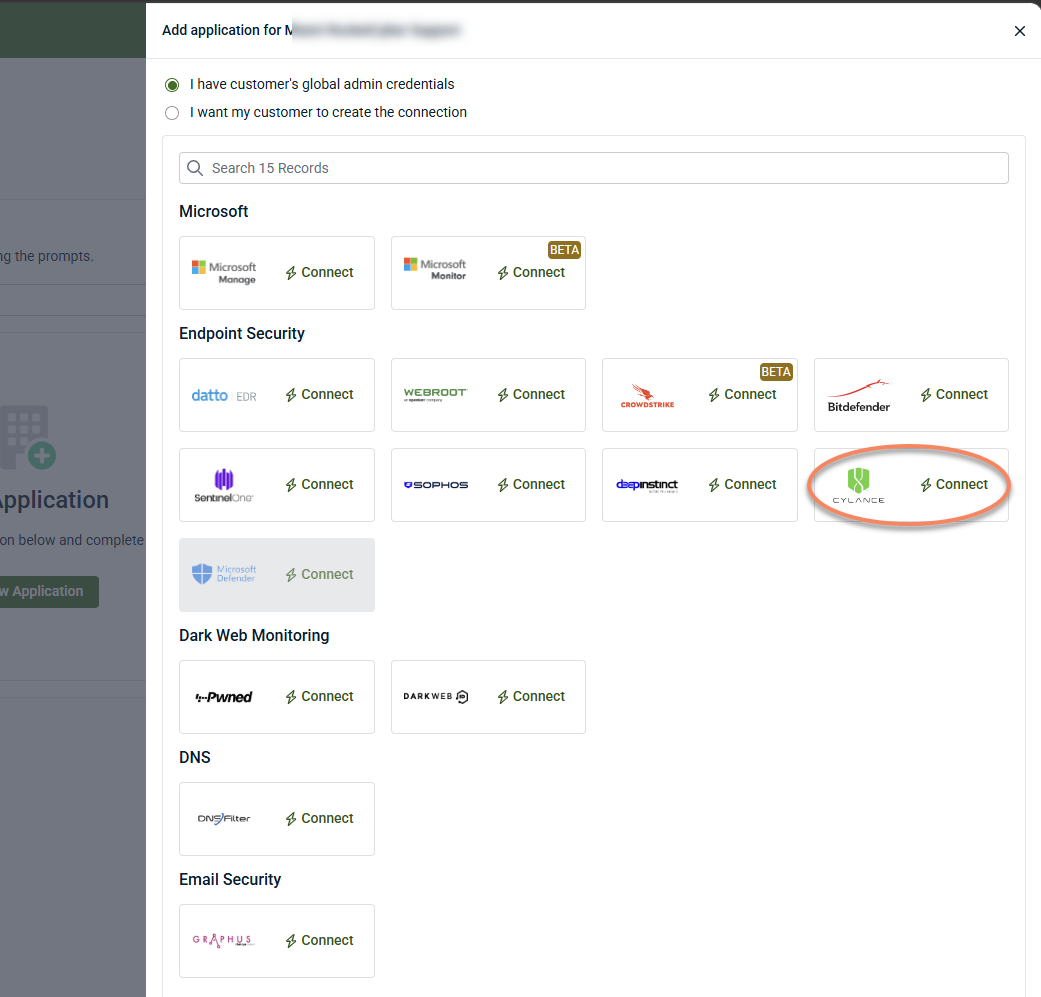
Under Endpoint Security, locate Cylance and click Connect.
-
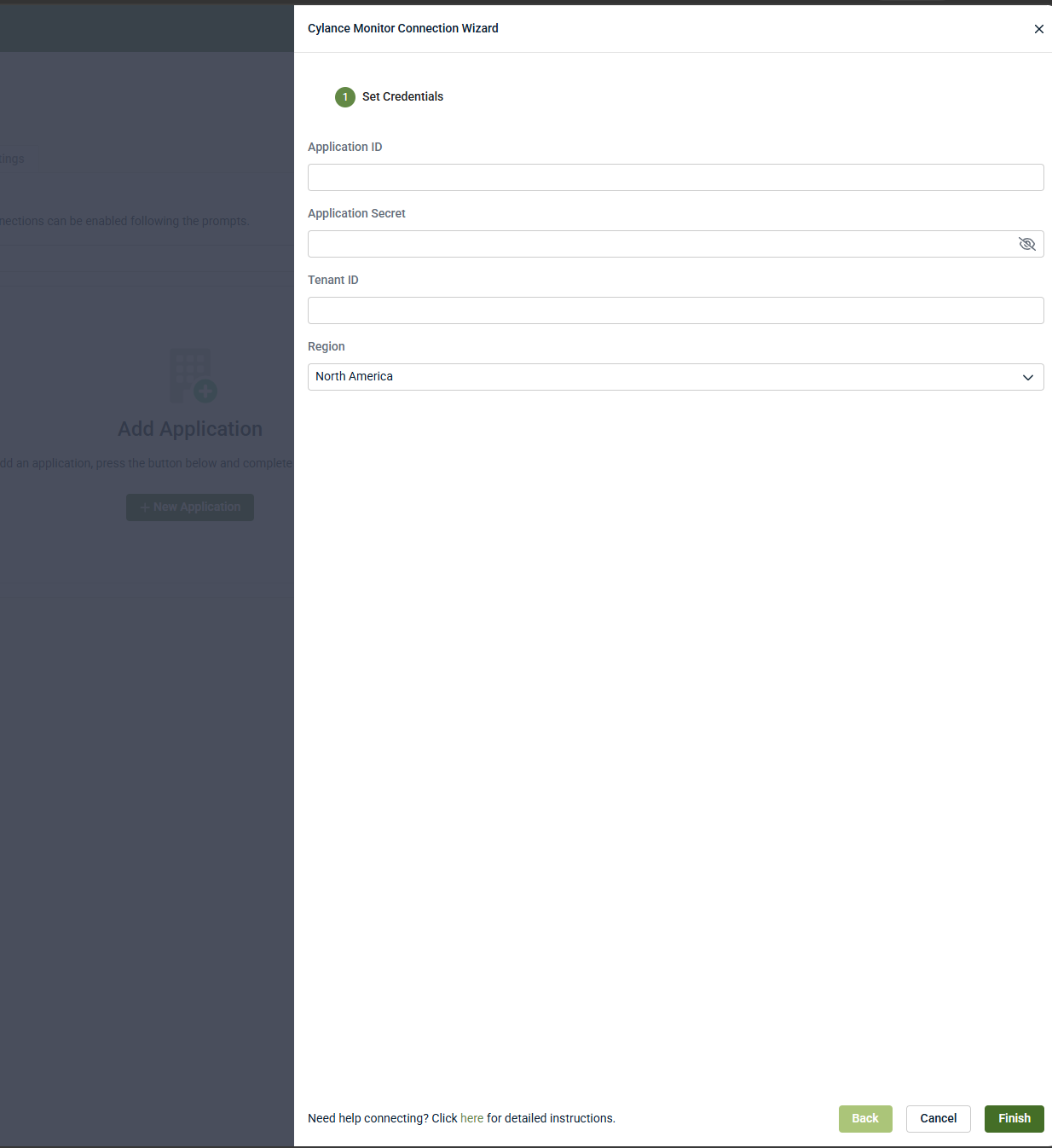
In the Cylance Monitor Connection Wizard, enter the following values:
-
Application ID: The Application ID copied from Aurora Endpoint Defense
-
Application Secret: The Application Secret copied from Aurora Endpoint Defense
-
Tenant ID: The Tenant ID copied from Aurora Endpoint Defense
-
Region: Select the region matching your Aurora Endpoint Defense tenant. Options are: Asia-Pacific - North, Asia-Pacific - Southeast, Europe - Central, North America, South America, and US Government. If you're unsure which region your tenant uses, review the URL associated with your Aurora Endpoint Defense tenant. For example, https://protectapi.cylance.com corresponds to North America. If you're still unsure, contact the person who provisioned the tenant.
-
-
Click Finish.
Kaseya MDR is now connected to Aurora Endpoint Defense and can begin receiving device and threat data. The Cylance application appears under the organization's Applications tab.
Disable the integration in Kaseya MDR
To disable the integration, complete the following steps:
-
From the side navigation menu, click Organizations.
-
Click Edit Organization (pencil icon), and the Applications tab will be displayed.
-
Click the Cylance tile.
-
Select Disconnect Application.
-
Confirm the action.
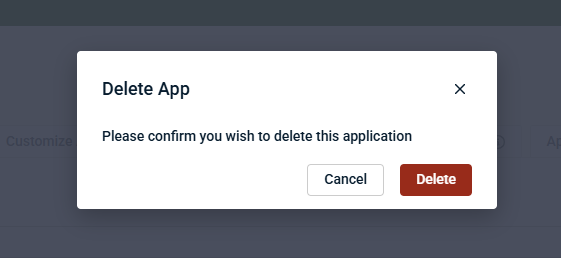
Kaseya MDR stops receiving data from Aurora Endpoint Defense.
Disable the integration in Aurora
To disable the integration, complete the following steps:
-
Sign in to the Aurora Endpoint Defense console.
-
Navigate to Settings > Integrations.
-
Locate the application you created (e.g., Kaseya MDR) and remove it.
FAQ
Why does the integration refer to both Cylance and Aurora Endpoint Defense?
Cylance's endpoint products (CylancePROTECT and CylanceOPTICS) were acquired from BlackBerry by Arctic Wolf and rebranded as Aurora Endpoint Defense. The console and underlying functionality are the same; only the name changed.
Where do I find my region?
Check the URL associated with your Aurora Endpoint Defense tenant. For example, https://protectapi.cylance.com corresponds to North America. If you're unsure, contact the person who provisioned the tenant.
What permissions does the application need?
The application requires the following permissions:
-
device:list
-
threat:list
-
threat:read
-
memoryprotection:list
-
opticsdetect:list


