Integration: Kaseya MDR and CrowdStrike
 Security and navigation
Kaseya MDR
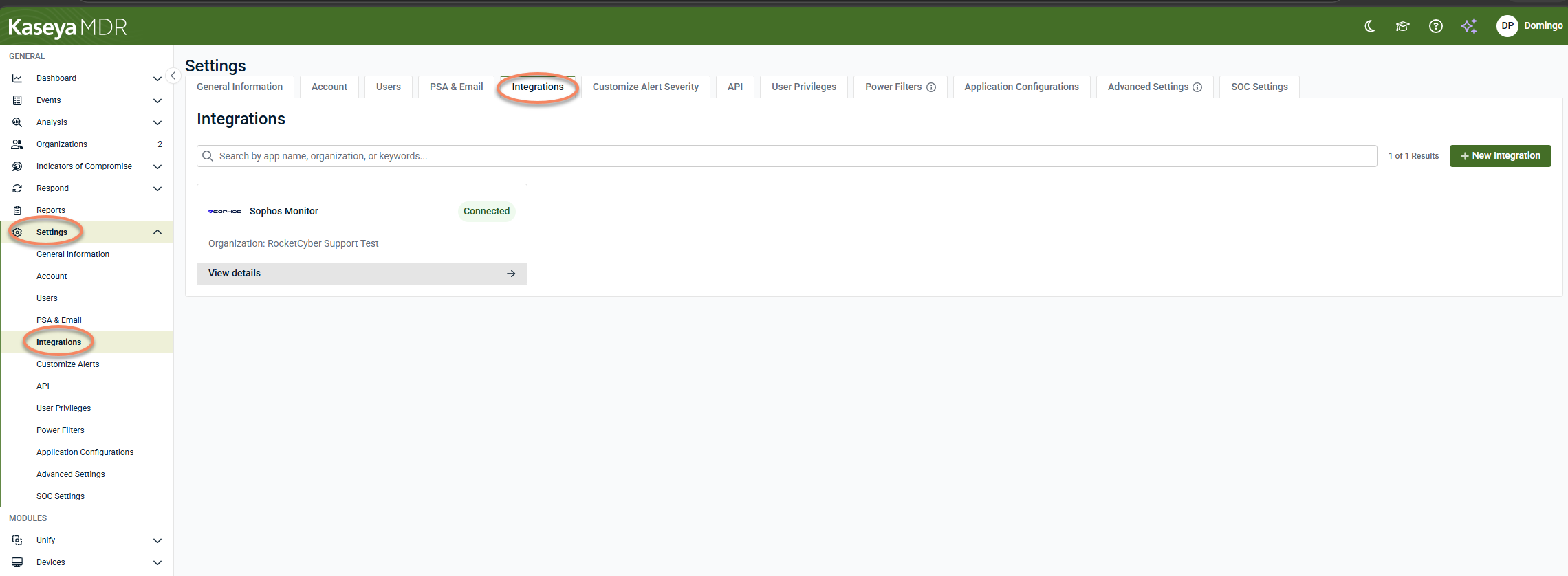
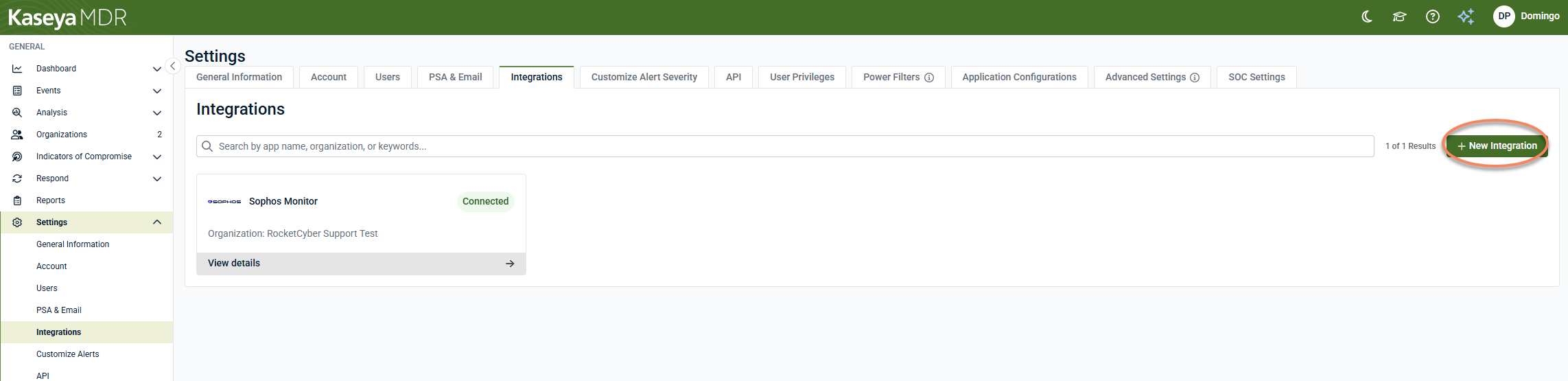
NAVIGATION At the partner level: Settings > Integrations > + New Integration > choose organization > Next > CrowdStrike
NAVIGATION At the organization level: Organizations > Edit Organization (pencil icon) > + New Application > CrowdStrike
PERMISSIONS Permission to manage integrations or organization applications in Kaseya MDR
CrowdStrike
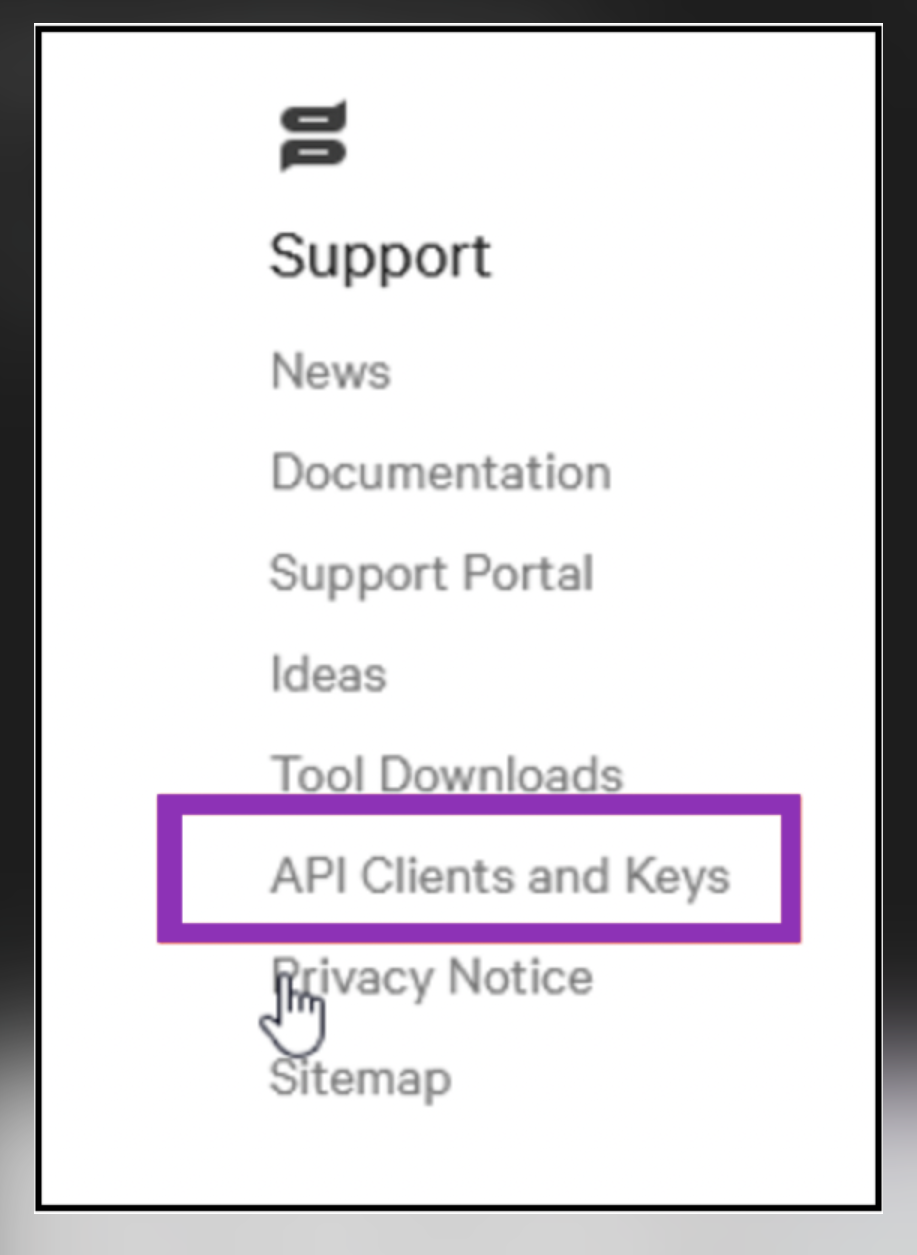
NAVIGATION Support > API Clients and Keys.
PERMISSIONS CrowdStrike Falcon account with permissions to create OAuth 2.0 API clients
The Kaseya MDR and CrowdStrike integration retrieves telemetry from CrowdStrike Falcon and makes it available in Kaseya MDR for investigation, correlation, and response activities.
Prerequisites
This integration requires the following:
-
A CrowdStrike Falcon account with permissions to create OAuth 2.0 API clients
-
A CrowdStrike API Client ID
-
A CrowdStrike API Client Secret
-
The CrowdStrike API Base URL for your tenant region (for example, US-1, US-2, EU-1, or GovCloud)
How to...
Generate API credentials in CrowdStrike Falcon
To generate the API credentials required for the integration, complete the following steps:
-
Sign in to the CrowdStrike Falcon console.
-
Navigate to Support > API Clients and Keys.
-
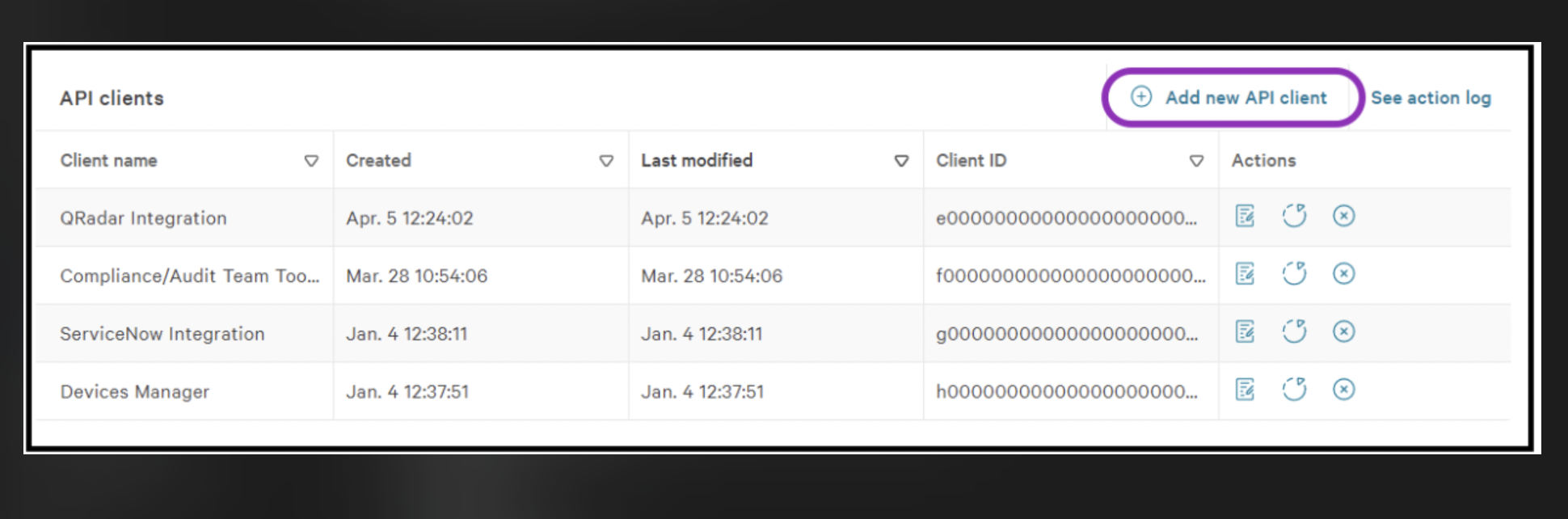
Click Add new API client.
-
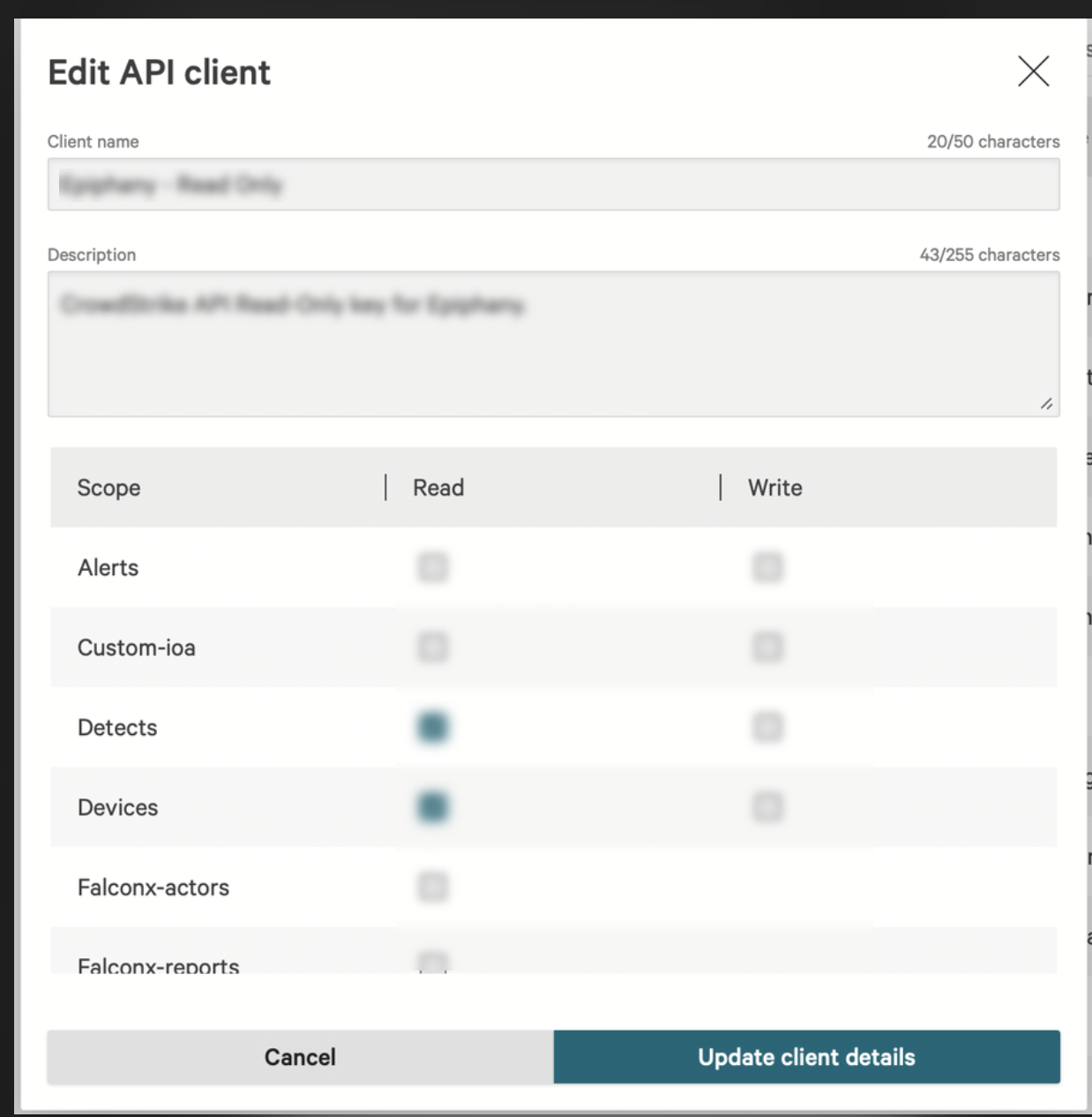
Configure the API client:
-
Client Name (for example, Kaseya MDR)
-
Optional description
-
Any API client settings required by your CrowdStrike environment
-
-
Select Add.
-
The API client created form is displayed.Copy the Client ID, Client Secret, and Base URL and store them in a secure location.
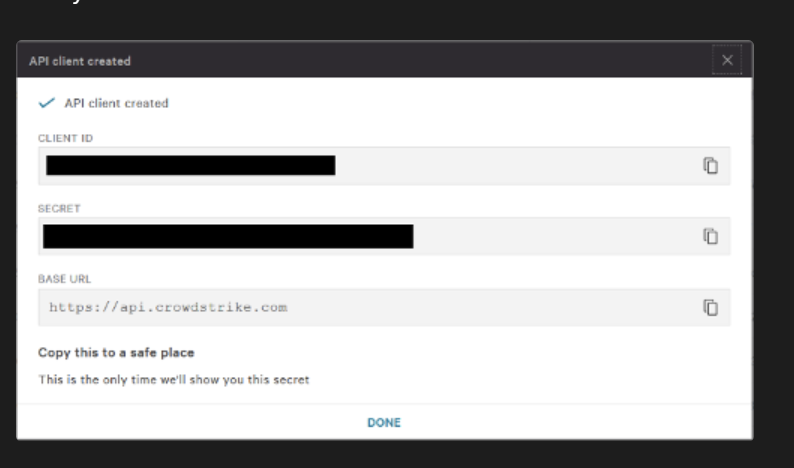
IMPORTANT CrowdStrike displays the Client Secret only once when it is created. If the secret is lost, a new API client or secret must be generated.
Connect Kaseya MDR to CrowdStrike at the partner level
-
In Kaseya MDR, navigate to Settings > Integrations.
-
Click + New Integration.
-
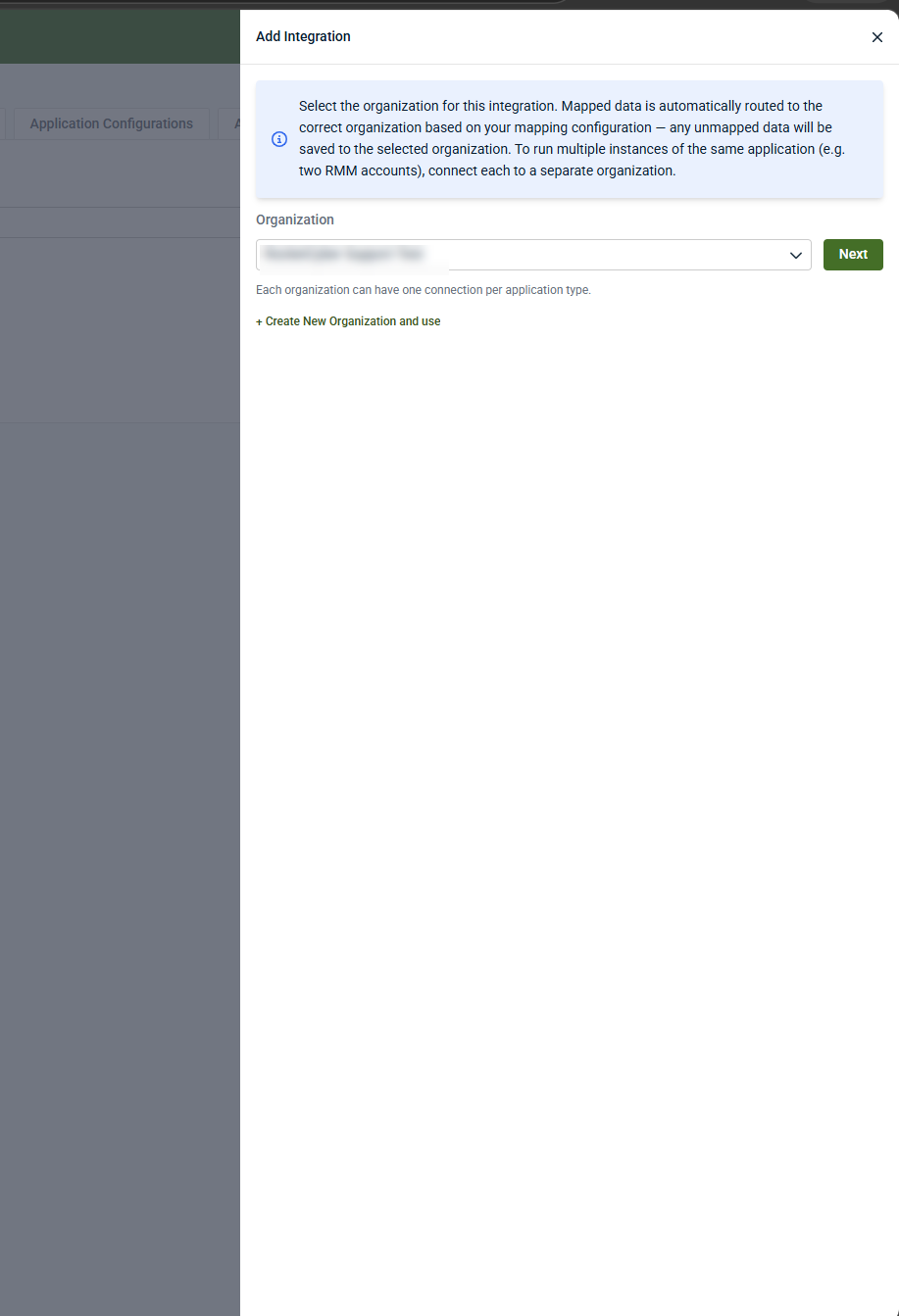
Select the organization that will receive CrowdStrike telemetry and click Next.
-
To create a new organization and use it for the integration, click Create New Organization and use.
-
-
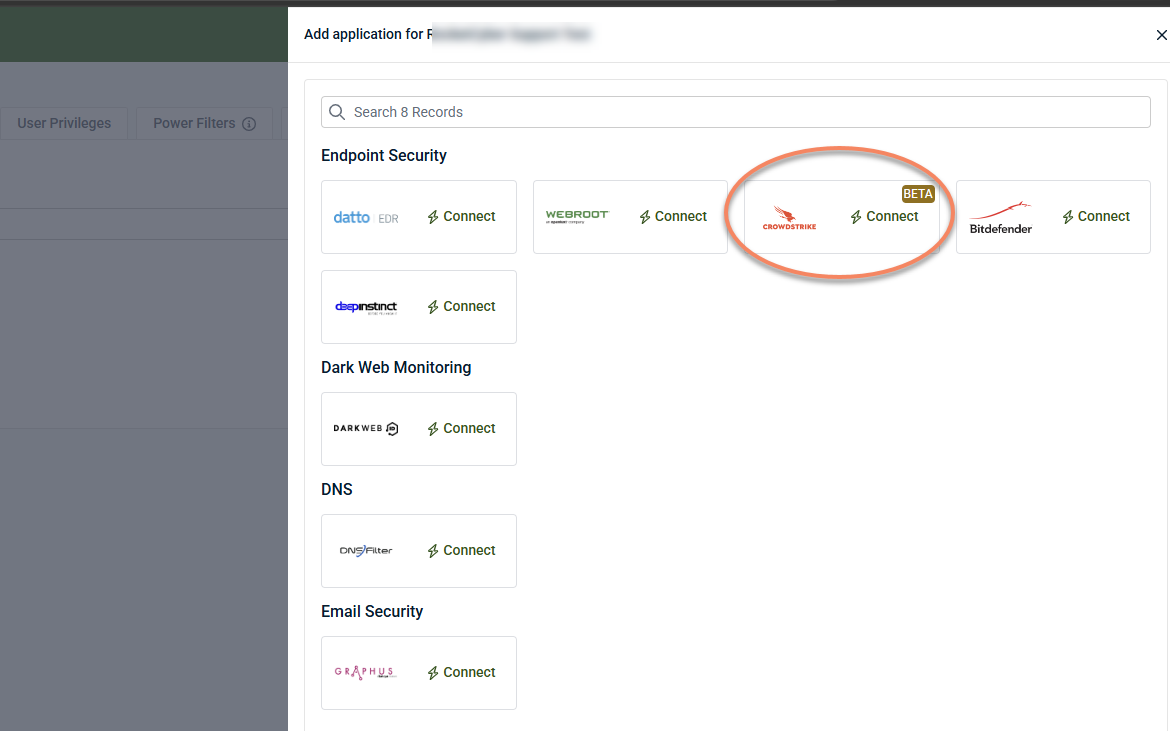
Under Endpoint Security, locate CrowdStrike and click Connect.
-
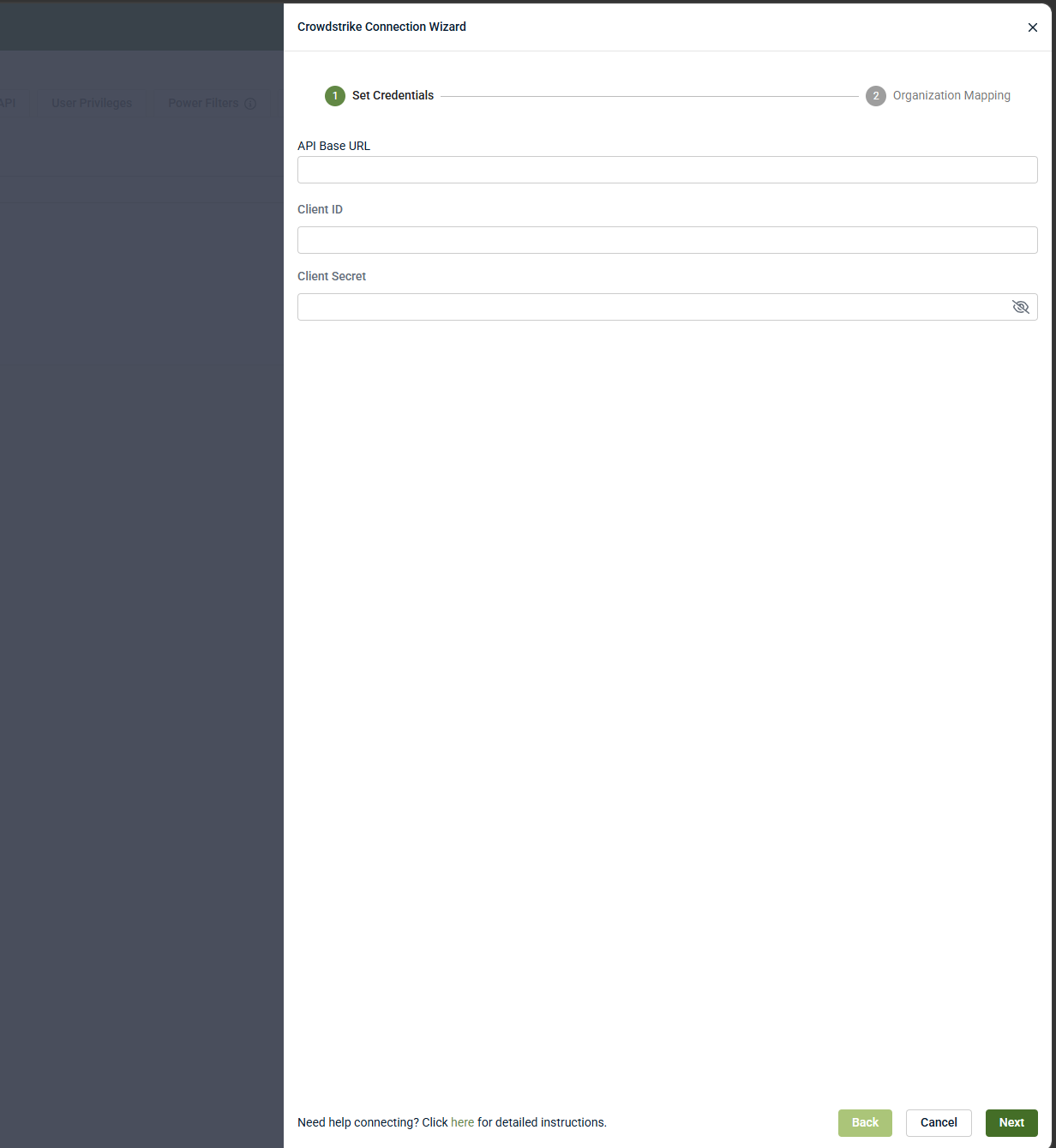
In the CrowdStrike Connection Wizard, enter:
-
API Base URL
-
Client ID
-
Client Secret
-
-
Click Next.
-
Complete the Organization Mapping step and save the integration.
When configured at the partner level, CrowdStrike appears in Settings > Integrations and displays the associated organization.
Connect Kaseya MDR to CrowdStrike at the organization level
-
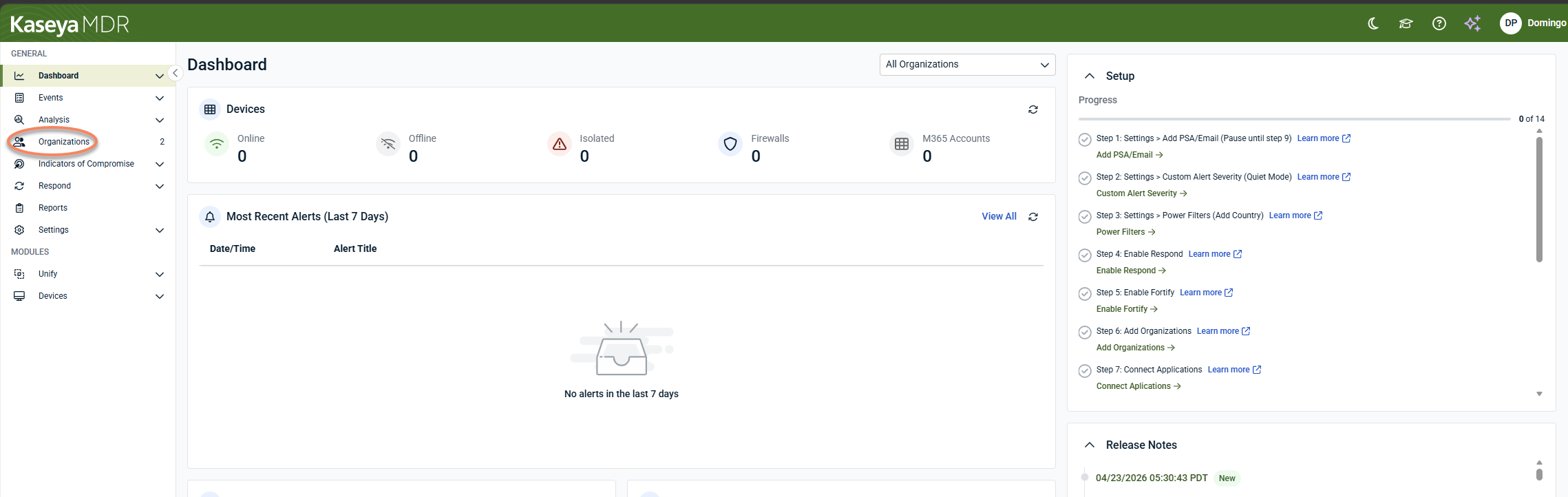
In Kaseya MDR, navigate to Organizations.
-
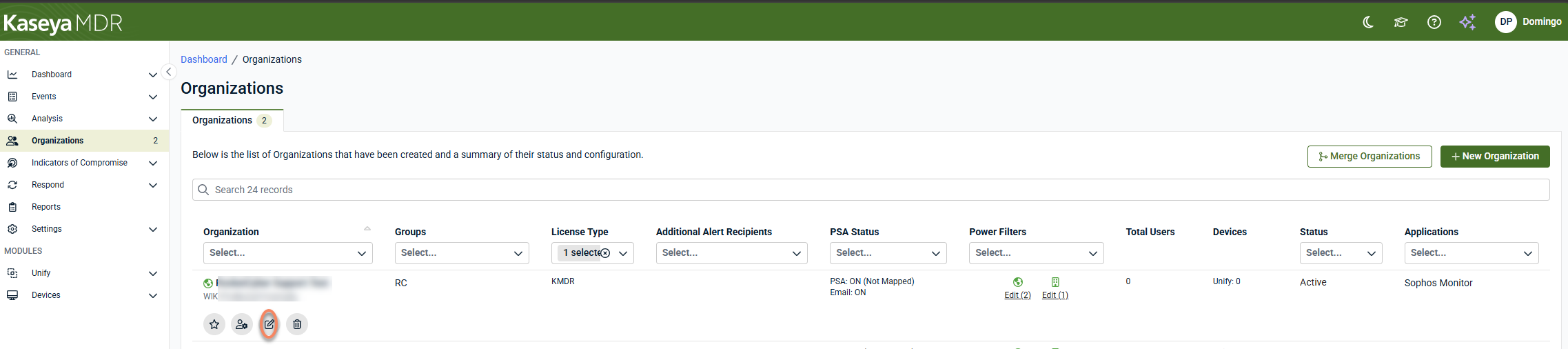
Click Edit Organization (pencil icon) for the organization you want to connect.
-
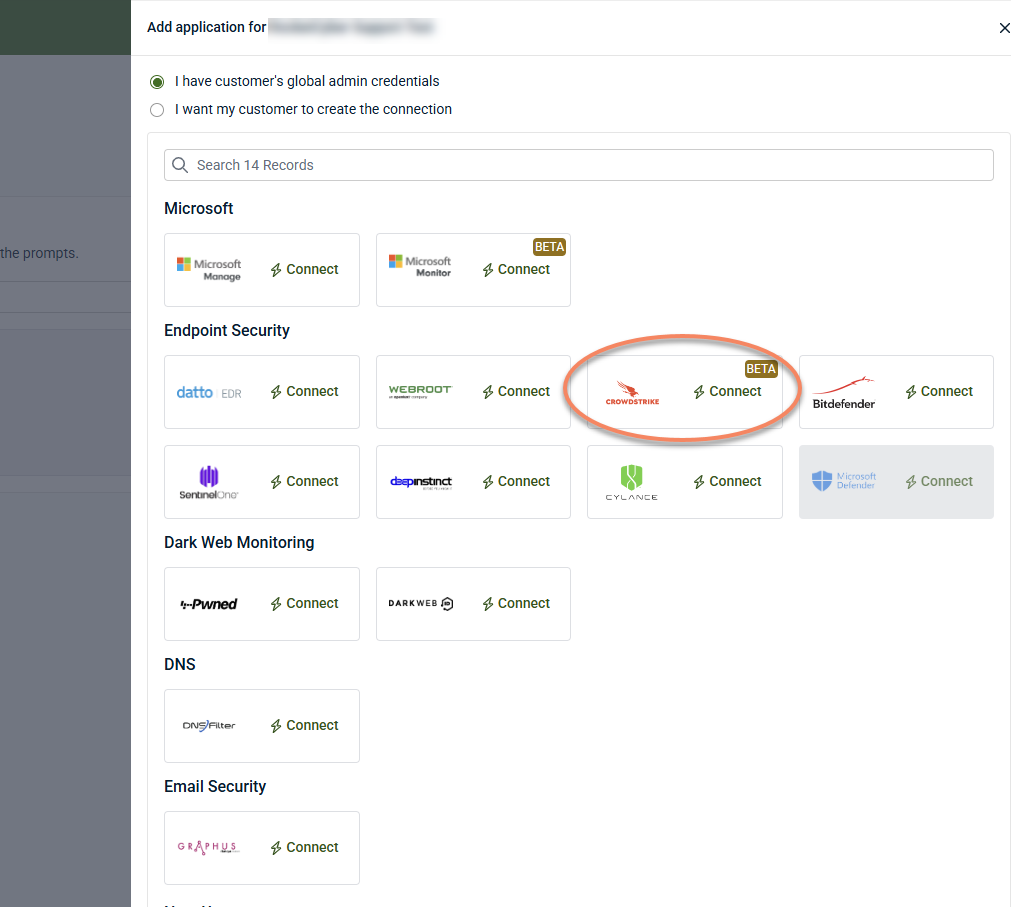
Click + New Application.

-
Under Endpoint Security, locate CrowdStrike and click Connect.
-
In the CrowdStrike Connection Wizard, enter:
-
API Base URL
-
Client ID
-
Client Secret
-
-
Click Next.
-
Complete the Organization Mapping step and save the integration.
When configured at the organization level, the CrowdStrike application appears under the organization's Applications tab.
Organization mapping
During setup, follow the organization-mapping steps presented in the wizard.
Organization mapping determines:
-
Which organizations receive CrowdStrike telemetry
-
How endpoint activity is scoped for investigation and correlation
-
Where alerts and activity appear in the SIEM experience
For an overview of how integrations are associated with organizations, see Connecting data sources and integrations.
Verifying the connection
After the integration is connected:
-
The CrowdStrike tile should reflect an active or connected status.
-
Endpoint‑related telemetry from CrowdStrike may become available for investigation, depending on configuration and available data.
-
CrowdStrike activity may appear alongside other endpoint, network, or SaaS sources during investigations.
Alerts generated from ingested telemetry can be delivered to external systems such as PSAs, depending on your notification and PSA configuration. For more information, see Notifications, PSA, and external communications.
Disable the integration in Kaseya MDR
To disable the integration:
-
Navigate to the CrowdStrike integration.
-
If configured at the partner level, go to Settings > Integrations, locate CrowdStrike, and select View details.
-
If configured at the organization level, go to Organizations, select the organization, and open the Applications tab.
-
-
Select Disconnect Application.
-
Confirm the action.
Results
-
CrowdStrike telemetry is no longer associated with organizations in Kaseya MDR.
-
Existing CrowdStrike Falcon deployments and configurations remain unchanged.
-
If CrowdStrike is configured at the partner level, disconnecting it affects all organizations mapped to that connection.
-
The integration can be reconnected later using the same workflow if needed.
-
Troubleshooting
If expected activity is not visible:
-
Verify that the CrowdStrike tenant region entered in Kaseya MDR matches your Falcon environment.
-
If credentials change or are regenerated, update the Client Secret in the Kaseya MDR integration settings.


