Integration: Kaseya MDR and Bitdefender GravityZone
 Security and navigation
Kaseya MDR
NAVIGATION At the partner level: Settings > Integrations > + New Integration > choose organization > Next > Bitdefender
NAVIGATION At the organization level: Organizations > Edit Organization (pencil icon) > + New Application > Bitdefender
PERMISSIONS Permission to manage integrations or organization applications in Kaseya MDR
Bitdefender GravityZone
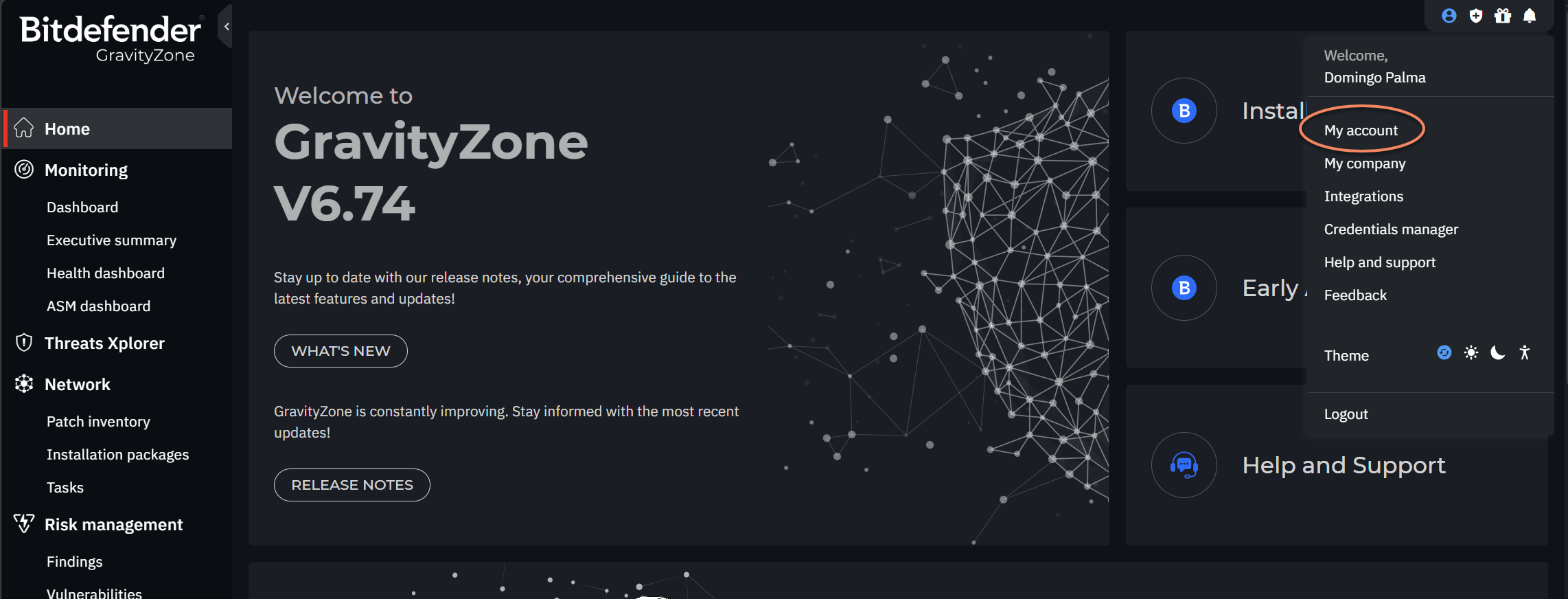
NAVIGATION Welcome menu > My Account > API Keys
PERMISSIONS GravityZone account with Manage Networks, Manage Users, Manage Company, and View and analyze data rights
The Kaseya MDR and Bitdefender integration retrieves threat data from Bitdefender GravityZone and surfaces it in Kaseya MDR, enabling the SOC to monitor and respond to threats across all managed tenants.
Prerequisites
This integration requires an API URL and API access token generated from Bitdefender GravityZone Control Center.
-
A GravityZone account with Manage Networks, Manage Users, Manage Company, and View and analyze data rights
-
The GravityZone API URL (defaults to https://cloud.gravityzone.bitdefender.com/api)
-
A GravityZone API access token
How to...
Generate API credentials in Bitdefender GravityZone
To generate the API credentials required for the integration, complete the following steps:
-
Log in to GravityZone Control Center.
-
Click the Welcome menu in the upper-right corner and select My Account.
-
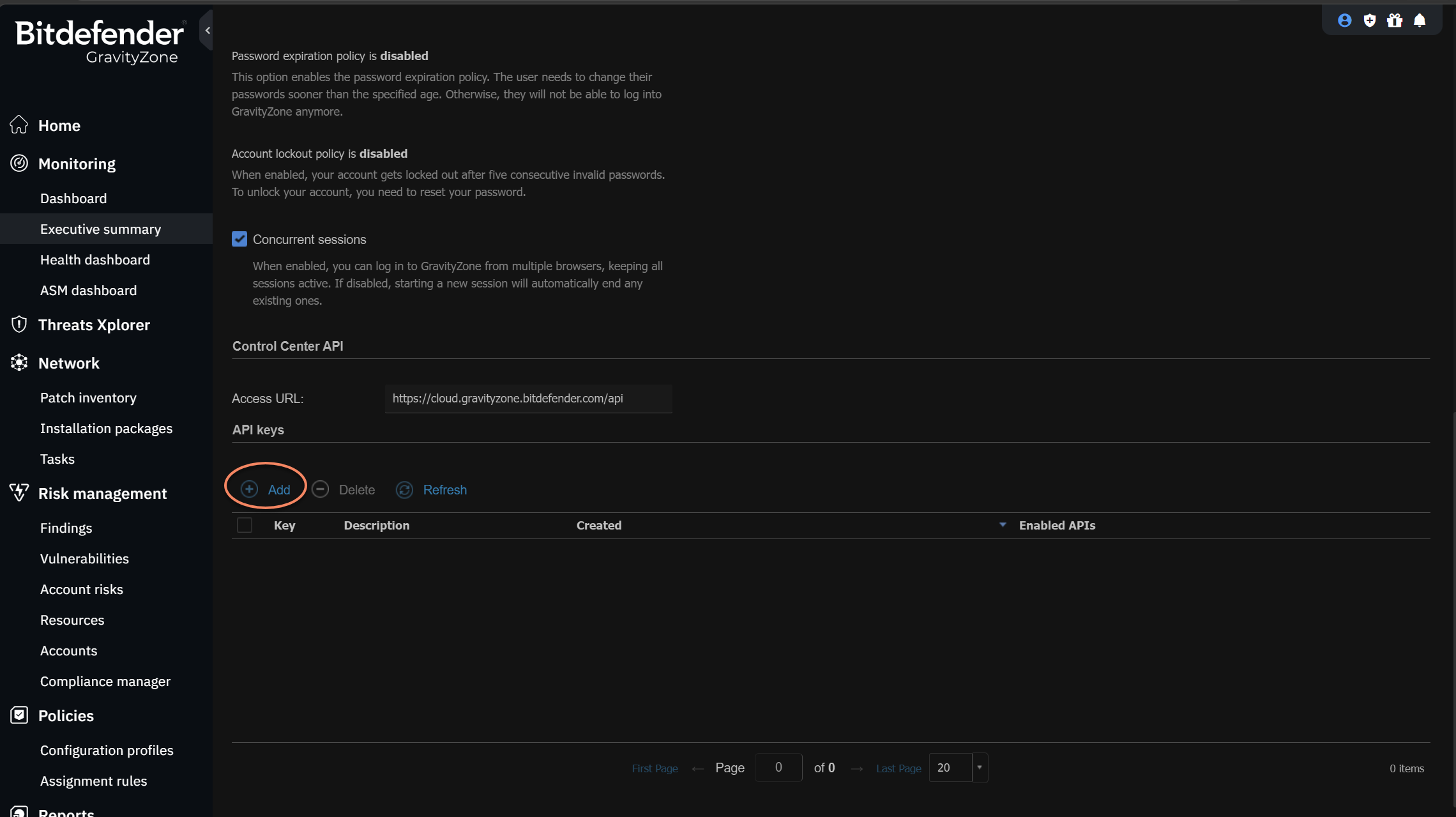
Scroll to the API Keys section and click Add.
-
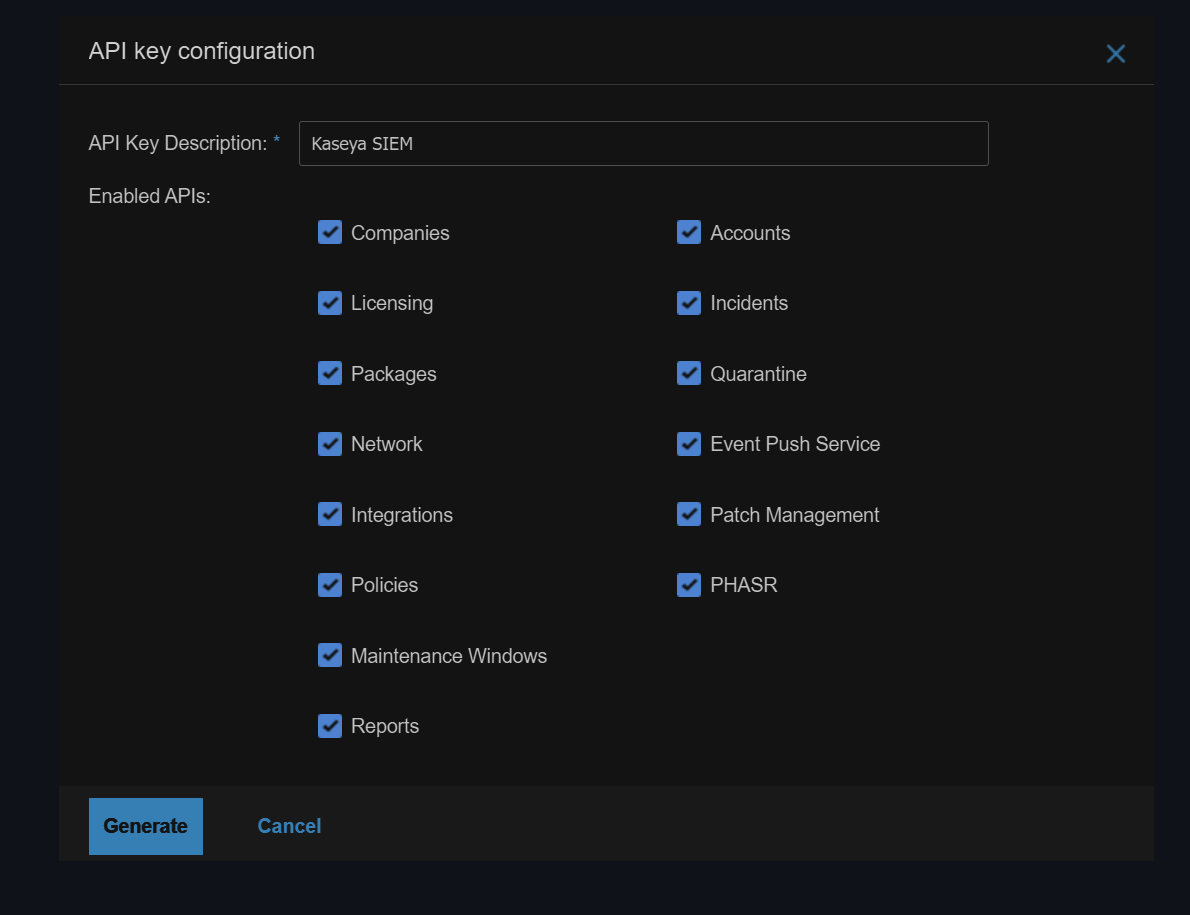
Enter a description for the key and select the APIs needed for threat data access. Your GravityZone account must have Manage Networks, Manage Users, Manage Company, and View and analyze data rights for the key to work correctly. Click Save.
-
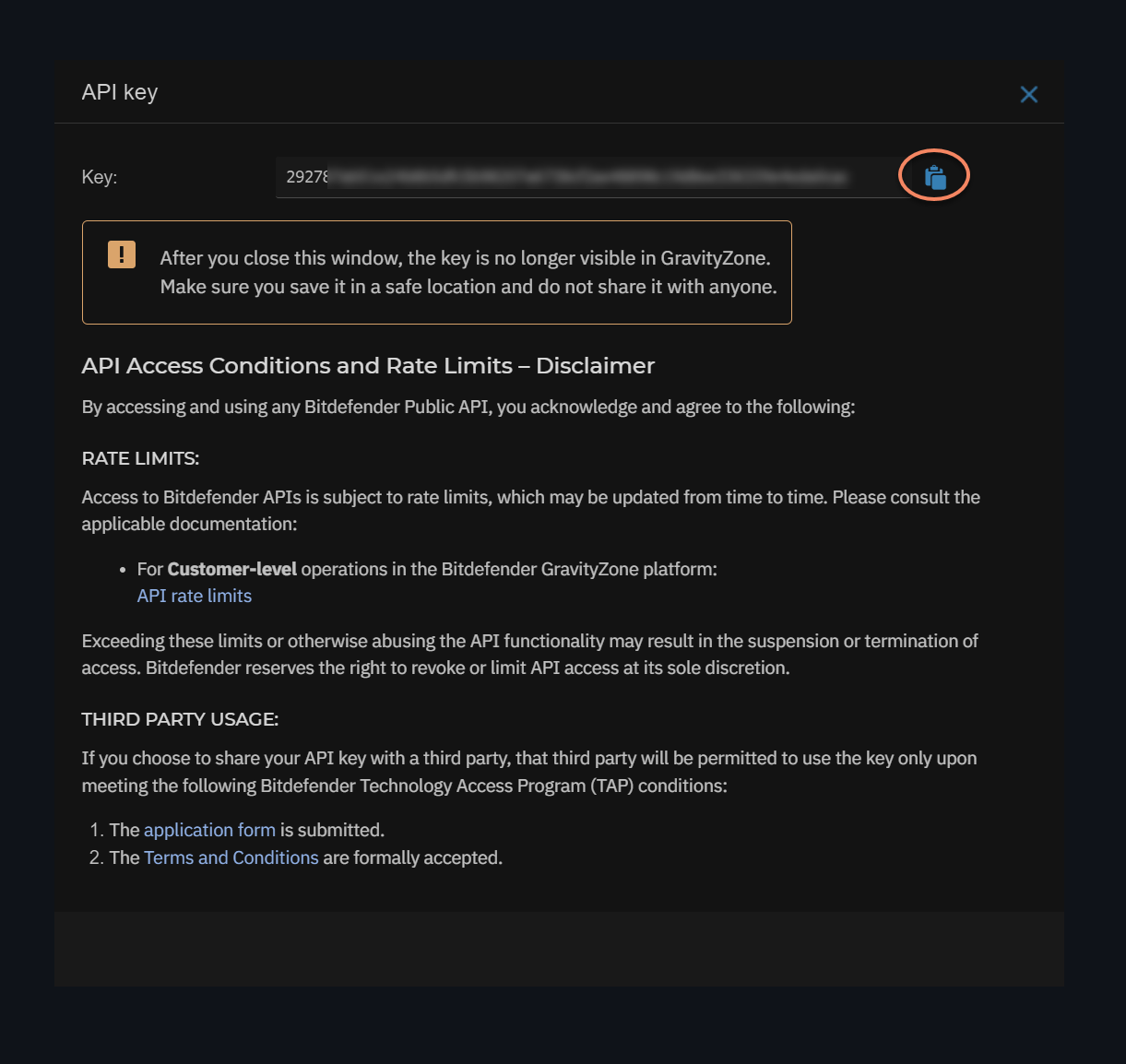
Click the new API Key to copy it. Copy and store it somewhere safe right away. GravityZone only displays the full key once, in this window. Once you close it, the key can't be viewed again anywhere in GravityZone, and you'll need to generate a new one if it's lost.
Connect Kaseya MDR to Bitdefender at the partner level
-
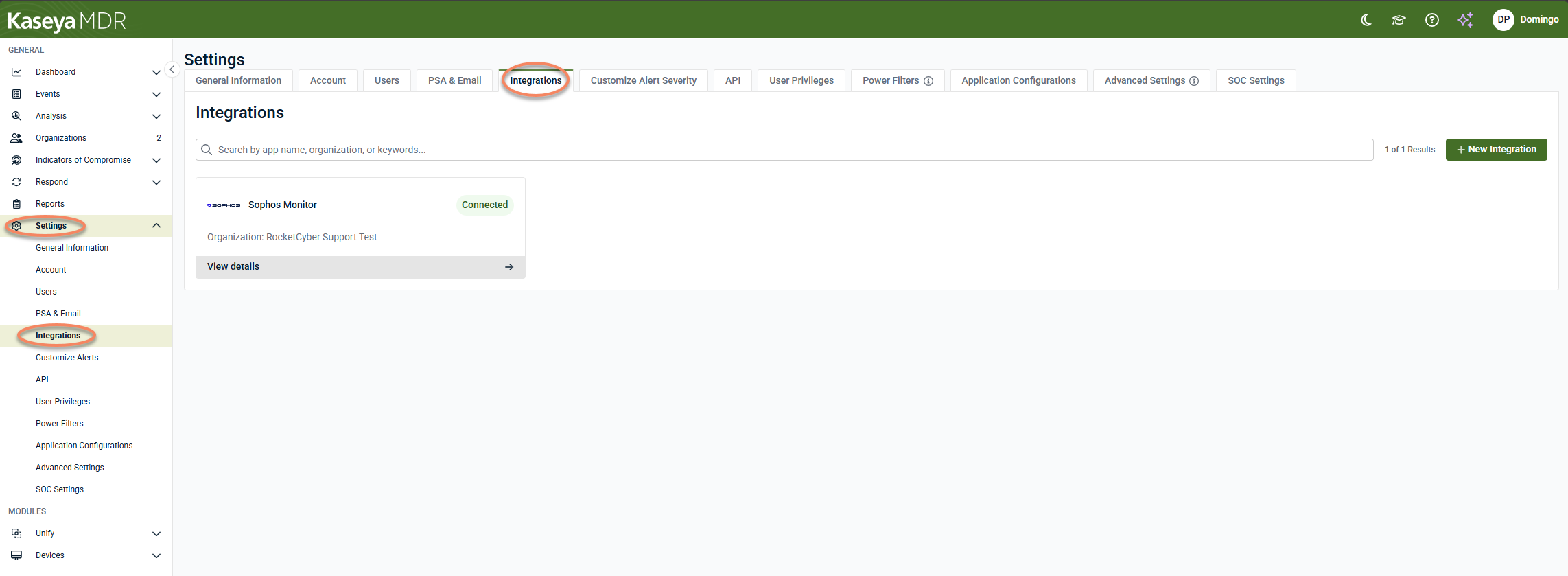
In Kaseya MDR, navigate to Settings > Integrations.
-
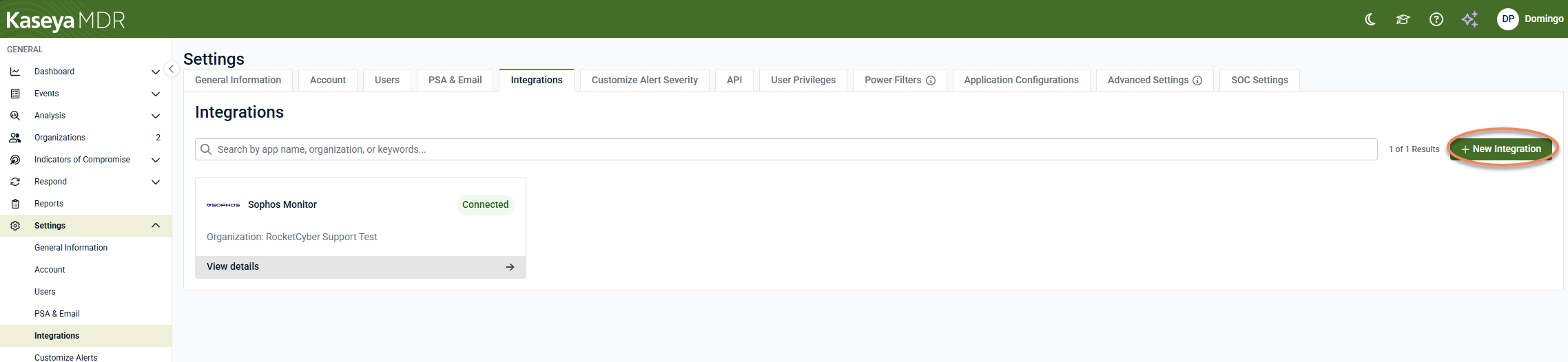
Click + New Integration.
-
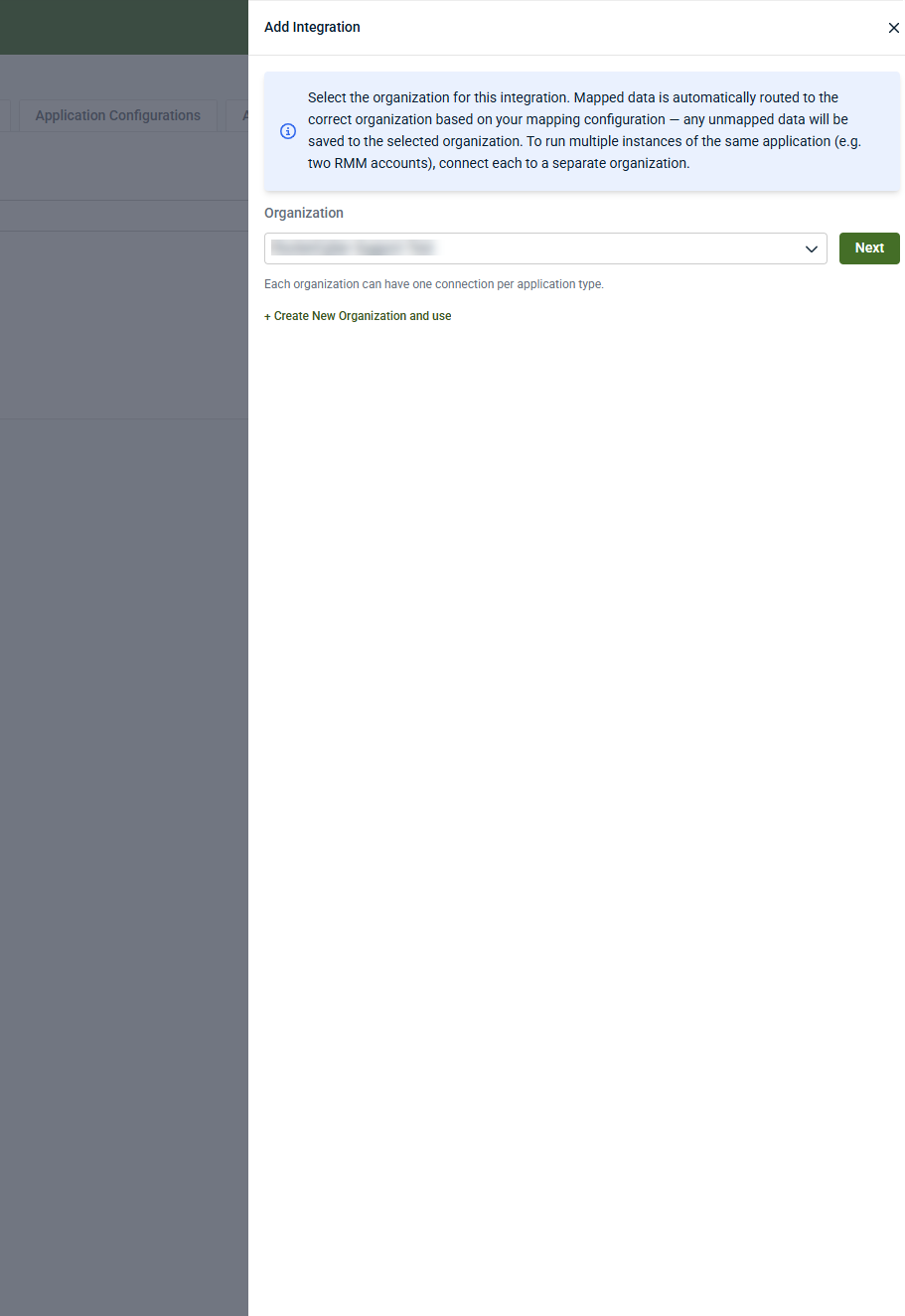
Select the organization that will receive the Bitdefender data, and then click Next.
-
To create a new organization and use it for the integration, click Create New Organization and use.
-
Each organization can have one connection per application type.
-
-
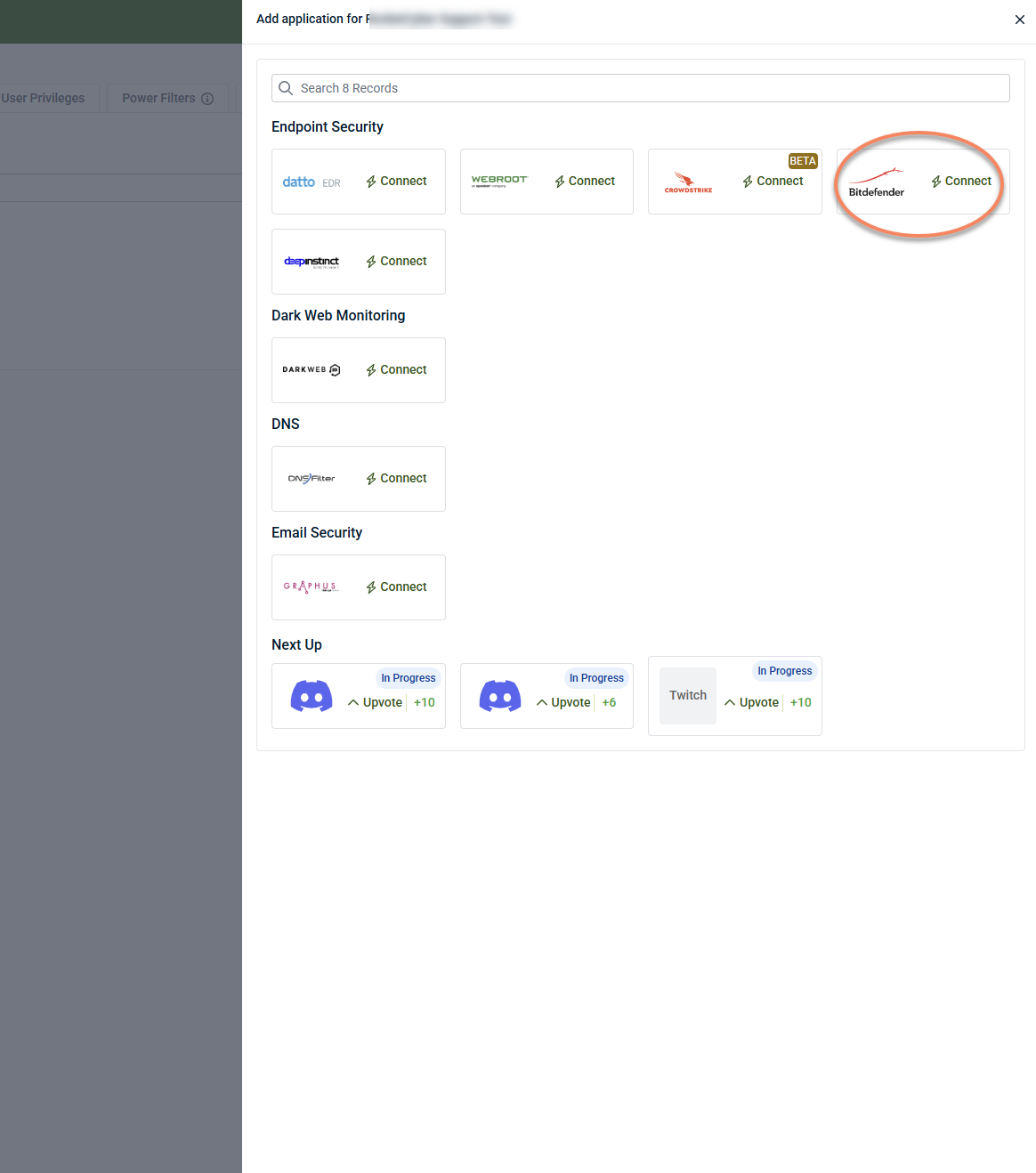
Under Endpoint Security, locate Bitdefender and click Connect.
-
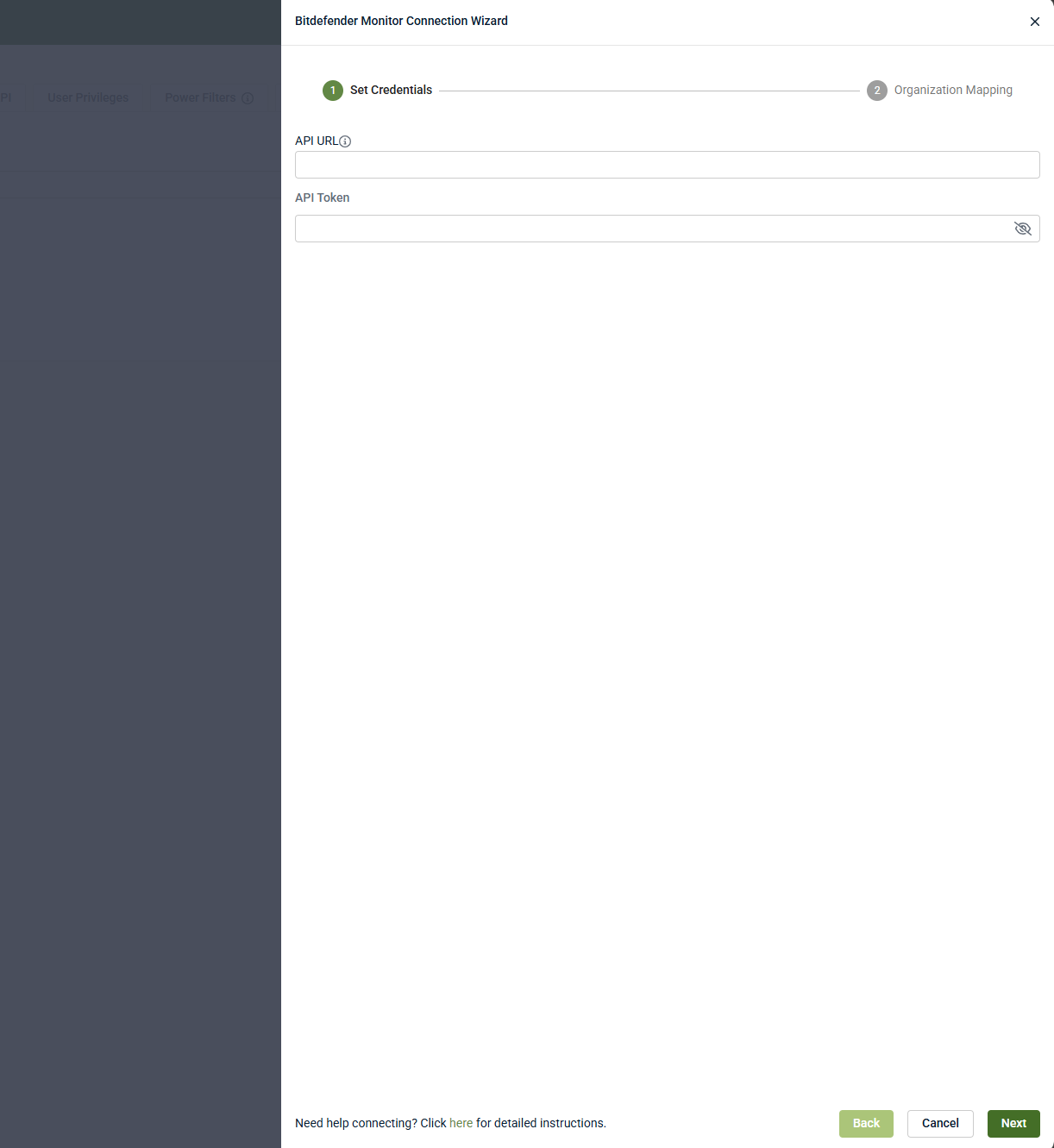
In the Bitdefender Monitor Connection Wizard, enter the API URL and API Token generated in GravityZone.
-
Click Next.
-
Complete the Organization Mapping step and save the integration.
When configured at the partner level, Bitdefender Monitor appears in Settings > Integrations and displays the associated organization.
Connect Kaseya MDR to Bitdefender at the organization level
-
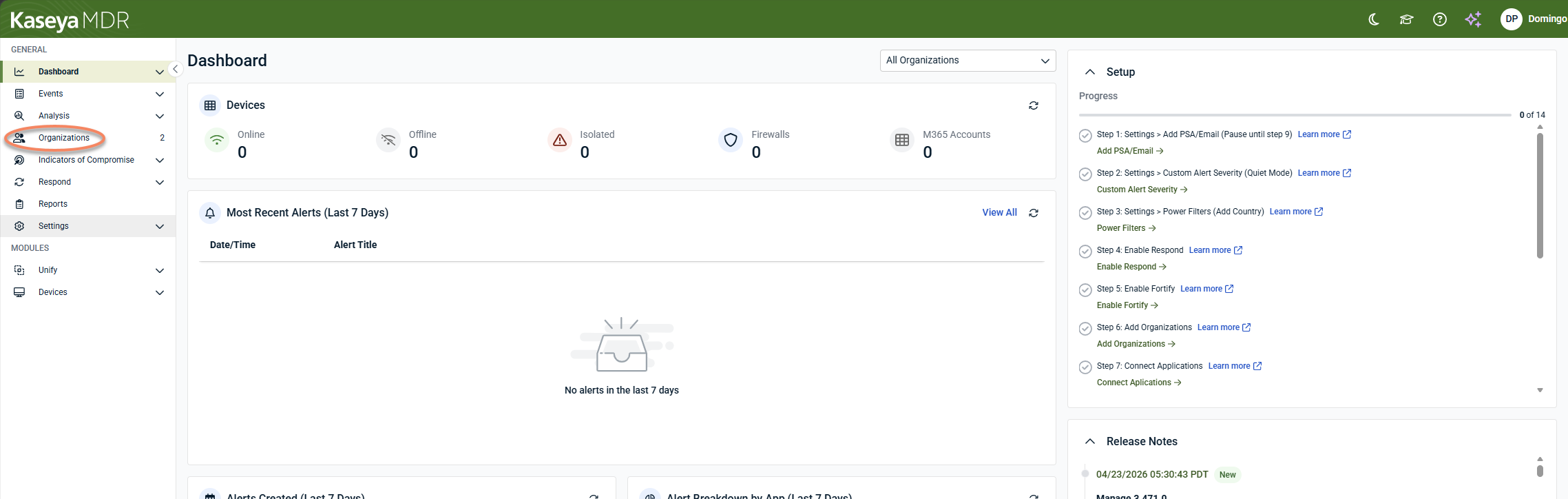
In Kaseya MDR, from the side navigation menu, go to Organizations.
-
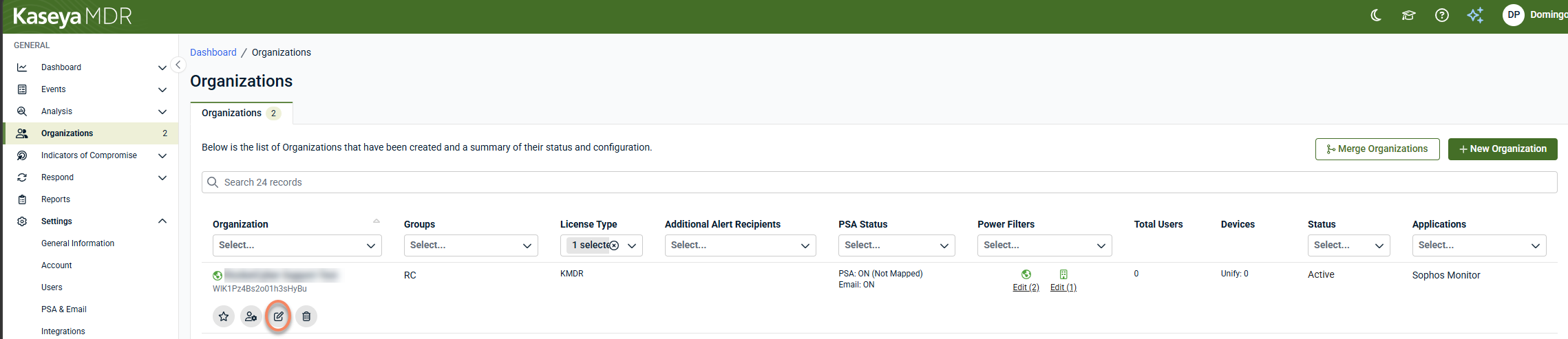
Click Edit Organization (pencil icon) for the organization you want to connect Bitdefender to.
-
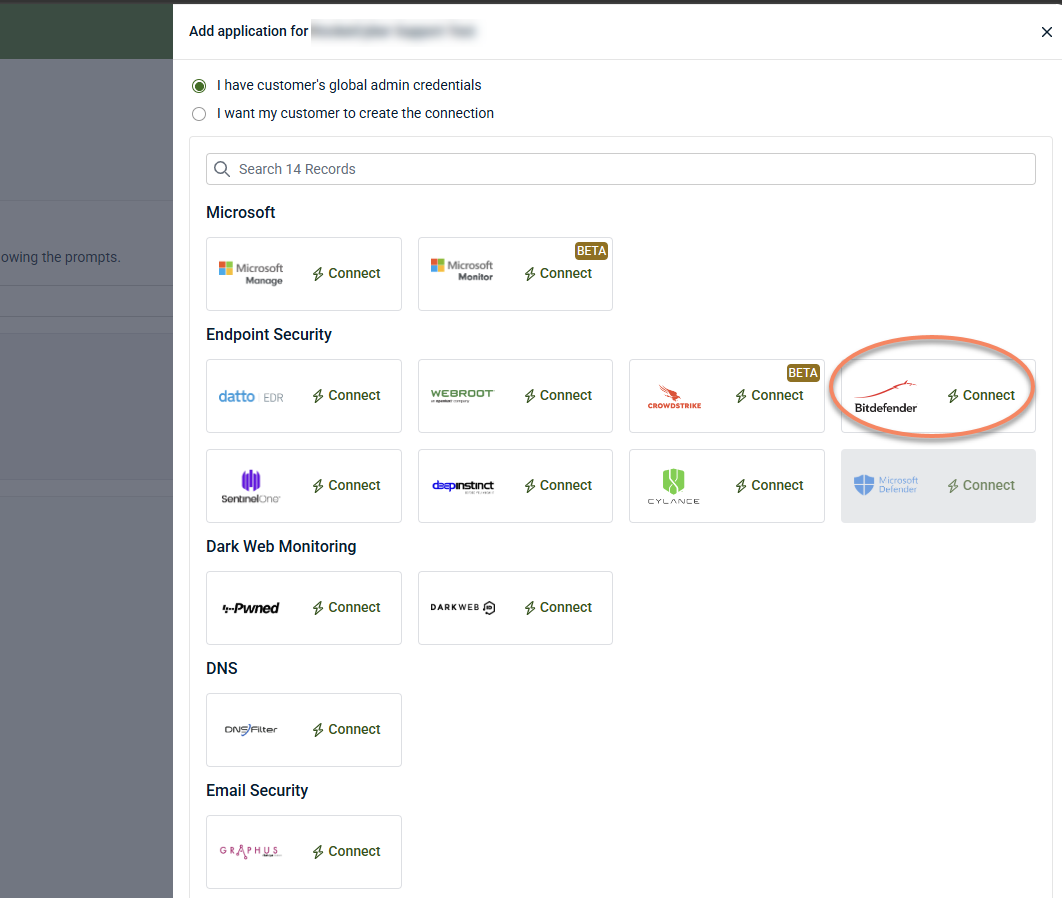
Click +New Application.

-
Under Endpoint Security, locate Bitdefender and click Connect.
-
In the Bitdefender Monitor Connection Wizard, enter the API URL and API Token generated in GravityZone.
-
Click Next.
-
Complete the Organization Mapping step and save the integration.
When configured at the organization level, the Bitdefender application appears under the organization's Applications tab.
Disable the integration in Kaseya MDR
To disable the integration:
-
Navigate to the Bitdefender integration.
-
If configured at the partner level, go to Settings > Integrations, locate Bitdefender, and select View details.
-
If configured at the organization level, go to Organizations, select the organization, and then open the Applications tab.
-
-
Select Disconnect Application.
-
Confirm the action.
Results
-
Bitdefender activity is no longer associated with organizations in Kaseya MDR.
-
Existing Bitdefender GravityZone deployments and configurations remain unchanged.
-
If Bitdefender is configured at the partner level, disconnecting it affects all organizations mapped to that connection.
The integration can be reconnected later using the same workflow, if needed.
FAQ
What credentials are required for the integration?
An API URL and API access token generated from Bitdefender GravityZone Control Center, from an account with Manage Networks, Manage Users, Manage Company, and View and analyze data rights.
What happens if I lose the API token before entering it into Kaseya MDR?
GravityZone only displays the full key once, at the moment it's created. If you navigate away or close the window without copying it, you won't be able to retrieve it again; you'll need to generate a new API key and repeat the setup steps.


